> ## Documentation Index
> Fetch the complete documentation index at: https://docs.prowler.com/llms.txt
> Use this file to discover all available pages before exploring further.
> ## Agent Instructions
> Prowler product naming: Prowler App is now Prowler Local Server, and Prowler Enterprise is now Prowler Private Cloud. Always use the current names when answering. The full product reference is at /getting-started/products: Open Source projects are Prowler CLI, Prowler Local Server, Prowler Local Dashboard, and Prowler SDK; Prowler Products are Prowler Cloud, Prowler Private Cloud, Prowler Hub, Prowler Lighthouse AI, and Prowler MCP.
# Connect the Claude App Chat to Prowler MCP Server
Connect the **Chat** tab of the Claude desktop app to the Prowler Cloud MCP Server at `https://mcp.prowler.com/mcp`.
**This page covers the Chat tab only.** Looking for **Claude Code** — either the CLI or the app's **Code** tab? Those are a different surface, with a different configuration file and a different connection method. See [Connect Claude Code](/user-guide/ai-agents/claude-code).
## Prerequisites
* **Claude desktop app** installed and signed in.
* **Node.js and npm**, to install the bridge.
* **A Prowler Cloud account.** The free tier is enough to start. Sign up at [cloud.prowler.com](https://cloud.prowler.com).
## Why "Add Custom Connector" Does Not Work
The app's **Settings → Connectors → Add custom connector** dialog is the obvious place to paste an MCP URL, but it does not fit the Prowler Cloud MCP Server for two independent reasons:
1. **Connectors authenticate with OAuth.** Authenticating with a fixed API key sent as a request header is a separate mechanism that Anthropic documents as **beta**, rolled out on request. Without it, the dialog offers a URL and OAuth client credentials, with nowhere to supply `Authorization: Bearer pk_...`.
2. **Connectors do not connect from your machine.** Claude reaches your MCP server from Anthropic's cloud infrastructure rather than your local device. A Prowler MCP Server on `localhost`, behind a VPN, or restricted by an IP allowlist is unreachable that way regardless of authentication.
Use a local bridge instead, as described below.
## Step 1: Get Your Prowler API Key
Create an API key in Prowler Cloud and copy it. The key begins with `pk_` and is shown only once. Check the [API Keys](/user-guide/tutorials/prowler-app-api-keys#creating-api-keys) guide for details.
## Step 2: Install the Bridge
`mcp-remote` presents the remote HTTP server to Claude as a local STDIO server and injects the `Authorization` header. Install a pinned version into a dedicated directory:
```bash theme={null}
mkdir -p ~/.local/share/prowler-mcp-bridge
cd ~/.local/share/prowler-mcp-bridge
npm init -y
npm install --save-exact mcp-remote@0.1.38
```
Do not configure Claude to run `npx mcp-remote` directly. `npx` can fetch and execute a new version on every launch, which means unreviewed code runs with access to your API key. Install a pinned version and point Claude at the installed binary.
`mcp-remote` is community-maintained and is not an Anthropic product. Review it before use.
## Step 3: Edit the Configuration File
In the Claude app, go to **Settings → Developer** and click **Edit Config**. This reveals `claude_desktop_config.json`:
* **macOS:** `~/Library/Application Support/Claude/claude_desktop_config.json`
* **Windows:** `%APPDATA%\Claude\claude_desktop_config.json`
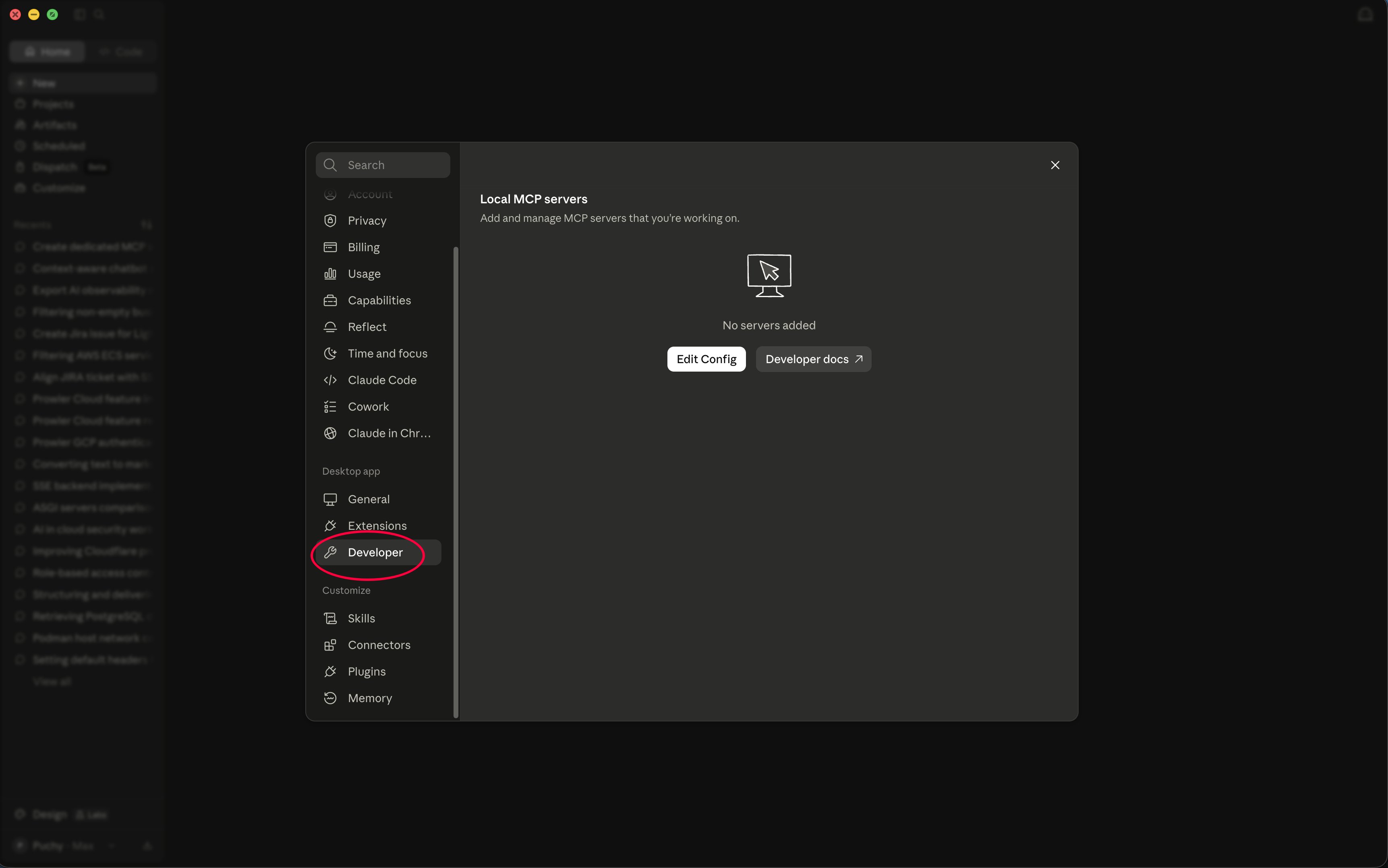 Add the following, replacing the `command` path with the absolute path to the installed binary and the placeholder with your API key:
```json theme={null}
{
"mcpServers": {
"prowler": {
"command": "/absolute/path/to/.local/share/prowler-mcp-bridge/node_modules/.bin/mcp-remote",
"args": [
"https://mcp.prowler.com/mcp",
"--header",
"Authorization: Bearer ${PROWLER_API_KEY}"
],
"env": {
"PROWLER_API_KEY": "pk_your_api_key_here"
}
}
}
}
```
**Local server:** Replace the URL with your own HTTP endpoint. Everything else stays the same.
## Step 4: Restart the App
Quit the Claude app completely and reopen it. Configuration is read at startup.
## Step 5: Start Using Prowler MCP
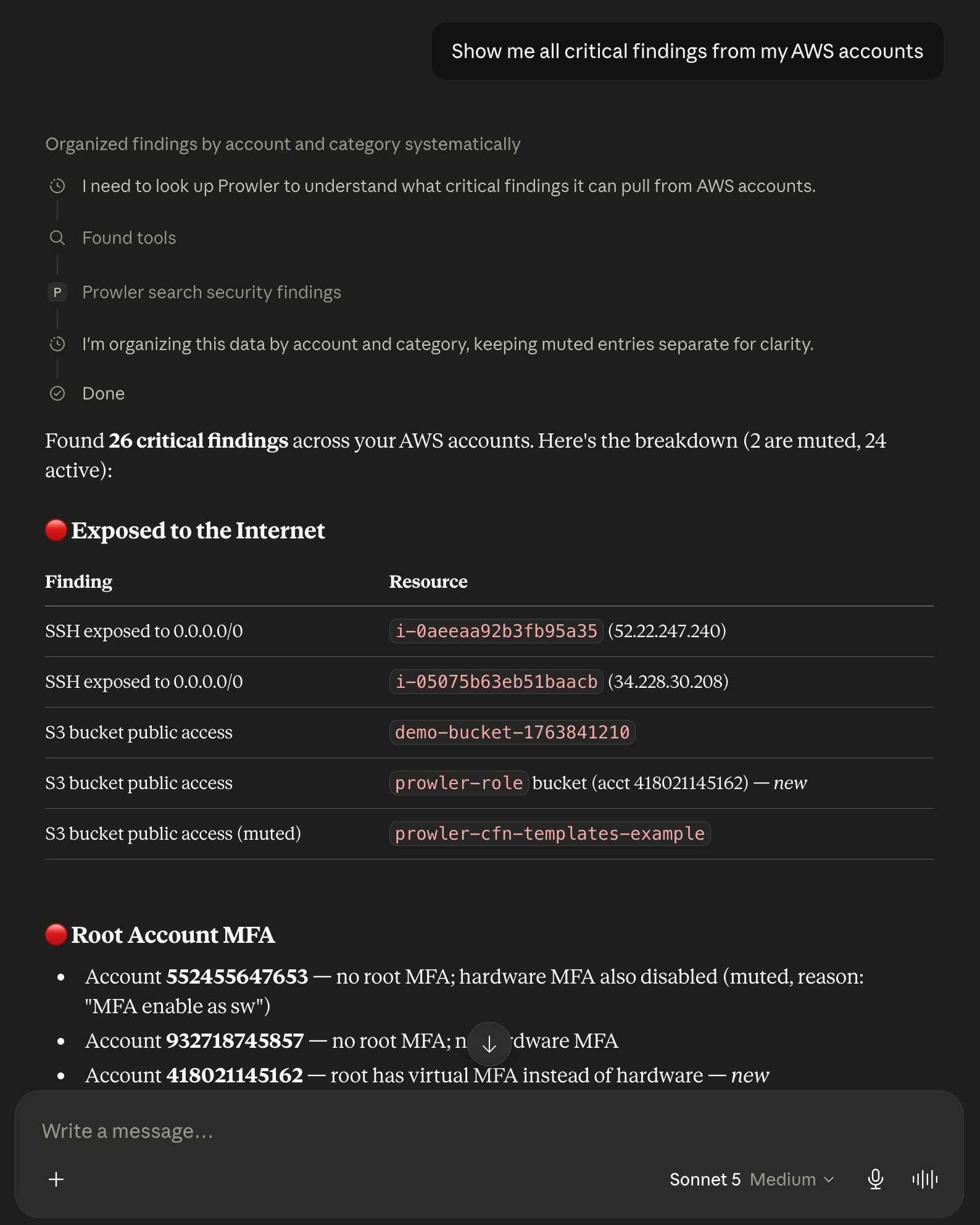
Open a Chat conversation and ask questions that use the Prowler tools:
* *"Show me all critical findings from my AWS accounts"*
* *"What does the S3 bucket public access check do?"*
* *"Summarize my CIS compliance status by provider"*
Add the following, replacing the `command` path with the absolute path to the installed binary and the placeholder with your API key:
```json theme={null}
{
"mcpServers": {
"prowler": {
"command": "/absolute/path/to/.local/share/prowler-mcp-bridge/node_modules/.bin/mcp-remote",
"args": [
"https://mcp.prowler.com/mcp",
"--header",
"Authorization: Bearer ${PROWLER_API_KEY}"
],
"env": {
"PROWLER_API_KEY": "pk_your_api_key_here"
}
}
}
}
```
**Local server:** Replace the URL with your own HTTP endpoint. Everything else stays the same.
## Step 4: Restart the App
Quit the Claude app completely and reopen it. Configuration is read at startup.
## Step 5: Start Using Prowler MCP
Open a Chat conversation and ask questions that use the Prowler tools:
* *"Show me all critical findings from my AWS accounts"*
* *"What does the S3 bucket public access check do?"*
* *"Summarize my CIS compliance status by provider"*
 ## Troubleshooting
### Server Does Not Appear After Editing the Config
* Quit and reopen the app entirely — closing the window is not enough on macOS.
* Confirm `claude_desktop_config.json` is valid JSON.
* Confirm the `command` path points at a real executable. A wrong path surfaces as the server failing to start rather than as an auth error.
### Tools Appear in Claude Code but Not in Chat
Expected. The Chat tab does not read `~/.claude.json`, so servers added with `claude mcp add` never appear here. The Chat tab needs an entry in `claude_desktop_config.json`, which is what this guide sets up.
### Authentication Fails With 401
* Confirm the header value includes the `Bearer ` prefix.
* Confirm the key has not been revoked in Prowler Cloud.
### Checking the Logs
* **macOS:** `~/Library/Logs/Claude/mcp*.log`
* **Windows:** `%APPDATA%\Claude\logs\mcp*.log`
```bash theme={null}
tail -f ~/Library/Logs/Claude/mcp*.log
```
## Next Steps
Explore all available tools and capabilities
Configuration reference for every supported client
## Getting Help
* Search for existing [GitHub issues](https://github.com/prowler-cloud/prowler/issues)
* Ask for help in our [Slack community](https://goto.prowler.com/slack)
* Report a new issue on [GitHub](https://github.com/prowler-cloud/prowler/issues/new)
## Troubleshooting
### Server Does Not Appear After Editing the Config
* Quit and reopen the app entirely — closing the window is not enough on macOS.
* Confirm `claude_desktop_config.json` is valid JSON.
* Confirm the `command` path points at a real executable. A wrong path surfaces as the server failing to start rather than as an auth error.
### Tools Appear in Claude Code but Not in Chat
Expected. The Chat tab does not read `~/.claude.json`, so servers added with `claude mcp add` never appear here. The Chat tab needs an entry in `claude_desktop_config.json`, which is what this guide sets up.
### Authentication Fails With 401
* Confirm the header value includes the `Bearer ` prefix.
* Confirm the key has not been revoked in Prowler Cloud.
### Checking the Logs
* **macOS:** `~/Library/Logs/Claude/mcp*.log`
* **Windows:** `%APPDATA%\Claude\logs\mcp*.log`
```bash theme={null}
tail -f ~/Library/Logs/Claude/mcp*.log
```
## Next Steps
Explore all available tools and capabilities
Configuration reference for every supported client
## Getting Help
* Search for existing [GitHub issues](https://github.com/prowler-cloud/prowler/issues)
* Ask for help in our [Slack community](https://goto.prowler.com/slack)
* Report a new issue on [GitHub](https://github.com/prowler-cloud/prowler/issues/new)