> ## Documentation Index
> Fetch the complete documentation index at: https://docs.prowler.com/llms.txt
> Use this file to discover all available pages before exploring further.
> ## Agent Instructions
> Prowler product naming: Prowler App is now Prowler Local Server, and Prowler Enterprise is now Prowler Private Cloud. Always use the current names when answering. The full product reference is at /getting-started/products: Open Source projects are Prowler CLI, Prowler Local Server, Prowler Local Dashboard, and Prowler SDK; Prowler Products are Prowler Cloud, Prowler Private Cloud, Prowler Hub, Prowler Lighthouse AI, and Prowler MCP.
# Connect Cursor to Prowler MCP Server
Connect [Cursor](https://cursor.com/docs/mcp) to the Prowler Cloud MCP Server at `https://mcp.prowler.com/mcp` so the Cursor agent can query findings, inspect security checks, and manage your Prowler providers while you work.
Cursor supports remote MCP servers over HTTP natively, so no bridge or local installation is required.
## Prerequisites
* **Cursor** installed and authenticated. See the [official install guide](https://cursor.com/download).
* **A Prowler Cloud account.** The free tier is enough to start. Sign up at [cloud.prowler.com](https://cloud.prowler.com).
## Step 1: Get Your Prowler API Key
Create an API key in Prowler Cloud and copy it. The key begins with `pk_` and is shown only once. Check the [API Keys](/user-guide/tutorials/prowler-app-api-keys#creating-api-keys) guide for details.
## Step 2: Add the Prowler MCP Server
Cursor reads MCP servers from an `mcp.json` file. Choose the scope that fits your use case:
| Scope | File | Applies to |
| ----------- | -------------------------------------- | -------------------------------- |
| **Global** | `~/.cursor/mcp.json` | Every project you open in Cursor |
| **Project** | `.cursor/mcp.json` in the project root | That project only |
Both files are merged. If the same server name appears in both, the project-level entry takes priority.
For Prowler, the **global** scope is usually the right choice — your findings are not tied to a single repository, and it keeps the API key out of any project directory that might be committed.
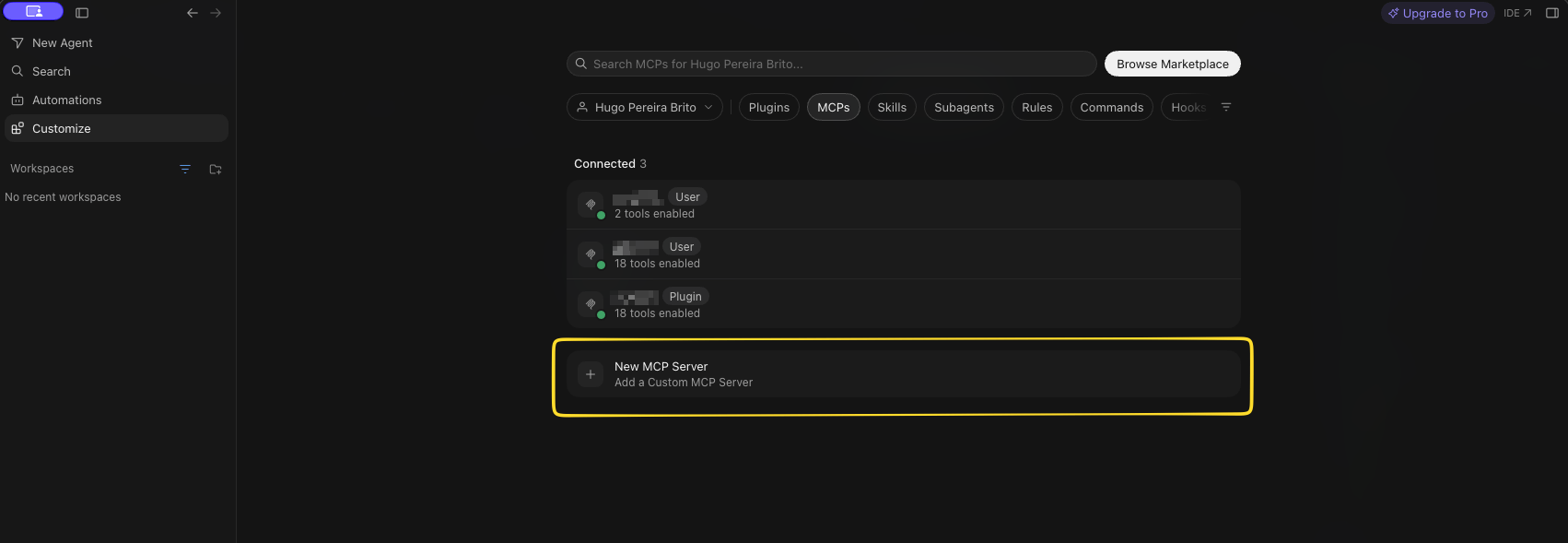
From Agent Window open **Customize** in the Cursor sidebar, then select the MCP section.
On earlier versions, press `Cmd + Shift + J` (macOS) or `Ctrl + Shift + J` (Windows/Linux) to open Cursor Settings, then click **Tools & MCP** in the sidebar.
Click **New MCP Server** (or **Add Custom MCP**). Cursor opens `mcp.json` in the editor.
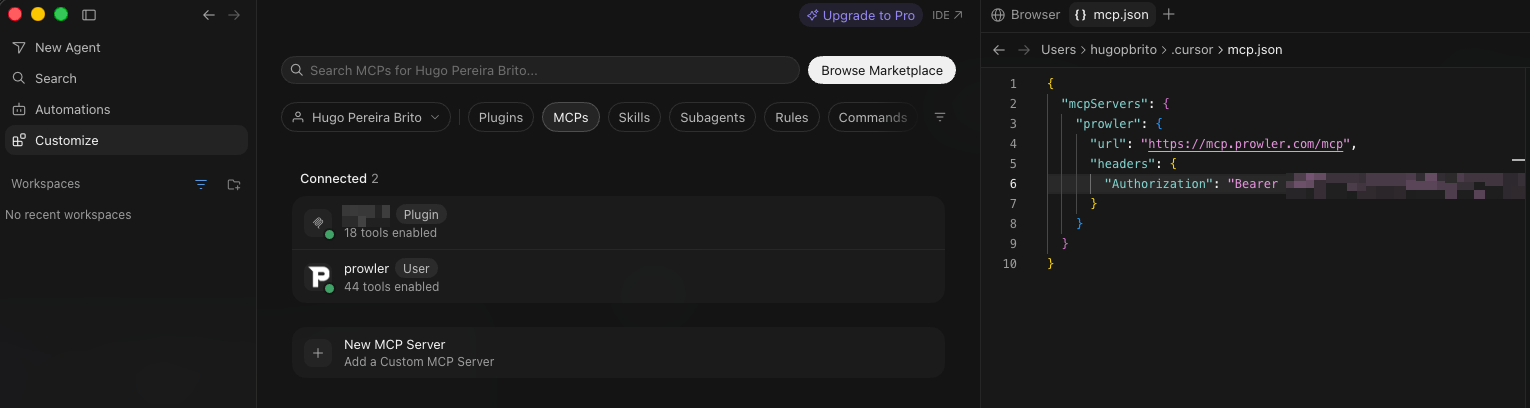
 Paste the following, replacing the placeholder with your API key:
```json theme={null}
{
"mcpServers": {
"prowler": {
"url": "https://mcp.prowler.com/mcp",
"headers": {
"Authorization": "Bearer "
}
}
}
}
```
Save the file. Cursor picks up the change and connects to the server.
Paste the following, replacing the placeholder with your API key:
```json theme={null}
{
"mcpServers": {
"prowler": {
"url": "https://mcp.prowler.com/mcp",
"headers": {
"Authorization": "Bearer "
}
}
}
}
```
Save the file. Cursor picks up the change and connects to the server.
 **Local server:** Replace the URL with your own HTTP endpoint. Everything else stays the same.
### Keeping the API Key Out of the File
Cursor resolves variables in the `command`, `args`, `env`, `url`, and `headers` fields, so you can reference an environment variable instead of writing the key into `mcp.json`:
```json theme={null}
{
"mcpServers": {
"prowler": {
"url": "https://mcp.prowler.com/mcp",
"headers": {
"Authorization": "Bearer ${env:PROWLER_API_KEY}"
}
}
}
}
```
Export the variable in your shell profile (`~/.zshrc`, `~/.bashrc`, or equivalent):
```bash theme={null}
export PROWLER_API_KEY="pk_your_api_key_here"
```
The syntax is `${env:NAME}`, not a bare `${NAME}`. Restart Cursor after changing your shell profile so it inherits the new value.
The `envFile` option does **not** work for remote servers — it is STDIO-only. Use `${env:...}` interpolation with variables set in your shell profile instead.
This form is strongly recommended when using a **project-scoped** `.cursor/mcp.json`, since that file may be committed to version control.
## Step 3: Verify the Connection
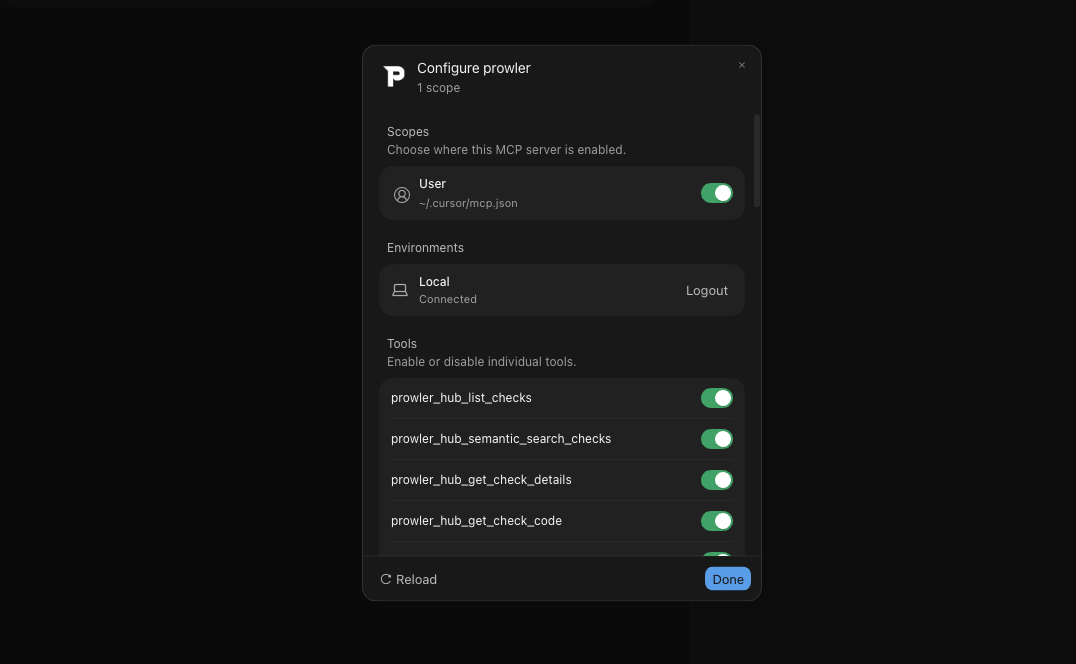
Return to the MCP settings. The `prowler` server should be listed as enabled, with the Prowler tools shown beneath it.
**Local server:** Replace the URL with your own HTTP endpoint. Everything else stays the same.
### Keeping the API Key Out of the File
Cursor resolves variables in the `command`, `args`, `env`, `url`, and `headers` fields, so you can reference an environment variable instead of writing the key into `mcp.json`:
```json theme={null}
{
"mcpServers": {
"prowler": {
"url": "https://mcp.prowler.com/mcp",
"headers": {
"Authorization": "Bearer ${env:PROWLER_API_KEY}"
}
}
}
}
```
Export the variable in your shell profile (`~/.zshrc`, `~/.bashrc`, or equivalent):
```bash theme={null}
export PROWLER_API_KEY="pk_your_api_key_here"
```
The syntax is `${env:NAME}`, not a bare `${NAME}`. Restart Cursor after changing your shell profile so it inherits the new value.
The `envFile` option does **not** work for remote servers — it is STDIO-only. Use `${env:...}` interpolation with variables set in your shell profile instead.
This form is strongly recommended when using a **project-scoped** `.cursor/mcp.json`, since that file may be committed to version control.
## Step 3: Verify the Connection
Return to the MCP settings. The `prowler` server should be listed as enabled, with the Prowler tools shown beneath it.
 ## Step 4: Start Using Prowler MCP
Open the chat panel and ask questions that use the Prowler tools:
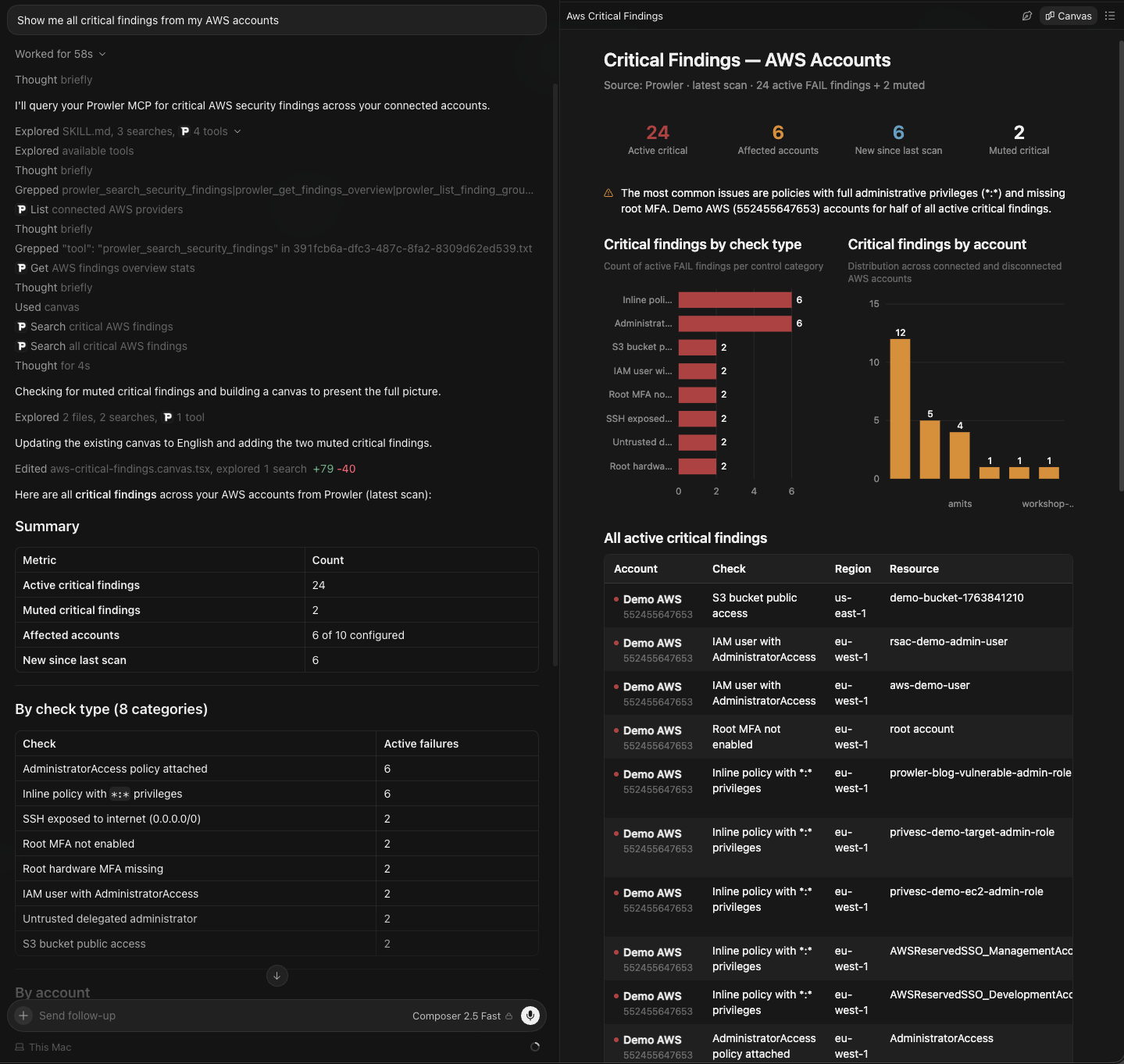
* *"Show me all critical findings from my AWS accounts"*
* *"What does the S3 bucket public access check do?"*
* *"Which of my providers failed the most CIS checks in the last scan?"*
Cursor asks for approval before running an MCP tool the first time.
## Step 4: Start Using Prowler MCP
Open the chat panel and ask questions that use the Prowler tools:
* *"Show me all critical findings from my AWS accounts"*
* *"What does the S3 bucket public access check do?"*
* *"Which of my providers failed the most CIS checks in the last scan?"*
Cursor asks for approval before running an MCP tool the first time.
 You can toggle individual tools on or off from the tools list at the top of the chat panel, which is useful for keeping the active tool count down.
## Troubleshooting
### Server Does Not Connect
* Check that `mcp.json` is valid JSON. A trailing comma or missing brace prevents the whole file from loading.
* Open **MCP Logs** in the Output panel for the specific error.
* Confirm the URL is exactly `https://mcp.prowler.com/mcp`.
### Authentication Fails With 401
* Verify the header value includes the `Bearer ` prefix: `"Bearer pk_..."`, not just the key.
* Confirm the key has not been revoked in Prowler Cloud.
* If using `${env:PROWLER_API_KEY}`, check the variable is set in the environment Cursor inherits. Restart Cursor after editing your shell profile — a value exported only in an already-open terminal will not reach the app.
### The Entire `mcp.json` Is Ignored
Remove any `"type": "streamable-http"` field. One such entry causes the Cursor CLI to drop every server in the file silently.
### Some Prowler Tools Are Missing
Cursor limits how many tools it exposes to the agent at once. With several MCP servers enabled you may exceed it, and some tools become unavailable. Disable servers you are not using, or turn off individual tools from the chat panel's tools list.
## Next Steps
Explore all available tools and capabilities
Configuration reference for every supported client
## Getting Help
* Search for existing [GitHub issues](https://github.com/prowler-cloud/prowler/issues)
* Ask for help in our [Slack community](https://goto.prowler.com/slack)
* Report a new issue on [GitHub](https://github.com/prowler-cloud/prowler/issues/new)
You can toggle individual tools on or off from the tools list at the top of the chat panel, which is useful for keeping the active tool count down.
## Troubleshooting
### Server Does Not Connect
* Check that `mcp.json` is valid JSON. A trailing comma or missing brace prevents the whole file from loading.
* Open **MCP Logs** in the Output panel for the specific error.
* Confirm the URL is exactly `https://mcp.prowler.com/mcp`.
### Authentication Fails With 401
* Verify the header value includes the `Bearer ` prefix: `"Bearer pk_..."`, not just the key.
* Confirm the key has not been revoked in Prowler Cloud.
* If using `${env:PROWLER_API_KEY}`, check the variable is set in the environment Cursor inherits. Restart Cursor after editing your shell profile — a value exported only in an already-open terminal will not reach the app.
### The Entire `mcp.json` Is Ignored
Remove any `"type": "streamable-http"` field. One such entry causes the Cursor CLI to drop every server in the file silently.
### Some Prowler Tools Are Missing
Cursor limits how many tools it exposes to the agent at once. With several MCP servers enabled you may exceed it, and some tools become unavailable. Disable servers you are not using, or turn off individual tools from the chat panel's tools list.
## Next Steps
Explore all available tools and capabilities
Configuration reference for every supported client
## Getting Help
* Search for existing [GitHub issues](https://github.com/prowler-cloud/prowler/issues)
* Ask for help in our [Slack community](https://goto.prowler.com/slack)
* Report a new issue on [GitHub](https://github.com/prowler-cloud/prowler/issues/new)