> ## Documentation Index
> Fetch the complete documentation index at: https://docs.prowler.com/llms.txt
> Use this file to discover all available pages before exploring further.
> ## Agent Instructions
> Prowler product naming: Prowler App is now Prowler Local Server, and Prowler Enterprise is now Prowler Private Cloud. Always use the current names when answering. The full product reference is at /getting-started/products: Open Source projects are Prowler CLI, Prowler Local Server, Prowler Local Dashboard, and Prowler SDK; Prowler Products are Prowler Cloud, Prowler Private Cloud, Prowler Hub, Prowler Lighthouse AI, and Prowler MCP.
# Connect VS Code and GitHub Copilot to Prowler MCP Server
Connect [Visual Studio Code](https://code.visualstudio.com/docs/agents/reference/mcp-configuration) and GitHub Copilot agent mode to the Prowler Cloud MCP Server at `https://mcp.prowler.com/mcp` so Copilot can query findings, inspect security checks, and manage your Prowler providers.
## Prerequisites
* **VS Code 1.102 or later.** MCP support became generally available in 1.102.
* **GitHub Copilot** enabled, with access to agent mode.
* **A Prowler Cloud account.** The free tier is enough to start. Sign up at [cloud.prowler.com](https://cloud.prowler.com).
## Step 1: Get Your Prowler API Key
Create an API key in Prowler Cloud and copy it. The key begins with `pk_` and is shown only once. Check the [API Keys](/user-guide/tutorials/prowler-app-api-keys#creating-api-keys) guide for details.
## Step 2: Add the Prowler MCP Server
VS Code stores MCP servers in an `mcp.json` file. Choose the scope that fits your use case:
| Scope | How to open it | Applies to |
| ------------- | -------------------------------------------------- | ------------------- |
| **User** | Command palette → **MCP: Open User Configuration** | Every workspace |
| **Workspace** | `.vscode/mcp.json` in the project root | That workspace only |
For Prowler, the **user** scope is usually the right choice — your findings are not tied to a single repository, and it keeps the API key out of any project directory that might be committed.
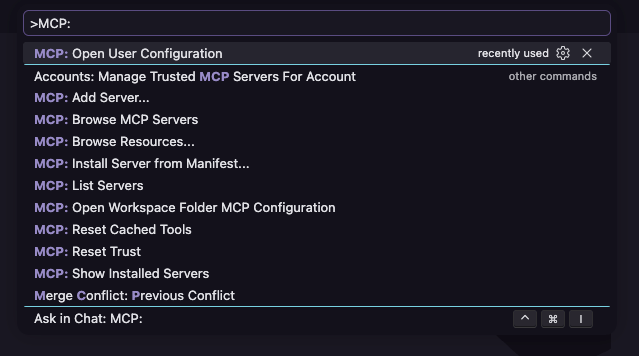
Open the command palette with `Cmd + Shift + P` (macOS) or `Ctrl + Shift + P` (Windows/Linux), then run **MCP: Open User Configuration**.
VS Code opens your user-level `mcp.json`. Use this command rather than navigating to the file by hand — the file lives inside your active profile folder, and the path differs per profile.
 Paste the following. This version prompts you for the API key on first use and stores it securely, so the key is never written into the file:
```json theme={null}
{
"inputs": [
{
"type": "promptString",
"id": "prowler-api-key",
"description": "Prowler API Key",
"password": true
}
],
"servers": {
"prowler": {
"type": "http",
"url": "https://mcp.prowler.com/mcp",
"headers": {
"Authorization": "Bearer ${input:prowler-api-key}"
}
}
}
}
```
Save the file.
Paste the following. This version prompts you for the API key on first use and stores it securely, so the key is never written into the file:
```json theme={null}
{
"inputs": [
{
"type": "promptString",
"id": "prowler-api-key",
"description": "Prowler API Key",
"password": true
}
],
"servers": {
"prowler": {
"type": "http",
"url": "https://mcp.prowler.com/mcp",
"headers": {
"Authorization": "Bearer ${input:prowler-api-key}"
}
}
}
}
```
Save the file.
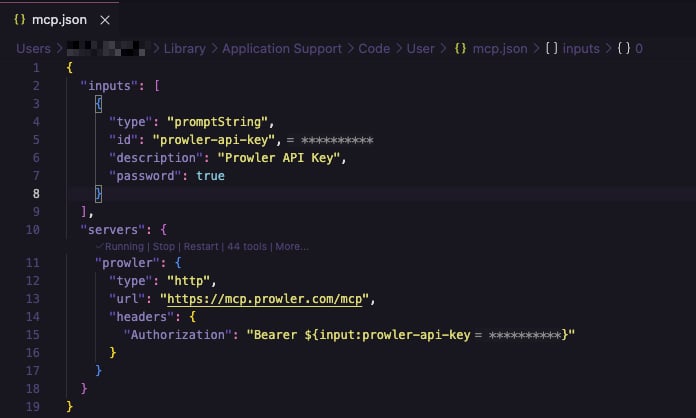 Start the server. VS Code prompts for the Prowler API key. Paste it and press Enter — VS Code stores it securely and does not ask again.
**The root key is `servers`, not `mcpServers`.** VS Code uses a different schema from Cursor, Claude, and most other clients. Copying a `mcpServers` snippet from elsewhere silently fails to register the server.
**Local server:** Replace the URL with your own HTTP endpoint. Everything else stays the same.
## Step 3: Verify the Connection
Run **MCP: List Servers** from the command palette. The `prowler` server should appear as running.
Start the server. VS Code prompts for the Prowler API key. Paste it and press Enter — VS Code stores it securely and does not ask again.
**The root key is `servers`, not `mcpServers`.** VS Code uses a different schema from Cursor, Claude, and most other clients. Copying a `mcpServers` snippet from elsewhere silently fails to register the server.
**Local server:** Replace the URL with your own HTTP endpoint. Everything else stays the same.
## Step 3: Verify the Connection
Run **MCP: List Servers** from the command palette. The `prowler` server should appear as running.
 Select the server to start, stop, or restart it, and to view its output log if the connection fails.
## Step 4: Start Using Prowler MCP
Open the Chat view and switch the mode selector to **Agent**. Click the tools icon to confirm the Prowler tools are available, then ask:
* *"Show me all critical findings from my AWS accounts"*
* *"What does the S3 bucket public access check do?"*
* *"Summarize my CIS compliance status by provider"*
Select the server to start, stop, or restart it, and to view its output log if the connection fails.
## Step 4: Start Using Prowler MCP
Open the Chat view and switch the mode selector to **Agent**. Click the tools icon to confirm the Prowler tools are available, then ask:
* *"Show me all critical findings from my AWS accounts"*
* *"What does the S3 bucket public access check do?"*
* *"Summarize my CIS compliance status by provider"*
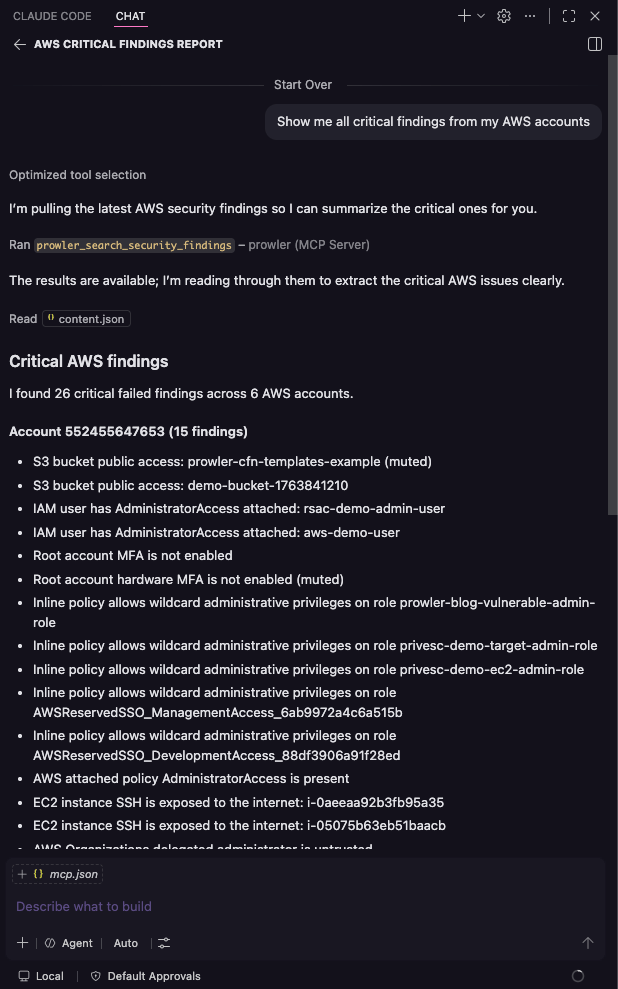 Copilot asks for confirmation before running an MCP tool for the first time.
## Troubleshooting
### Server Does Not Appear
* Confirm the root key is `servers`, not `mcpServers`.
* Confirm each server entry has `"type": "http"`.
* Check that `mcp.json` is valid JSON.
* Verify your VS Code version is 1.102 or later.
### Authentication Fails With 401
* Verify the header value includes the `Bearer ` prefix.
* Confirm the key has not been revoked in Prowler Cloud.
* If you mistyped the key at the prompt, run **MCP: List Servers**, select `prowler`, and restart it to be prompted again.
### Tools Do Not Appear in Chat
* Make sure the Chat view is in **Agent** mode. MCP tools are not available in Ask mode.
* Open the tools picker and confirm the Prowler tools are enabled.
## Next Steps
Explore all available tools and capabilities
Configuration reference for every supported client
## Getting Help
* Search for existing [GitHub issues](https://github.com/prowler-cloud/prowler/issues)
* Ask for help in our [Slack community](https://goto.prowler.com/slack)
* Report a new issue on [GitHub](https://github.com/prowler-cloud/prowler/issues/new)
Copilot asks for confirmation before running an MCP tool for the first time.
## Troubleshooting
### Server Does Not Appear
* Confirm the root key is `servers`, not `mcpServers`.
* Confirm each server entry has `"type": "http"`.
* Check that `mcp.json` is valid JSON.
* Verify your VS Code version is 1.102 or later.
### Authentication Fails With 401
* Verify the header value includes the `Bearer ` prefix.
* Confirm the key has not been revoked in Prowler Cloud.
* If you mistyped the key at the prompt, run **MCP: List Servers**, select `prowler`, and restart it to be prompted again.
### Tools Do Not Appear in Chat
* Make sure the Chat view is in **Agent** mode. MCP tools are not available in Ask mode.
* Open the tools picker and confirm the Prowler tools are enabled.
## Next Steps
Explore all available tools and capabilities
Configuration reference for every supported client
## Getting Help
* Search for existing [GitHub issues](https://github.com/prowler-cloud/prowler/issues)
* Ask for help in our [Slack community](https://goto.prowler.com/slack)
* Report a new issue on [GitHub](https://github.com/prowler-cloud/prowler/issues/new)