> ## Documentation Index
> Fetch the complete documentation index at: https://docs.prowler.com/llms.txt
> Use this file to discover all available pages before exploring further.
# Azure Authentication in Prowler
Prowler for Azure supports multiple authentication types. Authentication methods vary between Prowler App and Prowler CLI:
**Prowler App:**
* [**Service Principal Application**](#service-principal-application-authentication-recommended)
**Prowler CLI:**
* [**Service Principal Application**](#service-principal-application-authentication-recommended) (**Recommended**)
* [**AZ CLI credentials**](#az-cli-authentication)
* [**Interactive browser authentication**](#browser-authentication)
* [**Managed Identity Authentication**](#managed-identity-authentication)
## Required Permissions
Prowler for Azure requires two types of permission scopes:
### Microsoft Entra ID Permissions
These permissions allow Prowler to retrieve metadata from the assumed identity and perform specific Entra checks. While not mandatory for execution, they enhance functionality.
#### Assigning Required API Permissions
Assign the following Microsoft Graph permissions:
* `AuditLog.Read.All`
* `Directory.Read.All`
* `Policy.Read.All`
Replace `Directory.Read.All` with `Domain.Read.All` for more restrictive permissions. Note that Entra checks related to DirectoryRoles and GetUsers will not run with this permission.
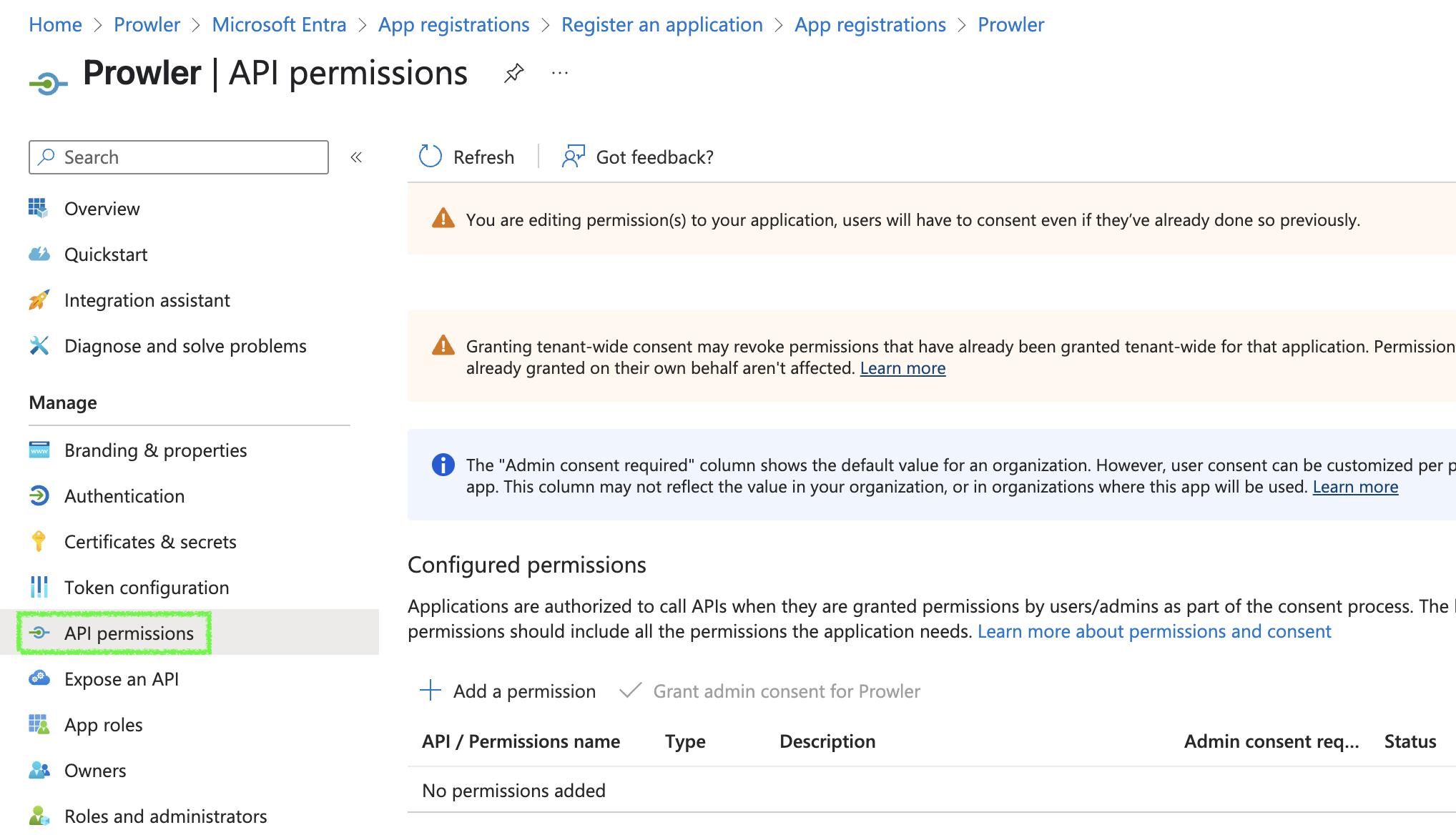
1. Go to your App Registration > "API permissions"
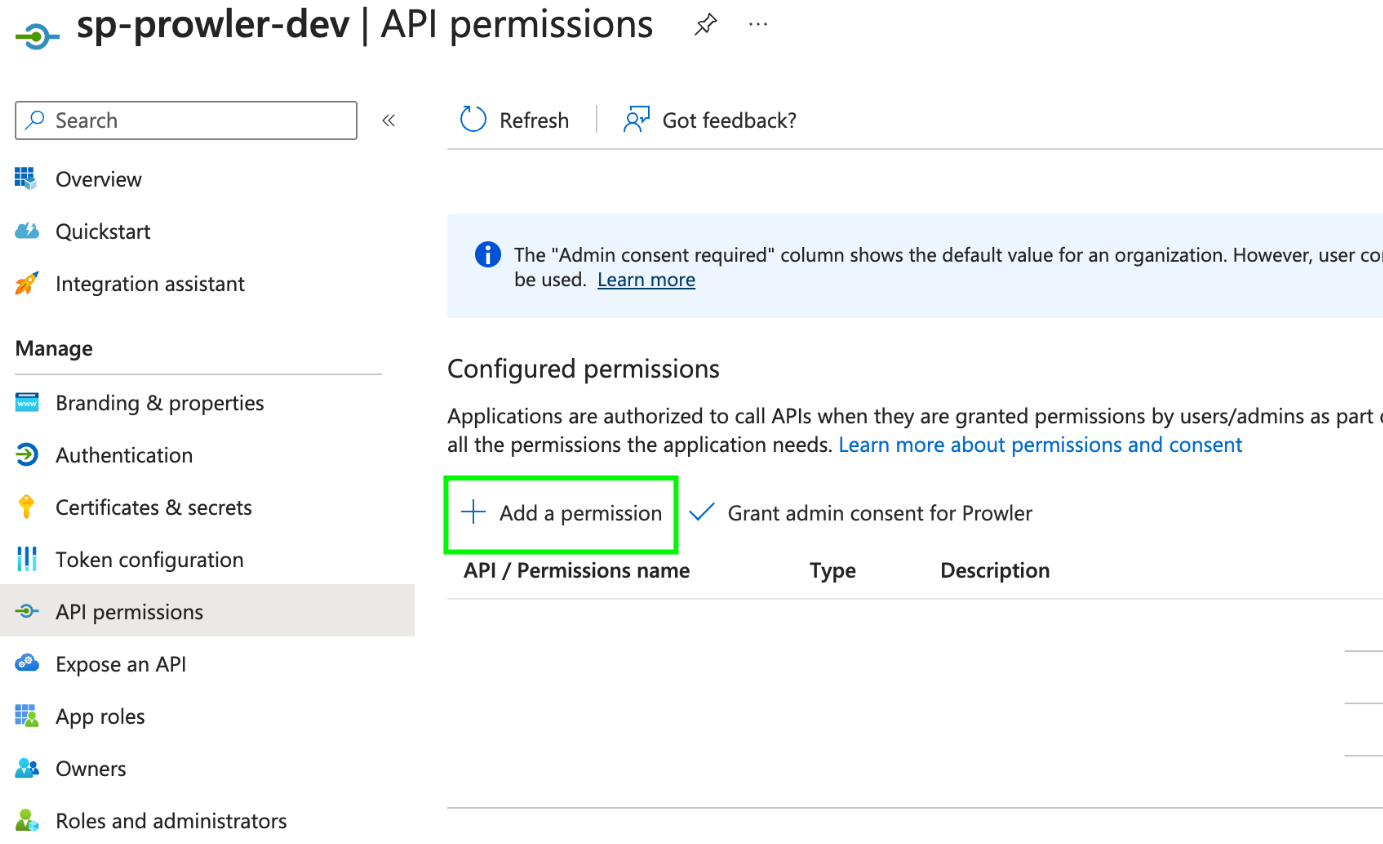
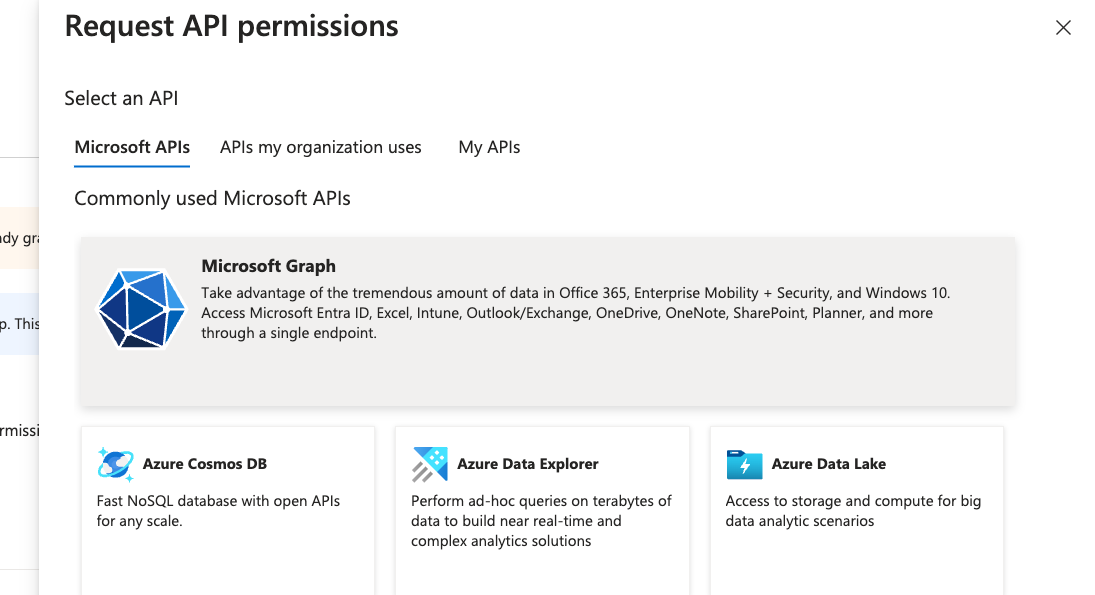
 2. Click "+ Add a permission" > "Microsoft Graph" > "Application permissions"
 3. Search and select:
* `AuditLog.Read.All`
* `Directory.Read.All`
* `Policy.Read.All`
3. Search and select:
* `AuditLog.Read.All`
* `Directory.Read.All`
* `Policy.Read.All`
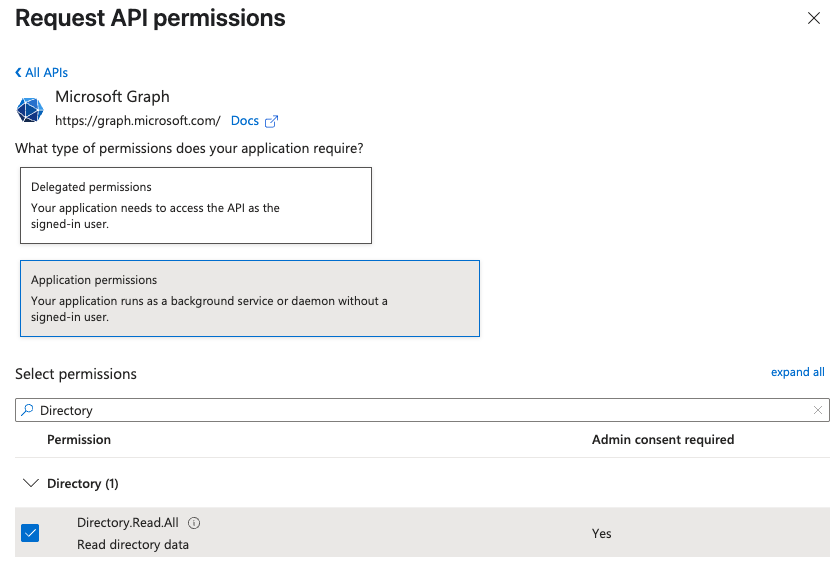 4. Click "Add permissions", then grant admin consent
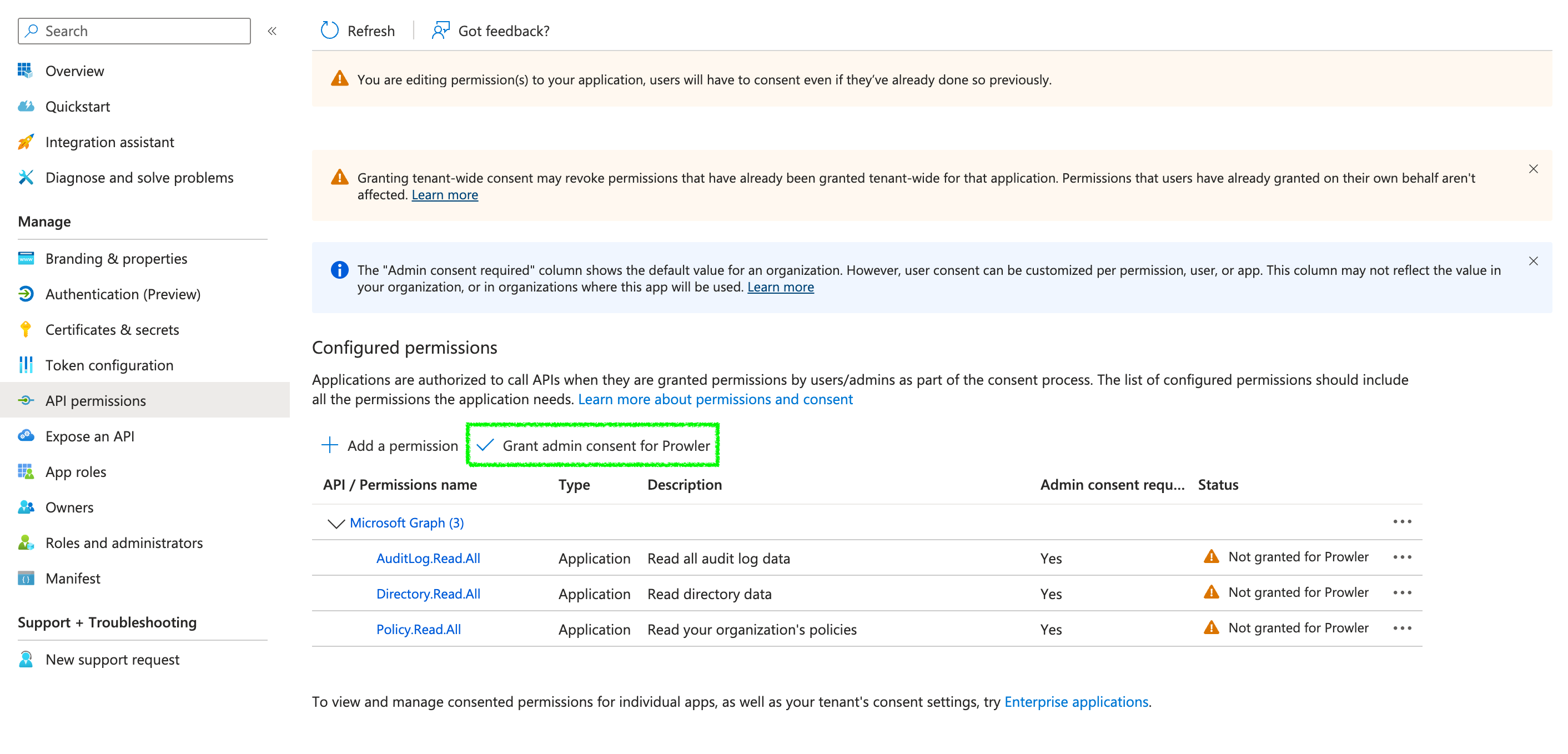
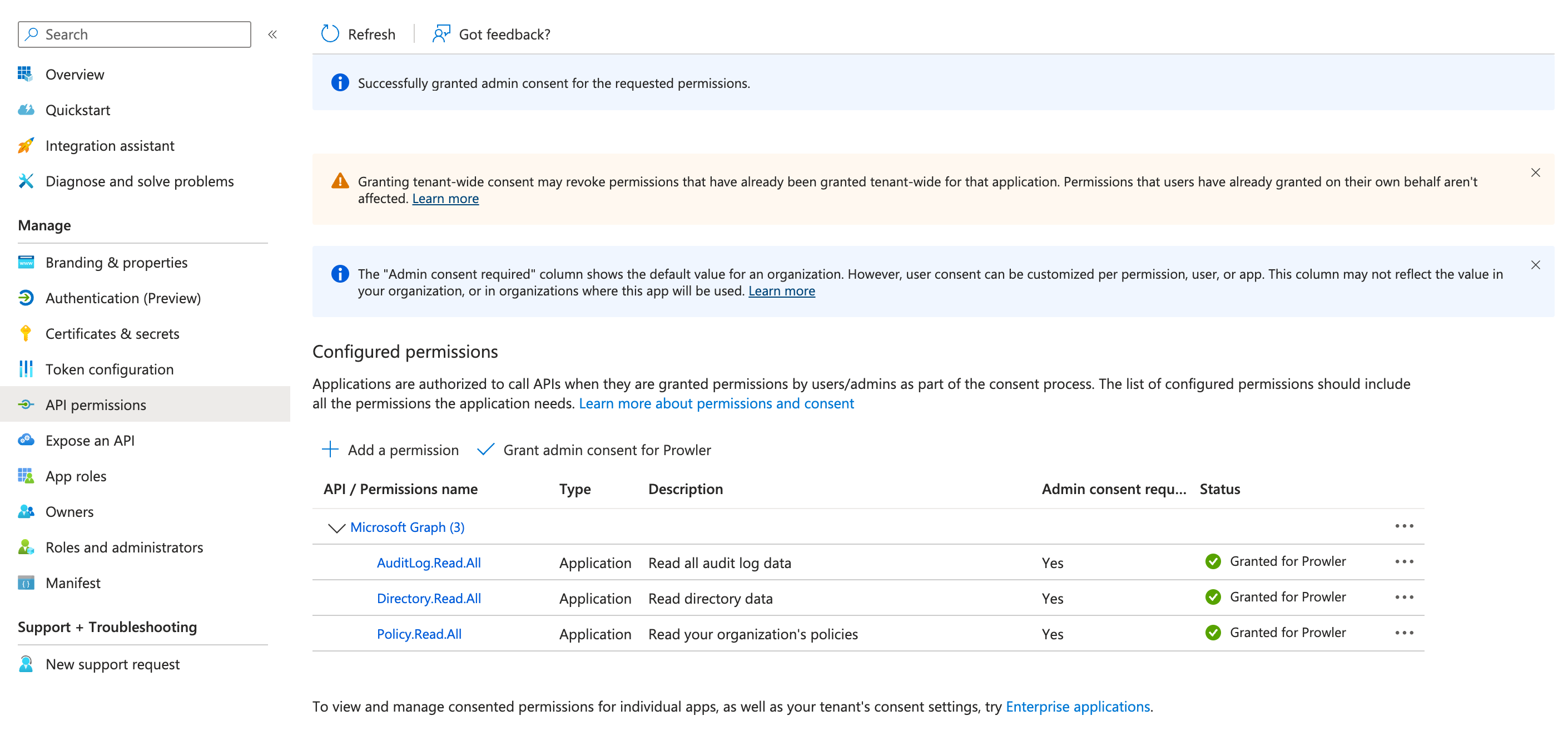 1. To grant permissions to a Service Principal, execute the following command in a terminal:
```console theme={null}
az ad app permission add --id {appId} --api 00000003-0000-0000-c000-000000000000 --api-permissions 7ab1d382-f21e-4acd-a863-ba3e13f7da61=Role 246dd0d5-5bd0-4def-940b-0421030a5b68=Role b0afded3-3588-46d8-8b3d-9842eff778da=Role
```
### Subscription Scope Permissions
These permissions are required to perform security checks against Azure resources. The following **RBAC roles** must be assigned per subscription to the entity used by Prowler:
* `Reader` – Grants read-only access to Azure resources.
* `ProwlerRole` – A custom role with minimal permissions needed for some specific checks, defined in the [prowler-azure-custom-role](https://github.com/prowler-cloud/prowler/blob/master/permissions/prowler-azure-custom-role.json).
#### Assigning "Reader" Role at the Subscription Level
By default, Prowler scans all accessible subscriptions. If you need to audit specific subscriptions, you must assign the necessary role `Reader` for each one. For streamlined and less repetitive role assignments in multi-subscription environments, refer to the [following section](/user-guide/providers/azure/subscriptions#recommendation-for-managing-multiple-subscriptions).
1. To grant Prowler access to scan a specific Azure subscription, follow these steps in Azure Portal:
Navigate to the subscription you want to audit with Prowler.
2. In the left menu, select "Access control (IAM)".
3. Click "+ Add" and select "Add role assignment".
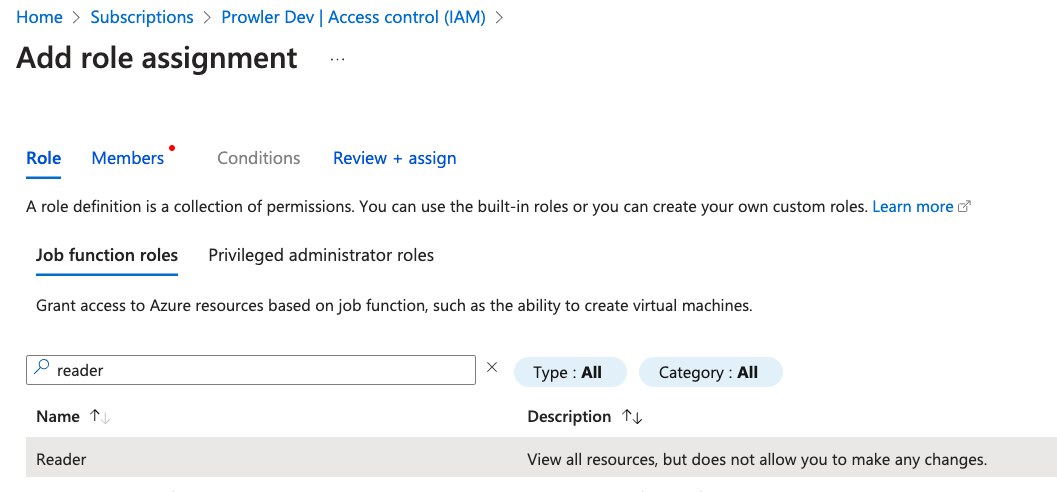
4. In the search bar, enter `Reader`, select it and click "Next".
5. In the "Members" tab, click "+ Select members", then add the accounts to assign this role.
6. Click "Review + assign" to finalize and apply the role assignment.
1. To grant permissions to a Service Principal, execute the following command in a terminal:
```console theme={null}
az ad app permission add --id {appId} --api 00000003-0000-0000-c000-000000000000 --api-permissions 7ab1d382-f21e-4acd-a863-ba3e13f7da61=Role 246dd0d5-5bd0-4def-940b-0421030a5b68=Role b0afded3-3588-46d8-8b3d-9842eff778da=Role
```
### Subscription Scope Permissions
These permissions are required to perform security checks against Azure resources. The following **RBAC roles** must be assigned per subscription to the entity used by Prowler:
* `Reader` – Grants read-only access to Azure resources.
* `ProwlerRole` – A custom role with minimal permissions needed for some specific checks, defined in the [prowler-azure-custom-role](https://github.com/prowler-cloud/prowler/blob/master/permissions/prowler-azure-custom-role.json).
#### Assigning "Reader" Role at the Subscription Level
By default, Prowler scans all accessible subscriptions. If you need to audit specific subscriptions, you must assign the necessary role `Reader` for each one. For streamlined and less repetitive role assignments in multi-subscription environments, refer to the [following section](/user-guide/providers/azure/subscriptions#recommendation-for-managing-multiple-subscriptions).
1. To grant Prowler access to scan a specific Azure subscription, follow these steps in Azure Portal:
Navigate to the subscription you want to audit with Prowler.
2. In the left menu, select "Access control (IAM)".
3. Click "+ Add" and select "Add role assignment".
4. In the search bar, enter `Reader`, select it and click "Next".
5. In the "Members" tab, click "+ Select members", then add the accounts to assign this role.
6. Click "Review + assign" to finalize and apply the role assignment.
 1. Open a terminal and execute the following command to assign the `Reader` role to the identity that is going to be assumed by Prowler:
```console theme={null}
az role assignment create --role "Reader" --assignee --scope /subscriptions/
```
#### Assigning "ProwlerRole" Permissions at the Subscription Level
Some read-only permissions required for specific security checks are not included in the built-in Reader role. To support these checks, Prowler utilizes a custom role, defined in [prowler-azure-custom-role](https://github.com/prowler-cloud/prowler/blob/master/permissions/prowler-azure-custom-role.json). Once created, this role can be assigned following the same process as the `Reader` role.
The checks requiring this `ProwlerRole` can be found in this [section](/user-guide/providers/azure/authentication#checks-requiring-prowlerrole).
1. Download the [Prowler Azure Custom Role](https://github.com/prowler-cloud/prowler/blob/master/permissions/prowler-azure-custom-role.json)
1. Open a terminal and execute the following command to assign the `Reader` role to the identity that is going to be assumed by Prowler:
```console theme={null}
az role assignment create --role "Reader" --assignee --scope /subscriptions/
```
#### Assigning "ProwlerRole" Permissions at the Subscription Level
Some read-only permissions required for specific security checks are not included in the built-in Reader role. To support these checks, Prowler utilizes a custom role, defined in [prowler-azure-custom-role](https://github.com/prowler-cloud/prowler/blob/master/permissions/prowler-azure-custom-role.json). Once created, this role can be assigned following the same process as the `Reader` role.
The checks requiring this `ProwlerRole` can be found in this [section](/user-guide/providers/azure/authentication#checks-requiring-prowlerrole).
1. Download the [Prowler Azure Custom Role](https://github.com/prowler-cloud/prowler/blob/master/permissions/prowler-azure-custom-role.json)
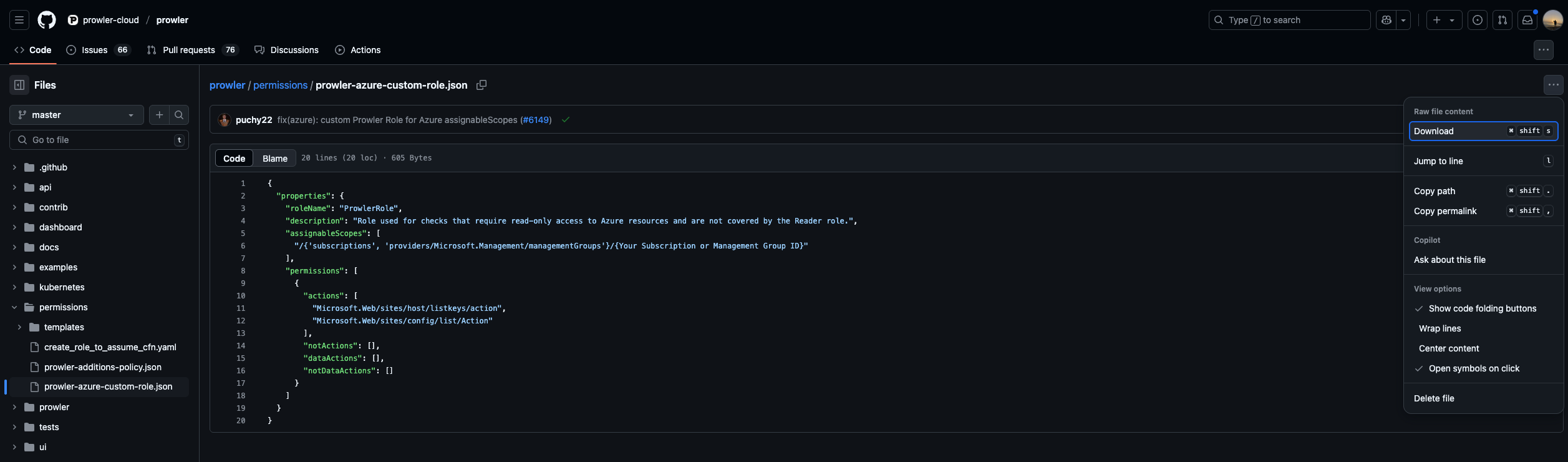 2. Modify `assignableScopes` to match your Subscription ID (e.g. `/subscriptions/xxxx-xxxx-xxxx-xxxx`)
3. Go to your Azure Subscription > "Access control (IAM)"
2. Modify `assignableScopes` to match your Subscription ID (e.g. `/subscriptions/xxxx-xxxx-xxxx-xxxx`)
3. Go to your Azure Subscription > "Access control (IAM)"
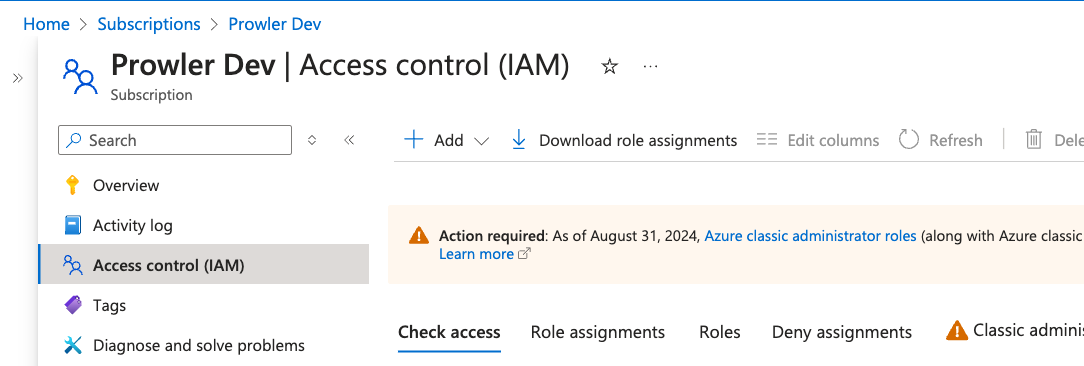 4. Click "+ Add" > "Add custom role", choose "Start from JSON" and upload the modified file
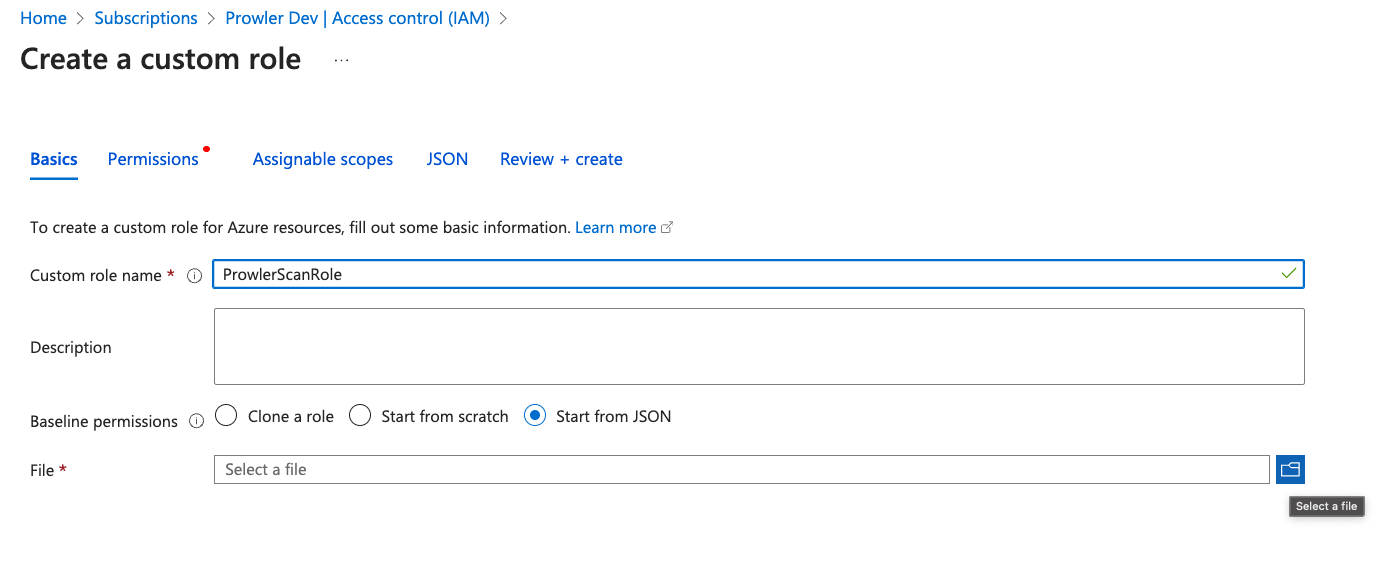 5. Click "Review + Create" to finish
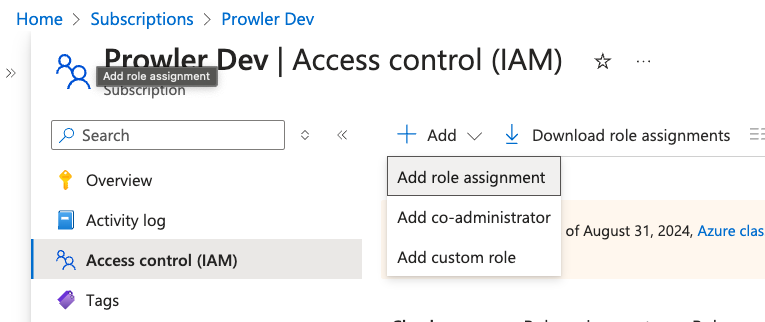
 6. Return to "Access control (IAM)" > "+ Add" > "Add role assignment"
* Assign the `Reader` role to the Application created in the previous step
* Then repeat the same process assigning the custom `ProwlerRole`
6. Return to "Access control (IAM)" > "+ Add" > "Add role assignment"
* Assign the `Reader` role to the Application created in the previous step
* Then repeat the same process assigning the custom `ProwlerRole`
 The `assignableScopes` field in the JSON custom role file must be updated to reflect the correct subscription or management group. Use one of the following formats: `/subscriptions/` or `/providers/Microsoft.Management/managementGroups/`.
1. To create a new custom role, open a terminal and execute the following command:
```console theme={null}
az role definition create --role-definition '{ 640ms lun 16 dic 17:04:17 2024
"Name": "ProwlerRole",
"IsCustom": true,
"Description": "Role used for checks that require read-only access to Azure resources and are not covered by the Reader role.",
"AssignableScopes": [
"/subscriptions/XXXXXXXX-XXXX-XXXX-XXXX-XXXXXXXXXXXX" // USE YOUR SUBSCRIPTION ID
],
"Actions": [
"Microsoft.Web/sites/host/listkeys/action",
"Microsoft.Web/sites/config/list/Action"
]
}'
```
2. If the command is executed successfully, the output is going to be similar to the following:
```json theme={null}
{
"assignableScopes": [
"/subscriptions/XXXXXXXX-XXXX-XXXX-XXXX-XXXXXXXXXXXX"
],
"createdBy": null,
"createdOn": "YYYY-MM-DDTHH:MM:SS.SSSSSS+00:00",
"description": "Role used for checks that require read-only access to Azure resources and are not covered by the Reader role.",
"id": "/subscriptions/XXXXXXXX-XXXX-XXXX-XXXX-XXXXXXXXXXXX/providers/Microsoft.Authorization/roleDefinitions/XXXXXXXX-XXXX-XXXX-XXXX-XXXXXXXXXXXX",
"name": "XXXXXXXX-XXXX-XXXX-XXXX-XXXXXXXXXXXX",
"permissions": [
{
"actions": [
"Microsoft.Web/sites/host/listkeys/action",
"Microsoft.Web/sites/config/list/Action"
],
"condition": null,
"conditionVersion": null,
"dataActions": [],
"notActions": [],
"notDataActions": []
}
],
"roleName": "ProwlerRole",
"roleType": "CustomRole",
"type": "Microsoft.Authorization/roleDefinitions",
"updatedBy": "XXXXXXXX-XXXX-XXXX-XXXX-XXXXXXXXXXXX",
"updatedOn": "YYYY-MM-DDTHH:MM:SS.SSSSSS+00:00"
}
```
### Additional Resources
For more detailed guidance on subscription management and permissions:
* [Azure subscription permissions](/user-guide/providers/azure/subscriptions)
* [Create Prowler Service Principal](/user-guide/providers/azure/create-prowler-service-principal)
Some permissions in `ProwlerRole` involve **write access**. If a `ReadOnly` lock is attached to certain resources, you may encounter errors, and findings for those checks will not be available.
#### Checks Requiring `ProwlerRole`
The following security checks require the `ProwlerRole` permissions for execution. Ensure the role is assigned to the identity assumed by Prowler before running these checks:
* `app_function_access_keys_configured`
* `app_function_ftps_deployment_disabled`
***
## Service Principal Application Authentication (Recommended)
This method is required for Prowler App and recommended for Prowler CLI.
### Creating the Service Principal
For more information, see [Creating Prowler Service Principal](/user-guide/providers/azure/create-prowler-service-principal).
### Environment Variables (CLI)
For Prowler CLI, set up the following environment variables:
```console theme={null}
export AZURE_CLIENT_ID="XXXXXXXXX"
export AZURE_TENANT_ID="XXXXXXXXX"
export AZURE_CLIENT_SECRET="XXXXXXX"
```
Execution with the `--sp-env-auth` flag fails if these variables are not set or exported.
## AZ CLI Authentication
*Available only for Prowler CLI*
Use stored Azure CLI credentials:
```console theme={null}
prowler azure --az-cli-auth
```
## Managed Identity Authentication
*Available only for Prowler CLI*
Authenticate via Azure Managed Identity when running Prowler on Azure resources (VMs, Container Instances, Azure Functions, etc.):
```console theme={null}
prowler azure --managed-identity-auth
```
### Prerequisites
Before using Managed Identity authentication, the following steps are required:
1. **Enable Managed Identity** on the Azure resource (e.g., VM, Container Instance)
2. **Assign the required permissions** to the Managed Identity on the target subscription(s) to scan
A common misconception is that enabling a Managed Identity on a resource automatically grants it permissions. **This is not the case.** Without explicit role assignments, Prowler will be unable to scan subscriptions and will return authorization errors, resulting in incomplete security assessments. The Managed Identity itself is a service principal that must be explicitly granted Reader and ProwlerRole permissions on each subscription to scan.
### Step-by-Step Setup Guide
#### Step 1: Enable Managed Identity on the Azure Resource
**Via Azure Portal:**
1. Navigate to the VM in Azure Portal
2. Select "Identity" from the left menu under "Security"
3. Under "System assigned" tab, set Status to "On"
4. Click "Save"
5. Note the "Object (principal) ID" - this value is required for permission assignment
**Via Azure CLI:**
```console theme={null}
# Enable system-assigned managed identity
az vm identity assign --name --resource-group
# Get the principal ID
az vm identity show --name --resource-group --query principalId -o tsv
```
**Via Azure CLI:**
```console theme={null}
# Enable system-assigned managed identity
az container create \
--resource-group \
--name \
--image \
--assign-identity
# Get the principal ID
az container show --resource-group --name --query identity.principalId -o tsv
```
#### Step 2: Assign Reader Role to the Managed Identity
The Managed Identity needs the **Reader** role on each subscription to scan. This role must be assigned to the **Managed Identity's principal ID**, not the VM or resource itself.
1. Navigate to the **target subscription** to scan (not the VM's resource group)
2. Select "Access control (IAM)" from the left menu
3. Click "+ Add" > "Add role assignment"
4. Select "Reader" role, click "Next"
5. Click "+ Select members"
6. Search for the VM name or paste the Managed Identity's Object/Principal ID
7. Select it and click "Select"
8. Click "Review + assign"
When scanning a subscription different from where the VM is located, ensure the role is assigned on the **target subscription**, not the VM's subscription.
```console theme={null}
# Get the principal ID of the resource's managed identity
PRINCIPAL_ID=$(az vm identity show --name --resource-group --query principalId -o tsv)
# Assign Reader role on the target subscription
az role assignment create \
--role "Reader" \
--assignee-object-id $PRINCIPAL_ID \
--assignee-principal-type ServicePrincipal \
--scope /subscriptions/
```
#### Step 3: Create and Assign ProwlerRole to the Managed Identity
The ProwlerRole is a custom role required for specific security checks. First, create the role if it does not exist, then assign it to the Managed Identity.
**Create the ProwlerRole:**
```console theme={null}
az role definition create --role-definition '{
"Name": "ProwlerRole",
"IsCustom": true,
"Description": "Role used for checks that require read-only access to Azure resources and are not covered by the Reader role.",
"AssignableScopes": ["/subscriptions/"],
"Actions": [
"Microsoft.Web/sites/host/listkeys/action",
"Microsoft.Web/sites/config/list/Action"
]
}'
```
**Assign ProwlerRole to the Managed Identity:**
```console theme={null}
# Get the principal ID if not already available
PRINCIPAL_ID=$(az vm identity show --name --resource-group --query principalId -o tsv)
# Assign ProwlerRole on the target subscription
az role assignment create \
--role "ProwlerRole" \
--assignee-object-id $PRINCIPAL_ID \
--assignee-principal-type ServicePrincipal \
--scope /subscriptions/
```
Follow the same process as creating the ProwlerRole in the [Assigning ProwlerRole Permissions](/user-guide/providers/azure/authentication#assigning-prowlerrole-permissions-at-the-subscription-level) section, then assign it to the Managed Identity using the same steps as the Reader role assignment.
#### Step 4: (Optional) Assign Microsoft Graph Permissions
For Entra ID (Azure AD) checks, the Managed Identity needs Microsoft Graph API permissions: `Directory.Read.All`, `Policy.Read.All`, and `AuditLog.Read.All`.
Assigning Microsoft Graph API permissions to a Managed Identity requires Azure CLI or PowerShell - it cannot be done through the Azure Portal's standard role assignment interface.
```console theme={null}
# Get the Managed Identity's principal ID
PRINCIPAL_ID=$(az vm identity show --name --resource-group --query principalId -o tsv)
# Get Microsoft Graph's service principal ID
GRAPH_SP_ID=$(az ad sp list --display-name "Microsoft Graph" --query [0].id -o tsv)
# Assign Directory.Read.All permission (App Role ID: 7ab1d382-f21e-4acd-a863-ba3e13f7da61)
az rest --method POST \
--uri "https://graph.microsoft.com/v1.0/servicePrincipals/$PRINCIPAL_ID/appRoleAssignments" \
--headers "Content-Type=application/json" \
--body "{\"principalId\": \"$PRINCIPAL_ID\", \"resourceId\": \"$GRAPH_SP_ID\", \"appRoleId\": \"7ab1d382-f21e-4acd-a863-ba3e13f7da61\"}"
# Assign Policy.Read.All permission (App Role ID: 246dd0d5-5bd0-4def-940b-0421030a5b68)
az rest --method POST \
--uri "https://graph.microsoft.com/v1.0/servicePrincipals/$PRINCIPAL_ID/appRoleAssignments" \
--headers "Content-Type=application/json" \
--body "{\"principalId\": \"$PRINCIPAL_ID\", \"resourceId\": \"$GRAPH_SP_ID\", \"appRoleId\": \"246dd0d5-5bd0-4def-940b-0421030a5b68\"}"
```
#### Step 5: Run Prowler
SSH or connect to the Azure resource and run Prowler:
```console theme={null}
# Scan all accessible subscriptions
prowler azure --managed-identity-auth
# Scan specific subscription(s)
prowler azure --managed-identity-auth --subscription-ids
```
Wait a few minutes after assigning roles for Azure to propagate permissions. Role assignments are not always immediately effective.
### Troubleshooting
#### Error: "No subscriptions were found, please check your permission assignments"
**Cause:** The Managed Identity does not have the Reader role assigned on any subscription.
**Solution:**
* Verify the Managed Identity has the Reader role assigned on at least one subscription.
* Wait a few minutes after role assignment for Azure to propagate permissions.
* Verify role assignments:
```console theme={null}
az role assignment list --assignee --all
```
#### Error: "does not have authorization to perform action 'Microsoft.Resources/subscriptions/read'"
**Cause:** The Managed Identity lacks the Reader role on the target subscription.
**Solution:**
* Ensure the Reader role is assigned to the **Managed Identity's principal ID**, not the VM resource.
* Verify the role is assigned on the **target subscription** to scan, not just the VM's resource group.
* Check role assignments:
```console theme={null}
az role assignment list --assignee --scope /subscriptions/
```
#### Error: "CredentialUnavailableError: ManagedIdentityCredential authentication unavailable"
**Cause:** Managed Identity is not enabled on the resource, or Prowler is running outside of Azure.
**Solution:**
* Verify Managed Identity is enabled on the Azure resource.
* Ensure Prowler is running from within the Azure resource (not a local machine).
* Check Managed Identity status:
```console theme={null}
az vm identity show --name --resource-group
```
#### Error: Access token validation failure for Entra ID checks
**Cause:** The Managed Identity lacks Microsoft Graph API permissions.
**Solution:**
* Assign the required Graph API permissions as shown in Step 4.
* These permissions are optional for basic resource scanning but required for Entra ID security checks.
## Browser Authentication
*Available only for Prowler CLI*
Authenticate using the default browser:
```console theme={null}
prowler azure --browser-auth --tenant-id
```
> **Note:** The `tenant-id` parameter is mandatory for browser authentication.
The `assignableScopes` field in the JSON custom role file must be updated to reflect the correct subscription or management group. Use one of the following formats: `/subscriptions/` or `/providers/Microsoft.Management/managementGroups/`.
1. To create a new custom role, open a terminal and execute the following command:
```console theme={null}
az role definition create --role-definition '{ 640ms lun 16 dic 17:04:17 2024
"Name": "ProwlerRole",
"IsCustom": true,
"Description": "Role used for checks that require read-only access to Azure resources and are not covered by the Reader role.",
"AssignableScopes": [
"/subscriptions/XXXXXXXX-XXXX-XXXX-XXXX-XXXXXXXXXXXX" // USE YOUR SUBSCRIPTION ID
],
"Actions": [
"Microsoft.Web/sites/host/listkeys/action",
"Microsoft.Web/sites/config/list/Action"
]
}'
```
2. If the command is executed successfully, the output is going to be similar to the following:
```json theme={null}
{
"assignableScopes": [
"/subscriptions/XXXXXXXX-XXXX-XXXX-XXXX-XXXXXXXXXXXX"
],
"createdBy": null,
"createdOn": "YYYY-MM-DDTHH:MM:SS.SSSSSS+00:00",
"description": "Role used for checks that require read-only access to Azure resources and are not covered by the Reader role.",
"id": "/subscriptions/XXXXXXXX-XXXX-XXXX-XXXX-XXXXXXXXXXXX/providers/Microsoft.Authorization/roleDefinitions/XXXXXXXX-XXXX-XXXX-XXXX-XXXXXXXXXXXX",
"name": "XXXXXXXX-XXXX-XXXX-XXXX-XXXXXXXXXXXX",
"permissions": [
{
"actions": [
"Microsoft.Web/sites/host/listkeys/action",
"Microsoft.Web/sites/config/list/Action"
],
"condition": null,
"conditionVersion": null,
"dataActions": [],
"notActions": [],
"notDataActions": []
}
],
"roleName": "ProwlerRole",
"roleType": "CustomRole",
"type": "Microsoft.Authorization/roleDefinitions",
"updatedBy": "XXXXXXXX-XXXX-XXXX-XXXX-XXXXXXXXXXXX",
"updatedOn": "YYYY-MM-DDTHH:MM:SS.SSSSSS+00:00"
}
```
### Additional Resources
For more detailed guidance on subscription management and permissions:
* [Azure subscription permissions](/user-guide/providers/azure/subscriptions)
* [Create Prowler Service Principal](/user-guide/providers/azure/create-prowler-service-principal)
Some permissions in `ProwlerRole` involve **write access**. If a `ReadOnly` lock is attached to certain resources, you may encounter errors, and findings for those checks will not be available.
#### Checks Requiring `ProwlerRole`
The following security checks require the `ProwlerRole` permissions for execution. Ensure the role is assigned to the identity assumed by Prowler before running these checks:
* `app_function_access_keys_configured`
* `app_function_ftps_deployment_disabled`
***
## Service Principal Application Authentication (Recommended)
This method is required for Prowler App and recommended for Prowler CLI.
### Creating the Service Principal
For more information, see [Creating Prowler Service Principal](/user-guide/providers/azure/create-prowler-service-principal).
### Environment Variables (CLI)
For Prowler CLI, set up the following environment variables:
```console theme={null}
export AZURE_CLIENT_ID="XXXXXXXXX"
export AZURE_TENANT_ID="XXXXXXXXX"
export AZURE_CLIENT_SECRET="XXXXXXX"
```
Execution with the `--sp-env-auth` flag fails if these variables are not set or exported.
## AZ CLI Authentication
*Available only for Prowler CLI*
Use stored Azure CLI credentials:
```console theme={null}
prowler azure --az-cli-auth
```
## Managed Identity Authentication
*Available only for Prowler CLI*
Authenticate via Azure Managed Identity when running Prowler on Azure resources (VMs, Container Instances, Azure Functions, etc.):
```console theme={null}
prowler azure --managed-identity-auth
```
### Prerequisites
Before using Managed Identity authentication, the following steps are required:
1. **Enable Managed Identity** on the Azure resource (e.g., VM, Container Instance)
2. **Assign the required permissions** to the Managed Identity on the target subscription(s) to scan
A common misconception is that enabling a Managed Identity on a resource automatically grants it permissions. **This is not the case.** Without explicit role assignments, Prowler will be unable to scan subscriptions and will return authorization errors, resulting in incomplete security assessments. The Managed Identity itself is a service principal that must be explicitly granted Reader and ProwlerRole permissions on each subscription to scan.
### Step-by-Step Setup Guide
#### Step 1: Enable Managed Identity on the Azure Resource
**Via Azure Portal:**
1. Navigate to the VM in Azure Portal
2. Select "Identity" from the left menu under "Security"
3. Under "System assigned" tab, set Status to "On"
4. Click "Save"
5. Note the "Object (principal) ID" - this value is required for permission assignment
**Via Azure CLI:**
```console theme={null}
# Enable system-assigned managed identity
az vm identity assign --name --resource-group
# Get the principal ID
az vm identity show --name --resource-group --query principalId -o tsv
```
**Via Azure CLI:**
```console theme={null}
# Enable system-assigned managed identity
az container create \
--resource-group \
--name \
--image \
--assign-identity
# Get the principal ID
az container show --resource-group --name --query identity.principalId -o tsv
```
#### Step 2: Assign Reader Role to the Managed Identity
The Managed Identity needs the **Reader** role on each subscription to scan. This role must be assigned to the **Managed Identity's principal ID**, not the VM or resource itself.
1. Navigate to the **target subscription** to scan (not the VM's resource group)
2. Select "Access control (IAM)" from the left menu
3. Click "+ Add" > "Add role assignment"
4. Select "Reader" role, click "Next"
5. Click "+ Select members"
6. Search for the VM name or paste the Managed Identity's Object/Principal ID
7. Select it and click "Select"
8. Click "Review + assign"
When scanning a subscription different from where the VM is located, ensure the role is assigned on the **target subscription**, not the VM's subscription.
```console theme={null}
# Get the principal ID of the resource's managed identity
PRINCIPAL_ID=$(az vm identity show --name --resource-group --query principalId -o tsv)
# Assign Reader role on the target subscription
az role assignment create \
--role "Reader" \
--assignee-object-id $PRINCIPAL_ID \
--assignee-principal-type ServicePrincipal \
--scope /subscriptions/
```
#### Step 3: Create and Assign ProwlerRole to the Managed Identity
The ProwlerRole is a custom role required for specific security checks. First, create the role if it does not exist, then assign it to the Managed Identity.
**Create the ProwlerRole:**
```console theme={null}
az role definition create --role-definition '{
"Name": "ProwlerRole",
"IsCustom": true,
"Description": "Role used for checks that require read-only access to Azure resources and are not covered by the Reader role.",
"AssignableScopes": ["/subscriptions/"],
"Actions": [
"Microsoft.Web/sites/host/listkeys/action",
"Microsoft.Web/sites/config/list/Action"
]
}'
```
**Assign ProwlerRole to the Managed Identity:**
```console theme={null}
# Get the principal ID if not already available
PRINCIPAL_ID=$(az vm identity show --name --resource-group --query principalId -o tsv)
# Assign ProwlerRole on the target subscription
az role assignment create \
--role "ProwlerRole" \
--assignee-object-id $PRINCIPAL_ID \
--assignee-principal-type ServicePrincipal \
--scope /subscriptions/
```
Follow the same process as creating the ProwlerRole in the [Assigning ProwlerRole Permissions](/user-guide/providers/azure/authentication#assigning-prowlerrole-permissions-at-the-subscription-level) section, then assign it to the Managed Identity using the same steps as the Reader role assignment.
#### Step 4: (Optional) Assign Microsoft Graph Permissions
For Entra ID (Azure AD) checks, the Managed Identity needs Microsoft Graph API permissions: `Directory.Read.All`, `Policy.Read.All`, and `AuditLog.Read.All`.
Assigning Microsoft Graph API permissions to a Managed Identity requires Azure CLI or PowerShell - it cannot be done through the Azure Portal's standard role assignment interface.
```console theme={null}
# Get the Managed Identity's principal ID
PRINCIPAL_ID=$(az vm identity show --name --resource-group --query principalId -o tsv)
# Get Microsoft Graph's service principal ID
GRAPH_SP_ID=$(az ad sp list --display-name "Microsoft Graph" --query [0].id -o tsv)
# Assign Directory.Read.All permission (App Role ID: 7ab1d382-f21e-4acd-a863-ba3e13f7da61)
az rest --method POST \
--uri "https://graph.microsoft.com/v1.0/servicePrincipals/$PRINCIPAL_ID/appRoleAssignments" \
--headers "Content-Type=application/json" \
--body "{\"principalId\": \"$PRINCIPAL_ID\", \"resourceId\": \"$GRAPH_SP_ID\", \"appRoleId\": \"7ab1d382-f21e-4acd-a863-ba3e13f7da61\"}"
# Assign Policy.Read.All permission (App Role ID: 246dd0d5-5bd0-4def-940b-0421030a5b68)
az rest --method POST \
--uri "https://graph.microsoft.com/v1.0/servicePrincipals/$PRINCIPAL_ID/appRoleAssignments" \
--headers "Content-Type=application/json" \
--body "{\"principalId\": \"$PRINCIPAL_ID\", \"resourceId\": \"$GRAPH_SP_ID\", \"appRoleId\": \"246dd0d5-5bd0-4def-940b-0421030a5b68\"}"
```
#### Step 5: Run Prowler
SSH or connect to the Azure resource and run Prowler:
```console theme={null}
# Scan all accessible subscriptions
prowler azure --managed-identity-auth
# Scan specific subscription(s)
prowler azure --managed-identity-auth --subscription-ids
```
Wait a few minutes after assigning roles for Azure to propagate permissions. Role assignments are not always immediately effective.
### Troubleshooting
#### Error: "No subscriptions were found, please check your permission assignments"
**Cause:** The Managed Identity does not have the Reader role assigned on any subscription.
**Solution:**
* Verify the Managed Identity has the Reader role assigned on at least one subscription.
* Wait a few minutes after role assignment for Azure to propagate permissions.
* Verify role assignments:
```console theme={null}
az role assignment list --assignee --all
```
#### Error: "does not have authorization to perform action 'Microsoft.Resources/subscriptions/read'"
**Cause:** The Managed Identity lacks the Reader role on the target subscription.
**Solution:**
* Ensure the Reader role is assigned to the **Managed Identity's principal ID**, not the VM resource.
* Verify the role is assigned on the **target subscription** to scan, not just the VM's resource group.
* Check role assignments:
```console theme={null}
az role assignment list --assignee --scope /subscriptions/
```
#### Error: "CredentialUnavailableError: ManagedIdentityCredential authentication unavailable"
**Cause:** Managed Identity is not enabled on the resource, or Prowler is running outside of Azure.
**Solution:**
* Verify Managed Identity is enabled on the Azure resource.
* Ensure Prowler is running from within the Azure resource (not a local machine).
* Check Managed Identity status:
```console theme={null}
az vm identity show --name --resource-group
```
#### Error: Access token validation failure for Entra ID checks
**Cause:** The Managed Identity lacks Microsoft Graph API permissions.
**Solution:**
* Assign the required Graph API permissions as shown in Step 4.
* These permissions are optional for basic resource scanning but required for Entra ID security checks.
## Browser Authentication
*Available only for Prowler CLI*
Authenticate using the default browser:
```console theme={null}
prowler azure --browser-auth --tenant-id
```
> **Note:** The `tenant-id` parameter is mandatory for browser authentication.