> ## Documentation Index
> Fetch the complete documentation index at: https://docs.prowler.com/llms.txt
> Use this file to discover all available pages before exploring further.
# Getting Started With GCP on Prowler
## Prowler Cloud
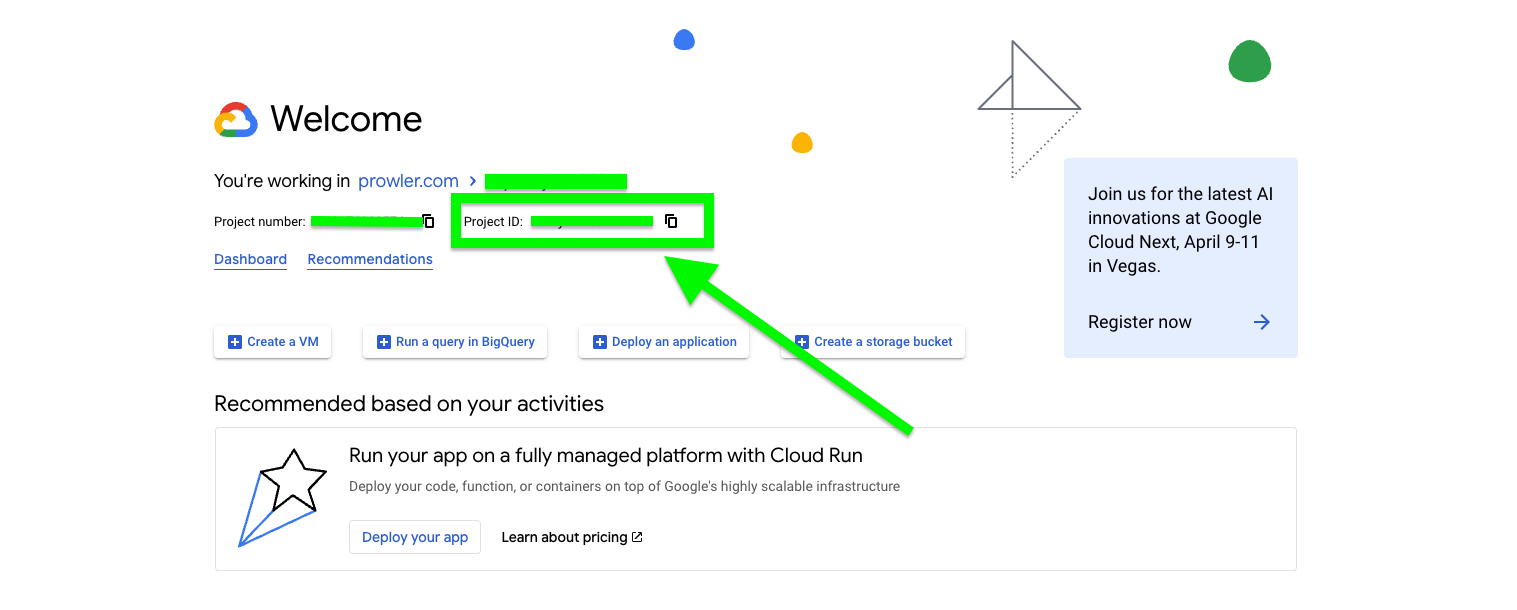
### Step 1: Get the GCP Project ID
1. Go to the [GCP Console](https://console.cloud.google.com/)
2. Locate the Project ID on the welcome screen
 ### Step 2: Access Prowler Cloud
1. Navigate to [Prowler Cloud](https://cloud.prowler.com/) or launch [Prowler App](/user-guide/tutorials/prowler-app)
2. Go to "Configuration" > "Providers"
### Step 2: Access Prowler Cloud
1. Navigate to [Prowler Cloud](https://cloud.prowler.com/) or launch [Prowler App](/user-guide/tutorials/prowler-app)
2. Go to "Configuration" > "Providers"
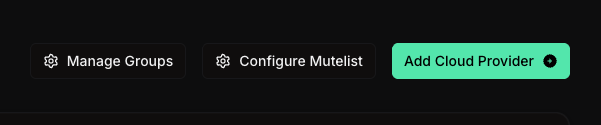
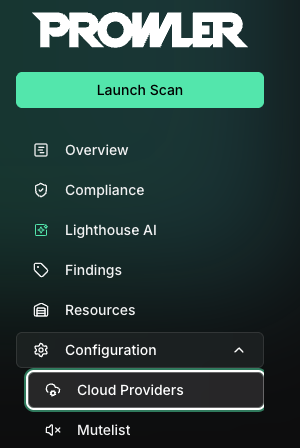 3. Click "Add Provider"
 4. Select "Google Cloud Platform"
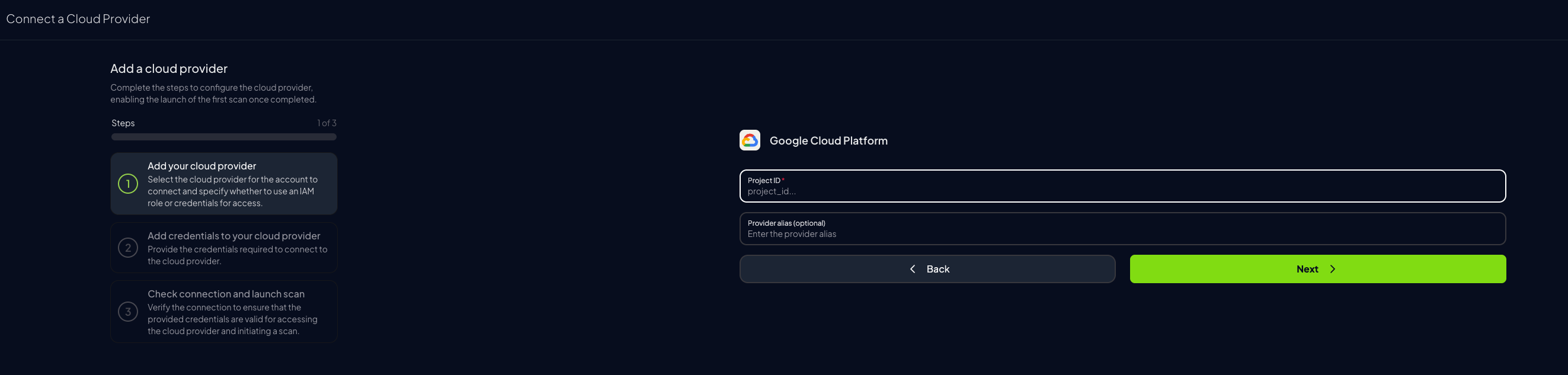
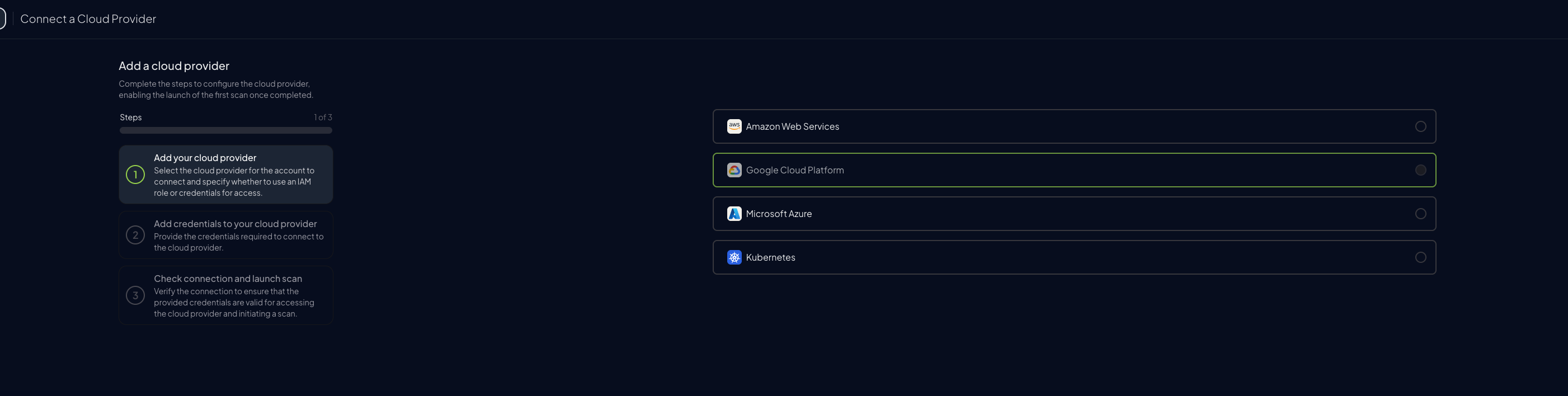 5. Add the Project ID and optionally provide a provider alias, then click "Next"
 ### Step 3: Set Up GCP Authentication
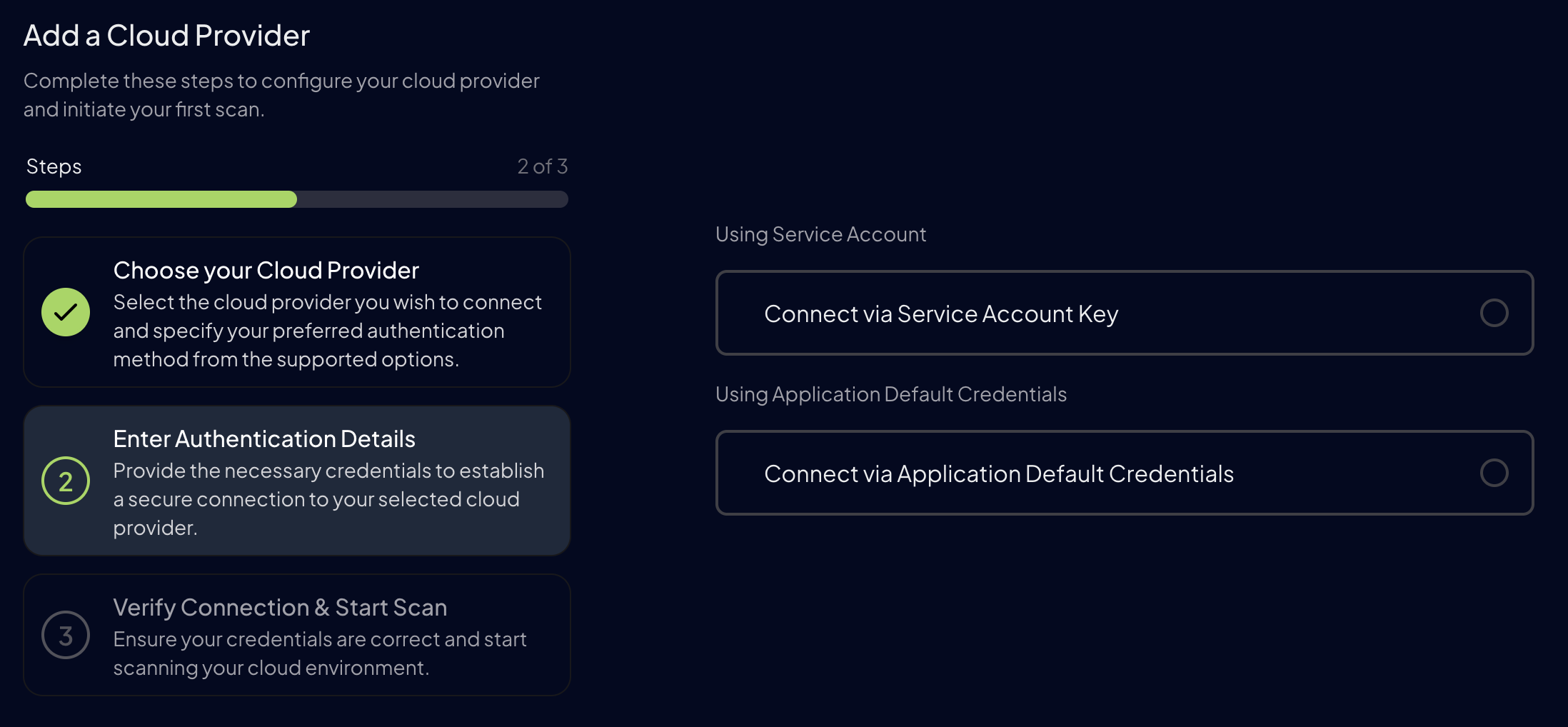
For Google Cloud, first enter your `GCP Project ID` and then select the authentication method you want to use:
* **Service Account Authentication** (**Recommended**)
* Authenticates as a service identity
* Stable and auditable
* Recommended for production
* **Application Default Credentials**
* Quick scan as current user
* Uses Google Cloud CLI authentication
* Credentials may time out
**Service Account Authentication** is the recommended authentication method for automated systems and machine-to-machine interactions, like Prowler. For detailed information about this, refer to the [Google Cloud documentation](https://cloud.google.com/iam/docs/service-account-overview).
### Step 3: Set Up GCP Authentication
For Google Cloud, first enter your `GCP Project ID` and then select the authentication method you want to use:
* **Service Account Authentication** (**Recommended**)
* Authenticates as a service identity
* Stable and auditable
* Recommended for production
* **Application Default Credentials**
* Quick scan as current user
* Uses Google Cloud CLI authentication
* Credentials may time out
**Service Account Authentication** is the recommended authentication method for automated systems and machine-to-machine interactions, like Prowler. For detailed information about this, refer to the [Google Cloud documentation](https://cloud.google.com/iam/docs/service-account-overview).
 First of all, in the same project that you selected in the previous step, you need to create a service account and then generate a key in JSON format for it. For more information about this, you can follow the next Google Cloud documentation tutorials:
* [Create a service account](https://cloud.google.com/iam/docs/creating-managing-service-accounts)
* [Generate a key for a service account](https://cloud.google.com/iam/docs/creating-managing-service-account-keys)
First of all, in the same project that you selected in the previous step, you need to create a service account and then generate a key in JSON format for it. For more information about this, you can follow the next Google Cloud documentation tutorials:
* [Create a service account](https://cloud.google.com/iam/docs/creating-managing-service-accounts)
* [Generate a key for a service account](https://cloud.google.com/iam/docs/creating-managing-service-account-keys)
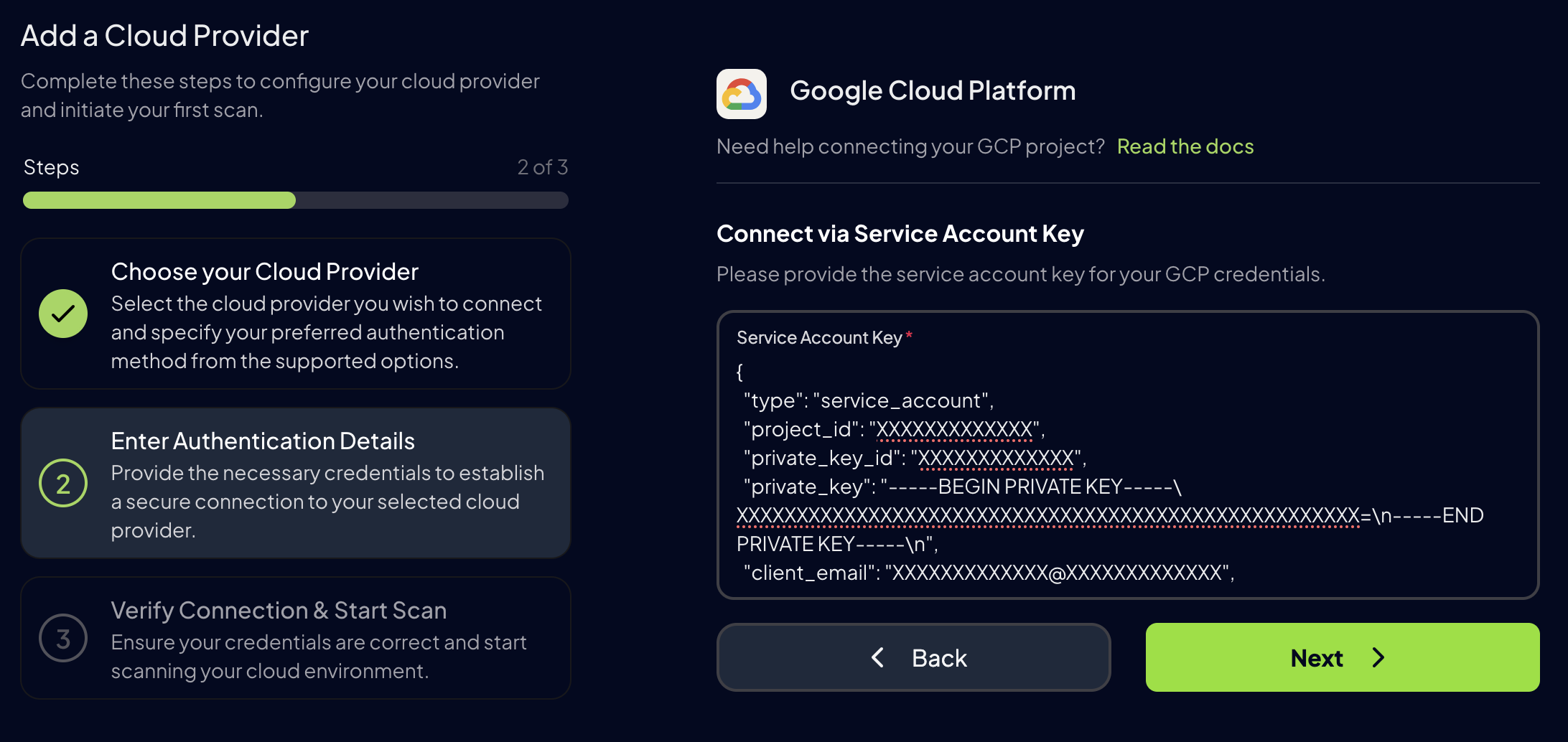 For detailed instructions on how to setup Service Account authentication, see the [Authentication](/user-guide/providers/gcp/authentication#service-account-authentication) page.
1. Run the following command in your terminal to authenticate with GCP:
```bash theme={null}
gcloud auth application-default login
```
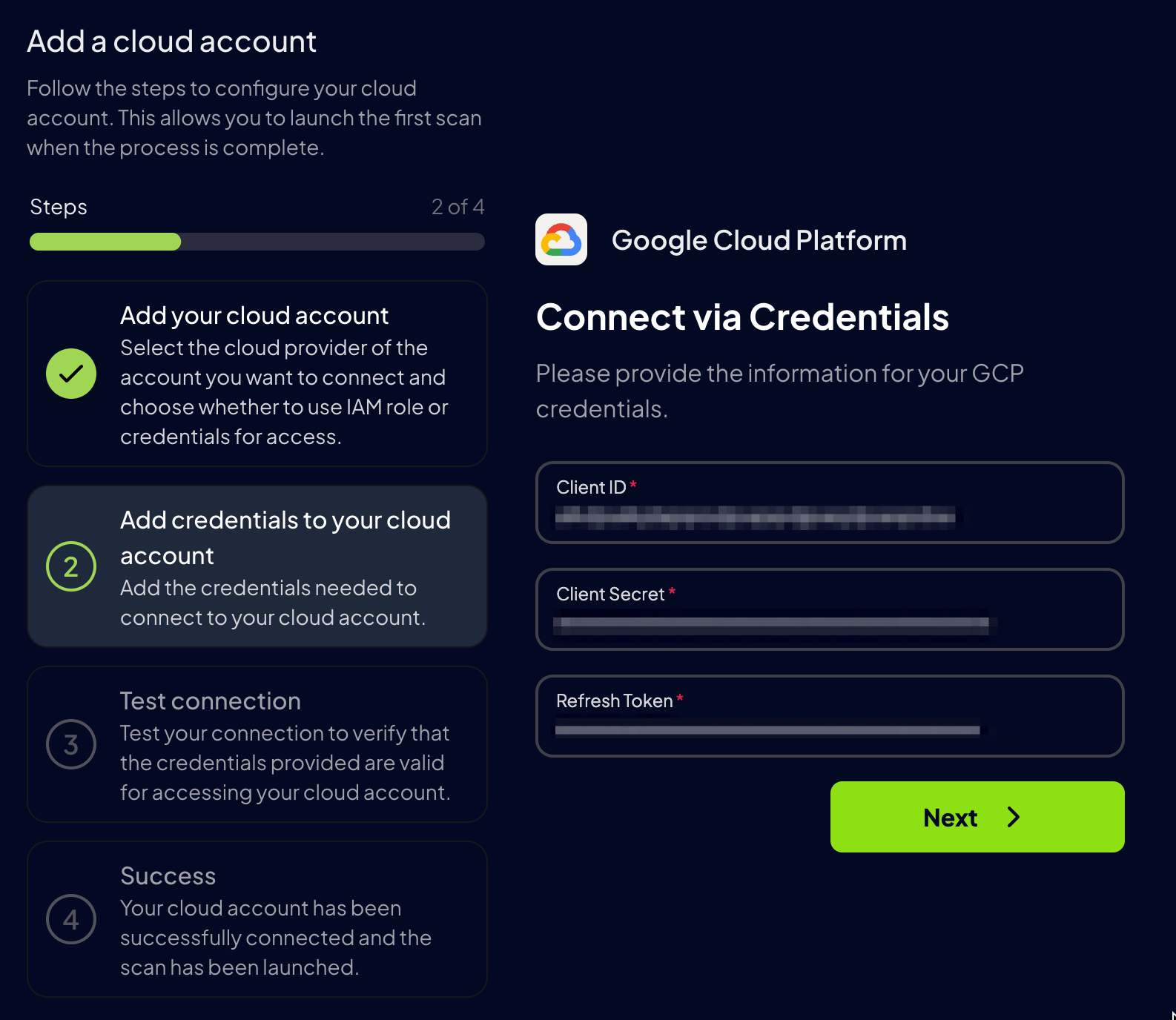
2. Once authenticated, get the `Client ID`, `Client Secret` and `Refresh Token` from `~/.config/gcloud/application_default_credentials`.
3. Paste the `Client ID`, `Client Secret` and `Refresh Token` into Prowler App.
For detailed instructions on how to setup Service Account authentication, see the [Authentication](/user-guide/providers/gcp/authentication#service-account-authentication) page.
1. Run the following command in your terminal to authenticate with GCP:
```bash theme={null}
gcloud auth application-default login
```
2. Once authenticated, get the `Client ID`, `Client Secret` and `Refresh Token` from `~/.config/gcloud/application_default_credentials`.
3. Paste the `Client ID`, `Client Secret` and `Refresh Token` into Prowler App.
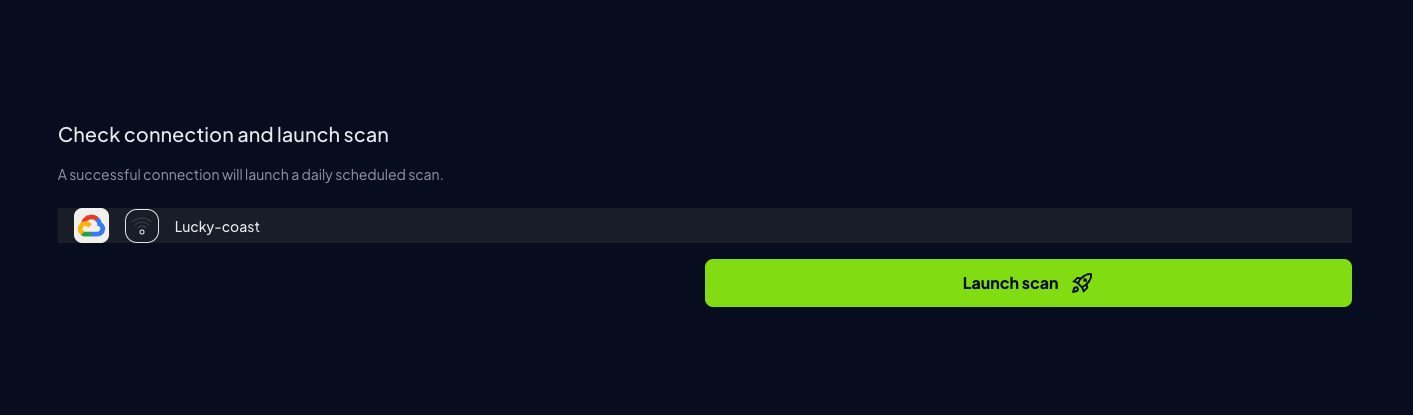
 7. Click "Next", then "Launch Scan"
 ***
## Prowler CLI
### Credentials Lookup Order
Prowler follows the same credential search process as [Google authentication libraries](https://cloud.google.com/docs/authentication/application-default-credentials#search_order), checking credentials in this order:
1. [`GOOGLE_APPLICATION_CREDENTIALS` environment variable](https://cloud.google.com/docs/authentication/application-default-credentials#GAC)
2. [`CLOUDSDK_AUTH_ACCESS_TOKEN` + optional `GOOGLE_CLOUD_PROJECT`](https://cloud.google.com/sdk/gcloud/reference/auth/print-access-token)
3. [User credentials set up by using the Google Cloud CLI](https://cloud.google.com/docs/authentication/application-default-credentials#personal)
4. [Attached service account (e.g., Cloud Run, GCE, Cloud Functions)](https://cloud.google.com/docs/authentication/application-default-credentials#attached-sa)
The credentials must belong to a user or service account with the necessary permissions.
For detailed instructions on how to set the permissions, see [Authentication > Required Permissions](/user-guide/providers/gcp/authentication#required-permissions).
Prowler will use the enabled Google Cloud APIs to get the information needed to perform the checks.
### Configure GCP Credentials
To authenticate with GCP, use one of the following methods:
```console theme={null}
gcloud auth application-default login
```
or set the credentials file path:
```console theme={null}
export GOOGLE_APPLICATION_CREDENTIALS="/path/to/credentials.json"
```
These credentials must belong to a user or service account with the necessary permissions to perform security checks.
For more authentication details, see the [Authentication](/user-guide/providers/gcp/authentication) page.
### Project Specification
To scan specific projects, specify them with the following command:
```console theme={null}
prowler gcp --project-ids
```
### Service Account Impersonation
For service account impersonation, use the `--impersonate-service-account` flag:
```console theme={null}
prowler gcp --impersonate-service-account
```
More details on authentication methods in the [Authentication](/user-guide/providers/gcp/authentication) page.
### Skip API Check
By default, Prowler verifies which Google Cloud APIs are enabled before running checks for each service. To skip this verification and assume all APIs are active, use the `--skip-api-check` flag:
```console theme={null}
prowler gcp --skip-api-check
```
This is useful when the authenticated principal lacks the `serviceusage.services.list` permission but has access to individual service APIs.
***
## Prowler CLI
### Credentials Lookup Order
Prowler follows the same credential search process as [Google authentication libraries](https://cloud.google.com/docs/authentication/application-default-credentials#search_order), checking credentials in this order:
1. [`GOOGLE_APPLICATION_CREDENTIALS` environment variable](https://cloud.google.com/docs/authentication/application-default-credentials#GAC)
2. [`CLOUDSDK_AUTH_ACCESS_TOKEN` + optional `GOOGLE_CLOUD_PROJECT`](https://cloud.google.com/sdk/gcloud/reference/auth/print-access-token)
3. [User credentials set up by using the Google Cloud CLI](https://cloud.google.com/docs/authentication/application-default-credentials#personal)
4. [Attached service account (e.g., Cloud Run, GCE, Cloud Functions)](https://cloud.google.com/docs/authentication/application-default-credentials#attached-sa)
The credentials must belong to a user or service account with the necessary permissions.
For detailed instructions on how to set the permissions, see [Authentication > Required Permissions](/user-guide/providers/gcp/authentication#required-permissions).
Prowler will use the enabled Google Cloud APIs to get the information needed to perform the checks.
### Configure GCP Credentials
To authenticate with GCP, use one of the following methods:
```console theme={null}
gcloud auth application-default login
```
or set the credentials file path:
```console theme={null}
export GOOGLE_APPLICATION_CREDENTIALS="/path/to/credentials.json"
```
These credentials must belong to a user or service account with the necessary permissions to perform security checks.
For more authentication details, see the [Authentication](/user-guide/providers/gcp/authentication) page.
### Project Specification
To scan specific projects, specify them with the following command:
```console theme={null}
prowler gcp --project-ids
```
### Service Account Impersonation
For service account impersonation, use the `--impersonate-service-account` flag:
```console theme={null}
prowler gcp --impersonate-service-account
```
More details on authentication methods in the [Authentication](/user-guide/providers/gcp/authentication) page.
### Skip API Check
By default, Prowler verifies which Google Cloud APIs are enabled before running checks for each service. To skip this verification and assume all APIs are active, use the `--skip-api-check` flag:
```console theme={null}
prowler gcp --skip-api-check
```
This is useful when the authenticated principal lacks the `serviceusage.services.list` permission but has access to individual service APIs.