> ## Documentation Index
> Fetch the complete documentation index at: https://docs.prowler.com/llms.txt
> Use this file to discover all available pages before exploring further.
# Getting Started with GitHub
This guide covers setting up GitHub security scanning with Prowler. Choose a preferred interface below:
**Understanding GitHub Scan Scope**
Prowler can scan either:
* **User Repositories**: All repositories owned by or accessible to a specific GitHub user
* **Organizations**: Repositories and organization-level settings
**Important**: Scanning user repositories does NOT include organization-level checks (MFA requirements, security policies, etc.). To scan organizations, you must explicitly configure them.
Web-based interface with centralized management
Command-line interface for local or automated scans
***
## Prowler Cloud/App
> Walkthrough video onboarding a GitHub Account using GitHub App.
### Prerequisites
Before adding GitHub to Prowler Cloud/App, ensure you have:
1. **GitHub Account Access**
* Personal GitHub account, OR
* Admin access to a GitHub organization
2. **Authentication Credentials**
* Choose one method (see [Authentication Guide](/user-guide/providers/github/authentication)):
* **Fine-Grained Personal Access Token** (Recommended)
* OAuth App Token
* GitHub App Credentials (Not Recommended - limited data access)
### Step 1: Access Prowler Cloud/App
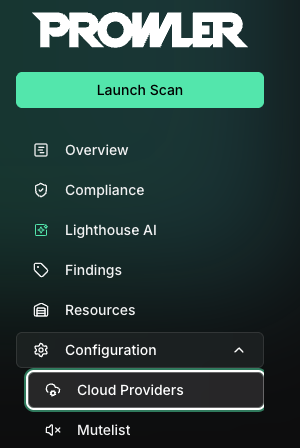
1. Navigate to [Prowler Cloud](https://cloud.prowler.com/) or launch [Prowler App](/user-guide/tutorials/prowler-app)
2. Go to **Configuration** → **Providers**
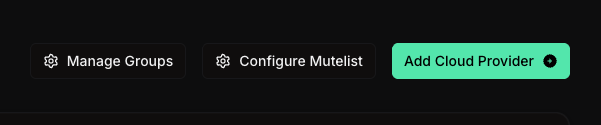
 3. Click **Add Provider**
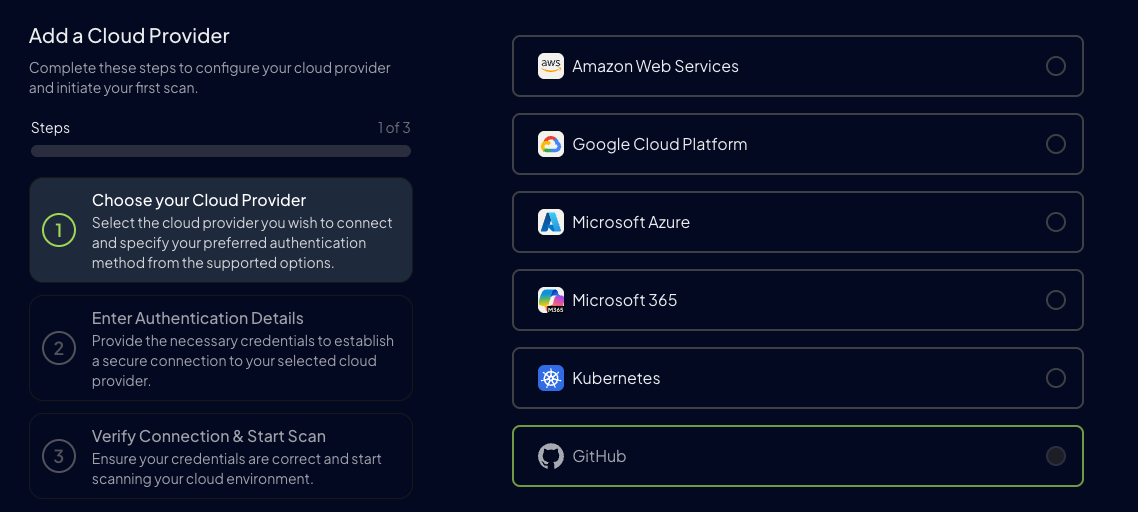
 4. Select **GitHub**
 ### Step 2: Configure GitHub Account
5. Add the **GitHub Account ID** and an optional alias:
* **Account ID**: Your GitHub username (e.g., `username`) or organization name (e.g., `org-name`)
* **Alias** (optional): Friendly name for this connection (e.g., `My Personal Repos` or `Prowler Org`)
### Step 2: Configure GitHub Account
5. Add the **GitHub Account ID** and an optional alias:
* **Account ID**: Your GitHub username (e.g., `username`) or organization name (e.g., `org-name`)
* **Alias** (optional): Friendly name for this connection (e.g., `My Personal Repos` or `Prowler Org`)
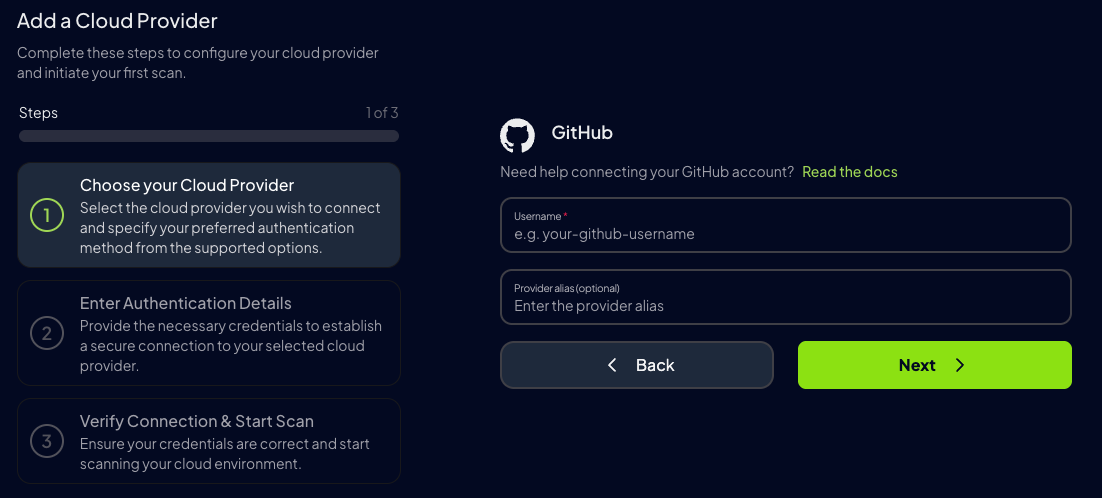 6. Click **Next**
### Step 3: Choose Authentication Method
**Recommended: Fine-Grained Personal Access Token**
**Fine-Grained Personal Access Tokens** are strongly recommended because they provide:
* Best data access for comprehensive security scanning
* Granular permission control
* Resource-specific access
**GitHub Apps are not recommended** — they provide the most limited access to GitHub data for security scanning purposes.
7. Select your preferred authentication method:
6. Click **Next**
### Step 3: Choose Authentication Method
**Recommended: Fine-Grained Personal Access Token**
**Fine-Grained Personal Access Tokens** are strongly recommended because they provide:
* Best data access for comprehensive security scanning
* Granular permission control
* Resource-specific access
**GitHub Apps are not recommended** — they provide the most limited access to GitHub data for security scanning purposes.
7. Select your preferred authentication method:
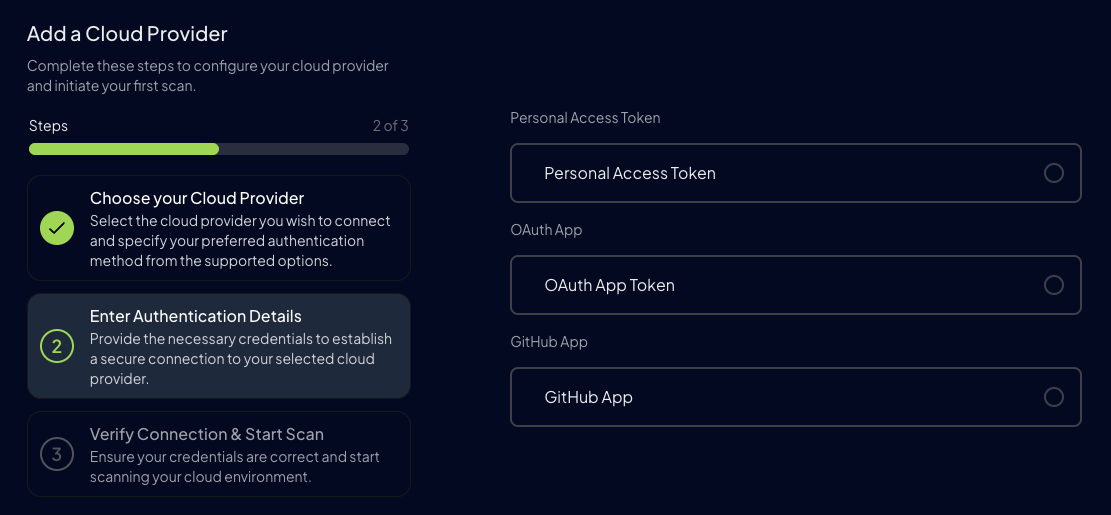
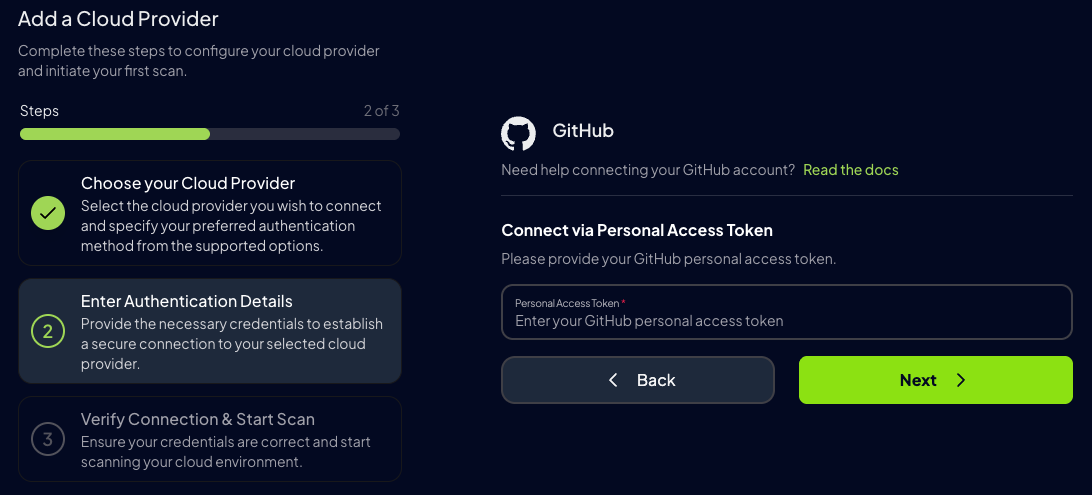 **Recommended method** - provides the best data access for security scanning.
1. Enter your Fine-Grained Personal Access Token
2. Click **Verify** to test the connection
3. Click **Save**
**Don't have a token yet?** [Create a pre-configured token on GitHub](https://github.com/settings/personal-access-tokens/new?name=Prowler+Security+Scanner\&description=Fine-grained+PAT+for+Prowler+security+scanning\&expires_in=90\&administration=read\&contents=read\&vulnerability_alerts=read\&emails=read) or see [How to create a Personal Access Token](/user-guide/providers/github/authentication#create-a-fine-grained-personal-access-token) for detailed instructions.
**Recommended method** - provides the best data access for security scanning.
1. Enter your Fine-Grained Personal Access Token
2. Click **Verify** to test the connection
3. Click **Save**
**Don't have a token yet?** [Create a pre-configured token on GitHub](https://github.com/settings/personal-access-tokens/new?name=Prowler+Security+Scanner\&description=Fine-grained+PAT+for+Prowler+security+scanning\&expires_in=90\&administration=read\&contents=read\&vulnerability_alerts=read\&emails=read) or see [How to create a Personal Access Token](/user-guide/providers/github/authentication#create-a-fine-grained-personal-access-token) for detailed instructions.
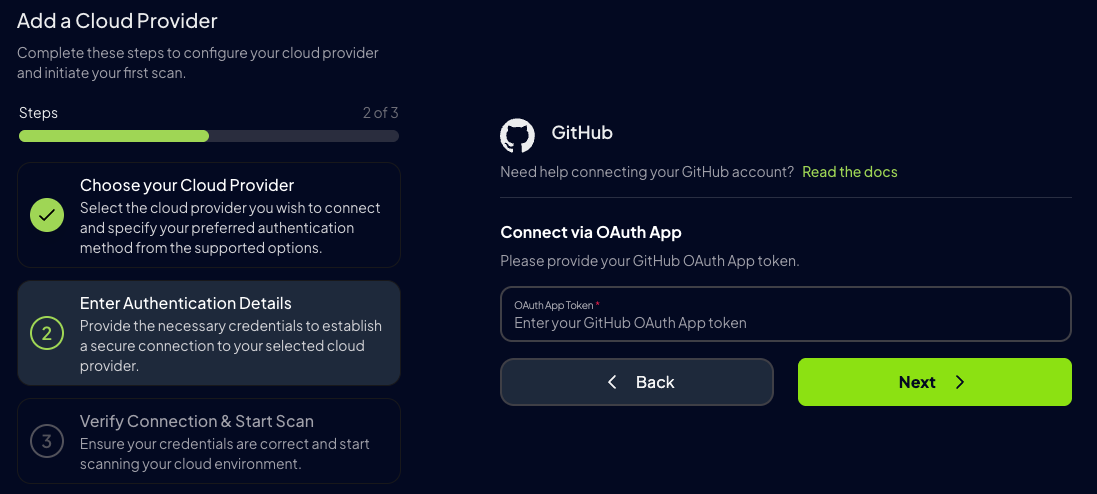 For applications requiring user consent and delegated permissions.
1. Enter your OAuth App Token
2. Click **Verify** to test the connection
3. Click **Save**
**Don't have an OAuth token?** See [How to create an OAuth App Token](/user-guide/providers/github/authentication#oauth-app-token)
For applications requiring user consent and delegated permissions.
1. Enter your OAuth App Token
2. Click **Verify** to test the connection
3. Click **Save**
**Don't have an OAuth token?** See [How to create an OAuth App Token](/user-guide/providers/github/authentication#oauth-app-token)
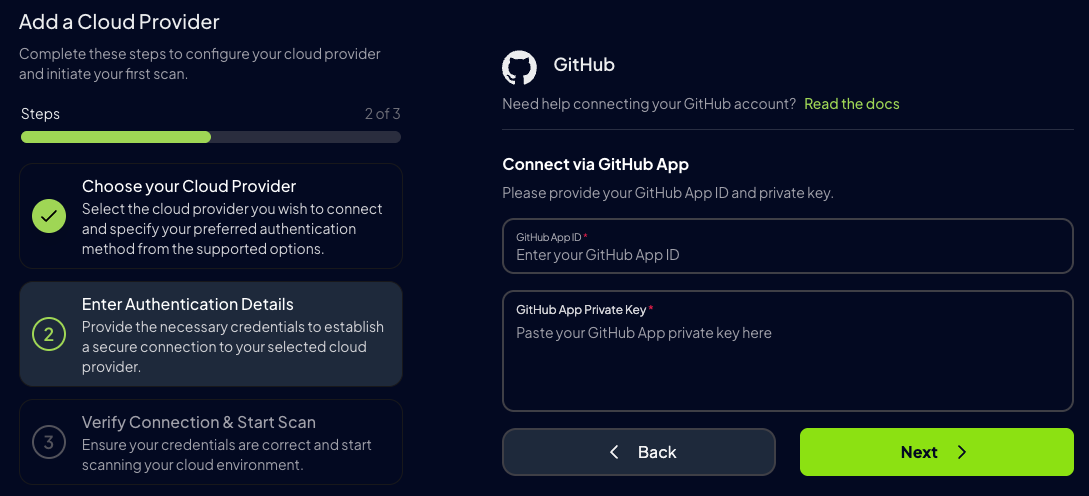 **Not recommended** - most limited data access. Use only if required by organization policy.
1. Enter your GitHub App ID
2. Upload or paste your Private Key (`.pem` file)
3. Click **Verify** to test the connection
4. Click **Save**
**Don't have a GitHub App?** See [How to create a GitHub App](/user-guide/providers/github/authentication#github-app-credentials)
8. Click **Start Scan** to begin your first security assessment
### Step 5: View Results
Once the scan completes, you can:
* View security findings in the dashboard
* Export results in multiple formats (JSON, CSV, HTML)
* Set up continuous scanning schedules
* Configure alerts for critical findings
***
## Prowler CLI
### Prerequisites
Before running Prowler CLI for GitHub, ensure you have:
1. **Prowler Installed**
```bash theme={null}
# Install via pip
pip install prowler
# Or via uv (from the cloned repo)
uv sync
```
2. **Authentication Credentials**
* Choose one method (see [Authentication Guide](/user-guide/providers/github/authentication)):
* **Fine-Grained Personal Access Token** (Recommended)
* OAuth App Token
* GitHub App Credentials (Not Recommended)
### Authentication Setup
Prowler CLI automatically detects authentication credentials using environment variables in this order:
1. `GITHUB_PERSONAL_ACCESS_TOKEN`
2. `GITHUB_OAUTH_APP_TOKEN`
3. `GITHUB_APP_ID` and `GITHUB_APP_KEY`
```bash theme={null}
# Personal Access Token (Recommended)
export GITHUB_PERSONAL_ACCESS_TOKEN="ghp_xxxxxxxxxxxx"
# OAuth App Token
export GITHUB_OAUTH_APP_TOKEN="oauth_token_here"
# GitHub App
export GITHUB_APP_ID="123456"
export GITHUB_APP_KEY="$(cat /path/to/private-key.pem)"
```
Then run Prowler without additional flags:
```bash theme={null}
prowler github
```
```bash theme={null}
# Personal Access Token
prowler github --personal-access-token ghp_xxxxxxxxxxxx
# OAuth App Token
prowler github --oauth-app-token oauth_token_here
# GitHub App
prowler github --github-app-id 123456 --github-app-key-path /path/to/private-key.pem
```
**Don't have credentials yet?** See the [Authentication Guide](/user-guide/providers/github/authentication) for step-by-step instructions.
### Scan Scope: Understanding What Gets Scanned
**Distinguishing User Scans from Organization Scans**
The scan scope depends entirely on the Prowler CLI invocation method:
| Command | What Gets Scanned | Organization Checks Included? |
| ---------------------------------------------------------------- | ---------------------------------------- | ----------------------------- |
| `prowler github` | All repositories the token has access to | No |
| `prowler github --repository owner/repo` | Single specified repository | No |
| `prowler github --organization org-name` | Organization repos + org settings | Yes |
| `prowler github --organization org-name --repository owner/repo` | Organization + single repository | Yes |
**Key Points:**
* Scanning **user repositories** does NOT run organization-level checks
* To audit organization MFA, security policies, etc., the `--organization` flag is required
* Members of multiple organizations should specify each one explicitly
### Scanning User Repositories
Scan repositories owned by your user account:
```bash theme={null}
# Scan all repositories accessible to your token
prowler github
# Scan a specific repository
prowler github --repository username/my-repo
# Scan multiple specific repositories
prowler github --repository username/repo1 --repository username/repo2
```
**What gets scanned:**
* Repository security settings
* Branch protection rules
* Secret scanning configuration
* Dependabot settings
* Organization-level policies (not included)
### Scanning Organizations
Scan organization repositories and organization-level security settings:
```bash theme={null}
# Scan a single organization
prowler github --organization prowler-cloud
# Scan multiple organizations
prowler github --organization org1 --organization org2
# Scan organization and specific repositories within it
prowler github --organization my-org --repository my-org/critical-repo
```
**What gets scanned:**
* All organization repositories
* Repository security settings
* Organization MFA requirements
* Organization security policies
* Member access and permissions
### Scan Scoping
Scan scoping controls which repositories and organizations Prowler includes in a security assessment. By default, Prowler scans all repositories accessible to the authenticated user or organization. To limit the scan to specific repositories or organizations, use the following flags.
#### Scanning Specific Repositories
To restrict the scan to one or more repositories, use the `--repository` flag followed by the repository name(s) in `owner/repo-name` format:
```console theme={null}
prowler github --repository owner/repo-name
```
To scan multiple repositories, specify them as space-separated arguments:
```console theme={null}
prowler github --repository owner/repo-name-1 owner/repo-name-2
```
#### Scanning Specific Organizations
To restrict the scan to one or more organizations or user accounts, use the `--organization` flag:
```console theme={null}
prowler github --organization my-organization
```
To scan multiple organizations, specify them as space-separated arguments:
```console theme={null}
prowler github --organization org-1 org-2
```
#### Scanning Specific Repositories Within an Organization
To scan specific repositories within an organization, combine the `--organization` and `--repository` flags. The `--organization` flag qualifies unqualified repository names automatically:
```console theme={null}
prowler github --organization my-organization --repository my-repo
```
This scans only `my-organization/my-repo`. Fully qualified repository names (`owner/repo-name`) are also supported alongside `--organization`:
```console theme={null}
prowler github --organization my-org --repository my-repo other-owner/other-repo
```
In this case, `my-repo` is qualified as `my-org/my-repo`, while `other-owner/other-repo` is used as-is.
The `--repository` and `--organization` flags can be combined with any authentication method.
### Filtering Scans
Customize your scan scope with these options:
```bash theme={null}
# Run only critical severity checks
prowler github --severity critical
# Run specific checks
prowler github --checks repository_default_branch_protection_enabled,organization_members_mfa_required
# Exclude specific checks
prowler github --excluded-checks repository_archived
# Scan with specific compliance framework
prowler github --compliance cis_1.0_github
# Output results in specific format
prowler github --output-formats json,csv,html
```
### Example Workflows
```bash theme={null}
# Scan your personal repositories for critical issues
export GITHUB_PERSONAL_ACCESS_TOKEN="ghp_xxxx"
prowler github --severity critical high
```
```bash theme={null}
# Full organization scan with CIS compliance
export GITHUB_PERSONAL_ACCESS_TOKEN="ghp_xxxx"
prowler github \
--organization prowler-cloud \
--compliance cis_1.0_github \
--output-formats json,html
```
```bash theme={null}
# Scan specific repository in CI pipeline
prowler github \
--personal-access-token "$GITHUB_TOKEN" \
--repository "$GITHUB_REPOSITORY" \
--severity critical \
--output-formats json
# Exit with non-zero if critical findings
if grep -q '"Status": "FAIL".*"Severity": "critical"' prowler-output*.json; then
echo "Critical security issues found!"
exit 1
fi
```
```bash theme={null}
# Scan multiple organizations you're part of
export GITHUB_PERSONAL_ACCESS_TOKEN="ghp_xxxx"
prowler github \
--organization org1 \
--organization org2 \
--organization org3 \
--output-formats csv
```
### Viewing Prowler CLI Scan Results
Prowler CLI generates results in multiple formats:
```bash theme={null}
# Results are saved in ./output/ directory by default
ls output/
# View HTML report in browser
open output/prowler-output-*.html
# Parse JSON results with jq
cat output/prowler-output-*.json | jq '.findings[] | select(.Status=="FAIL")'
# Import CSV into spreadsheet
open output/prowler-output-*.csv
```
***
## Next Steps
Detailed permissions and token creation
Browse all GitHub security checks
CIS, NIST, and other frameworks
Common issues and solutions
## Additional Resources
* [GitHub REST API Documentation](https://docs.github.com/en/rest)
* [Fine-Grained Personal Access Tokens](https://docs.github.com/en/authentication/keeping-your-account-and-data-secure/managing-your-personal-access-tokens#creating-a-fine-grained-personal-access-token)
* [GitHub Security Best Practices](https://docs.github.com/en/code-security)
* [Prowler CLI Reference](/getting-started/basic-usage/prowler-cli)
**Not recommended** - most limited data access. Use only if required by organization policy.
1. Enter your GitHub App ID
2. Upload or paste your Private Key (`.pem` file)
3. Click **Verify** to test the connection
4. Click **Save**
**Don't have a GitHub App?** See [How to create a GitHub App](/user-guide/providers/github/authentication#github-app-credentials)
8. Click **Start Scan** to begin your first security assessment
### Step 5: View Results
Once the scan completes, you can:
* View security findings in the dashboard
* Export results in multiple formats (JSON, CSV, HTML)
* Set up continuous scanning schedules
* Configure alerts for critical findings
***
## Prowler CLI
### Prerequisites
Before running Prowler CLI for GitHub, ensure you have:
1. **Prowler Installed**
```bash theme={null}
# Install via pip
pip install prowler
# Or via uv (from the cloned repo)
uv sync
```
2. **Authentication Credentials**
* Choose one method (see [Authentication Guide](/user-guide/providers/github/authentication)):
* **Fine-Grained Personal Access Token** (Recommended)
* OAuth App Token
* GitHub App Credentials (Not Recommended)
### Authentication Setup
Prowler CLI automatically detects authentication credentials using environment variables in this order:
1. `GITHUB_PERSONAL_ACCESS_TOKEN`
2. `GITHUB_OAUTH_APP_TOKEN`
3. `GITHUB_APP_ID` and `GITHUB_APP_KEY`
```bash theme={null}
# Personal Access Token (Recommended)
export GITHUB_PERSONAL_ACCESS_TOKEN="ghp_xxxxxxxxxxxx"
# OAuth App Token
export GITHUB_OAUTH_APP_TOKEN="oauth_token_here"
# GitHub App
export GITHUB_APP_ID="123456"
export GITHUB_APP_KEY="$(cat /path/to/private-key.pem)"
```
Then run Prowler without additional flags:
```bash theme={null}
prowler github
```
```bash theme={null}
# Personal Access Token
prowler github --personal-access-token ghp_xxxxxxxxxxxx
# OAuth App Token
prowler github --oauth-app-token oauth_token_here
# GitHub App
prowler github --github-app-id 123456 --github-app-key-path /path/to/private-key.pem
```
**Don't have credentials yet?** See the [Authentication Guide](/user-guide/providers/github/authentication) for step-by-step instructions.
### Scan Scope: Understanding What Gets Scanned
**Distinguishing User Scans from Organization Scans**
The scan scope depends entirely on the Prowler CLI invocation method:
| Command | What Gets Scanned | Organization Checks Included? |
| ---------------------------------------------------------------- | ---------------------------------------- | ----------------------------- |
| `prowler github` | All repositories the token has access to | No |
| `prowler github --repository owner/repo` | Single specified repository | No |
| `prowler github --organization org-name` | Organization repos + org settings | Yes |
| `prowler github --organization org-name --repository owner/repo` | Organization + single repository | Yes |
**Key Points:**
* Scanning **user repositories** does NOT run organization-level checks
* To audit organization MFA, security policies, etc., the `--organization` flag is required
* Members of multiple organizations should specify each one explicitly
### Scanning User Repositories
Scan repositories owned by your user account:
```bash theme={null}
# Scan all repositories accessible to your token
prowler github
# Scan a specific repository
prowler github --repository username/my-repo
# Scan multiple specific repositories
prowler github --repository username/repo1 --repository username/repo2
```
**What gets scanned:**
* Repository security settings
* Branch protection rules
* Secret scanning configuration
* Dependabot settings
* Organization-level policies (not included)
### Scanning Organizations
Scan organization repositories and organization-level security settings:
```bash theme={null}
# Scan a single organization
prowler github --organization prowler-cloud
# Scan multiple organizations
prowler github --organization org1 --organization org2
# Scan organization and specific repositories within it
prowler github --organization my-org --repository my-org/critical-repo
```
**What gets scanned:**
* All organization repositories
* Repository security settings
* Organization MFA requirements
* Organization security policies
* Member access and permissions
### Scan Scoping
Scan scoping controls which repositories and organizations Prowler includes in a security assessment. By default, Prowler scans all repositories accessible to the authenticated user or organization. To limit the scan to specific repositories or organizations, use the following flags.
#### Scanning Specific Repositories
To restrict the scan to one or more repositories, use the `--repository` flag followed by the repository name(s) in `owner/repo-name` format:
```console theme={null}
prowler github --repository owner/repo-name
```
To scan multiple repositories, specify them as space-separated arguments:
```console theme={null}
prowler github --repository owner/repo-name-1 owner/repo-name-2
```
#### Scanning Specific Organizations
To restrict the scan to one or more organizations or user accounts, use the `--organization` flag:
```console theme={null}
prowler github --organization my-organization
```
To scan multiple organizations, specify them as space-separated arguments:
```console theme={null}
prowler github --organization org-1 org-2
```
#### Scanning Specific Repositories Within an Organization
To scan specific repositories within an organization, combine the `--organization` and `--repository` flags. The `--organization` flag qualifies unqualified repository names automatically:
```console theme={null}
prowler github --organization my-organization --repository my-repo
```
This scans only `my-organization/my-repo`. Fully qualified repository names (`owner/repo-name`) are also supported alongside `--organization`:
```console theme={null}
prowler github --organization my-org --repository my-repo other-owner/other-repo
```
In this case, `my-repo` is qualified as `my-org/my-repo`, while `other-owner/other-repo` is used as-is.
The `--repository` and `--organization` flags can be combined with any authentication method.
### Filtering Scans
Customize your scan scope with these options:
```bash theme={null}
# Run only critical severity checks
prowler github --severity critical
# Run specific checks
prowler github --checks repository_default_branch_protection_enabled,organization_members_mfa_required
# Exclude specific checks
prowler github --excluded-checks repository_archived
# Scan with specific compliance framework
prowler github --compliance cis_1.0_github
# Output results in specific format
prowler github --output-formats json,csv,html
```
### Example Workflows
```bash theme={null}
# Scan your personal repositories for critical issues
export GITHUB_PERSONAL_ACCESS_TOKEN="ghp_xxxx"
prowler github --severity critical high
```
```bash theme={null}
# Full organization scan with CIS compliance
export GITHUB_PERSONAL_ACCESS_TOKEN="ghp_xxxx"
prowler github \
--organization prowler-cloud \
--compliance cis_1.0_github \
--output-formats json,html
```
```bash theme={null}
# Scan specific repository in CI pipeline
prowler github \
--personal-access-token "$GITHUB_TOKEN" \
--repository "$GITHUB_REPOSITORY" \
--severity critical \
--output-formats json
# Exit with non-zero if critical findings
if grep -q '"Status": "FAIL".*"Severity": "critical"' prowler-output*.json; then
echo "Critical security issues found!"
exit 1
fi
```
```bash theme={null}
# Scan multiple organizations you're part of
export GITHUB_PERSONAL_ACCESS_TOKEN="ghp_xxxx"
prowler github \
--organization org1 \
--organization org2 \
--organization org3 \
--output-formats csv
```
### Viewing Prowler CLI Scan Results
Prowler CLI generates results in multiple formats:
```bash theme={null}
# Results are saved in ./output/ directory by default
ls output/
# View HTML report in browser
open output/prowler-output-*.html
# Parse JSON results with jq
cat output/prowler-output-*.json | jq '.findings[] | select(.Status=="FAIL")'
# Import CSV into spreadsheet
open output/prowler-output-*.csv
```
***
## Next Steps
Detailed permissions and token creation
Browse all GitHub security checks
CIS, NIST, and other frameworks
Common issues and solutions
## Additional Resources
* [GitHub REST API Documentation](https://docs.github.com/en/rest)
* [Fine-Grained Personal Access Tokens](https://docs.github.com/en/authentication/keeping-your-account-and-data-secure/managing-your-personal-access-tokens#creating-a-fine-grained-personal-access-token)
* [GitHub Security Best Practices](https://docs.github.com/en/code-security)
* [Prowler CLI Reference](/getting-started/basic-usage/prowler-cli)