> ## Documentation Index
> Fetch the complete documentation index at: https://docs.prowler.com/llms.txt
> Use this file to discover all available pages before exploring further.
# Getting Started With Google Workspace on Prowler
export const VersionBadge = ({version}) => {
return
Added in:
{version}
;
};
Prowler for Google Workspace audits the organization's Google Workspace environment for security misconfigurations, including super administrator account hygiene, domain settings, and more.
## Prerequisites
Set up authentication for Google Workspace with the [Google Workspace Authentication](/user-guide/providers/googleworkspace/authentication) guide before starting either path:
* **Service Account:** Create a Service Account in a GCP project with Domain-Wide Delegation enabled.
* **OAuth Scopes:** Authorize the required read-only OAuth scopes in the Google Workspace Admin Console.
* **Customer ID:** Identify the Google Workspace Customer ID to use as the provider identifier.
* **Delegated User:** Have the email of a super administrator to use as the delegated user.
Onboard Google Workspace using Prowler Cloud
Onboard Google Workspace using Prowler CLI
## Prowler Cloud
### Step 1: Locate the Customer ID
1. Log into the [Google Workspace Admin Console](https://admin.google.com).
2. Navigate to "Account" > "Account Settings".
3. Find the **Customer ID** on the Account Settings page.
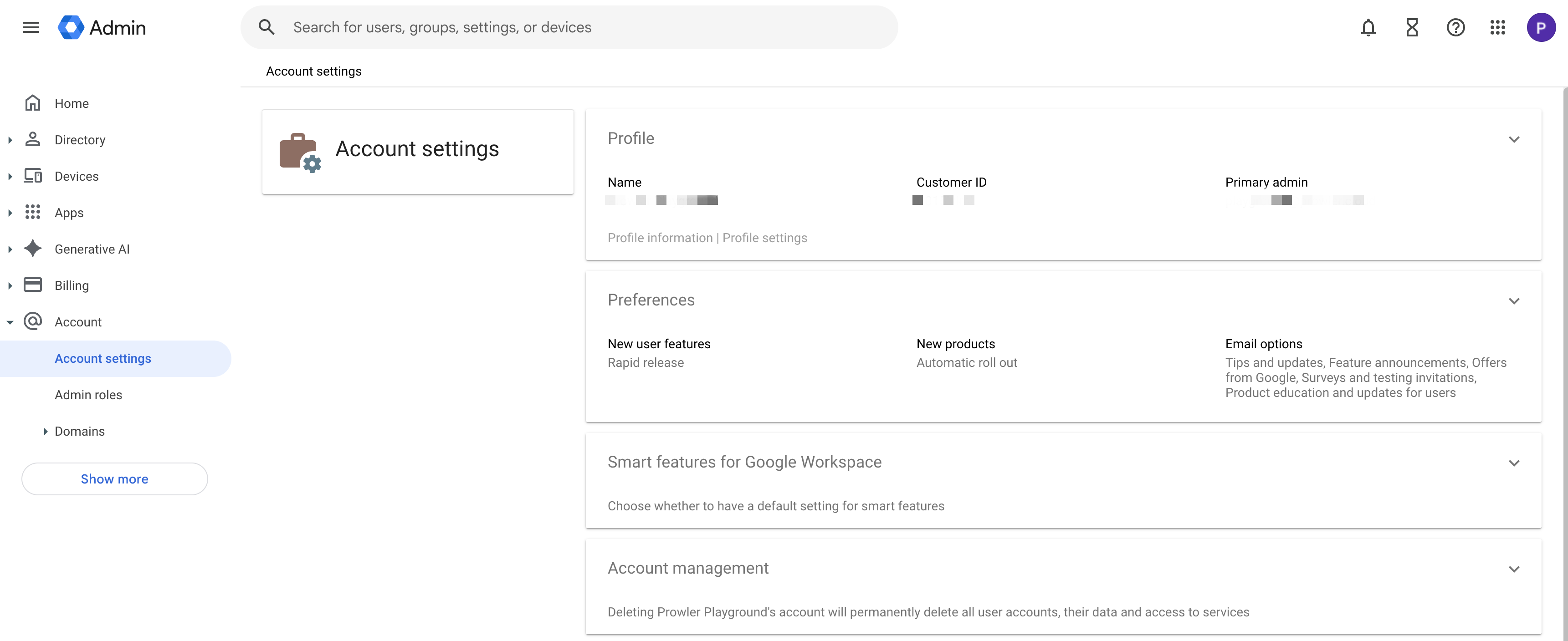 The Customer ID starts with the letter "C" followed by alphanumeric characters (e.g., `C0xxxxxxx`). This value acts as the unique identifier for the Google Workspace account in Prowler Cloud.
### Step 2: Open Prowler Cloud
1. Go to [Prowler Cloud](https://cloud.prowler.com/) or launch [Prowler App](/user-guide/tutorials/prowler-app).
2. Navigate to "Configuration" > "Providers".
The Customer ID starts with the letter "C" followed by alphanumeric characters (e.g., `C0xxxxxxx`). This value acts as the unique identifier for the Google Workspace account in Prowler Cloud.
### Step 2: Open Prowler Cloud
1. Go to [Prowler Cloud](https://cloud.prowler.com/) or launch [Prowler App](/user-guide/tutorials/prowler-app).
2. Navigate to "Configuration" > "Providers".
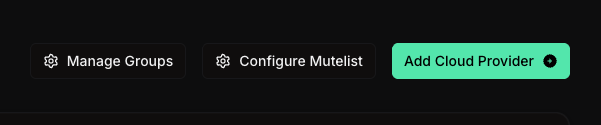
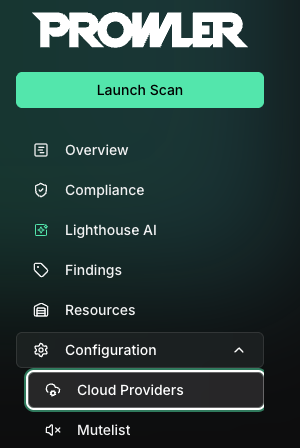 3. Click "Add Provider".
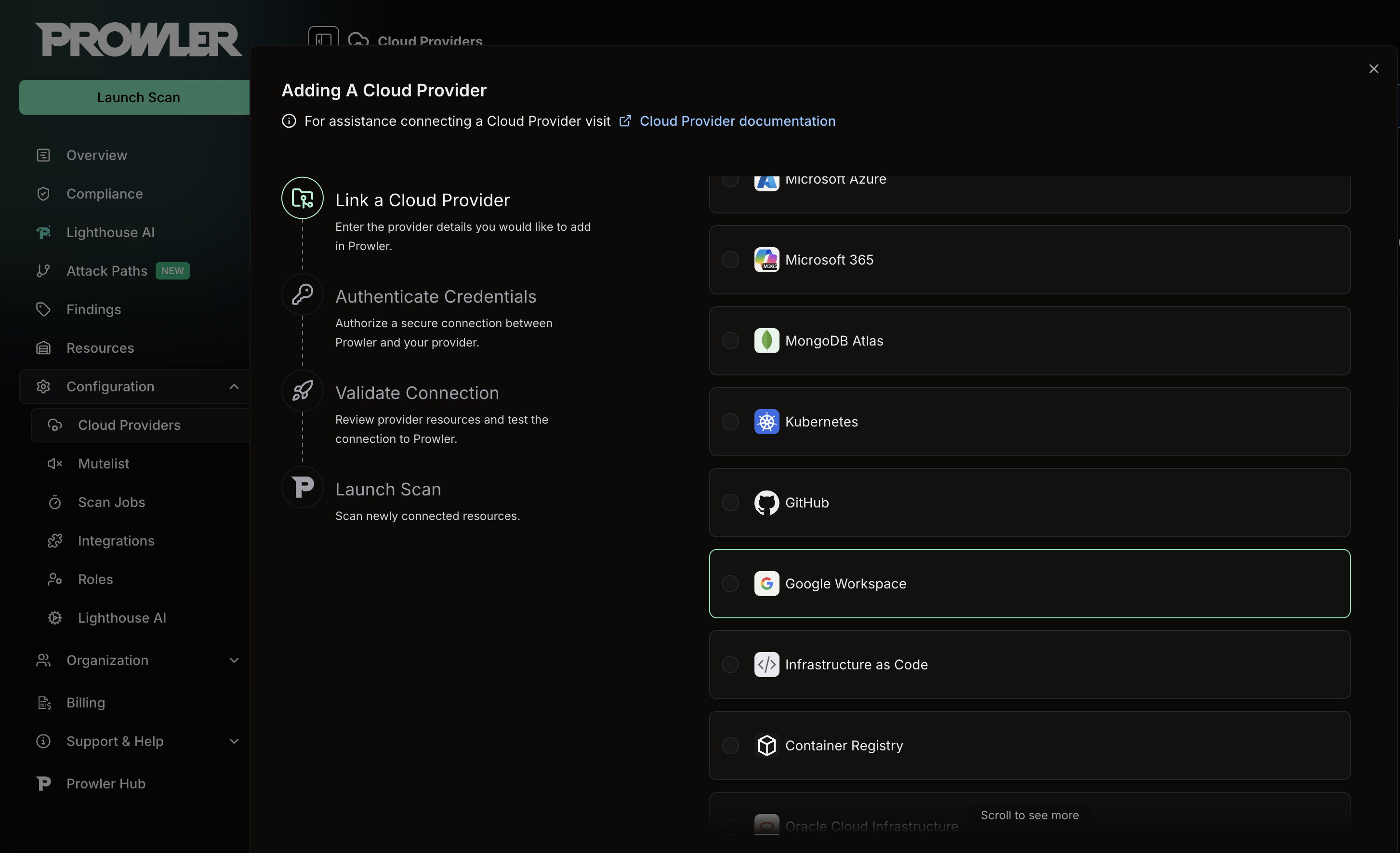
 4. Select "Google Workspace".
 ### Step 3: Provide Credentials
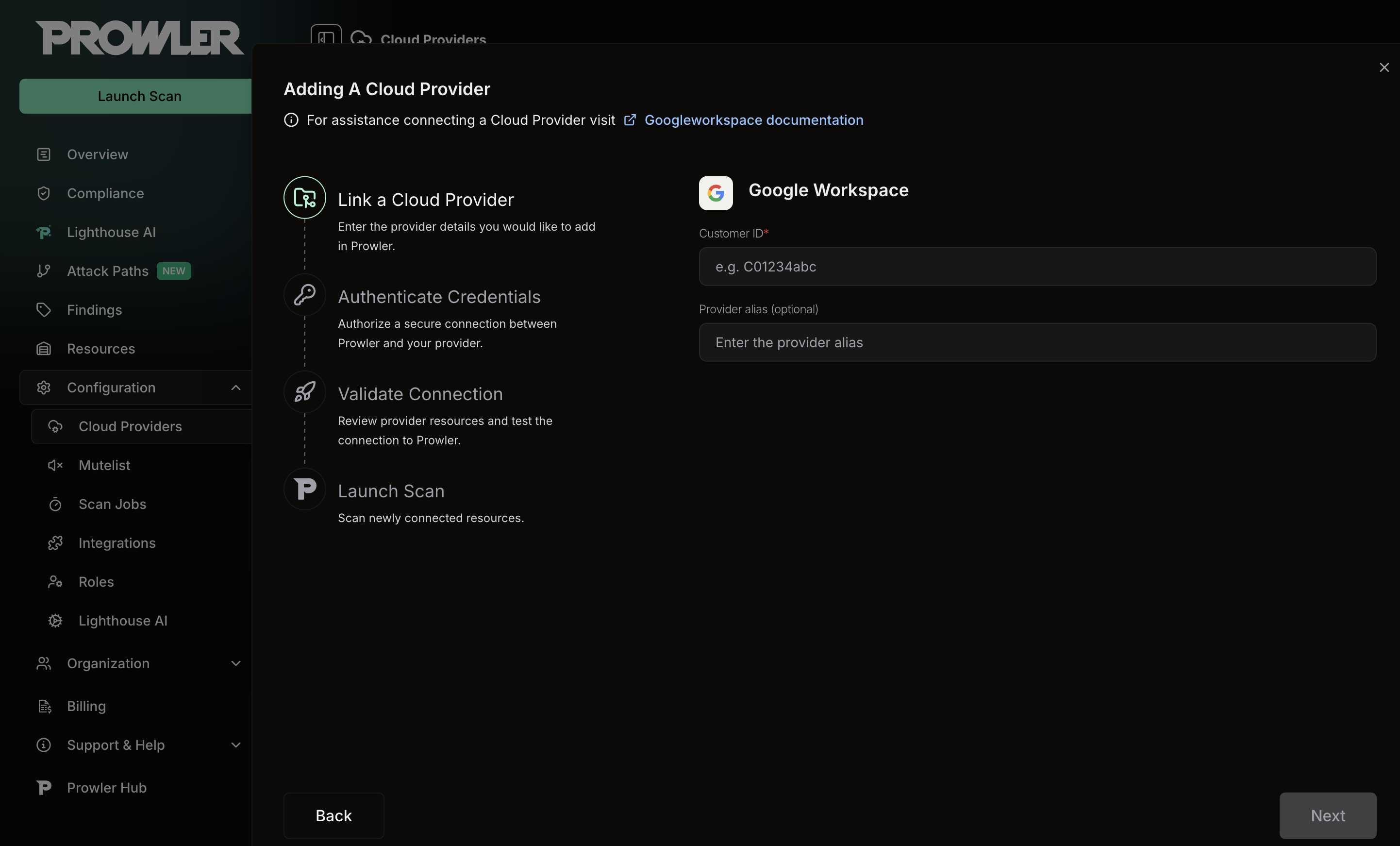
1. Enter the **Customer ID** and an optional alias, then click "Next".
### Step 3: Provide Credentials
1. Enter the **Customer ID** and an optional alias, then click "Next".
 2. Paste the **Service Account JSON** credentials content.
3. Enter the "Delegated User Email" (a super administrator in the Google Workspace organization).
2. Paste the **Service Account JSON** credentials content.
3. Enter the "Delegated User Email" (a super administrator in the Google Workspace organization).
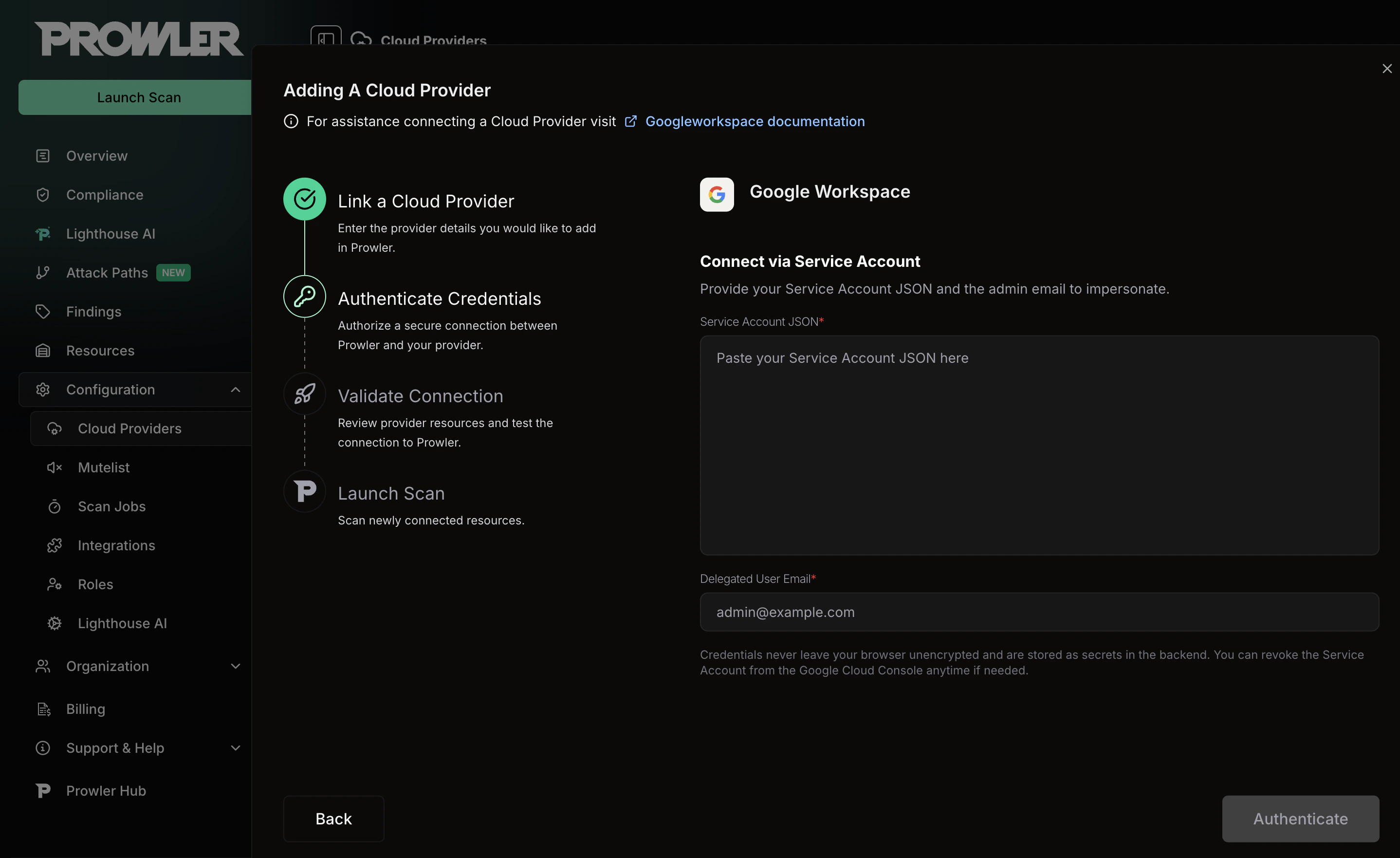 The Service Account JSON is the full content of the key file downloaded when creating the Service Account. Paste the entire JSON object, not just the file path. For setup instructions, see the [Authentication guide](/user-guide/providers/googleworkspace/authentication).
### Step 4: Check Connection
1. Click "Check Connection" to verify that the credentials and Domain-Wide Delegation are configured correctly.
2. Prowler will test the Service Account impersonation and Admin SDK access.
The Service Account JSON is the full content of the key file downloaded when creating the Service Account. Paste the entire JSON object, not just the file path. For setup instructions, see the [Authentication guide](/user-guide/providers/googleworkspace/authentication).
### Step 4: Check Connection
1. Click "Check Connection" to verify that the credentials and Domain-Wide Delegation are configured correctly.
2. Prowler will test the Service Account impersonation and Admin SDK access.
 If the connection test fails, verify that Domain-Wide Delegation is properly configured and that all required OAuth scopes are authorized. It may take a few minutes for delegation changes to propagate. See the [Troubleshooting](/user-guide/providers/googleworkspace/authentication#troubleshooting) section for common errors.
### Step 5: Launch the Scan
1. Review the summary.
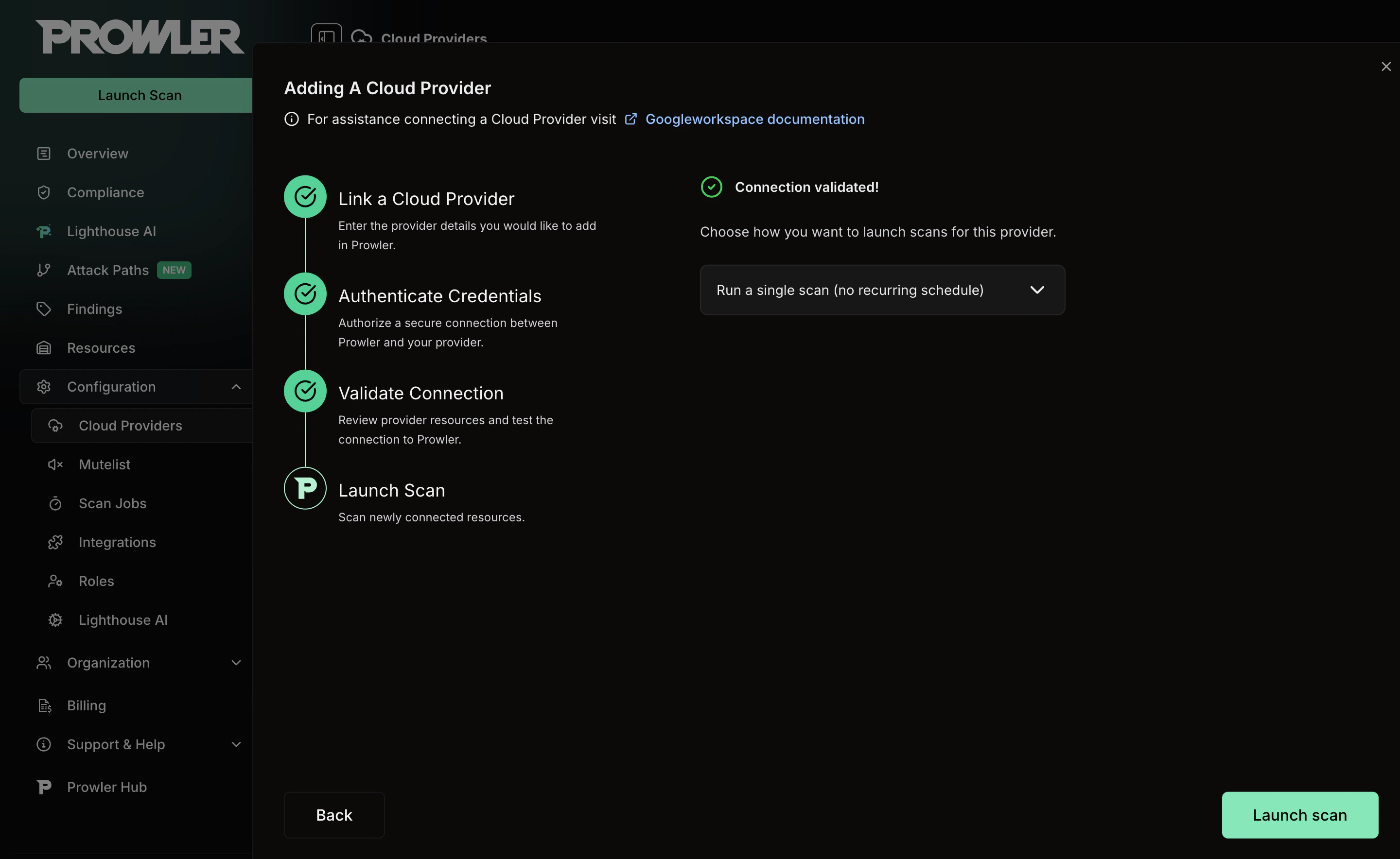
2. Click "Launch Scan" to start auditing Google Workspace.
If the connection test fails, verify that Domain-Wide Delegation is properly configured and that all required OAuth scopes are authorized. It may take a few minutes for delegation changes to propagate. See the [Troubleshooting](/user-guide/providers/googleworkspace/authentication#troubleshooting) section for common errors.
### Step 5: Launch the Scan
1. Review the summary.
2. Click "Launch Scan" to start auditing Google Workspace.
 ***
## Prowler CLI
### Step 1: Set Up Authentication
Set your Service Account credentials and delegated user email following the [Google Workspace Authentication](/user-guide/providers/googleworkspace/authentication) guide:
```console theme={null}
export GOOGLEWORKSPACE_CREDENTIALS_FILE="/path/to/service-account-key.json"
export GOOGLEWORKSPACE_DELEGATED_USER="admin@yourdomain.com"
```
Alternatively, pass the credentials content directly as a JSON string:
```console theme={null}
export GOOGLEWORKSPACE_CREDENTIALS_CONTENT='{"type": "service_account", ...}'
export GOOGLEWORKSPACE_DELEGATED_USER="admin@yourdomain.com"
```
### Step 2: Run the First Scan
Run a baseline scan after credentials are configured:
```console theme={null}
prowler googleworkspace
```
Prowler authenticates as the delegated user and runs all available security checks against the Google Workspace organization.
### Step 3: Use a Custom Configuration (Optional)
Prowler uses a configuration file to customize provider behavior. To use a custom configuration:
```console theme={null}
prowler googleworkspace --config-file /path/to/config.yaml
```
***
***
## Prowler CLI
### Step 1: Set Up Authentication
Set your Service Account credentials and delegated user email following the [Google Workspace Authentication](/user-guide/providers/googleworkspace/authentication) guide:
```console theme={null}
export GOOGLEWORKSPACE_CREDENTIALS_FILE="/path/to/service-account-key.json"
export GOOGLEWORKSPACE_DELEGATED_USER="admin@yourdomain.com"
```
Alternatively, pass the credentials content directly as a JSON string:
```console theme={null}
export GOOGLEWORKSPACE_CREDENTIALS_CONTENT='{"type": "service_account", ...}'
export GOOGLEWORKSPACE_DELEGATED_USER="admin@yourdomain.com"
```
### Step 2: Run the First Scan
Run a baseline scan after credentials are configured:
```console theme={null}
prowler googleworkspace
```
Prowler authenticates as the delegated user and runs all available security checks against the Google Workspace organization.
### Step 3: Use a Custom Configuration (Optional)
Prowler uses a configuration file to customize provider behavior. To use a custom configuration:
```console theme={null}
prowler googleworkspace --config-file /path/to/config.yaml
```
***