> ## Documentation Index
> Fetch the complete documentation index at: https://docs.prowler.com/llms.txt
> Use this file to discover all available pages before exploring further.
# Getting Started with the Image Provider
export const VersionBadge = ({version}) => {
return
Added in:
{version}
;
};
Prowler's Image provider enables comprehensive container image security scanning by integrating with [Trivy](https://trivy.dev/). This provider detects vulnerabilities, exposed secrets, and misconfigurations in container images, converting Trivy findings into Prowler's standard reporting format for unified security assessment.
## How It Works
* **Trivy integration:** Prowler leverages [Trivy](https://trivy.dev/) to scan container images for vulnerabilities, secrets, misconfigurations, and license issues.
* **Authentication:** No registry authentication is required for public images. For private registries, credentials can be provided via environment variables or manual `docker login`.
* Check the [Image Authentication](/user-guide/providers/image/authentication) page for more details.
* **Mutelist logic:** [Filtering](https://trivy.dev/latest/docs/configuration/filtering/) is handled by Trivy, not Prowler.
* **Output formats:** Results are output in the same formats as other Prowler providers (CSV, JSON, HTML, etc.).
Scan container images using Prowler Cloud
Scan container images using Prowler CLI
## Prowler Cloud
### Supported Scanners
Prowler Cloud does not support scanner selection. The vulnerability, secret, and misconfiguration scanners run automatically during each scan.
### Step 1: Access Prowler Cloud
1. Navigate to [Prowler Cloud](https://cloud.prowler.com/) or launch [Prowler App](/user-guide/tutorials/prowler-app)
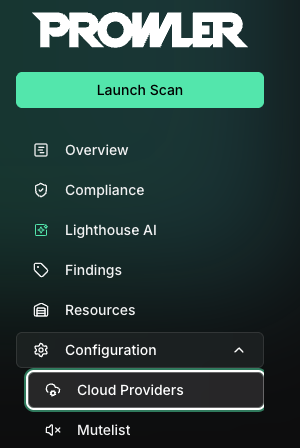
2. Navigate to "Configuration" > "Providers"
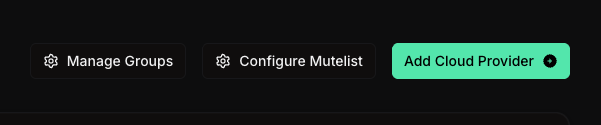
 3. Click "Add Provider"
 4. Select "Container Registry"
 5. Enter the container registry URL (e.g., `docker.io/myorg` or `myregistry.io`) and an optional alias, then click "Next"
 ### Step 2: Enter Authentication and Scan Filters
6. Optionally provide [authentication](/user-guide/providers/image/authentication) credentials for private registries, then configure the following scan filters to control which images are scanned:
* **Image filter:** A regex pattern to filter repositories by name (e.g., `^prod/.*`)
* **Tag filter:** A regex pattern to filter tags within repositories (e.g., `^(latest|v\d+\.\d+\.\d+)$`)
Then click "Next"
### Step 2: Enter Authentication and Scan Filters
6. Optionally provide [authentication](/user-guide/providers/image/authentication) credentials for private registries, then configure the following scan filters to control which images are scanned:
* **Image filter:** A regex pattern to filter repositories by name (e.g., `^prod/.*`)
* **Tag filter:** A regex pattern to filter tags within repositories (e.g., `^(latest|v\d+\.\d+\.\d+)$`)
Then click "Next"
 ### Step 3: Verify Connection & Start Scan
7. Review the provider configuration and click "Launch scan" to initiate the scan
### Step 3: Verify Connection & Start Scan
7. Review the provider configuration and click "Launch scan" to initiate the scan
 ## Prowler CLI
### Install Trivy
Install Trivy using one of the following methods:
```bash theme={null}
brew install trivy
```
```bash theme={null}
sudo apt-get install trivy
```
```bash theme={null}
curl -sfL https://raw.githubusercontent.com/aquasecurity/trivy/main/contrib/install.sh | sh -s -- -b /usr/local/bin
```
For additional installation methods, see the [Trivy installation guide](https://trivy.dev/latest/getting-started/installation/).
### Supported Scanners
Prowler CLI supports the following scanners:
* [Vulnerability](https://trivy.dev/docs/latest/guide/scanner/vulnerability/)
* [Secret](https://trivy.dev/docs/latest/guide/scanner/secret/)
* [Misconfiguration](https://trivy.dev/docs/latest/guide/scanner/misconfiguration/)
* [License](https://trivy.dev/docs/latest/guide/scanner/license/)
By default, vulnerability, secret, and misconfiguration scanners run during a scan. To specify which scanners to use, refer to the [Specify Scanners](#specify-scanners) section below.
### Scan Container Images
Use the `image` argument to run Prowler with the Image provider. Specify the images to scan using the `-I` flag or an image list file.
#### Scan a Single Image
To scan a single container image:
```bash theme={null}
prowler image -I alpine:3.18
```
#### Scan Multiple Images
To scan multiple images, repeat the `-I` flag:
```bash theme={null}
prowler image -I nginx:latest -I redis:7 -I python:3.12-slim
```
#### Scan From an Image List File
For large-scale scanning, provide a file containing one image per line:
```bash theme={null}
prowler image --image-list images.txt
```
The file supports comments (lines starting with `#`) and blank lines:
```text theme={null}
# Production images
nginx:1.25
redis:7-alpine
# Development images
python:3.12-slim
node:20-bookworm
```
Image list files are limited to a maximum of 10,000 lines. Individual image names exceeding 500 characters are automatically skipped with a warning.
Image names must follow the Open Container Initiative (OCI) reference format. Valid names start with an alphanumeric character and contain only letters, digits, periods, hyphens, underscores, slashes, colons, and `@` symbols. Names containing shell metacharacters (`;`, `|`, `&`, `$`, `` ` ``) are rejected to prevent command injection.
Valid examples:
* **Standard tag:** `alpine:3.18`
* **Custom registry:** `myregistry.io/myapp:v1.0`
* **SHA digest:** `ghcr.io/org/image@sha256:abc123...`
#### Specify Scanners
To select which scanners Trivy runs, use the `--scanners` option:
```bash theme={null}
# Vulnerability scanning only
prowler image -I alpine:3.18 --scanners vuln
# All available scanners
prowler image -I alpine:3.18 --scanners vuln secret misconfig license
```
#### Image Config Scanners
To scan Dockerfile-level metadata for misconfigurations or embedded secrets, use the `--image-config-scanners` option:
```bash theme={null}
# Scan Dockerfile for misconfigurations
prowler image -I alpine:3.18 --image-config-scanners misconfig
# Scan Dockerfile for both misconfigurations and secrets
prowler image -I alpine:3.18 --image-config-scanners misconfig secret
```
Available image config scanners:
* **misconfig**: Detects Dockerfile misconfigurations (e.g., running as root, missing health checks)
* **secret**: Identifies secrets embedded in Dockerfile instructions
Image config scanners are disabled by default. This option is independent from `--scanners` and specifically targets the image configuration (Dockerfile) rather than the image filesystem.
#### Filter by Severity
To filter findings by severity level, use the `--trivy-severity` option:
```bash theme={null}
# Only critical and high severity findings
prowler image -I alpine:3.18 --trivy-severity CRITICAL HIGH
```
Available severity levels: `CRITICAL`, `HIGH`, `MEDIUM`, `LOW`, `UNKNOWN`.
#### Ignore Unfixed Vulnerabilities
To exclude vulnerabilities without available fixes:
```bash theme={null}
prowler image -I alpine:3.18 --ignore-unfixed
```
#### Configure Scan Timeout
To adjust the scan timeout for large images or slow network conditions, use the `--timeout` option:
```bash theme={null}
prowler image -I large-image:latest --timeout 10m
```
The timeout accepts values in seconds (`s`), minutes (`m`), or hours (`h`). Default: `5m`.
### Registry Scan Mode
Registry Scan Mode enumerates and scans all images from an OCI-compatible registry, Docker Hub namespace, or Amazon ECR registry. To activate it, use the `--registry` flag with the registry URL:
```bash theme={null}
prowler image --registry myregistry.io
```
#### Discover Available Images
To list all repositories and tags available in the registry without running a scan, use the `--registry-list` flag. This is useful for discovering image names and tags before building filter regexes:
```bash theme={null}
prowler image --registry myregistry.io --registry-list
```
Example output:
```text theme={null}
Registry: myregistry.io (3 repositories, 8 images)
api-service (2 tags)
latest, v3.1
hub-scanner (3 tags)
latest, v1.0, v2.0
web-frontend (3 tags)
latest, v1.0, v2.0
```
Filters can be combined with `--registry-list` to preview the results before scanning:
```bash theme={null}
prowler image --registry myregistry.io --registry-list --image-filter "api.*"
```
#### Filter Repositories
To filter repositories by name during enumeration, use the `--image-filter` flag with a Python regex pattern (matched via `re.search`):
```bash theme={null}
# Scan only repositories starting with "prod/"
prowler image --registry myregistry.io --image-filter "^prod/"
```
#### Filter Tags
To filter tags during enumeration, use the `--tag-filter` flag with a Python regex pattern:
```bash theme={null}
# Scan only semantic version tags
prowler image --registry myregistry.io --tag-filter "^v\d+\.\d+\.\d+$"
```
Both filters can be combined:
```bash theme={null}
prowler image --registry myregistry.io --image-filter "^prod/" --tag-filter "^(latest|v\d+)"
```
#### Limit the Number of Images
To prevent accidentally scanning a large number of images, use the `--max-images` flag. The scan aborts if the discovered image count exceeds the limit:
```bash theme={null}
prowler image --registry myregistry.io --max-images 10
```
Setting `--max-images` to `0` (default) disables the limit.
When `--registry-list` is active, the `--max-images` limit is not enforced because no scan is performed.
#### Skip TLS Verification
To connect to registries with self-signed certificates, use the `--registry-insecure` flag:
```bash theme={null}
prowler image --registry internal-registry.local --registry-insecure
```
Skipping TLS verification disables certificate validation for registry connections. Use this flag only for trusted internal registries with self-signed certificates.
#### Supported Registries
Registry Scan Mode supports the following registry types:
* **OCI-compatible registries:** Any registry implementing the OCI Distribution Specification (e.g., Harbor, GitLab Container Registry, GitHub Container Registry).
* **Docker Hub:** Specify a namespace with `--registry docker.io/{org_or_user}`. Public namespaces can be scanned without credentials; authenticated access is used automatically when `REGISTRY_USERNAME` and `REGISTRY_PASSWORD` are set.
* **Amazon ECR:** Use the full ECR endpoint URL (e.g., `123456789.dkr.ecr.us-east-1.amazonaws.com`). Authentication is handled via AWS credentials.
### Authentication for Private Registries
To scan images from private registries, the Image provider supports three authentication methods. Prowler uses the first available method in this priority order:
#### 1. Basic Authentication (Environment Variables)
To authenticate with a username and password, set the `REGISTRY_USERNAME` and `REGISTRY_PASSWORD` environment variables. Prowler passes these credentials to Trivy, which handles authentication with the registry transparently:
```bash theme={null}
export REGISTRY_USERNAME="myuser"
export REGISTRY_PASSWORD="mypassword"
prowler image -I myregistry.io/myapp:v1.0
```
Both variables must be set for this method to activate.
#### 2. Token-Based Authentication
To authenticate using a registry token (such as a bearer or OAuth2 token), set the `REGISTRY_TOKEN` environment variable. Prowler passes the token directly to Trivy:
```bash theme={null}
export REGISTRY_TOKEN="my-registry-token"
prowler image -I myregistry.io/myapp:v1.0
```
This method is useful for registries that support token-based access without requiring a username and password.
#### 3. Manual Docker Login (Fallback)
If no environment variables are set, Prowler relies on existing credentials in Docker's credential store (`~/.docker/config.json`). To configure credentials manually before scanning:
```bash theme={null}
docker login myregistry.io
prowler image -I myregistry.io/myapp:v1.0
```
Credentials provided via environment variables are only passed to the Trivy subprocess and are not persisted beyond the scan.
### Troubleshooting Common Scan Errors
The Image provider categorizes common Trivy errors with actionable guidance:
* **Authentication failure (401/403):** Registry credentials are missing or invalid. Verify the `REGISTRY_USERNAME`/`REGISTRY_PASSWORD` or `REGISTRY_TOKEN` environment variables, or run `docker login` for the target registry and retry the scan.
* **Image not found (404):** The specified image name, tag, or registry is incorrect. Verify the image reference exists and is accessible.
* **Rate limited (429):** The container registry is throttling requests. Wait before retrying, or authenticate to increase rate limits.
* **Network issue:** Trivy cannot reach the registry due to connectivity problems. Check network access, DNS resolution, and firewall rules.
## Prowler CLI
### Install Trivy
Install Trivy using one of the following methods:
```bash theme={null}
brew install trivy
```
```bash theme={null}
sudo apt-get install trivy
```
```bash theme={null}
curl -sfL https://raw.githubusercontent.com/aquasecurity/trivy/main/contrib/install.sh | sh -s -- -b /usr/local/bin
```
For additional installation methods, see the [Trivy installation guide](https://trivy.dev/latest/getting-started/installation/).
### Supported Scanners
Prowler CLI supports the following scanners:
* [Vulnerability](https://trivy.dev/docs/latest/guide/scanner/vulnerability/)
* [Secret](https://trivy.dev/docs/latest/guide/scanner/secret/)
* [Misconfiguration](https://trivy.dev/docs/latest/guide/scanner/misconfiguration/)
* [License](https://trivy.dev/docs/latest/guide/scanner/license/)
By default, vulnerability, secret, and misconfiguration scanners run during a scan. To specify which scanners to use, refer to the [Specify Scanners](#specify-scanners) section below.
### Scan Container Images
Use the `image` argument to run Prowler with the Image provider. Specify the images to scan using the `-I` flag or an image list file.
#### Scan a Single Image
To scan a single container image:
```bash theme={null}
prowler image -I alpine:3.18
```
#### Scan Multiple Images
To scan multiple images, repeat the `-I` flag:
```bash theme={null}
prowler image -I nginx:latest -I redis:7 -I python:3.12-slim
```
#### Scan From an Image List File
For large-scale scanning, provide a file containing one image per line:
```bash theme={null}
prowler image --image-list images.txt
```
The file supports comments (lines starting with `#`) and blank lines:
```text theme={null}
# Production images
nginx:1.25
redis:7-alpine
# Development images
python:3.12-slim
node:20-bookworm
```
Image list files are limited to a maximum of 10,000 lines. Individual image names exceeding 500 characters are automatically skipped with a warning.
Image names must follow the Open Container Initiative (OCI) reference format. Valid names start with an alphanumeric character and contain only letters, digits, periods, hyphens, underscores, slashes, colons, and `@` symbols. Names containing shell metacharacters (`;`, `|`, `&`, `$`, `` ` ``) are rejected to prevent command injection.
Valid examples:
* **Standard tag:** `alpine:3.18`
* **Custom registry:** `myregistry.io/myapp:v1.0`
* **SHA digest:** `ghcr.io/org/image@sha256:abc123...`
#### Specify Scanners
To select which scanners Trivy runs, use the `--scanners` option:
```bash theme={null}
# Vulnerability scanning only
prowler image -I alpine:3.18 --scanners vuln
# All available scanners
prowler image -I alpine:3.18 --scanners vuln secret misconfig license
```
#### Image Config Scanners
To scan Dockerfile-level metadata for misconfigurations or embedded secrets, use the `--image-config-scanners` option:
```bash theme={null}
# Scan Dockerfile for misconfigurations
prowler image -I alpine:3.18 --image-config-scanners misconfig
# Scan Dockerfile for both misconfigurations and secrets
prowler image -I alpine:3.18 --image-config-scanners misconfig secret
```
Available image config scanners:
* **misconfig**: Detects Dockerfile misconfigurations (e.g., running as root, missing health checks)
* **secret**: Identifies secrets embedded in Dockerfile instructions
Image config scanners are disabled by default. This option is independent from `--scanners` and specifically targets the image configuration (Dockerfile) rather than the image filesystem.
#### Filter by Severity
To filter findings by severity level, use the `--trivy-severity` option:
```bash theme={null}
# Only critical and high severity findings
prowler image -I alpine:3.18 --trivy-severity CRITICAL HIGH
```
Available severity levels: `CRITICAL`, `HIGH`, `MEDIUM`, `LOW`, `UNKNOWN`.
#### Ignore Unfixed Vulnerabilities
To exclude vulnerabilities without available fixes:
```bash theme={null}
prowler image -I alpine:3.18 --ignore-unfixed
```
#### Configure Scan Timeout
To adjust the scan timeout for large images or slow network conditions, use the `--timeout` option:
```bash theme={null}
prowler image -I large-image:latest --timeout 10m
```
The timeout accepts values in seconds (`s`), minutes (`m`), or hours (`h`). Default: `5m`.
### Registry Scan Mode
Registry Scan Mode enumerates and scans all images from an OCI-compatible registry, Docker Hub namespace, or Amazon ECR registry. To activate it, use the `--registry` flag with the registry URL:
```bash theme={null}
prowler image --registry myregistry.io
```
#### Discover Available Images
To list all repositories and tags available in the registry without running a scan, use the `--registry-list` flag. This is useful for discovering image names and tags before building filter regexes:
```bash theme={null}
prowler image --registry myregistry.io --registry-list
```
Example output:
```text theme={null}
Registry: myregistry.io (3 repositories, 8 images)
api-service (2 tags)
latest, v3.1
hub-scanner (3 tags)
latest, v1.0, v2.0
web-frontend (3 tags)
latest, v1.0, v2.0
```
Filters can be combined with `--registry-list` to preview the results before scanning:
```bash theme={null}
prowler image --registry myregistry.io --registry-list --image-filter "api.*"
```
#### Filter Repositories
To filter repositories by name during enumeration, use the `--image-filter` flag with a Python regex pattern (matched via `re.search`):
```bash theme={null}
# Scan only repositories starting with "prod/"
prowler image --registry myregistry.io --image-filter "^prod/"
```
#### Filter Tags
To filter tags during enumeration, use the `--tag-filter` flag with a Python regex pattern:
```bash theme={null}
# Scan only semantic version tags
prowler image --registry myregistry.io --tag-filter "^v\d+\.\d+\.\d+$"
```
Both filters can be combined:
```bash theme={null}
prowler image --registry myregistry.io --image-filter "^prod/" --tag-filter "^(latest|v\d+)"
```
#### Limit the Number of Images
To prevent accidentally scanning a large number of images, use the `--max-images` flag. The scan aborts if the discovered image count exceeds the limit:
```bash theme={null}
prowler image --registry myregistry.io --max-images 10
```
Setting `--max-images` to `0` (default) disables the limit.
When `--registry-list` is active, the `--max-images` limit is not enforced because no scan is performed.
#### Skip TLS Verification
To connect to registries with self-signed certificates, use the `--registry-insecure` flag:
```bash theme={null}
prowler image --registry internal-registry.local --registry-insecure
```
Skipping TLS verification disables certificate validation for registry connections. Use this flag only for trusted internal registries with self-signed certificates.
#### Supported Registries
Registry Scan Mode supports the following registry types:
* **OCI-compatible registries:** Any registry implementing the OCI Distribution Specification (e.g., Harbor, GitLab Container Registry, GitHub Container Registry).
* **Docker Hub:** Specify a namespace with `--registry docker.io/{org_or_user}`. Public namespaces can be scanned without credentials; authenticated access is used automatically when `REGISTRY_USERNAME` and `REGISTRY_PASSWORD` are set.
* **Amazon ECR:** Use the full ECR endpoint URL (e.g., `123456789.dkr.ecr.us-east-1.amazonaws.com`). Authentication is handled via AWS credentials.
### Authentication for Private Registries
To scan images from private registries, the Image provider supports three authentication methods. Prowler uses the first available method in this priority order:
#### 1. Basic Authentication (Environment Variables)
To authenticate with a username and password, set the `REGISTRY_USERNAME` and `REGISTRY_PASSWORD` environment variables. Prowler passes these credentials to Trivy, which handles authentication with the registry transparently:
```bash theme={null}
export REGISTRY_USERNAME="myuser"
export REGISTRY_PASSWORD="mypassword"
prowler image -I myregistry.io/myapp:v1.0
```
Both variables must be set for this method to activate.
#### 2. Token-Based Authentication
To authenticate using a registry token (such as a bearer or OAuth2 token), set the `REGISTRY_TOKEN` environment variable. Prowler passes the token directly to Trivy:
```bash theme={null}
export REGISTRY_TOKEN="my-registry-token"
prowler image -I myregistry.io/myapp:v1.0
```
This method is useful for registries that support token-based access without requiring a username and password.
#### 3. Manual Docker Login (Fallback)
If no environment variables are set, Prowler relies on existing credentials in Docker's credential store (`~/.docker/config.json`). To configure credentials manually before scanning:
```bash theme={null}
docker login myregistry.io
prowler image -I myregistry.io/myapp:v1.0
```
Credentials provided via environment variables are only passed to the Trivy subprocess and are not persisted beyond the scan.
### Troubleshooting Common Scan Errors
The Image provider categorizes common Trivy errors with actionable guidance:
* **Authentication failure (401/403):** Registry credentials are missing or invalid. Verify the `REGISTRY_USERNAME`/`REGISTRY_PASSWORD` or `REGISTRY_TOKEN` environment variables, or run `docker login` for the target registry and retry the scan.
* **Image not found (404):** The specified image name, tag, or registry is incorrect. Verify the image reference exists and is accessible.
* **Rate limited (429):** The container registry is throttling requests. Wait before retrying, or authenticate to increase rate limits.
* **Network issue:** Trivy cannot reach the registry due to connectivity problems. Check network access, DNS resolution, and firewall rules.