> ## Documentation Index
> Fetch the complete documentation index at: https://docs.prowler.com/llms.txt
> Use this file to discover all available pages before exploring further.
# Getting Started With Okta on Prowler
export const VersionBadge = ({version}) => {
return
Added in:
{version}
;
};
Prowler for Okta scans an Okta organization for identity and session-management misconfigurations. The provider authenticates as a service application using **OAuth 2.0 with a private-key JWT** (Client Credentials grant) — no end-user login, read-only by scope.
## Prerequisites
Set up authentication for Okta with the [Okta Authentication](/user-guide/providers/okta/authentication) guide before starting:
* An Okta organization. The UI examples below use **Identity Engine** terminology such as **Global Session Policy**; Classic Engine exposes the equivalent sign-on policy concepts under older names.
* A **Super Administrator** account on that organization for the one-time service-app setup.
* An **API Services** app integration in the Okta Admin Console with the `okta.policies.read`, `okta.brands.read`, `okta.apps.read`, `okta.authenticators.read`, `okta.networkZones.read`, `okta.apiTokens.read`, `okta.roles.read`, `okta.groups.read`, `okta.logStreams.read`, and `okta.idps.read` scopes granted and an admin role assigned. **Read-Only Administrator** covers the Sign-On, Network, API Token, User, System Log, and Identity Provider checks, and runs the per-app application network-zone check against the apps the service app can see (under Read-Only Administrator that is typically only the service app's own row — the rest of the org's app inventory stays invisible). **Super Administrator** is required additionally to evaluate the five first-party application checks (Okta Admin Console / Okta Dashboard idle timeout, MFA, phishing-resistant authentication) and to widen the application network-zone check to the full app inventory — see [Okta Authentication](/user-guide/providers/okta/authentication#required-admin-role) for the full breakdown.
* Python 3.10+ and Prowler 5.27.0 or later installed locally.
Onboard Okta using Prowler Cloud
Onboard Okta using Prowler CLI
## Prowler Cloud
### Step 1: Add the Provider
1. Go to [Prowler Cloud](https://cloud.prowler.com/) or launch [Prowler App](/user-guide/tutorials/prowler-app).
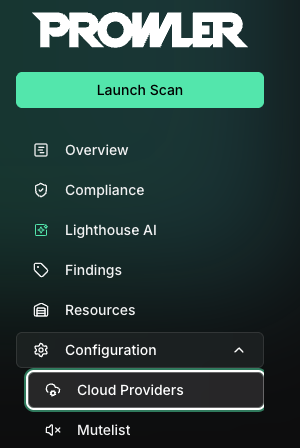
2. Navigate to "Configuration" > "Providers".
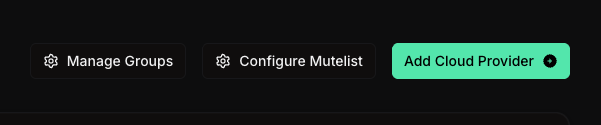
 3. Click "Add Provider".
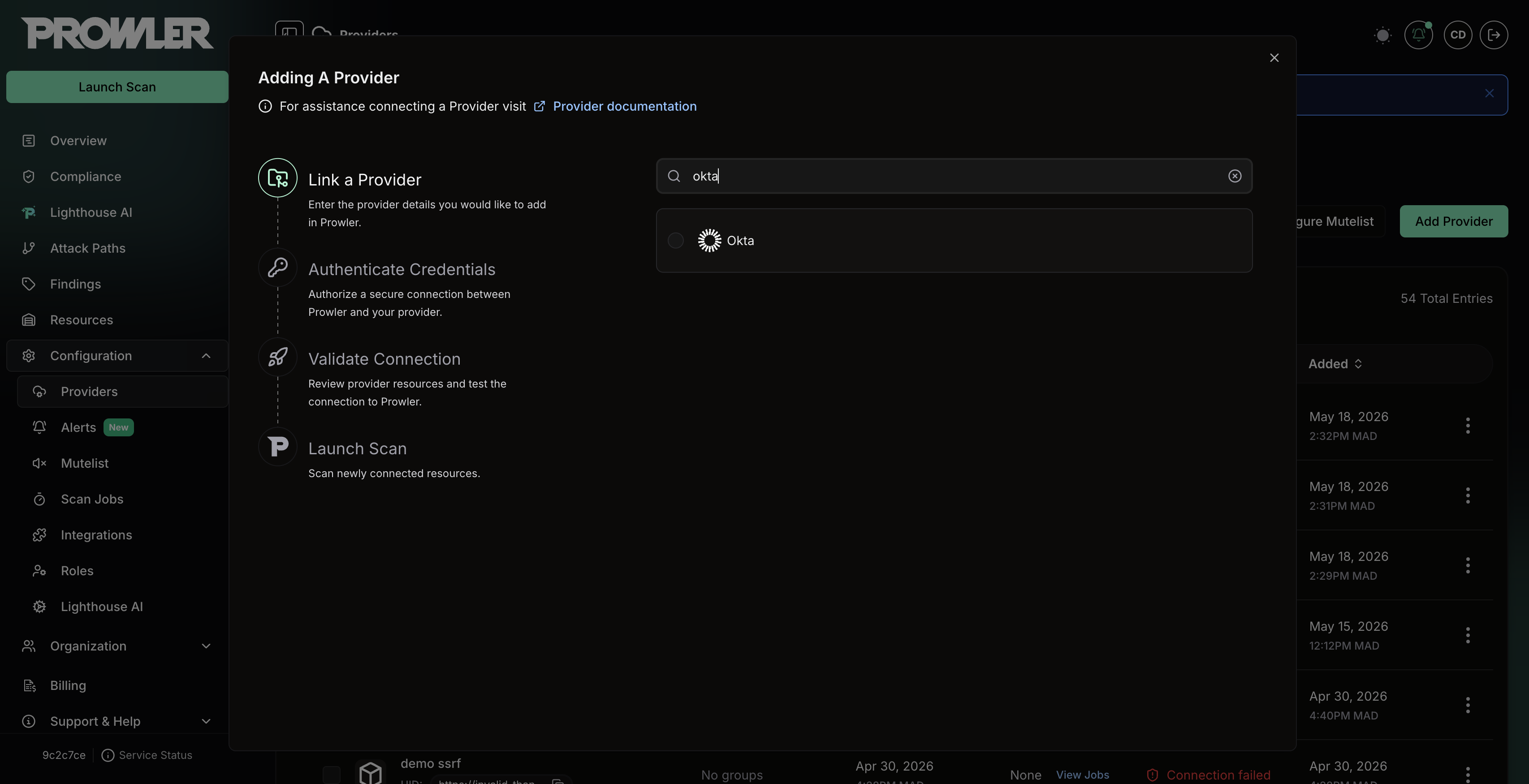
 4. Select "Okta".
 5. Enter the **Org Domain** of the target Okta organization and an optional alias, then click "Next".
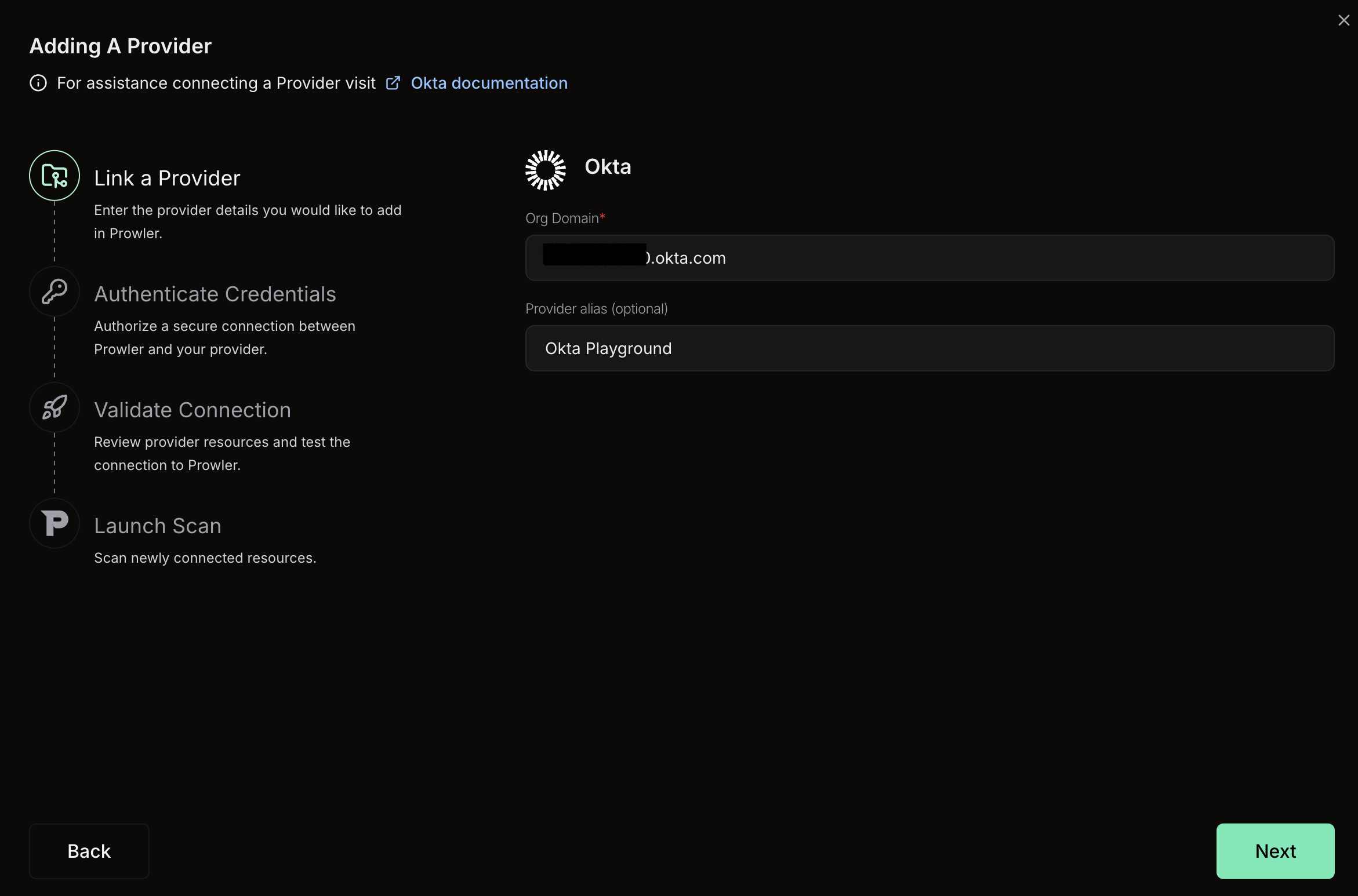 The Org Domain must be the bare hostname of an Okta-managed organization — for example, `acme.okta.com`, `acme.oktapreview.com`, `acme.okta-emea.com`, `acme.okta-gov.com`, `acme.okta.mil`, `acme.okta-miltest.com`, or `acme.trex-govcloud.com`. Omit the `https://` scheme, any path, and any trailing slash.
### Step 2: Provide Credentials
Prowler Cloud authenticates to Okta with the **OAuth 2.0 Private Key JWT** flow exposed by an Okta **API Services** app. The service application, keypair, scope grants, and Read-Only Administrator role are set up once in the Okta Admin Console — full instructions are in the [Okta Authentication](/user-guide/providers/okta/authentication) guide.
1. Enter the **Client ID** of the Okta API Services app (for example, `0oa123456789abcdef`).
2. Paste the **Private Key** whose matching public key (JWK) is registered on the service app. Both PEM-encoded RSA keys and JWK JSON documents are accepted.
3. Click "Next".
The Org Domain must be the bare hostname of an Okta-managed organization — for example, `acme.okta.com`, `acme.oktapreview.com`, `acme.okta-emea.com`, `acme.okta-gov.com`, `acme.okta.mil`, `acme.okta-miltest.com`, or `acme.trex-govcloud.com`. Omit the `https://` scheme, any path, and any trailing slash.
### Step 2: Provide Credentials
Prowler Cloud authenticates to Okta with the **OAuth 2.0 Private Key JWT** flow exposed by an Okta **API Services** app. The service application, keypair, scope grants, and Read-Only Administrator role are set up once in the Okta Admin Console — full instructions are in the [Okta Authentication](/user-guide/providers/okta/authentication) guide.
1. Enter the **Client ID** of the Okta API Services app (for example, `0oa123456789abcdef`).
2. Paste the **Private Key** whose matching public key (JWK) is registered on the service app. Both PEM-encoded RSA keys and JWK JSON documents are accepted.
3. Click "Next".
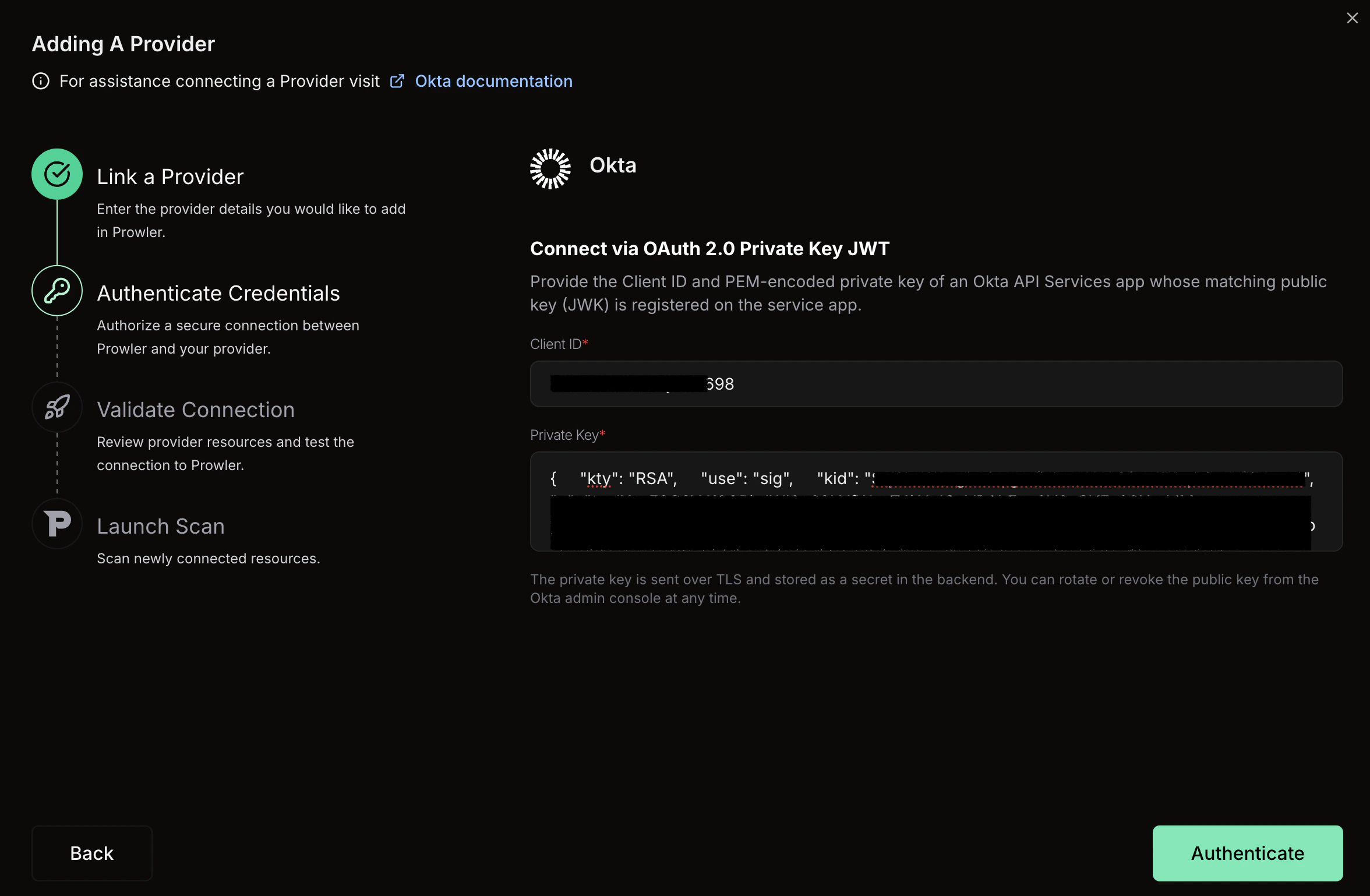 The private key is transmitted over TLS and stored as an encrypted secret in the backend. Rotate or revoke the matching public key from the Okta Admin Console at any time to invalidate the credential without changes on the Prowler side.
### Step 3: Launch the Scan
1. Review the connection summary. Prowler Cloud runs a credential probe against the Okta Management API before saving — a failed probe surfaces the underlying Okta error (`invalid_scope`, `Forbidden`, invalid credentials, etc.) so the configuration can be corrected before the first scan.
2. Choose the scan schedule: run a single scan or set up daily scans (every 24 hours).
3. Click **Launch Scan** to start auditing the Okta organization.
***
## Prowler CLI
### Step 1: Set Up Authentication
Follow the [Okta Authentication](/user-guide/providers/okta/authentication) guide to create the service application, generate a keypair, grant scopes, and assign the Read-Only Administrator role. Then export the credentials:
```bash theme={null}
export OKTA_ORG_DOMAIN="acme.okta.com"
export OKTA_CLIENT_ID="0oa1234567890abcdef"
export OKTA_PRIVATE_KEY_FILE="/secure/path/to/prowler-okta.pem"
# Optional — defaults to "okta.policies.read,okta.brands.read,okta.apps.read,okta.authenticators.read,okta.networkZones.read,okta.apiTokens.read,okta.roles.read,okta.groups.read,okta.logStreams.read,okta.idps.read"
export OKTA_SCOPES="okta.policies.read,okta.brands.read,okta.apps.read,okta.authenticators.read,okta.networkZones.read,okta.apiTokens.read,okta.roles.read,okta.groups.read,okta.logStreams.read,okta.idps.read"
```
The private key file may contain either a PEM-encoded RSA key or a JWK JSON document.
#### Supplying the Private Key as Content
For automated environments where writing the key to disk is not desirable (CI runners, container secrets, etc.), the private key may be passed directly as a string:
```bash theme={null}
export OKTA_ORG_DOMAIN="acme.okta.com"
export OKTA_CLIENT_ID="0oa1234567890abcdef"
export OKTA_PRIVATE_KEY="$(cat /secure/path/to/prowler-okta.pem)"
```
`OKTA_PRIVATE_KEY` takes precedence over `OKTA_PRIVATE_KEY_FILE` when both are set. The private key is intentionally not exposed as a CLI flag — secrets must be supplied via environment variables only.
### Step 2: Run the First Scan
Run a baseline scan after credentials are configured:
```bash theme={null}
prowler okta
```
Or run a specific check directly:
```bash theme={null}
prowler okta --check signon_global_session_idle_timeout_15min
```
Prowler prints a summary table; full findings are written to the configured output formats.
### Step 3: Use a Custom Configuration (Optional)
Prowler uses a configuration file to customize check thresholds. The Okta configuration currently includes:
```yaml theme={null}
okta:
# okta.signon_global_session_idle_timeout_15min
# Defaults to 15 minutes per DISA STIG V-273186.
okta_max_session_idle_minutes: 15
# okta.application_admin_console_session_idle_timeout_15min
# Defaults to 15 minutes per DISA STIG V-273187.
okta_admin_console_idle_timeout_max_minutes: 15
```
To use a custom configuration:
```bash theme={null}
prowler okta --config-file /path/to/config.yaml
```
## Supported Services
Prowler for Okta includes security checks across the following services:
| Service | Description |
| --------------------- | ----------------------------------------------------------------------------------------------------------------------------------------------------- |
| **Sign-On** | Global session policy controls (idle timeout, lifetime, rule priority and ordering) |
| **Application** | Okta Admin Console sign-on settings plus Authentication Policy controls for Okta applications (session idle, MFA, phishing resistance, network zones) |
| **Authenticator** | Password Policy controls plus Okta Verify FIPS and Smart Card IdP authenticator status |
| **Network** | Network Zone blocklists for anonymized proxy sources |
| **API Token** | API token owner-role validation and Network Zone restrictions |
| **User** | User lifecycle automations (inactivity-based deprovisioning) |
| **System Log** | Log Stream configuration that off-loads audit records to a central SIEM |
| **Identity Provider** | Identity Providers, including Smart Card (X509) IdP status and certificate-chain visibility |
## Troubleshooting
### STIG Rule Ordering
The initial check is mapped to DISA STIG `V-273186` / `OKTA-APP-000020`. Prowler implements the STIG procedure as written: the **Default Policy** must have a **Priority 1** rule that is **not** `Default Rule`, and that rule must set **Maximum Okta global session idle time** to 15 minutes or less.
This is stricter than simply finding the same timeout value somewhere else in the policy set. A compliant custom rule in another policy, or a compliant timeout on the built-in `Default Rule`, does not satisfy this STIG procedure.
### Default Scopes
Prowler requests a fixed set of OAuth scopes on every token exchange. The defaults cover every bundled check across the Sign-On, Application, Authenticator, Network, API Token, User, System Log, and Identity Provider services:
* `okta.policies.read`
* `okta.brands.read`
* `okta.apps.read`
* `okta.authenticators.read`
* `okta.networkZones.read`
* `okta.apiTokens.read`
* `okta.roles.read`
* `okta.groups.read`
* `okta.logStreams.read`
* `okta.idps.read`
The service app must have these scopes granted in the **Okta API Scopes** tab. `okta.groups.read` is required so the API token Super Admin check can resolve admin roles inherited via group membership; without it the check falls back to direct-only role assignments and emits a best-effort caveat. When the granted set is narrower than the requested set, the token request fails with an `invalid_scope` error and the scan stops at provider initialization.
When additional checks are enabled — or when running against a service app that exposes a different scope set — override the default with `OKTA_SCOPES` (comma-separated string for the env var) or `--okta-scopes` (space-separated list for the CLI):
```bash theme={null}
# Environment variable — comma-separated
export OKTA_SCOPES="okta.policies.read,okta.brands.read,okta.apps.read,okta.authenticators.read,okta.networkZones.read,okta.apiTokens.read,okta.roles.read,okta.groups.read,okta.logStreams.read,okta.idps.read,okta.users.read"
# CLI flag — space-separated
prowler okta --okta-scopes okta.policies.read okta.brands.read okta.apps.read okta.authenticators.read okta.networkZones.read okta.apiTokens.read okta.roles.read okta.groups.read okta.logStreams.read okta.idps.read okta.users.read
```
For the full catalog of OAuth scopes exposed by the Okta Management API, refer to the [Okta OAuth 2.0 scopes documentation](https://developer.okta.com/docs/api/oauth2/).
As new services and checks land in the Okta provider, the default scope list grows alongside them. Re-check the granted scopes on the service app after each Prowler upgrade and grant any newly required `okta.*.read` scopes in the Admin Console.
### Common Errors
* **`OktaInvalidOrgDomainError`** — the org domain must be `.okta.com` (or `.oktapreview.com` / `.okta-emea.com` / `.okta-gov.com` / `.okta.mil` / `.okta-miltest.com` / `.trex-govcloud.com`). Pass the bare hostname only — no `https://` scheme, no path, no trailing slash.
* **`OktaPrivateKeyFileError`** — confirm the file is readable and contains a non-empty PEM or JWK body.
* **`OktaInsufficientPermissionsError`** — the credential probe reached Okta but the service app cannot perform the request. The error string carries `invalid_scope`, `Forbidden`, `not authorized`, or `permission`. Fix by granting the missing `okta.*.read` scope from **Okta API Scopes** and confirming the **Read-Only Administrator** role is assigned to the service app.
* **`OktaInvalidCredentialsError`** — the credential probe reached Okta but Okta rejected the JWT. Typically the private key on disk does not match the public JWK uploaded to the service app, or the JWT signing parameters are wrong. Regenerate the keypair and re-upload the public JWK.
* **Token requests failing for an unknown scope** — the app was granted a narrower scope set than `OKTA_SCOPES` requests. Either narrow `OKTA_SCOPES` or grant the missing scopes in the Admin Console.
The private key is transmitted over TLS and stored as an encrypted secret in the backend. Rotate or revoke the matching public key from the Okta Admin Console at any time to invalidate the credential without changes on the Prowler side.
### Step 3: Launch the Scan
1. Review the connection summary. Prowler Cloud runs a credential probe against the Okta Management API before saving — a failed probe surfaces the underlying Okta error (`invalid_scope`, `Forbidden`, invalid credentials, etc.) so the configuration can be corrected before the first scan.
2. Choose the scan schedule: run a single scan or set up daily scans (every 24 hours).
3. Click **Launch Scan** to start auditing the Okta organization.
***
## Prowler CLI
### Step 1: Set Up Authentication
Follow the [Okta Authentication](/user-guide/providers/okta/authentication) guide to create the service application, generate a keypair, grant scopes, and assign the Read-Only Administrator role. Then export the credentials:
```bash theme={null}
export OKTA_ORG_DOMAIN="acme.okta.com"
export OKTA_CLIENT_ID="0oa1234567890abcdef"
export OKTA_PRIVATE_KEY_FILE="/secure/path/to/prowler-okta.pem"
# Optional — defaults to "okta.policies.read,okta.brands.read,okta.apps.read,okta.authenticators.read,okta.networkZones.read,okta.apiTokens.read,okta.roles.read,okta.groups.read,okta.logStreams.read,okta.idps.read"
export OKTA_SCOPES="okta.policies.read,okta.brands.read,okta.apps.read,okta.authenticators.read,okta.networkZones.read,okta.apiTokens.read,okta.roles.read,okta.groups.read,okta.logStreams.read,okta.idps.read"
```
The private key file may contain either a PEM-encoded RSA key or a JWK JSON document.
#### Supplying the Private Key as Content
For automated environments where writing the key to disk is not desirable (CI runners, container secrets, etc.), the private key may be passed directly as a string:
```bash theme={null}
export OKTA_ORG_DOMAIN="acme.okta.com"
export OKTA_CLIENT_ID="0oa1234567890abcdef"
export OKTA_PRIVATE_KEY="$(cat /secure/path/to/prowler-okta.pem)"
```
`OKTA_PRIVATE_KEY` takes precedence over `OKTA_PRIVATE_KEY_FILE` when both are set. The private key is intentionally not exposed as a CLI flag — secrets must be supplied via environment variables only.
### Step 2: Run the First Scan
Run a baseline scan after credentials are configured:
```bash theme={null}
prowler okta
```
Or run a specific check directly:
```bash theme={null}
prowler okta --check signon_global_session_idle_timeout_15min
```
Prowler prints a summary table; full findings are written to the configured output formats.
### Step 3: Use a Custom Configuration (Optional)
Prowler uses a configuration file to customize check thresholds. The Okta configuration currently includes:
```yaml theme={null}
okta:
# okta.signon_global_session_idle_timeout_15min
# Defaults to 15 minutes per DISA STIG V-273186.
okta_max_session_idle_minutes: 15
# okta.application_admin_console_session_idle_timeout_15min
# Defaults to 15 minutes per DISA STIG V-273187.
okta_admin_console_idle_timeout_max_minutes: 15
```
To use a custom configuration:
```bash theme={null}
prowler okta --config-file /path/to/config.yaml
```
## Supported Services
Prowler for Okta includes security checks across the following services:
| Service | Description |
| --------------------- | ----------------------------------------------------------------------------------------------------------------------------------------------------- |
| **Sign-On** | Global session policy controls (idle timeout, lifetime, rule priority and ordering) |
| **Application** | Okta Admin Console sign-on settings plus Authentication Policy controls for Okta applications (session idle, MFA, phishing resistance, network zones) |
| **Authenticator** | Password Policy controls plus Okta Verify FIPS and Smart Card IdP authenticator status |
| **Network** | Network Zone blocklists for anonymized proxy sources |
| **API Token** | API token owner-role validation and Network Zone restrictions |
| **User** | User lifecycle automations (inactivity-based deprovisioning) |
| **System Log** | Log Stream configuration that off-loads audit records to a central SIEM |
| **Identity Provider** | Identity Providers, including Smart Card (X509) IdP status and certificate-chain visibility |
## Troubleshooting
### STIG Rule Ordering
The initial check is mapped to DISA STIG `V-273186` / `OKTA-APP-000020`. Prowler implements the STIG procedure as written: the **Default Policy** must have a **Priority 1** rule that is **not** `Default Rule`, and that rule must set **Maximum Okta global session idle time** to 15 minutes or less.
This is stricter than simply finding the same timeout value somewhere else in the policy set. A compliant custom rule in another policy, or a compliant timeout on the built-in `Default Rule`, does not satisfy this STIG procedure.
### Default Scopes
Prowler requests a fixed set of OAuth scopes on every token exchange. The defaults cover every bundled check across the Sign-On, Application, Authenticator, Network, API Token, User, System Log, and Identity Provider services:
* `okta.policies.read`
* `okta.brands.read`
* `okta.apps.read`
* `okta.authenticators.read`
* `okta.networkZones.read`
* `okta.apiTokens.read`
* `okta.roles.read`
* `okta.groups.read`
* `okta.logStreams.read`
* `okta.idps.read`
The service app must have these scopes granted in the **Okta API Scopes** tab. `okta.groups.read` is required so the API token Super Admin check can resolve admin roles inherited via group membership; without it the check falls back to direct-only role assignments and emits a best-effort caveat. When the granted set is narrower than the requested set, the token request fails with an `invalid_scope` error and the scan stops at provider initialization.
When additional checks are enabled — or when running against a service app that exposes a different scope set — override the default with `OKTA_SCOPES` (comma-separated string for the env var) or `--okta-scopes` (space-separated list for the CLI):
```bash theme={null}
# Environment variable — comma-separated
export OKTA_SCOPES="okta.policies.read,okta.brands.read,okta.apps.read,okta.authenticators.read,okta.networkZones.read,okta.apiTokens.read,okta.roles.read,okta.groups.read,okta.logStreams.read,okta.idps.read,okta.users.read"
# CLI flag — space-separated
prowler okta --okta-scopes okta.policies.read okta.brands.read okta.apps.read okta.authenticators.read okta.networkZones.read okta.apiTokens.read okta.roles.read okta.groups.read okta.logStreams.read okta.idps.read okta.users.read
```
For the full catalog of OAuth scopes exposed by the Okta Management API, refer to the [Okta OAuth 2.0 scopes documentation](https://developer.okta.com/docs/api/oauth2/).
As new services and checks land in the Okta provider, the default scope list grows alongside them. Re-check the granted scopes on the service app after each Prowler upgrade and grant any newly required `okta.*.read` scopes in the Admin Console.
### Common Errors
* **`OktaInvalidOrgDomainError`** — the org domain must be `.okta.com` (or `.oktapreview.com` / `.okta-emea.com` / `.okta-gov.com` / `.okta.mil` / `.okta-miltest.com` / `.trex-govcloud.com`). Pass the bare hostname only — no `https://` scheme, no path, no trailing slash.
* **`OktaPrivateKeyFileError`** — confirm the file is readable and contains a non-empty PEM or JWK body.
* **`OktaInsufficientPermissionsError`** — the credential probe reached Okta but the service app cannot perform the request. The error string carries `invalid_scope`, `Forbidden`, `not authorized`, or `permission`. Fix by granting the missing `okta.*.read` scope from **Okta API Scopes** and confirming the **Read-Only Administrator** role is assigned to the service app.
* **`OktaInvalidCredentialsError`** — the credential probe reached Okta but Okta rejected the JWT. Typically the private key on disk does not match the public JWK uploaded to the service app, or the JWT signing parameters are wrong. Regenerate the keypair and re-upload the public JWK.
* **Token requests failing for an unknown scope** — the app was granted a narrower scope set than `OKTA_SCOPES` requests. Either narrow `OKTA_SCOPES` or grant the missing scopes in the Admin Console.