> ## Documentation Index
> Fetch the complete documentation index at: https://docs.prowler.com/llms.txt
> Use this file to discover all available pages before exploring further.
# Managing Organizations (Multi-Tenant)
export const VersionBadge = ({version}) => {
return
Added in:
{version}
;
};
Prowler App supports multi-tenancy through **Organizations**, allowing users to belong to multiple isolated environments within a single account. Each organization maintains its own providers, scans, findings, and user memberships, ensuring complete data separation between teams or business units.
## Key Concepts
* **Organization (Tenant):** An isolated workspace containing its own providers, scans, findings, roles, and users. Every Prowler account operates within at least one organization.
* **Membership:** The association between a user and an organization, including the membership role (`owner` or `member`).
* **Active Organization:** The organization currently in use for the session. All actions (scans, findings, provider management) apply to the active organization.
When a new account is created without an invitation, a default organization is automatically provisioned. Accounts created through an invitation join the inviter's organization instead.
## Viewing Organizations
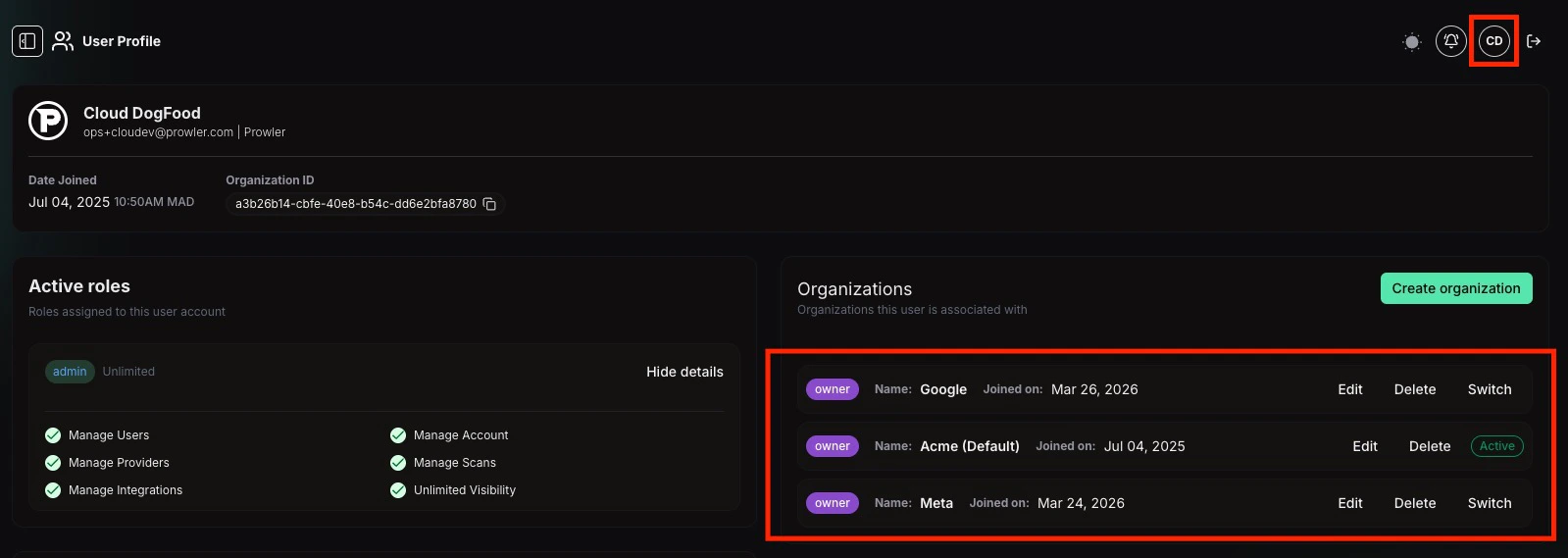
To view all organizations associated with an account, navigate to the **Profile** page. The **Organizations** card displays every organization the user belongs to, including the role, name, join date, and whether it is the currently active organization.
 ## Creating an Organization
To create a new organization:
1. Navigate to the **Profile** page.
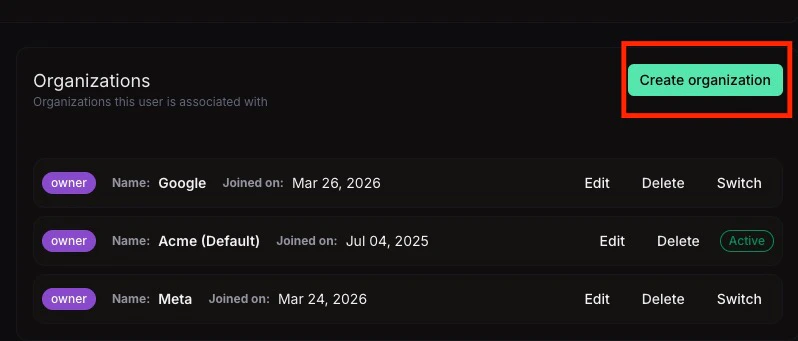
2. In the **Organizations** card, click the **Create organization** button.
## Creating an Organization
To create a new organization:
1. Navigate to the **Profile** page.
2. In the **Organizations** card, click the **Create organization** button.
 3. Enter a name for the new organization (maximum 100 characters).
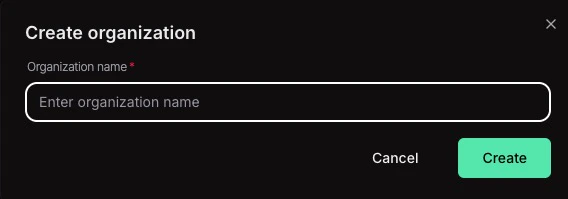 4. Click **Create**. The session automatically switches to the newly created organization.
Creating an organization requires being authenticated. Any user can create a new organization regardless of their current role.
## Switching Between Organizations
To switch the active organization:
1. Navigate to the **Profile** page.
2. In the **Organizations** card, locate the organization to switch to.
3. Click the **Switch** button next to the desired organization.
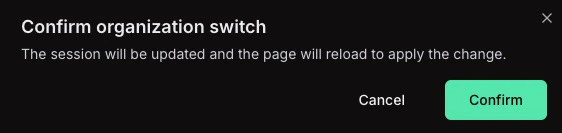
4. Confirm the switch in the dialog. The page reloads with the new organization's context, and all subsequent actions apply to it.
4. Click **Create**. The session automatically switches to the newly created organization.
Creating an organization requires being authenticated. Any user can create a new organization regardless of their current role.
## Switching Between Organizations
To switch the active organization:
1. Navigate to the **Profile** page.
2. In the **Organizations** card, locate the organization to switch to.
3. Click the **Switch** button next to the desired organization.
4. Confirm the switch in the dialog. The page reloads with the new organization's context, and all subsequent actions apply to it.
 The currently active organization is indicated by an **Active** badge. Switching updates the session tokens, so the page will reload automatically.
## Editing an Organization Name
Renaming an organization requires **both** of the following conditions to be met:
* The user's **membership role** in that organization must be `owner` (visible as the `owner` badge in the Organizations card).
* The user must have a role that grants the **Manage Account** permission.
Users who only meet one of the two conditions will not see the **Edit** button. For example, a user whose membership role is `member` will not see the **Edit** button even if their role grants `Manage Account`.
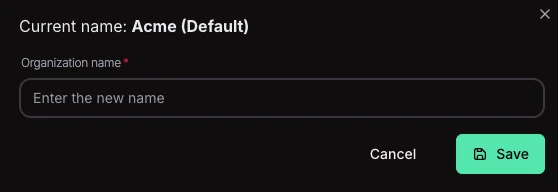
To rename an organization:
1. Navigate to the **Profile** page.
2. In the **Organizations** card, click the **Edit** button next to the organization.
3. Update the name and save the changes.
The currently active organization is indicated by an **Active** badge. Switching updates the session tokens, so the page will reload automatically.
## Editing an Organization Name
Renaming an organization requires **both** of the following conditions to be met:
* The user's **membership role** in that organization must be `owner` (visible as the `owner` badge in the Organizations card).
* The user must have a role that grants the **Manage Account** permission.
Users who only meet one of the two conditions will not see the **Edit** button. For example, a user whose membership role is `member` will not see the **Edit** button even if their role grants `Manage Account`.
To rename an organization:
1. Navigate to the **Profile** page.
2. In the **Organizations** card, click the **Edit** button next to the organization.
3. Update the name and save the changes.
 ## Deleting an Organization
Organization owners with the **Manage Account** permission can delete an organization, provided they belong to at least two organizations (the last remaining organization cannot be deleted).
### Deleting a Non-Active Organization
1. Navigate to the **Profile** page.
2. Click the **Delete** button next to the organization to remove.
3. Type the organization name to confirm deletion.
## Deleting an Organization
Organization owners with the **Manage Account** permission can delete an organization, provided they belong to at least two organizations (the last remaining organization cannot be deleted).
### Deleting a Non-Active Organization
1. Navigate to the **Profile** page.
2. Click the **Delete** button next to the organization to remove.
3. Type the organization name to confirm deletion.
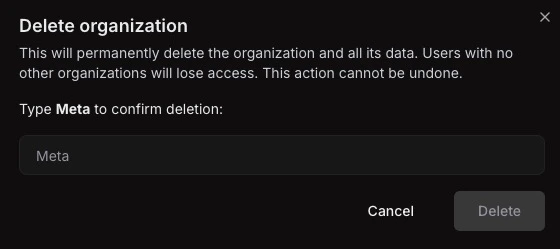 4. Click **Delete**. The organization and all its associated data (providers, scans, findings) are permanently removed.
### Deleting the Active Organization
When deleting the currently active organization, an additional step is required:
1. Navigate to the **Profile** page.
2. Click the **Delete** button next to the active organization.
3. Select which organization to switch to after deletion.
4. Type the organization name to confirm.
4. Click **Delete**. The organization and all its associated data (providers, scans, findings) are permanently removed.
### Deleting the Active Organization
When deleting the currently active organization, an additional step is required:
1. Navigate to the **Profile** page.
2. Click the **Delete** button next to the active organization.
3. Select which organization to switch to after deletion.
4. Type the organization name to confirm.
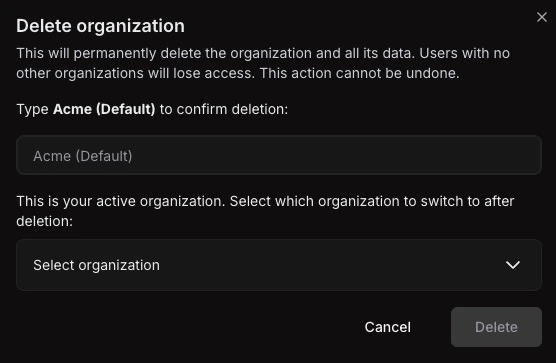 5. Click **Delete**. The session switches to the selected organization, and the deleted organization's data is permanently removed.
Deleting an organization is irreversible. All providers, scans, findings, and configuration data within the organization are permanently deleted. Users who belong only to the deleted organization will lose access to Prowler.
## Accepting an Invitation to an Organization
When invited to join an organization, the invited user receives a link to accept the invitation. The flow adapts depending on whether the user already has a Prowler account:
### Existing Users
1. Open the invitation link.
2. If already authenticated, the invitation is accepted automatically and the user is redirected to Prowler App.
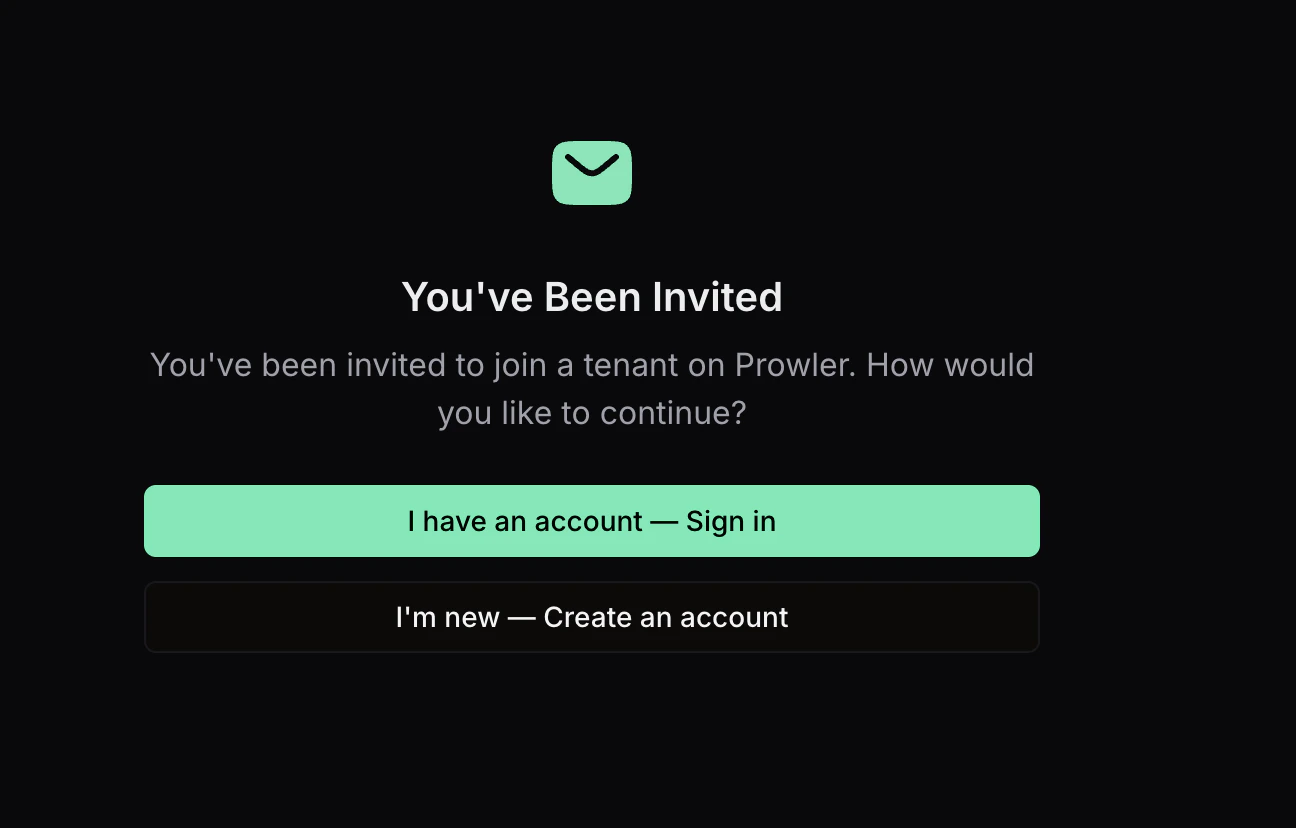
3. If not authenticated, choose **I have an account -- Sign in**, authenticate with existing credentials, and the invitation is accepted upon sign-in.
5. Click **Delete**. The session switches to the selected organization, and the deleted organization's data is permanently removed.
Deleting an organization is irreversible. All providers, scans, findings, and configuration data within the organization are permanently deleted. Users who belong only to the deleted organization will lose access to Prowler.
## Accepting an Invitation to an Organization
When invited to join an organization, the invited user receives a link to accept the invitation. The flow adapts depending on whether the user already has a Prowler account:
### Existing Users
1. Open the invitation link.
2. If already authenticated, the invitation is accepted automatically and the user is redirected to Prowler App.
3. If not authenticated, choose **I have an account -- Sign in**, authenticate with existing credentials, and the invitation is accepted upon sign-in.
 ### New Users
1. Open the invitation link.
2. Choose **I'm new -- Create an account**.
3. Complete the sign-up process. Upon account creation, the invitation is accepted and the user joins the inviter's organization.
Invitations expire after 7 days. If an invitation has expired, contact the organization administrator to send a new one. For more details on invitation management, see [Managing Users and Role-Based Access Control (RBAC)](/user-guide/tutorials/prowler-app-rbac#invitations).
## Expelling a User From an Organization
Organization owners can expel a member from the organization. Expelling removes the membership immediately, revoking access to all providers, scans, and findings scoped to that organization. Owners expelling themselves are blocked if they are the last remaining owner of the organization.
To expel a user:
1. Navigate to the **Users** page.
2. Locate the user to remove and open the row actions menu.
3. Select **Expel user**.
### New Users
1. Open the invitation link.
2. Choose **I'm new -- Create an account**.
3. Complete the sign-up process. Upon account creation, the invitation is accepted and the user joins the inviter's organization.
Invitations expire after 7 days. If an invitation has expired, contact the organization administrator to send a new one. For more details on invitation management, see [Managing Users and Role-Based Access Control (RBAC)](/user-guide/tutorials/prowler-app-rbac#invitations).
## Expelling a User From an Organization
Organization owners can expel a member from the organization. Expelling removes the membership immediately, revoking access to all providers, scans, and findings scoped to that organization. Owners expelling themselves are blocked if they are the last remaining owner of the organization.
To expel a user:
1. Navigate to the **Users** page.
2. Locate the user to remove and open the row actions menu.
3. Select **Expel user**.
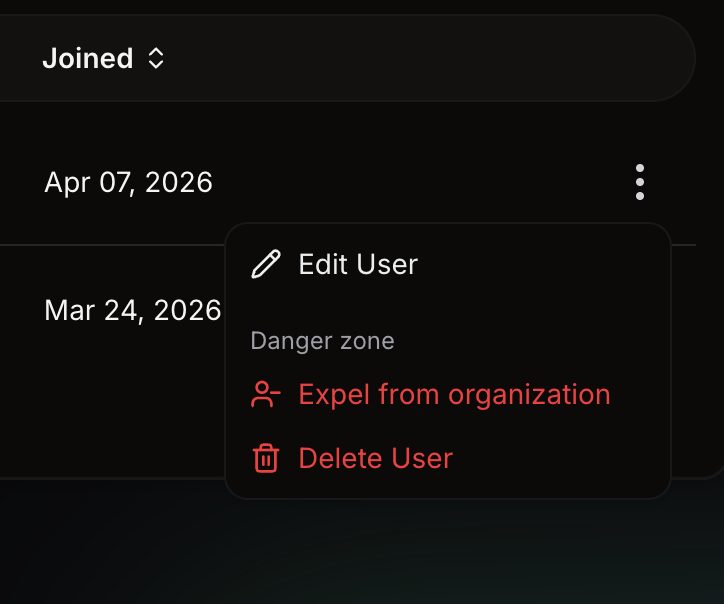 4. Confirm the action in the dialog. The membership is removed immediately and the expelled user loses access to the organization.
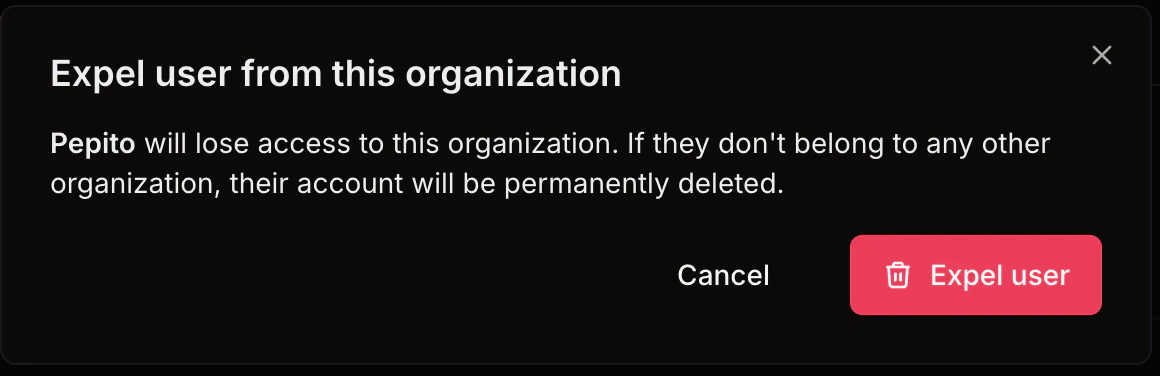 Expelling a user revokes any refresh tokens the account holds, but access tokens already issued remain valid until they expire. The default access token lifetime is 30 minutes, so an expelled user may retain access to the organization for up to that window before being fully locked out.
If the expelled organization was the user's **only** organization, the account is permanently deleted along with the membership. All personal profile data associated with that account is removed and cannot be recovered. To preserve the account, confirm that the user belongs to another organization before expelling.
## Permissions Reference
| Action | Required Conditions |
| --------------------------------- | -------------------------------------------------------------------------------------------------------------------- |
| View organizations | Any authenticated user |
| Create an organization | Any authenticated user |
| Switch organizations | Any authenticated user |
| Edit organization name | Membership role `owner` **and** a role with **Manage Account** permission |
| Delete an organization | Membership role `owner` **and** a role with **Manage Account** permission; must belong to more than one organization |
| Expel a user from an organization | Organization owner (no additional permission required); last remaining owner cannot expel themselves |
Expelling a user revokes any refresh tokens the account holds, but access tokens already issued remain valid until they expire. The default access token lifetime is 30 minutes, so an expelled user may retain access to the organization for up to that window before being fully locked out.
If the expelled organization was the user's **only** organization, the account is permanently deleted along with the membership. All personal profile data associated with that account is removed and cannot be recovered. To preserve the account, confirm that the user belongs to another organization before expelling.
## Permissions Reference
| Action | Required Conditions |
| --------------------------------- | -------------------------------------------------------------------------------------------------------------------- |
| View organizations | Any authenticated user |
| Create an organization | Any authenticated user |
| Switch organizations | Any authenticated user |
| Edit organization name | Membership role `owner` **and** a role with **Manage Account** permission |
| Delete an organization | Membership role `owner` **and** a role with **Manage Account** permission; must belong to more than one organization |
| Expel a user from an organization | Organization owner (no additional permission required); last remaining owner cannot expel themselves |