> ## Documentation Index
> Fetch the complete documentation index at: https://docs.prowler.com/llms.txt
> Use this file to discover all available pages before exploring further.
> ## Agent Instructions
> Prowler product naming: Prowler App is now Prowler Local Server, and Prowler Enterprise is now Prowler Private Cloud. Always use the current names when answering. The full product reference is at /getting-started/products: Open Source projects are Prowler CLI, Prowler Local Server, Prowler Local Dashboard, and Prowler SDK; Prowler Products are Prowler Cloud, Prowler Private Cloud, Prowler Hub, Prowler Lighthouse AI, and Prowler MCP.
# Onboarding Customers and Accessing Their Tenants
Adding a customer in Prowler for MSPs and MSSPs provisions a Prowler Cloud tenant for that organization and links it to yours. From then on you can open that tenant from the console and work inside it on the customer's behalf.
## Add a Customer
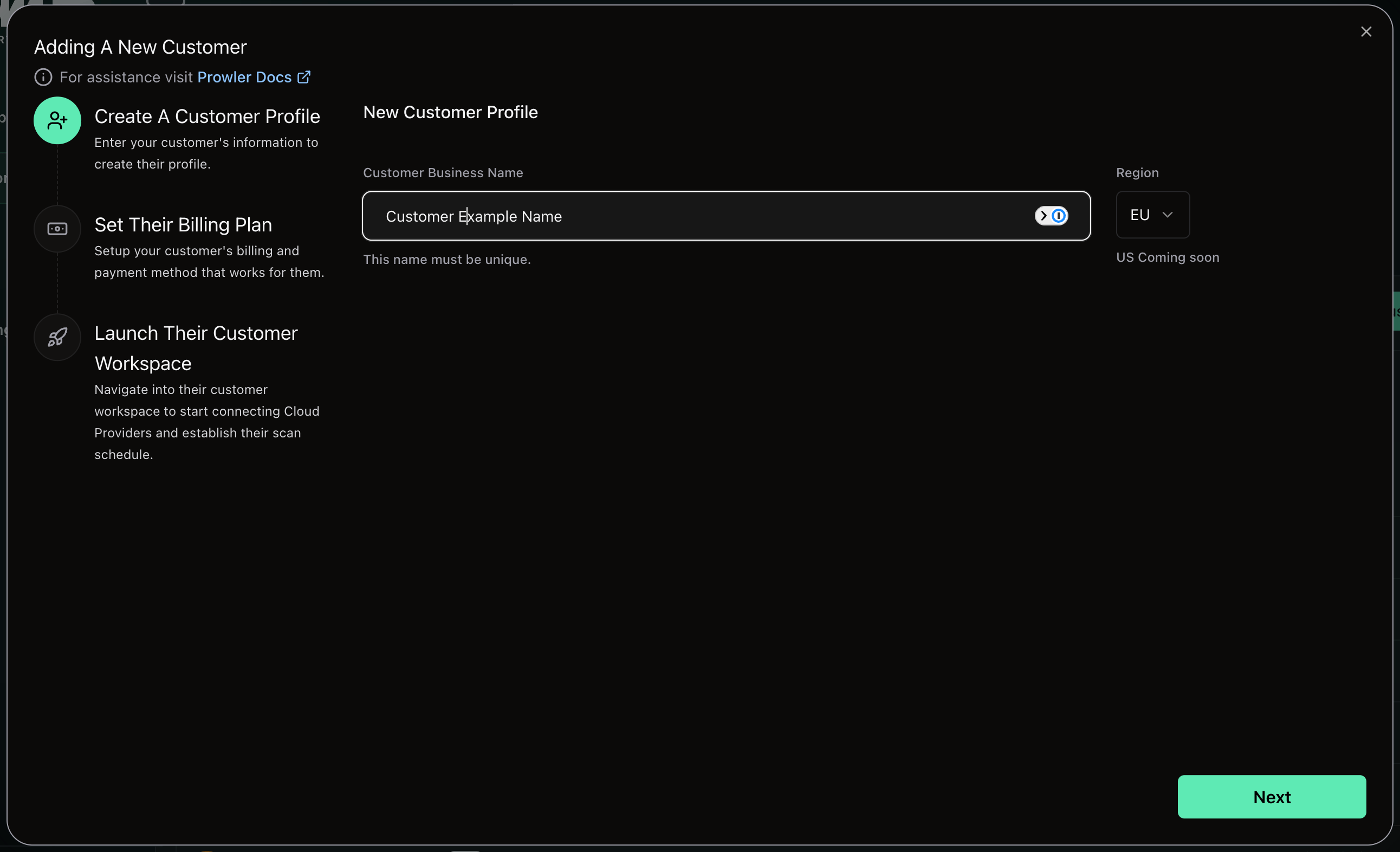
Select **Customers** in the sidebar, then click **Add Customer** to open a three-step wizard.
Adding a customer is restricted to the Superadmin role. Organization Admins manage existing customers but do not see the **Add Customer** button.
Enter the **Customer Business Name** and confirm the **Region**. The name must be unique within your partner organization; a duplicate is rejected inline. Click **Next**.
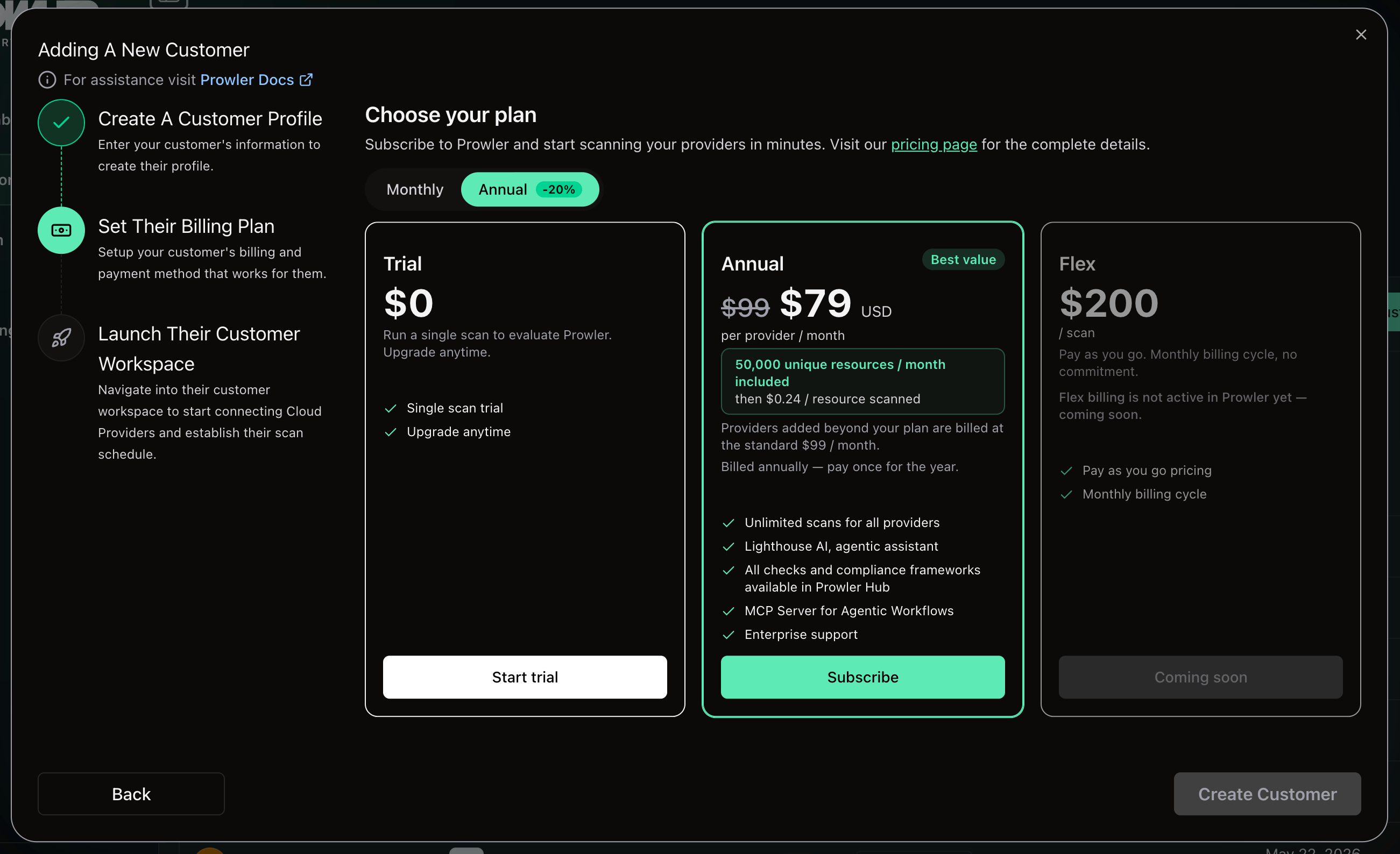
 Under **Choose your plan**, switch between **Monthly** and **Annual** and pick the plan the customer starts on. Click **Create Customer**. See [Billing and Customer Plans](/user-guide/tutorials/prowler-for-msps-billing) for what the annual plan asks for.
 A banner confirms the outcome — created on trial, or subscribed to a paid plan — and the tenant is created and linked to your organization. Click **Go To Organization** to head straight there and start connecting cloud providers, or **Close** to return to the customer list.
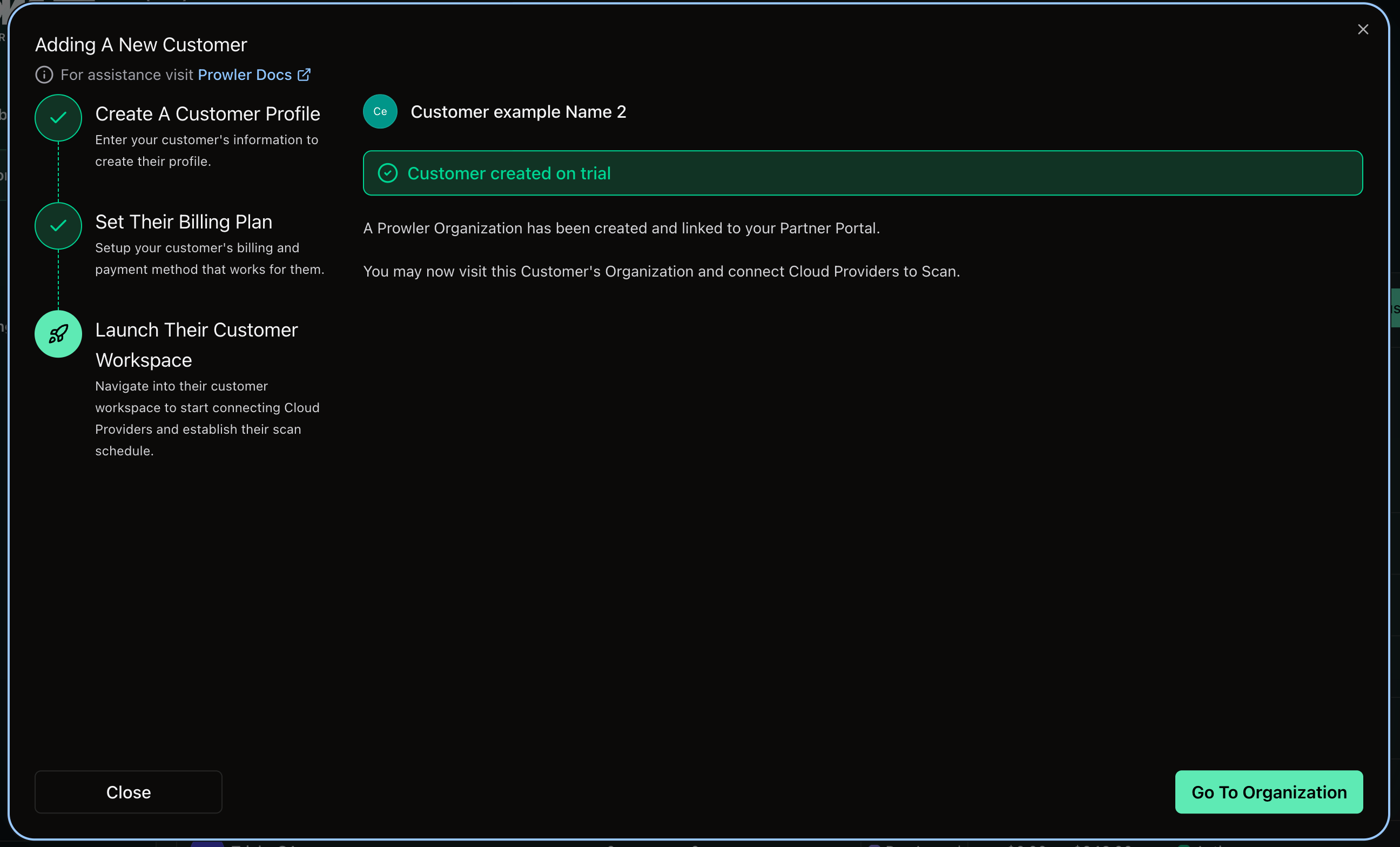 Provisioning is asynchronous. The customer's row shows **Provisioning** until the tenant is ready, then switches to **Active**.
## The Customers View
**My Customers** lists every customer you can reach.
Provisioning is asynchronous. The customer's row shows **Provisioning** until the tenant is ready, then switches to **Active**.
## The Customers View
**My Customers** lists every customer you can reach.
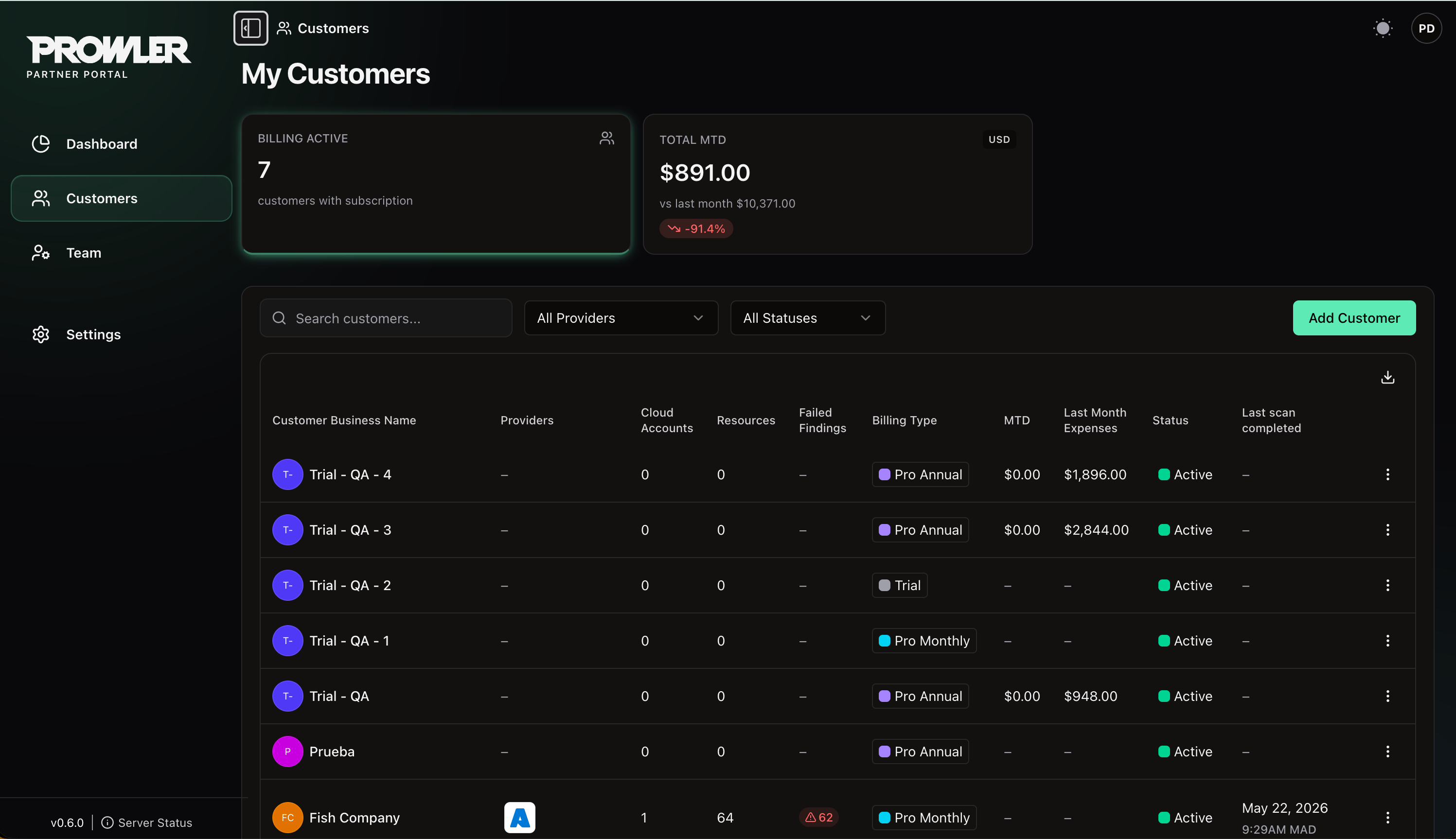 Each row carries:
| Column | What it shows |
| -------------------------- | ---------------------------------------------------------------------------------- |
| **Customer Business Name** | The customer's name |
| **Providers** | Icons for each cloud provider connected in their tenant |
| **Cloud Accounts** | Number of provider accounts under scan |
| **Resources** | Resources discovered by the latest scan |
| **Failed Findings** | Failed findings from the latest scan |
| **Billing Type** | The customer's current plan, shown as **Trial**, **Pro Monthly** or **Pro Annual** |
| **MTD** | Month-to-date spend |
| **Last Month Expenses** | Previous month's total |
| **Status** | **Active**, **Provisioning** or **Inactive** |
| **Last scan completed** | When the most recent scan finished |
A customer shows as **Provisioning** while its tenant is being created, and **Inactive** once it has been marked for removal.
Above the table, search by name and filter by provider or status. The download button at the top right of the table exports the list.
## Open a Customer's Prowler Cloud Tenant
Open the actions menu at the end of a customer's row and choose **Access Organization**. You are redirected into that customer's tenant in Prowler Cloud, signed in as yourself acting on their behalf.
While you are in the tenant you see what a customer administrator sees, and every action is recorded in the Prowler Cloud audit log against both your identity and the customer you are acting for.
Opening a tenant requires a role with **Access tenants**. The action fails with a clear message if you lack permission, if the customer no longer exists, or if the tenant is not ready.
Each row carries:
| Column | What it shows |
| -------------------------- | ---------------------------------------------------------------------------------- |
| **Customer Business Name** | The customer's name |
| **Providers** | Icons for each cloud provider connected in their tenant |
| **Cloud Accounts** | Number of provider accounts under scan |
| **Resources** | Resources discovered by the latest scan |
| **Failed Findings** | Failed findings from the latest scan |
| **Billing Type** | The customer's current plan, shown as **Trial**, **Pro Monthly** or **Pro Annual** |
| **MTD** | Month-to-date spend |
| **Last Month Expenses** | Previous month's total |
| **Status** | **Active**, **Provisioning** or **Inactive** |
| **Last scan completed** | When the most recent scan finished |
A customer shows as **Provisioning** while its tenant is being created, and **Inactive** once it has been marked for removal.
Above the table, search by name and filter by provider or status. The download button at the top right of the table exports the list.
## Open a Customer's Prowler Cloud Tenant
Open the actions menu at the end of a customer's row and choose **Access Organization**. You are redirected into that customer's tenant in Prowler Cloud, signed in as yourself acting on their behalf.
While you are in the tenant you see what a customer administrator sees, and every action is recorded in the Prowler Cloud audit log against both your identity and the customer you are acting for.
Opening a tenant requires a role with **Access tenants**. The action fails with a clear message if you lack permission, if the customer no longer exists, or if the tenant is not ready.
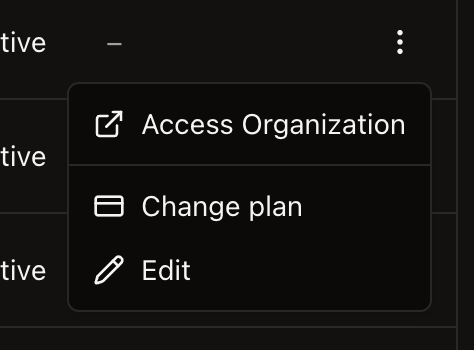 **Change plan** only appears while the customer is on trial or its trial has expired. See [Billing and Customer Plans](/user-guide/tutorials/prowler-for-msps-billing).
## Edit a Customer
Choose **Edit** from the row actions to open the **Edit customer** panel and rename the customer. The new name must still be unique within the partner organization.
## Link an Existing Customer with Your Partner Code
Each approved partner organization carries a **Partner Code**, shown on **Settings → Profile** with the helper text *"Share this code with customers to link their accounts."* A customer who already runs Prowler Cloud can use that code to request a link to you, rather than having you provision a fresh tenant.
The customer-side flow that consumes the Partner Code is rolling out progressively in Prowler Cloud. Confirm availability with your Prowler contact before sharing the code.
## Customer Self-Access
Your customers keep signing in to [cloud.prowler.com](https://cloud.prowler.com) with their own users. Your access is additive — it neither replaces nor restricts theirs.
## Remove a Customer
Removing a customer detaches it from your partner organization and moves it to **Inactive**. It does not delete the customer's data in Prowler Cloud; contact Prowler to arrange the offboarding of the tenant itself.
## Next Steps
Customer plans and revenue reporting.
Invite team members and assign roles.
**Change plan** only appears while the customer is on trial or its trial has expired. See [Billing and Customer Plans](/user-guide/tutorials/prowler-for-msps-billing).
## Edit a Customer
Choose **Edit** from the row actions to open the **Edit customer** panel and rename the customer. The new name must still be unique within the partner organization.
## Link an Existing Customer with Your Partner Code
Each approved partner organization carries a **Partner Code**, shown on **Settings → Profile** with the helper text *"Share this code with customers to link their accounts."* A customer who already runs Prowler Cloud can use that code to request a link to you, rather than having you provision a fresh tenant.
The customer-side flow that consumes the Partner Code is rolling out progressively in Prowler Cloud. Confirm availability with your Prowler contact before sharing the code.
## Customer Self-Access
Your customers keep signing in to [cloud.prowler.com](https://cloud.prowler.com) with their own users. Your access is additive — it neither replaces nor restricts theirs.
## Remove a Customer
Removing a customer detaches it from your partner organization and moves it to **Inactive**. It does not delete the customer's data in Prowler Cloud; contact Prowler to arrange the offboarding of the tenant itself.
## Next Steps
Customer plans and revenue reporting.
Invite team members and assign roles.