> ## Documentation Index
> Fetch the complete documentation index at: https://docs.prowler.com/llms.txt
> Use this file to discover all available pages before exploring further.
# Scan Scheduling
> Create, edit, and monitor recurring scans in Prowler Cloud and Enterprise.
export const VersionBadge = ({version}) => {
return
Added in:
{version}
;
};
Scan Scheduling lets Prowler run recurring scans for connected providers. Use it to keep findings, compliance results, and resource inventory up to date without launching every scan manually.
This feature is available exclusively in **Prowler Cloud** and **Prowler Enterprise** with a [subscription](https://prowler.com/pricing).
## Prerequisites
Before creating or editing scan schedules, ensure that:
* At least one provider is connected.
* The user role includes the **Manage Scans** permission, configured through Role-Based Access Control (RBAC). See [RBAC Administrative Permissions](/user-guide/tutorials/prowler-app-rbac#rbac-administrative-permissions) for details.
## Schedule Options
A Prowler Cloud or Enterprise subscription supports the following custom recurring schedule options. Prowler self-hosted runs a daily scan automatically and does not expose custom cadence controls.
| Schedule Option | Description | Cloud & Enterprise | Self-Hosted |
| --------------- | -------------------------------------------------------------------- | ------------------ | ----------- |
| Daily | Runs one scan every day at the selected time. | Yes | Yes |
| Every 48 hours | Runs one scan every 48 hours, anchored to the selected time. | Yes | — |
| Weekly | Runs one scan every week on the selected day and time. | Yes | — |
| Monthly | Runs one scan every month on the selected day, from day 1 to day 28. | Yes | — |
The scan time is always selected on the hour (for example, 14:00); minutes cannot be set. The schedule time uses the browser timezone when the schedule is saved. Prowler displays the next scheduled scan in that timezone.
## Create a Schedule From Scans
To create a schedule from the **Scans** page:
1. Navigate to **Scans**.
2. Click **Launch Scan**.
3. Select a connected provider.
4. Select **On a schedule**.
5. Choose the **Scan Time** and **Repeats** values.
6. Optional: select **Launch an initial scan now for immediate findings** to run a scan immediately after saving the recurring schedule.
7. Click **Save Schedule**.
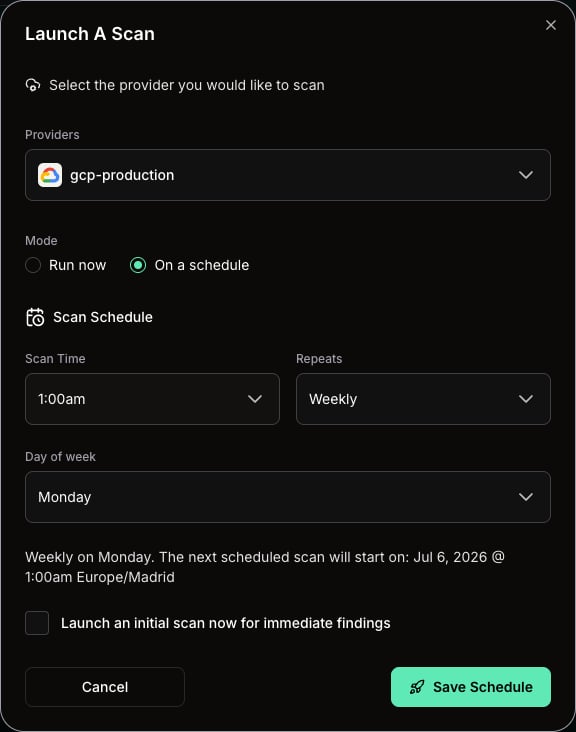 After the schedule is saved, Prowler shows a confirmation toast with a link to the **Scheduled** tab.
## Edit Schedules From Providers
The **Providers** page shows each provider's current schedule in the **Scan Schedule** column. Providers without a recurring schedule show **None**.
After the schedule is saved, Prowler shows a confirmation toast with a link to the **Scheduled** tab.
## Edit Schedules From Providers
The **Providers** page shows each provider's current schedule in the **Scan Schedule** column. Providers without a recurring schedule show **None**.
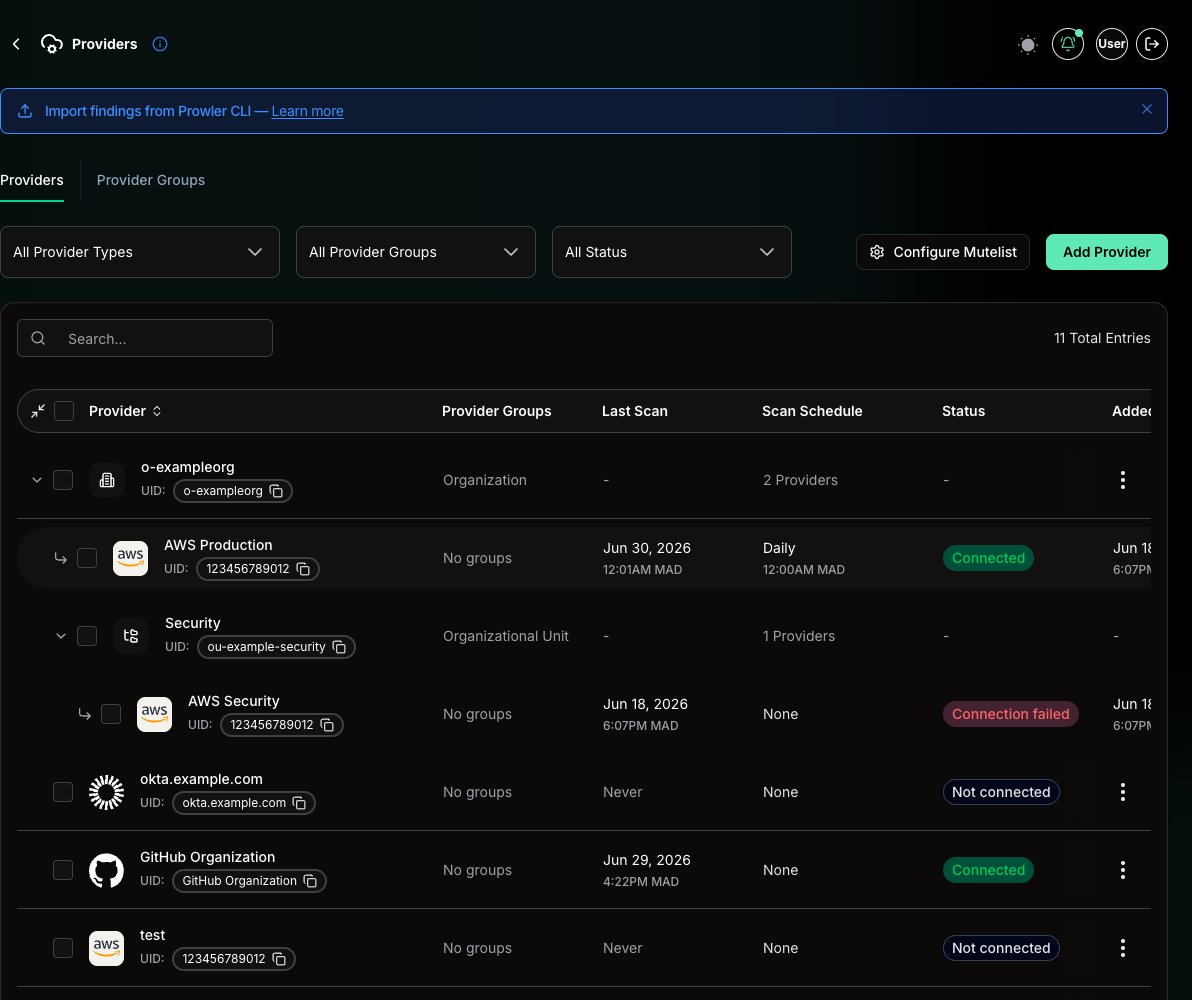 To edit a provider schedule:
1. Navigate to **Providers**.
2. Open the provider row actions menu.
3. Click **Edit Scan Schedule**.
4. Update the schedule fields.
5. Click **Save**.
To edit a provider schedule:
1. Navigate to **Providers**.
2. Open the provider row actions menu.
3. Click **Edit Scan Schedule**.
4. Update the schedule fields.
5. Click **Save**.
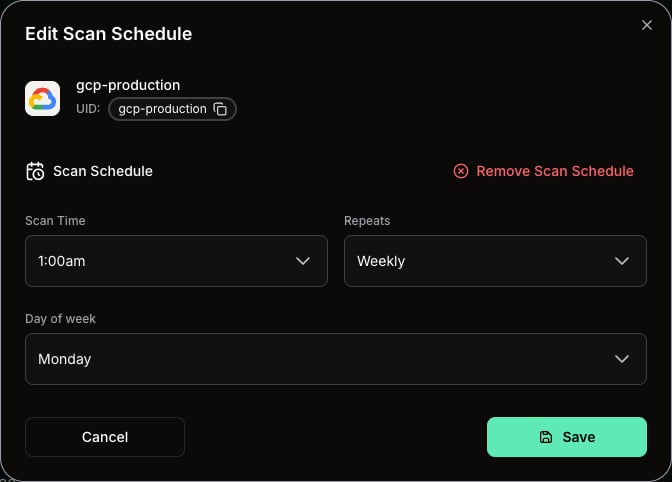 To stop automatic scans for a provider, click **Remove Scan Schedule** in the edit modal. Removing a schedule stops future automatic scans; existing completed scan results remain available.
## Bulk Edit Schedules
Use bulk schedule editing when several providers need the same recurring cadence.
To bulk edit provider schedules:
1. Navigate to **Providers**.
2. Select the provider rows that should receive the same schedule.
3. Open the selected-row actions menu.
4. Click **Edit Scan Schedule (N)**, where **N** is the number of selected providers.
5. Save the schedule.
For AWS Organizations and Organizational Unit rows, **Edit Scan Schedule** applies the schedule to the connected child providers in that group.
Bulk schedule edits apply one schedule to every selected provider. If the wrong providers are selected, Prowler applies the same cadence to unintended providers. To recover, reopen bulk edit with the correct selection or update affected provider schedules individually.
## Review Scheduled Scans
To review upcoming scheduled scans:
1. Navigate to **Scans**.
2. Click the **Scheduled** tab.
The **Scheduled** tab shows configured schedules, next scan time, and last scan time. Pending rows represent configured schedules that have not started their next scan yet.
To stop automatic scans for a provider, click **Remove Scan Schedule** in the edit modal. Removing a schedule stops future automatic scans; existing completed scan results remain available.
## Bulk Edit Schedules
Use bulk schedule editing when several providers need the same recurring cadence.
To bulk edit provider schedules:
1. Navigate to **Providers**.
2. Select the provider rows that should receive the same schedule.
3. Open the selected-row actions menu.
4. Click **Edit Scan Schedule (N)**, where **N** is the number of selected providers.
5. Save the schedule.
For AWS Organizations and Organizational Unit rows, **Edit Scan Schedule** applies the schedule to the connected child providers in that group.
Bulk schedule edits apply one schedule to every selected provider. If the wrong providers are selected, Prowler applies the same cadence to unintended providers. To recover, reopen bulk edit with the correct selection or update affected provider schedules individually.
## Review Scheduled Scans
To review upcoming scheduled scans:
1. Navigate to **Scans**.
2. Click the **Scheduled** tab.
The **Scheduled** tab shows configured schedules, next scan time, and last scan time. Pending rows represent configured schedules that have not started their next scan yet.
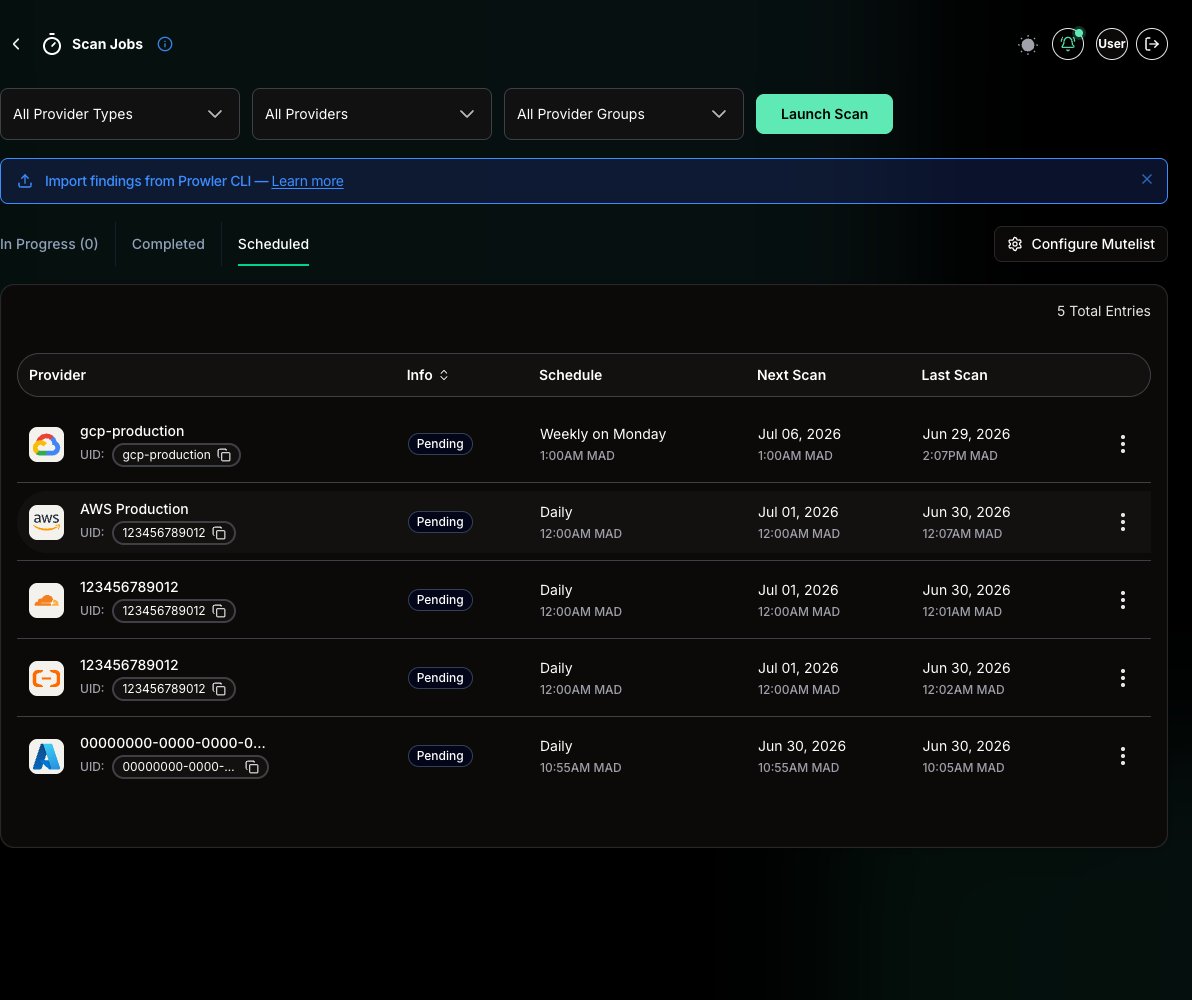 To edit a schedule from this tab, open the row actions menu and click **Edit Scan Schedule**.