

 About Us
Looking for user documentation? See:
- Lighthouse AI Overview - Capabilities and FAQs
- How Lighthouse AI Works - Configuration and usage
- Multi-LLM Provider Setup - Provider configuration
Architecture Overview
Lighthouse AI operates as a Langchain-based agent that connects Large Language Models (LLMs) with Prowler security data through the Model Context Protocol (MCP).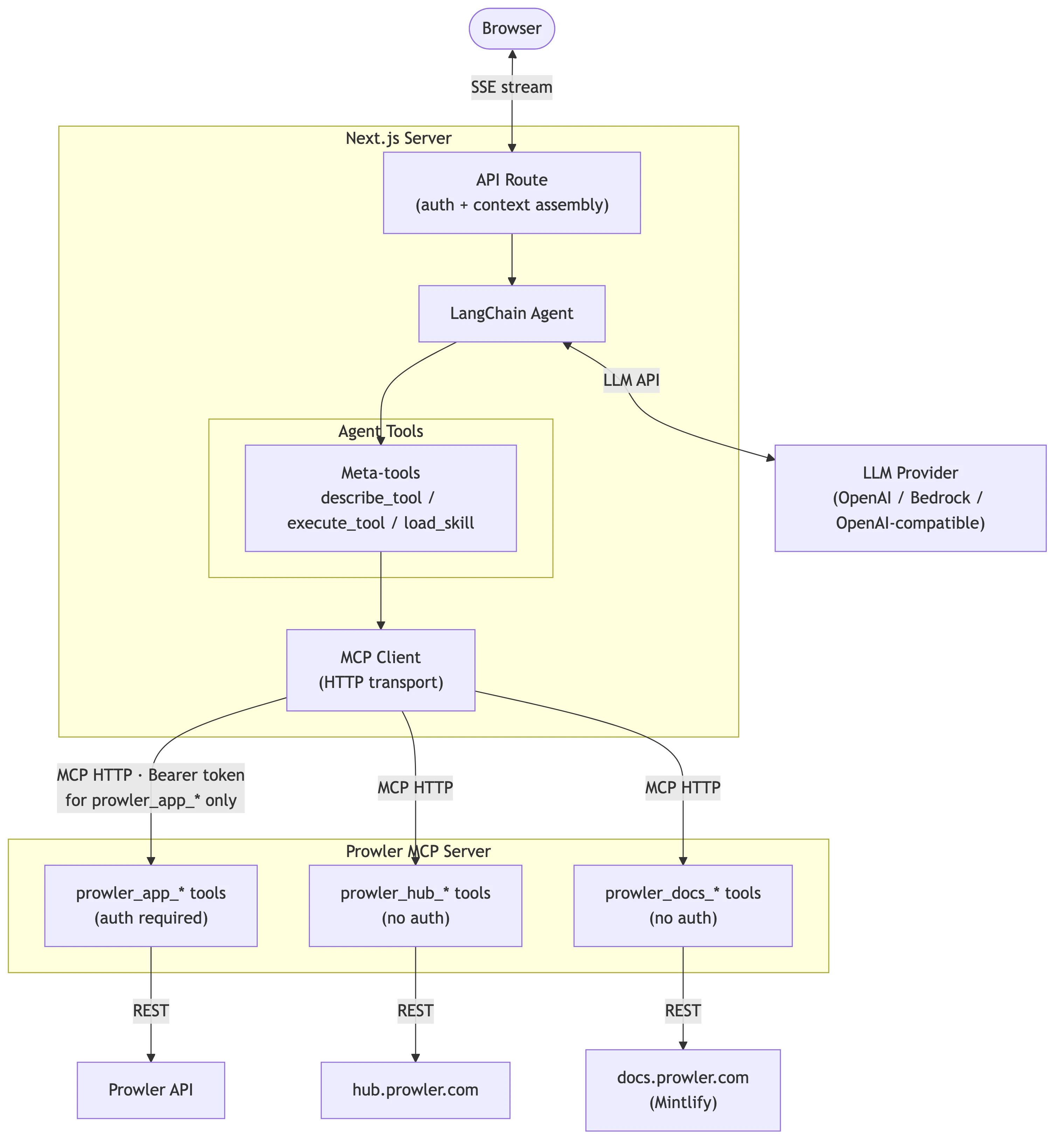
Three-Tier Architecture
The system follows a three-tier architecture:- Frontend (Next.js): Chat interface, message rendering, model selection
- API Route: Request handling, authentication, stream transformation
- Langchain Agent: LLM orchestration, tool calling through MCP
Request Flow
When a user sends a message through the Lighthouse chat interface, the system processes it through several stages:-
User Submits a Message.
The chat component (
ui/components/lighthouse/chat.tsx) captures the user’s question (e.g., “What are my critical findings in AWS?”) and sends it as an HTTP POST request to the backend API route. -
Authentication and Context Assembly.
The API route (
ui/app/api/lighthouse/analyst/route.ts) validates the user’s session, extracts the JWT token (stored viaauth-context.ts), and gathers context including the tenant’s business context and current security posture data (assembled indata.ts). -
Agent Initialization.
The workflow orchestrator (
ui/lib/lighthouse/workflow.ts) creates a Langchain agent configured with:- The selected LLM, instantiated through the factory (
llm-factory.ts) - A system prompt containing available tools and instructions (
system-prompt.ts) - Two meta-tools (
describe_toolandexecute_tool) for accessing Prowler data
- The selected LLM, instantiated through the factory (
-
LLM Reasoning and Tool Calling.
The agent sends the conversation to the LLM, which decides whether to respond directly or call tools to fetch data. When tools are needed, the meta-tools in
ui/lib/lighthouse/tools/meta-tool.tsinteract with the MCP client (mcp-client.ts) to:- First call
describe_toolto understand the tool’s parameters - Then call
execute_toolto retrieve data from the MCP Server - Continue reasoning with the returned data
- First call
-
Streaming Response.
As the LLM generates its response, the stream handler (
ui/lib/lighthouse/analyst-stream.ts) transforms Langchain events into UI-compatible messages and streams tokens back to the browser in real-time using Server-Sent Events. The stream includes both text tokens and tool execution events (displayed as “chain of thought”). -
Message Rendering.
The frontend receives the stream and renders it through
message-item.tsxwith markdown formatting. Any tool calls that occurred during reasoning are displayed viachain-of-thought-display.tsx.
Frontend Components
Frontend components reside inui/components/lighthouse/ and handle the chat interface and configuration workflows.
Core Components
Configuration Components
Supporting Components
Library Code
Core library code resides inui/lib/lighthouse/ and handles agent orchestration, MCP communication, and stream processing.
Workflow Orchestrator
Location:ui/lib/lighthouse/workflow.ts
The workflow module serves as the core orchestrator, responsible for:
- Initializing the Langchain agent with system prompt and tools
- Loading tenant configuration (default provider, model, business context)
- Creating the LLM instance through the factory
- Generating dynamic tool listings from available MCP tools
MCP Client Manager
Location:ui/lib/lighthouse/mcp-client.ts
The MCP client manages connections to the Prowler MCP Server using a singleton pattern:
- Connection Management: Retry logic with configurable attempts and delays
- Tool Discovery: Fetches available tools from MCP server on initialization
- Authentication Injection: Automatically adds JWT tokens to
prowler_*tool calls - Reconnection: Supports forced reconnection after server restarts
MAX_RETRY_ATTEMPTS: 3 connection attemptsRETRY_DELAY_MS: 2000ms between retriesRECONNECT_INTERVAL_MS: 5 minutes before retry after failure
Meta-Tools
Location:ui/lib/lighthouse/tools/meta-tool.ts
Instead of registering all MCP tools directly with the agent, Lighthouse uses two meta-tools for dynamic tool discovery and execution:
This pattern reduces the number of tools the LLM must track while maintaining access to all MCP capabilities.
Additional Library Modules
API Route
Location:ui/app/api/lighthouse/analyst/route.ts
The API route handles chat requests and manages the streaming response pipeline:
- Request Parsing: Extracts messages, model, and provider from request body
- Authentication: Validates session and extracts access token
- Context Assembly: Gathers business context and current data
- Agent Initialization: Creates Langchain agent with runtime configuration
- Stream Processing: Transforms agent events to UI-compatible format
- Error Handling: Captures errors with Sentry integration
Backend Components
Backend components handle LLM provider configuration, model management, and credential storage.Database Models
Location:api/src/backend/api/models.py
All models implement Row-Level Security (RLS) for tenant isolation.
LighthouseProviderConfiguration
Stores provider-specific credentials for each tenant:- provider_type:
openai,bedrock, oropenai_compatible - credentials: Encrypted JSON containing API keys or AWS credentials
- base_url: Custom endpoint for OpenAI-compatible providers
- is_active: Connection validation status
LighthouseTenantConfiguration
Stores tenant-wide Lighthouse settings:- business_context: Optional context for personalized responses
- default_provider: Default LLM provider type
- default_models: JSON mapping provider types to default model IDs
LighthouseProviderModels
Catalogs available models for each provider:- model_id: Provider-specific model identifier
- model_name: Human-readable display name
- default_parameters: Optional model-specific parameters
Background Jobs
Location:api/src/backend/tasks/jobs/lighthouse_providers.py
check_lighthouse_provider_connection
Validates provider credentials by making a test API call:- OpenAI: Lists models via
client.models.list() - Bedrock: Lists foundation models via
bedrock_client.list_foundation_models() - OpenAI-compatible: Lists models via custom base URL
is_active status based on connection result.
refresh_lighthouse_provider_models
Synchronizes available models from provider APIs:- Fetches current model catalog from provider
- Filters out non-chat models (DALL-E, Whisper, TTS, embeddings)
- Upserts model records in
LighthouseProviderModels - Removes stale models no longer available
MCP Server Integration
Lighthouse AI communicates with the Prowler MCP Server to access security data. For detailed MCP Server architecture, see Extending the MCP Server.Tool Namespacing
MCP tools are organized into three namespaces based on authentication requirements:Authentication Flow
- User authenticates with Prowler Local Server, receiving a JWT token
- Token is stored in session and propagated via
authContextStorage - MCP client injects
Authorization: Bearer <token>header forprowler_*calls - MCP Server validates token and applies RLS filtering
Tool Execution Pattern
The agent uses meta-tools rather than direct tool registration:Extension Points
Adding New LLM Providers
To add a new LLM provider:- Frontend: Update
ui/lib/lighthouse/llm-factory.tswith provider-specific initialization - Backend: Add provider type to
LighthouseProviderConfiguration.LLMProviderChoices - Jobs: Add credential extraction and model fetching in
lighthouse_providers.py - UI: Add connection workflow in
ui/components/lighthouse/workflow/
Modifying System Prompt
The system prompt template lives inui/lib/lighthouse/system-prompt.ts. The {{TOOL_LISTING}} placeholder is dynamically replaced with available MCP tools during agent initialization.
Adding Stream Events
To handle new Langchain stream events, modifyui/lib/lighthouse/analyst-stream.ts. Current handlers include:
on_chat_model_stream: Token-by-token text streamingon_chat_model_end: Model completion with tool call detectionon_tool_start: Tool execution startedon_tool_end: Tool execution completed
Adding MCP Tools
See Extending the MCP Server for detailed instructions on adding new tools to the Prowler MCP Server.Configuration
Environment Variables
Database Configuration
Provider credentials are stored encrypted inLighthouseProviderConfiguration:
- OpenAI:
{"api_key": "sk-..."} - Bedrock:
{"access_key_id": "...", "secret_access_key": "...", "region": "us-east-1"}or{"api_key": "...", "region": "us-east-1"} - OpenAI-compatible:
{"api_key": "..."}withbase_urlfield
Tenant Configuration
Business context and default settings are stored inLighthouseTenantConfiguration:
Related Documentation
MCP Server Extension
Adding new tools to the Prowler MCP Server
Lighthouse AI Overview
Capabilities, FAQs, and limitations
Multi-LLM Setup
Configuring multiple LLM providers
How Lighthouse Works
User-facing architecture and setup guide