

 About Us
Supported Providers
Lighthouse AI supports the following LLM providers:- OpenAI: Provides access to GPT models (GPT-4o, GPT-4, etc.)
- Amazon Bedrock: Offers AWS-hosted access to Claude, Llama, Titan, and other models
- OpenAI Compatible: Supports custom endpoints like OpenRouter, Ollama, or any OpenAI-compatible service
Model Requirements
For Lighthouse AI to work properly, models must support all of the following capabilities:- Text input: Ability to receive text prompts.
- Text output: Ability to generate text responses.
- Tool calling: Ability to invoke tools and functions to retrieve data from Prowler.
How Default Providers Work
All three providers can be configured for a tenant, but only one can be set as the default provider. The first configured provider automatically becomes the default. When visiting Lighthouse AI chat, the default provider’s default model loads automatically. Users can switch to any available LLM model (including those from non-default providers) using the dropdown in chat.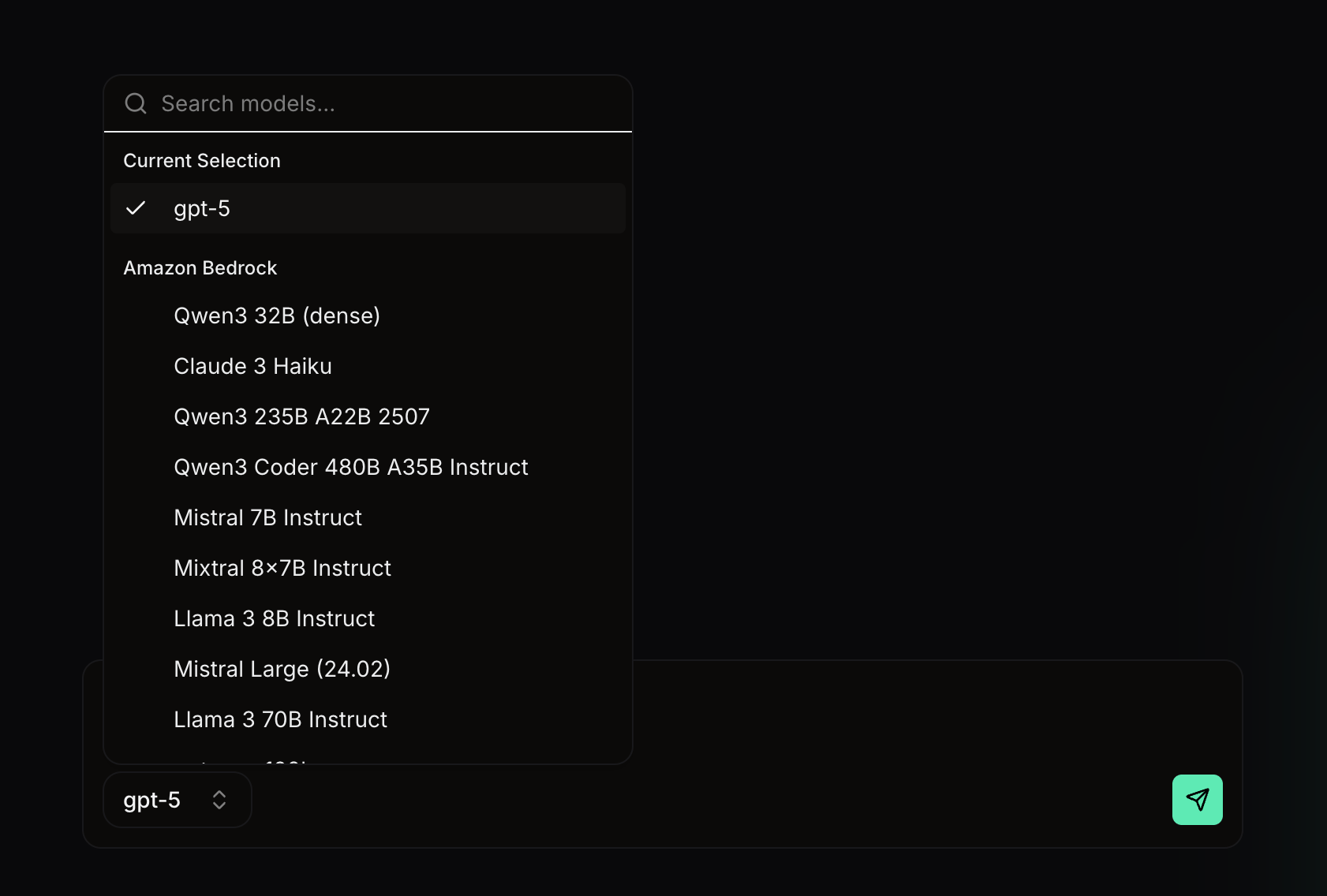
Configuring Providers
Navigate to Configuration → Lighthouse AI to see all three provider options with a Connect button under each.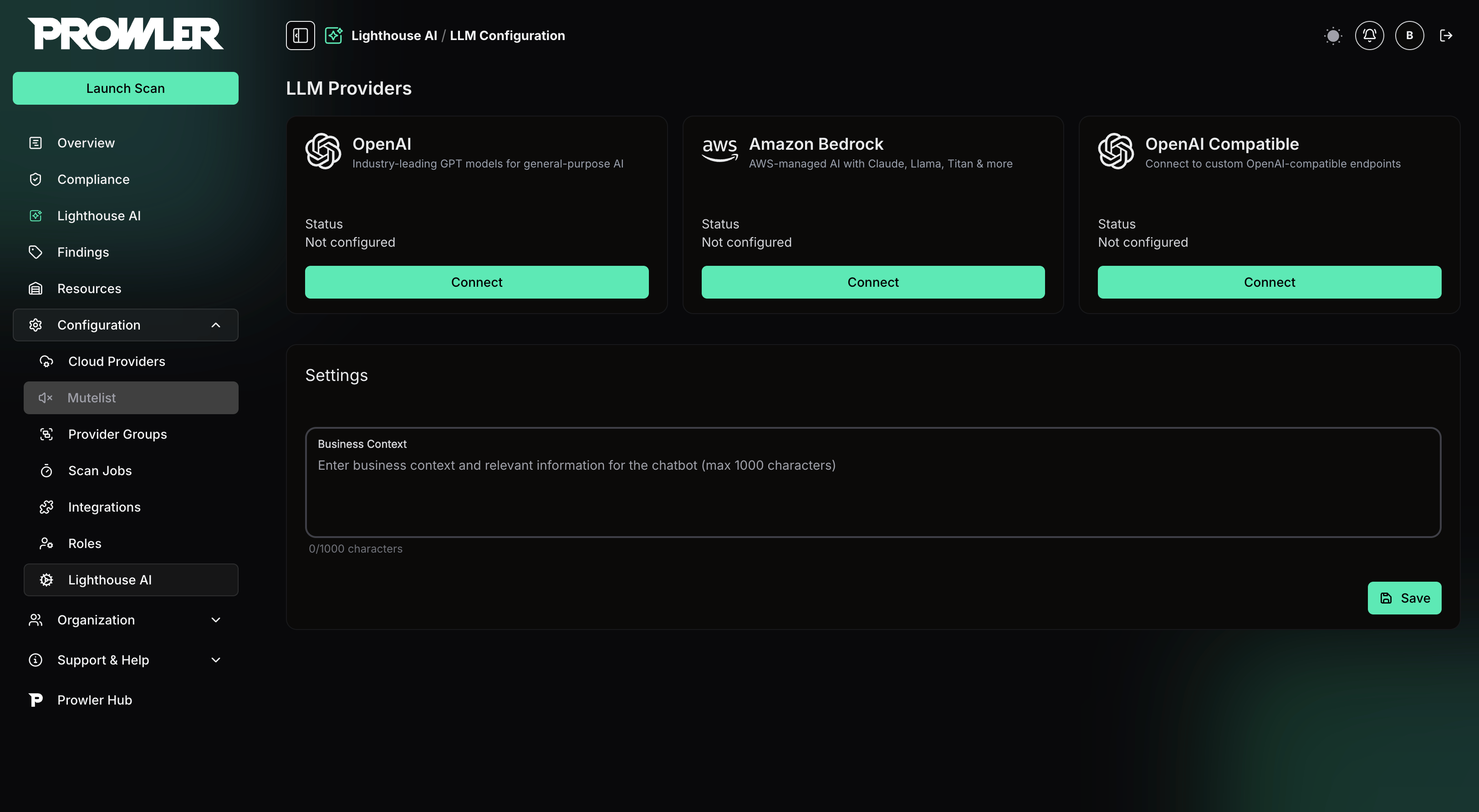
Connecting a Provider
To connect a provider:- Click Connect under the desired provider
- Enter the required credentials
- Select a default model for that provider
- Click Connect to save
- OpenAI
- Amazon Bedrock
- OpenAI Compatible
Required Information
- API Key: OpenAI API key (starts with
sk-orsk-proj-). API keys can be created from the OpenAI platform.
Before Connecting
- Ensure the OpenAI account has sufficient credits.
- Verify that the
gpt-5model (recommended for Lighthouse AI) is not blocked in the OpenAI organization settings.
Changing the Default Provider
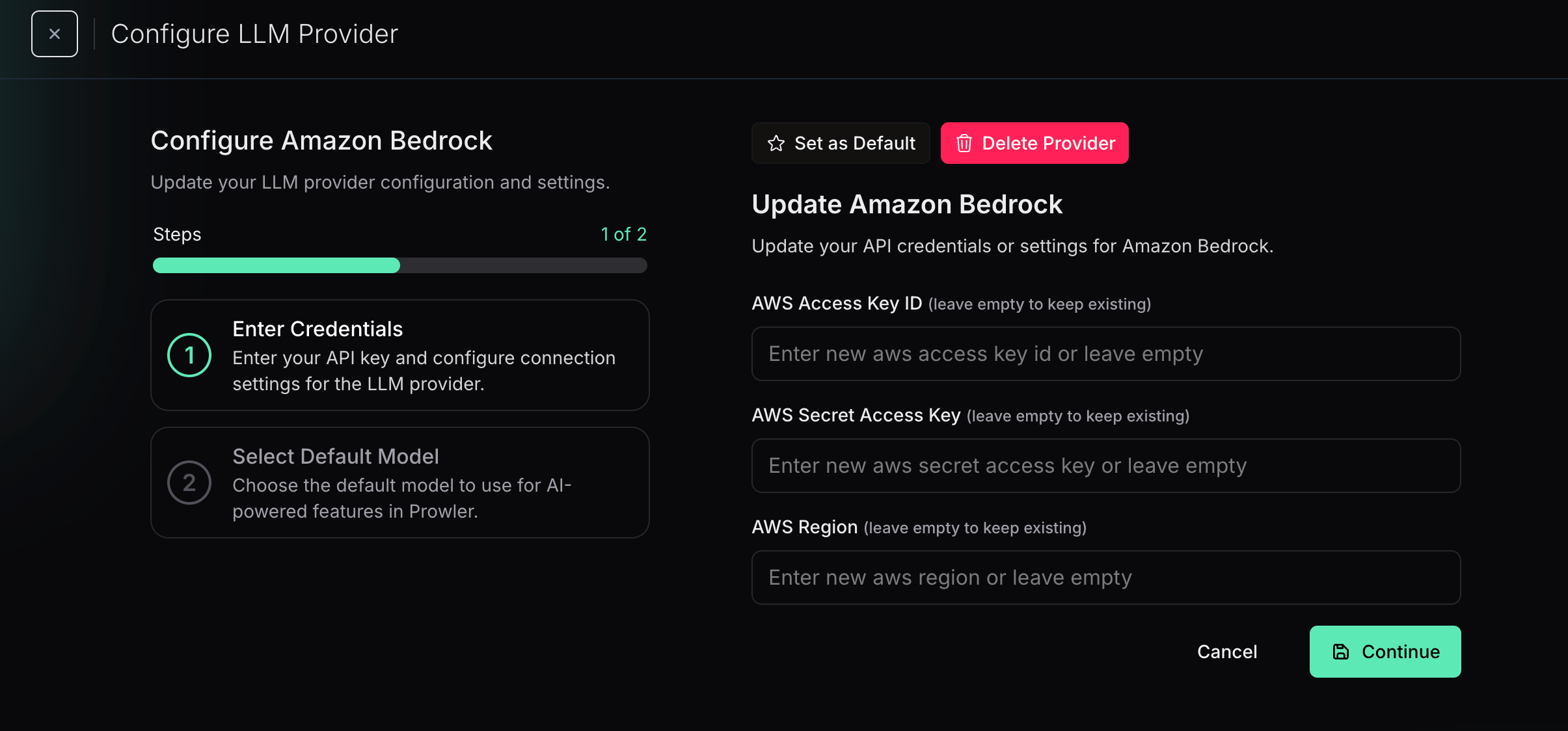
To set a different provider as default:- Navigate to Configuration → Lighthouse AI
- Click Configure under the desired provider to set as default
- Click Set as Default
Updating Provider Credentials
To update credentials for a connected provider:- Navigate to Configuration → Lighthouse AI
- Click Configure under the provider
- Enter the new credentials
- Click Update
Deleting a Provider
To remove a configured provider:- Navigate to Configuration → Lighthouse AI
- Click Configure under the provider
- Click Delete
Model Recommendations
For best results with Lighthouse AI, the recommended model isgpt-5 from OpenAI.
Models from other providers such as Amazon Bedrock and OpenAI Compatible endpoints can be connected and used, but performance is not guaranteed. Ensure that any selected model supports text input, text output, and tool calling capabilities.