

 About Us
Attack Paths is currently available for AWS providers. Support for additional providers is planned.
Prerequisites
The following prerequisites are required for Attack Paths:- An AWS provider is configured with valid credentials. For setup instructions, see Getting Started with AWS.
- At least one scan has completed on the configured AWS provider and produced graph data. Attack Paths scans run automatically alongside regular security scans, no separate configuration is required.
How Attack Paths Scans Work
Attack Paths scans are generated automatically when a security scan runs on an AWS provider. When a scan produces graph data, it maps relationships between IAM principals, policies, trust configurations, and other resources. A scan can complete without producing graph data. When graph data is ready, the scan appears in the Attack Paths scan table with a check in the Graph column and can be selected regardless of its current status. Scans without graph data remain visible but cannot be selected. If a new scan cycle starts after graph data is available, the previous cycle remains available while the new scan runs.Prowler Cloud and Prowler Private Cloud scan configured providers every 24 hours by default, so Attack Paths data stays up to date automatically.
Accessing Attack Paths
To open Attack Paths, click Attack Paths in the left navigation menu.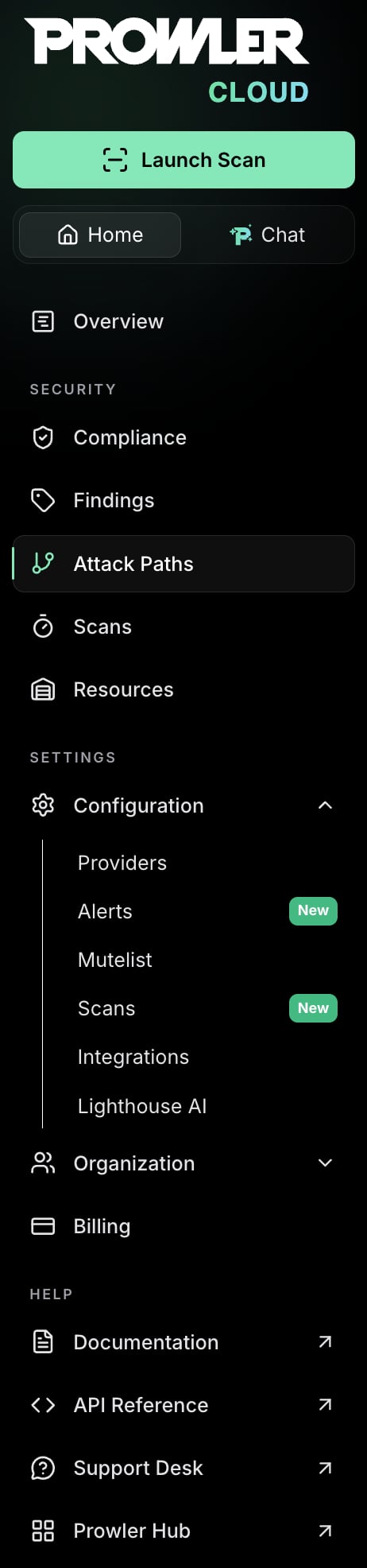
- Select a scan with graph data.
- Choose a built-in query or a custom openCypher query.
- Add parameters when the selected query requires them.
- Execute the query and explore the resulting graph.
Selecting a Scan
The scans table displays all Attack Paths scans with the following columns:- Select: A radio button used to choose a scan. The radio button is disabled when graph data is not available.
- Provider: The AWS provider alias and account identifier.
- Last Scan Date: When the scan completed.
- Status: Current state of the scan, such as Completed, Executing, Scheduled, or Failed.
- Graph: Whether Attack Paths graph data is available for the scan.
- Duration: Total scan time.
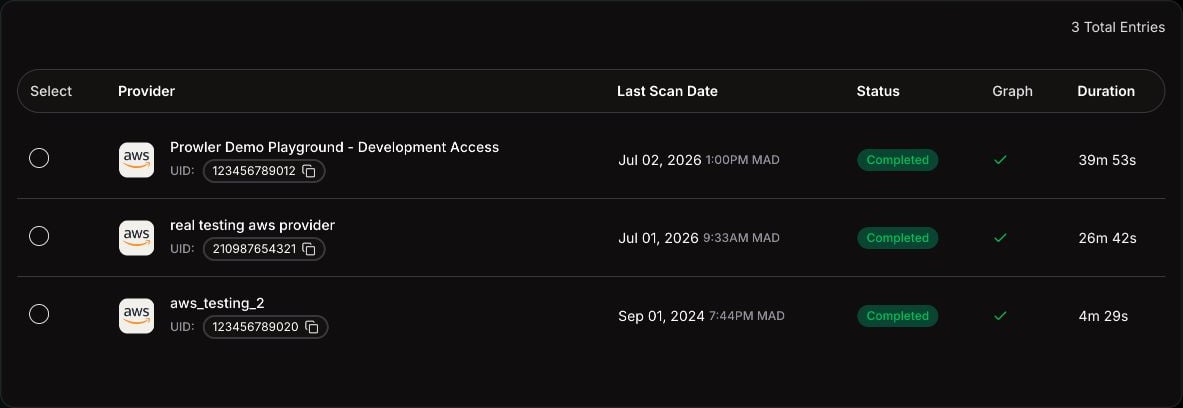
Only scans with graph data can be selected. Disabled rows include a tooltip that explains why the graph is not available yet.
Choosing a Query
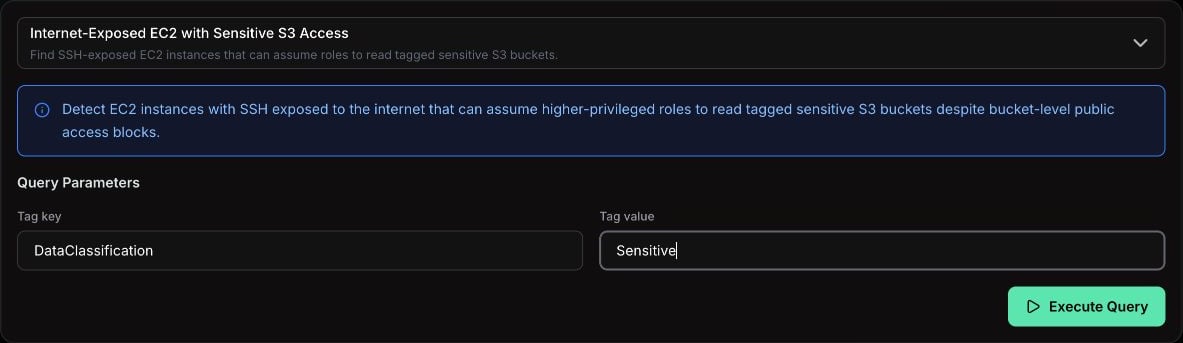
After selecting a scan, the query selector becomes available. Each query targets a specific privilege escalation, exposure, inventory, or misconfiguration pattern. To choose a query, click the dropdown and select from the available options. Each option displays:- Query name: A descriptive title, such as Internet-Exposed EC2 with Sensitive S3 Access.
- Short description: A brief summary of what the query detects.
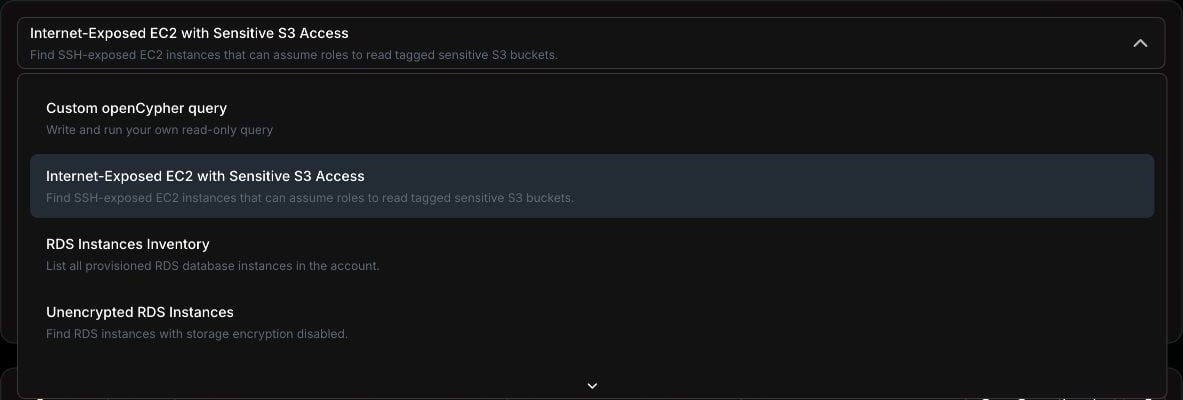
In Prowler Cloud and Prowler Private Cloud, the query selector hides built-in queries confirmed empty for the selected scan. Built-in queries without a confirmed empty result and the Custom openCypher query remain visible. See Active Queries.
Configuring Query Parameters
Some queries accept optional or required parameters to narrow the scope of the analysis. When a query has parameters, a form appears below the query description.- Required fields are marked with an asterisk (*) and must be filled before executing.
- Optional fields refine the query results but are not mandatory.
- Queries without parameters show no parameter form.
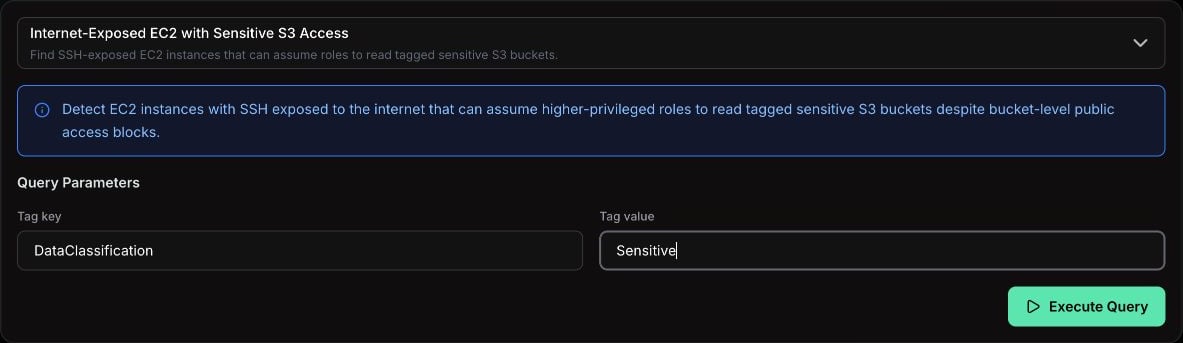
Writing Custom openCypher Queries
In addition to the built-in queries, Attack Paths supports custom read-only openCypher queries. Custom queries provide direct access to the underlying graph so security teams can answer ad-hoc questions, prototype detections, or extend coverage beyond the built-in catalog. To write a custom query, select Custom openCypher query from the query dropdown. A code editor with syntax highlighting and line numbers appears, ready to receive the query.Constraints and Safety Limits
Custom queries are sandboxed to keep the graph database safe and responsive:- Read-only: Only read operations are allowed. Statements that mutate the graph (
CREATE,MERGE,SET,DELETE,REMOVE,DROP,LOAD CSV,CALL { ... }writes, etc.) are rejected before execution. - Length limit: Each query is capped at 10,000 characters.
- Scoped to the selected scan: Results are automatically scoped to the provider and scan selected in the scan table. There is no need to filter by tenant or scan identifier in the query body.
Example Queries
The following examples are read-only and can be pasted directly into the editor. Each one demonstrates a different graph traversal pattern. Internet-exposed EC2 instances with their security group rules:Graph Schema and Advanced Patterns
Custom queries traverse the same Cartography graph the built-in queries use. Node labels, relationships, and properties follow the upstream Cartography AWS Schema, enriched by Prowler withProwlerFinding nodes linked through HAS_FINDING, Internet exposure nodes, and list-typed properties such as action and resource modeled as child item nodes.
For the complete reference, including the graph model, list-typed and JSON-encoded properties, performance guidance, and openCypher compatibility rules, see Attack Paths Queries in the Developer Guide.
AI assistants connected through Prowler MCP Server can fetch the exact Cartography schema for the active scan via the
prowler_get_attack_paths_cartography_schema tool. This guarantees that generated queries match the schema version pinned by the running Prowler release.Executing a Query
To run the selected query against the scan data, click Execute Query. The button is disabled until a query is selected and all required parameters are valid. The button displays a loading state while the query runs. After the query completes, the graph appears below the query builder. If the query returns no results, an informational message appears. Common reasons include:- No matching patterns found: The scanned environment does not contain the pattern the query targets.
- Not enough permissions: The scan credentials may not have captured all the data the query needs.
- Server unavailable: The graph service may be temporarily unavailable.
Exploring the Graph
After a successful execution, the graph visualization renders below the query builder. The graph maps relationships between cloud resources, IAM entities, public exposure, and security findings.Grouped Graphs and Query Outcomes
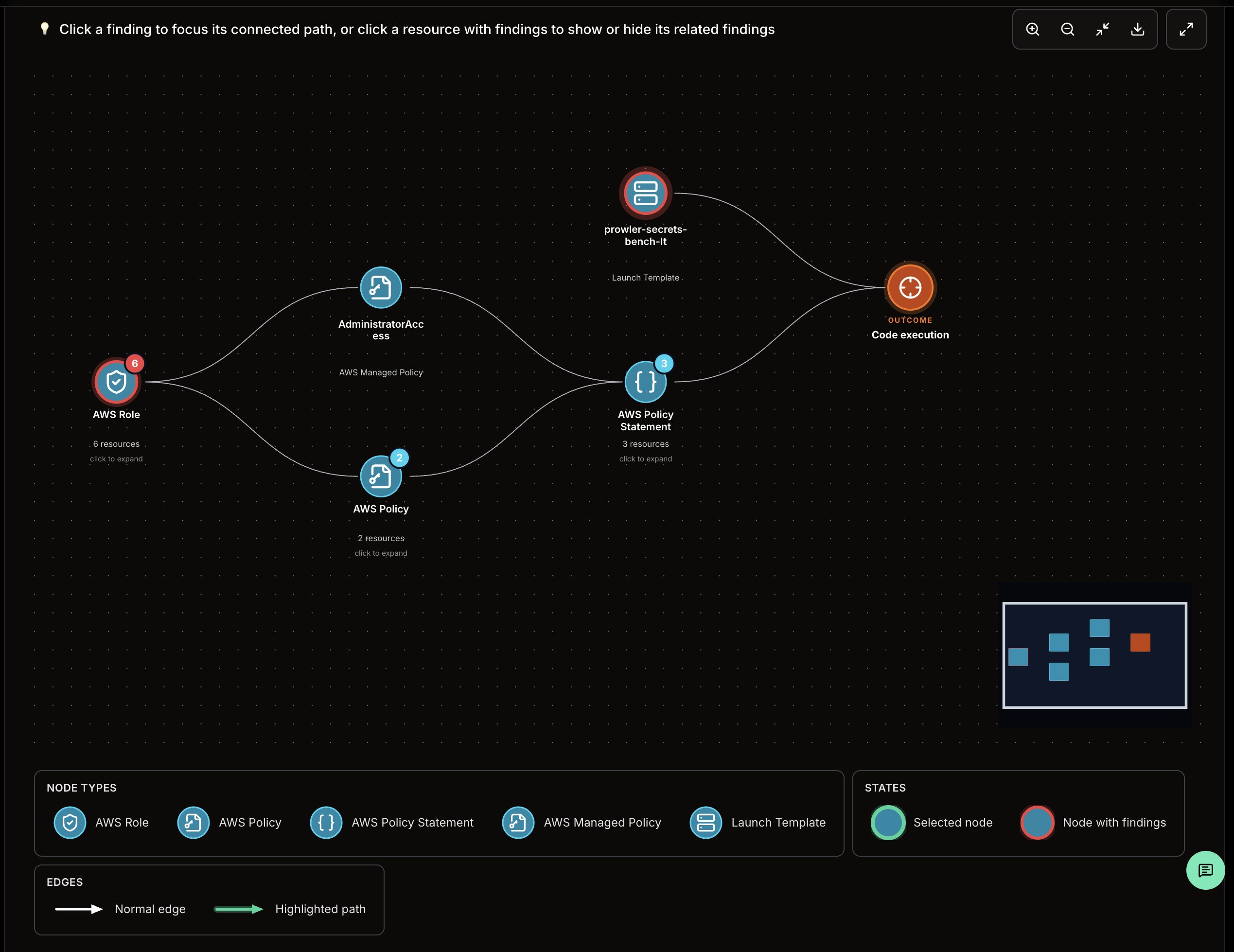
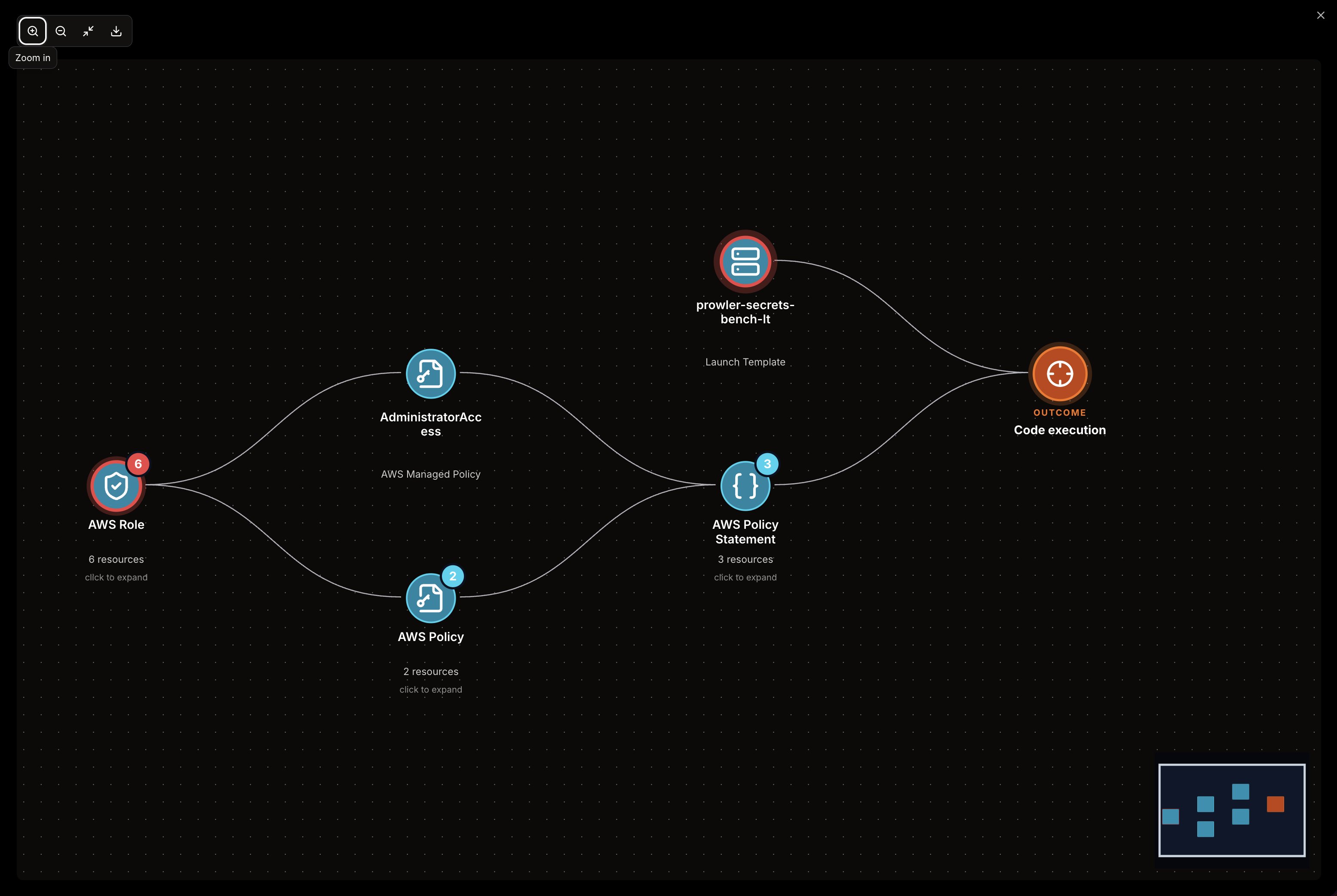
Prowler Cloud and Prowler Private Cloud group resources of the same class and graph level into expandable nodes. Built-in query graphs also end with a query outcome, which states the result that the path can lead to. Prowler Local Server keeps the flat graph view, including the provider root. Custom openCypher queries do not have a catalog outcome, so their graphs do not include an outcome node.Node Types
- Grouped resource nodes: Represent multiple resources of the same class in Prowler Cloud and Prowler Private Cloud. A number in the upper-right corner shows how many resources the node contains. A red outline indicates that one or more resources in the group have findings.
- Resource nodes: Represent individual cloud resources such as IAM roles, policies, EC2 instances, security groups, and S3 buckets. A class with one resource remains an individual node.
- Internet nodes: Represent exposure from the public internet.
- Finding nodes: Represent Prowler findings linked to resources. Finding colors indicate risk level, such as critical, high, medium, or low.
- Outcome nodes: Mark the terminal result of a built-in query in Prowler Cloud and Prowler Private Cloud. The orange node displays outcomes such as Code execution, Privilege escalation, Public exposure, or Resource inventory. A dashed ring and the label Latent outcome indicate an inventory or another partial outcome.
- Provider root nodes: Represent the AWS account or provider root in the Prowler Local Server flat graph.
Edge Types
- Normal edges: Direct relationships between graph nodes, such as role-to-policy or resource-to-security-group relationships.
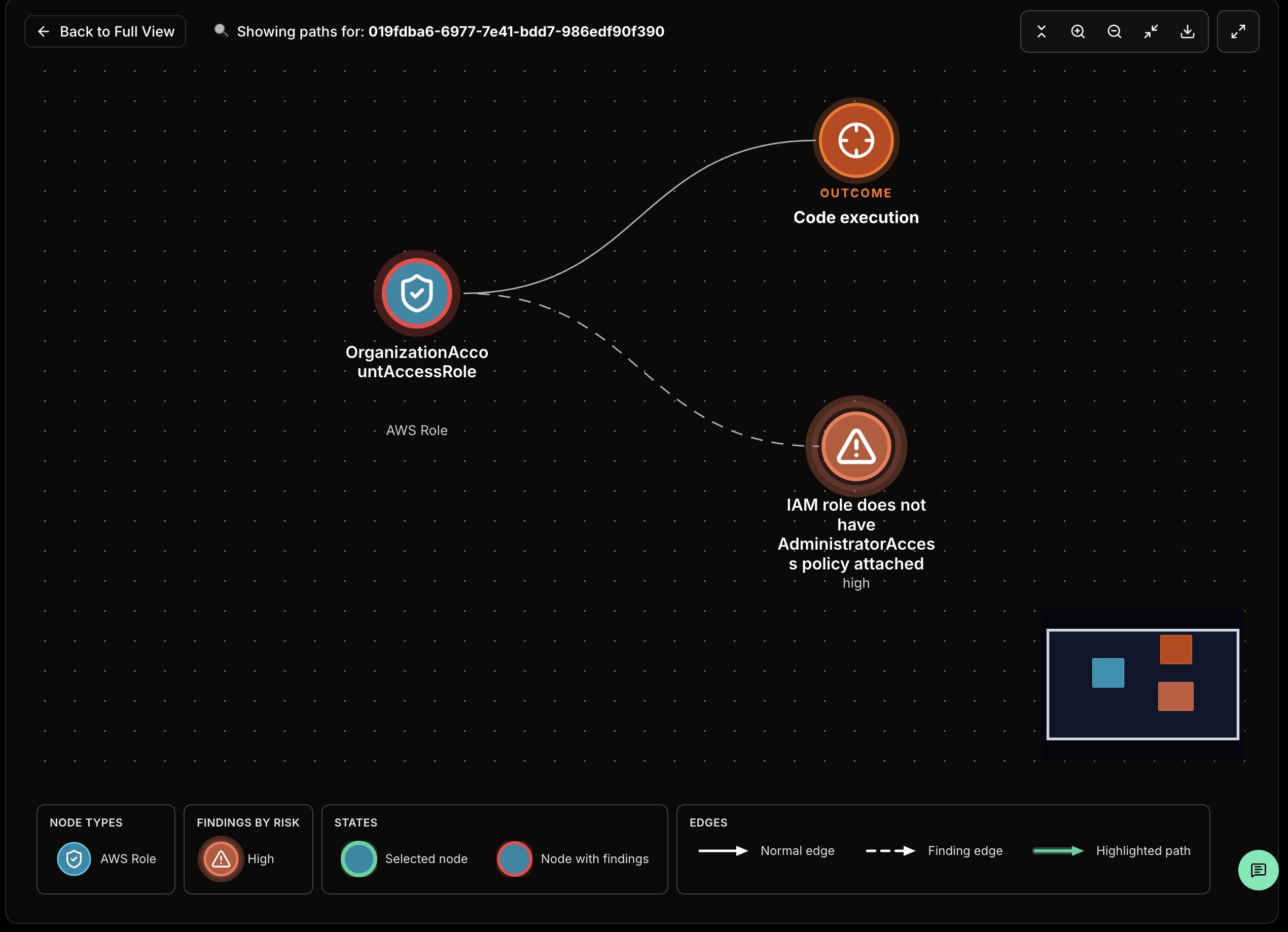
- Finding edges: Dashed relationships between resources and their associated findings.
- Highlighted paths: Green edges that show the active path when you hover a node or focus a finding.
Interacting with the Graph
The graph supports these interactions:- Click a node with a number in the upper-right corner to expand its resource group.
- Click a finding to focus its connected path.
- Click a resource with findings to show or hide its related findings.
- Hover a node to highlight its connected path.
Expanding Resource Groups
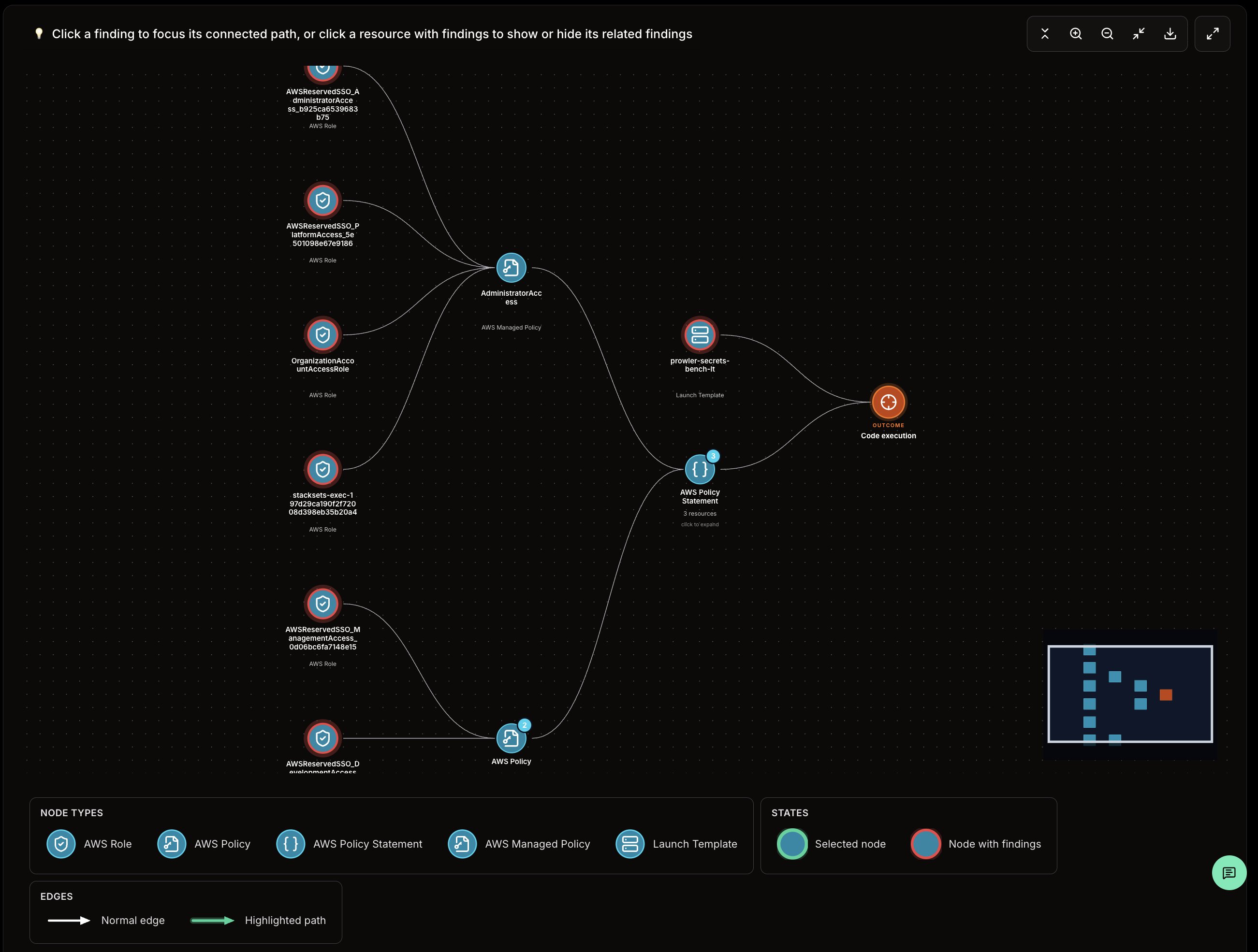
In Prowler Cloud and Prowler Private Cloud, a node with a number in its upper-right corner represents a resource group. The number is the total number of resources in the group.- Click the group node to display its resources. Multiple groups can remain expanded, and the graph automatically fits the visible nodes to the canvas.
- Double-click any resource revealed from a group to collapse that group.
- Click Collapse all groups in the graph toolbar to close every expanded group. This control appears only while at least one group is expanded.
Showing Related Findings
Resource nodes with related findings are clickable. Click one of these resources to show its finding nodes. Click the resource again to hide them. The selected resource is highlighted in green while its findings are visible. The graph automatically fits the selected resource and its related findings when the findings are shown.Focusing a Finding Path
Click a finding node to focus the graph on the path connected to that finding. When the graph is focused:- The graph shows Back to Full View.
- The status banner shows the selected finding.
- The graph keeps only the connected path in view.
- The finding detail drawer opens.
Graph Controls
The toolbar in the top-right corner of the graph provides:- Zoom in / Zoom out: Adjust the zoom level
- Fit graph to view: Reset the view to fit the visible graph
- Collapse all groups: Close every expanded resource group. This control appears only when a group is expanded
- Export graph: Download the current graph, including its grouped or expanded state and outcome, as a PNG file
- Fullscreen: Open the graph in a full-size modal
Use Ctrl + Scroll (or Cmd + Scroll on macOS) to zoom directly within the graph area.
Viewing Finding Details
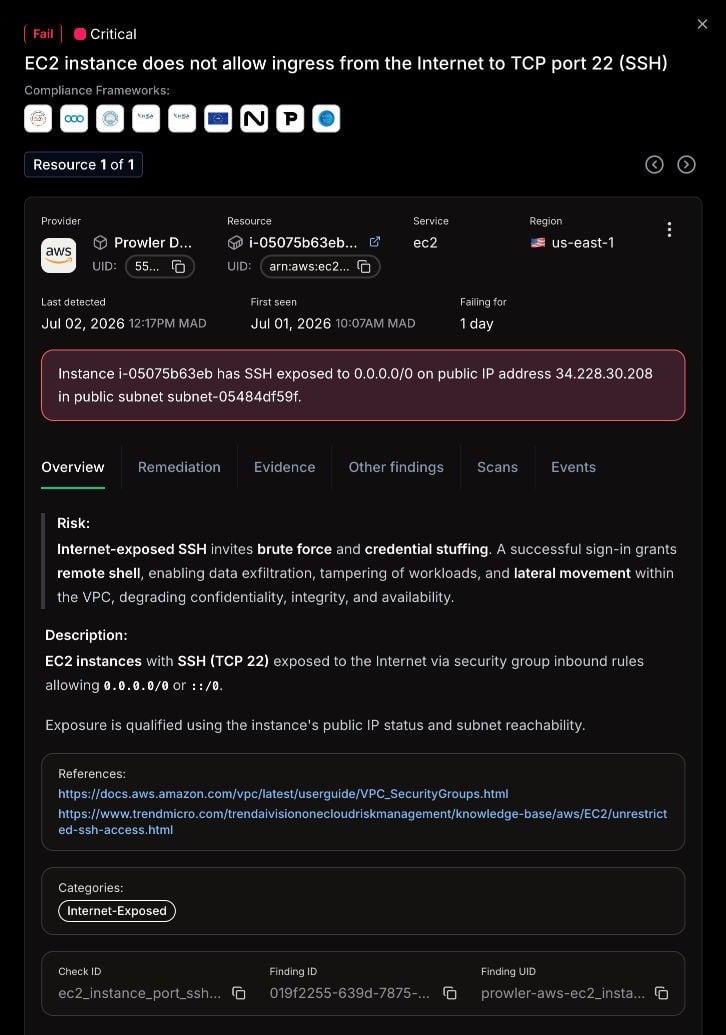
Click a finding node to open the finding detail drawer. The drawer uses the same finding detail layout as the Findings page and includes:- The finding title, status, and severity.
- The affected resource summary.
- Overview, remediation, evidence, related findings, scans, and events tabs when data is available.
- A Lighthouse AI action when the account has access to Lighthouse AI.
Fullscreen Mode
To expand the graph for detailed exploration, click the fullscreen icon in the graph toolbar. The fullscreen modal provides:- The graph in a full-size modal.
- The same zoom, fit, and export controls.
- The same node expansion, finding focus, hover highlight, and minimap interactions available in the standard view.
Available Queries
The query selector includes custom openCypher and built-in AWS queries for common security investigation workflows. Available queries are loaded from the selected scan and may change as new query packs are added. Available queries include:- Custom openCypher query: Write and run a read-only graph query.
- Exposure queries: Find internet-exposed EC2 instances, load balancers, open security groups, and resources by public IP.
- Inventory queries: List resources such as RDS instances.
- Misconfiguration queries: Find unencrypted RDS instances, public S3 buckets, and wildcard IAM statements.
- Privilege escalation queries: Detect IAM and AWS service paths based on known attack techniques, including queries based on pathfinding.cloud research by Datadog.
Using Attack Paths with the MCP Server and Lighthouse AI
Attack Paths capabilities are also available through the Prowler MCP Server, enabling interaction with Attack Paths data via AI assistants like Claude Desktop, Cursor, and other MCP clients. Prowler Lighthouse AI also supports Attack Paths queries, allowing you to analyze privilege escalation chains and security misconfigurations directly from the chat interface. The following MCP tools are available for Attack Paths:prowler_list_attack_paths_scans- List and filter Attack Paths scans.prowler_list_attack_paths_queries- Discover available queries for a completed scan.prowler_run_attack_paths_query- Execute a query and retrieve graph results with nodes and relationships.prowler_get_attack_paths_cartography_schema- Retrieve the Cartography graph schema for custom openCypher queries.
Example Questions
Ask through the MCP Server or Lighthouse AI:- “Find EC2 instances exposed to the internet with access to sensitive S3 buckets”
- “Are there any IAM roles that can escalate their own privileges?”
- “Show me all internet-facing resources with open security groups”
- “Which principals can create Lambda functions with privileged roles?”
- “List all RDS instances with storage encryption disabled”
- “Find S3 buckets that allow anonymous access”
- “Are there any CloudFormation stacks that could be hijacked for privilege escalation?”
- “Show me all roles that can be assumed for lateral movement”
- Asking an AI assistant to identify privilege escalation paths in a specific AWS account
- Automating attack path analysis across multiple scans
- Combining attack path data with findings and compliance information for comprehensive security reports