

 About Us
--push-to-cloud, or submitted through the API.
OCSF Detection Finding Format
The ingestion API accepts.ocsf.json files containing a JSON array of OCSF Detection Finding records. Each finding represents a security check result from Prowler.
Example Detection Finding record:
Only Detection Finding (
class_uid: 2004) records are accepted. Other OCSF classes are not supported for ingestion.Required Permissions
The Manage Ingestions RBAC permission controls access to the ingestion endpoints. Without this permission, findings cannot be submitted from the Scans page, via the API or with--push-to-cloud.
For more information about RBAC permissions, refer to the Prowler Cloud RBAC documentation.
Using the UI
Added in: 5.41.0 The Scans page imports a Prowler OCSF report from the browser, with no CLI or API key involved. The import runs as a regular ingestion job, so the status values, the billing impact and the errors endpoint apply as they do for the CLI and the API.-
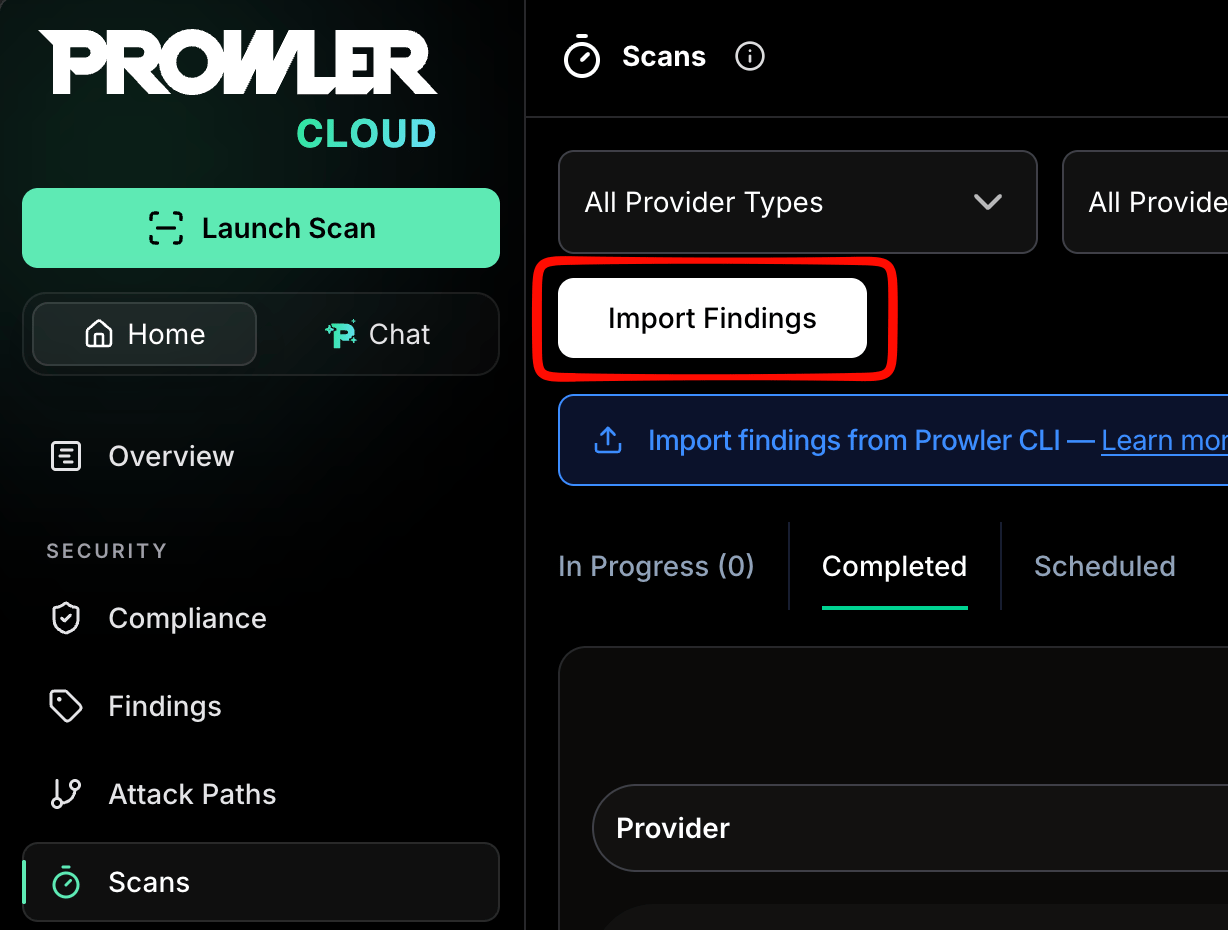
Go to Scans and click Import Findings. The button is shown only to roles with the Manage Ingestions permission.
-
Drag a
.ocsf.jsonreport onto the drop area, or click Select File to pick one. The dialog takes one file per import. A file whose name does not end in.ocsf.json, or an empty file, is rejected before the upload starts.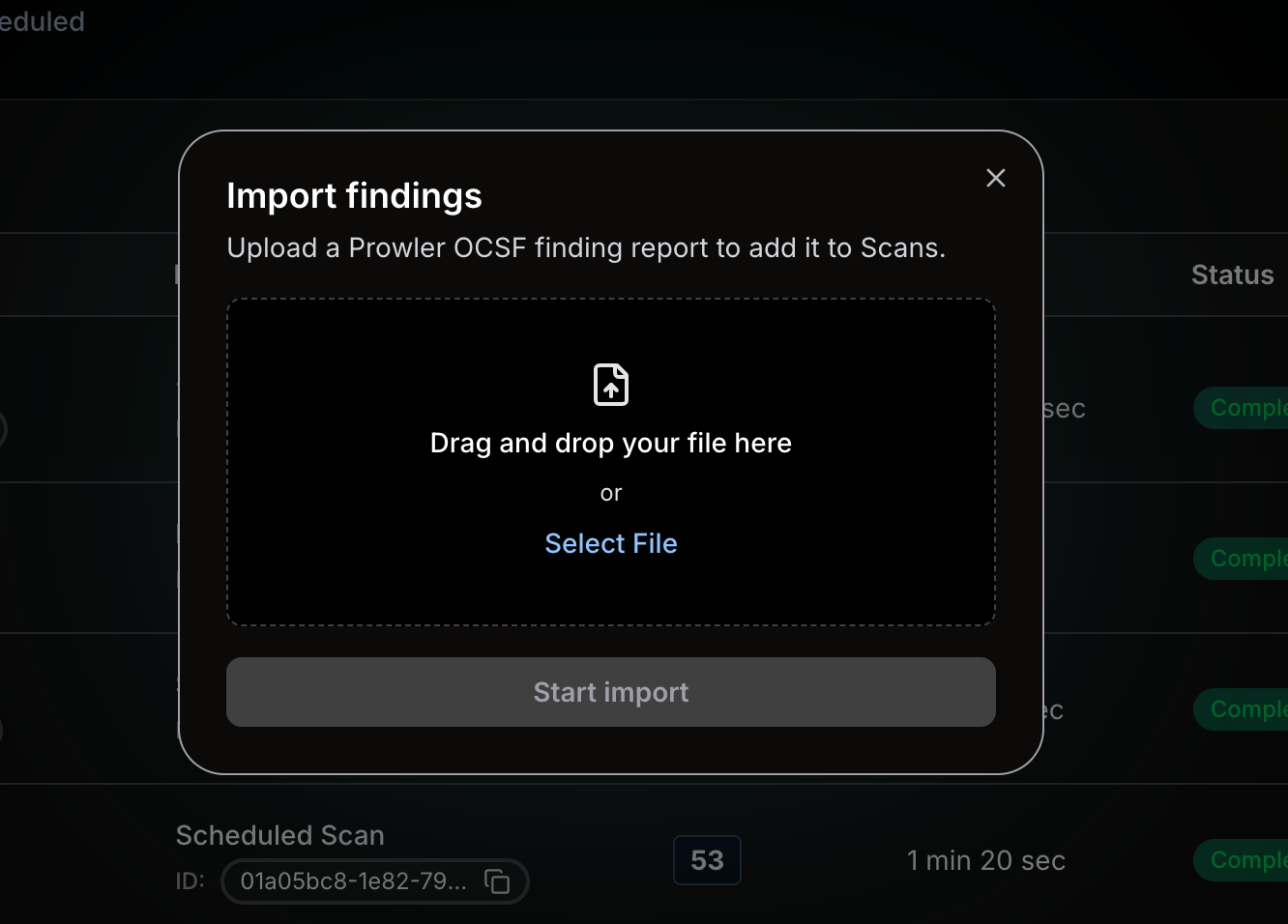
- Click Start import. The dialog uploads the report, creates the ingestion job and follows its status until the job finishes. On completion it reports the total number of records, how many were processed and how many were invalid.
Using the CLI
The--push-to-cloud flag uploads scan results directly to Prowler Cloud after a scan completes. This approach automates the ingestion process without manual file uploads.
Prerequisites
- A valid Prowler Cloud API key (see API Keys)
- The
PROWLER_CLOUD_API_KEYenvironment variable configured
Basic Usage
TLS Certificate Trust
For--push-to-cloud uploads, Prowler CLI creates one ingestion-scoped TLS context and validates HTTPS certificates with one handshake and one POST request. The upload does not retry or fall back to another TLS configuration. Redirect responses are rejected.
The ingestion context combines the operating system roots with the default certificate authority (CA) roots bundled with Requests. If REQUESTS_CA_BUNDLE is configured, Prowler CLI also loads that file or directory into the ingestion context. Otherwise, Prowler CLI loads CURL_CA_BUNDLE when configured.
REQUESTS_CA_BUNDLE and CURL_CA_BUNDLE can also affect other Requests-based connections throughout the Prowler CLI process, including provider authentication. A bundle containing only a private CA can cause connections to public services to fail before the upload starts. Installing the private CA in the operating system or container trust store is recommended. If a custom bundle is required, it must include both the public CA roots, such as the certifi bundle, and the required private CA certificates.
For Prowler Private Cloud deployments that use an organization CA or a TLS-intercepting corporate proxy, installing the required root CA in the operating system or container store remains the recommended approach. Containers have an isolated system CA store, so add the organization or proxy CA to the container image or runtime, then run the operating system’s CA update command, such as update-ca-certificates, before starting Prowler CLI. Installing a CA on the container host does not automatically install it inside the container.
Prowler CLI does not create, modify, or remove these environment variables. The custom TLS context created by --push-to-cloud applies only to the temporary ingestion session and does not change API, provider, integration, global SSL, or unrelated Requests session behavior.
Combining with Output Formats
When using--push-to-cloud with custom output formats that exclude OCSF, Prowler generates a temporary OCSF file for upload:
The temporary OCSF file is saved in the system temporary directory and not in the output path passed with -o.
CLI Output Examples
Successful upload:Ingestion failures do not affect the scan exit code. The CLI emits warnings but completes normally.
Using the API
The Ingestion API provides endpoints for submitting OCSF files and monitoring job status.Authentication
Include the API key in theAuthorization header:
Submit an Ingestion Batch
Upload a.ocsf.json file containing a JSON array of OCSF Detection Finding records. See OCSF Detection Finding format for the expected structure.
Endpoint: POST /api/v1/ingestions
Request:
Get Ingestion Status
Monitor the progress of an ingestion job. Endpoint:GET /api/v1/ingestions/{id}
Request:
List Ingestion Jobs
Retrieve a list of ingestion jobs for the tenant. Endpoint:GET /api/v1/ingestions
Query parameters:
Request:
Get Ingestion Errors
Retrieve error details for a specific ingestion job. Endpoint:GET /api/v1/ingestions/{id}/errors
Request:
Ingestion Status Values
CI/CD Integration
Automate findings ingestion in CI/CD pipelines by setting the API key as a secret.Prowler must be installed in the CI/CD environment before running scans. Refer to the Prowler CLI installation guide for setup instructions.
GitHub Actions
For new projects, use the official Prowler GitHub Action — a Docker-based reusable action that runs scans, optionally pushes findings to Prowler Cloud, and uploads SARIF results to GitHub Code Scanning. The example below documents the legacy pip-based flow.
GitLab CI
Billing Impact
Each unique cloud account discovered in ingested OCSF findings counts as one provider in the Prowler Cloud subscription.- Existing providers: If a cloud account was already connected as a provider, findings ingested for that account do not incur additional billing. The existing provider is reused.
- New accounts: Ingesting findings from accounts not yet connected to Prowler Cloud will result in new providers being created and counted toward the subscription.
- High-volume ingestion: Importing findings from many different cloud accounts will create a provider for each account. Review plan limits before large-scale ingestion.
- Deleted providers: Removing a provider no longer counts toward the subscription.
Troubleshooting
”Push to Prowler Cloud skipped: no API key configured”
- Set the
PROWLER_CLOUD_API_KEYenvironment variable before running the scan - Verify the variable is exported and not empty
”Push to Prowler Cloud failed: could not reach the Prowler Cloud API”
- Verify network connectivity to
api.prowler.com - Check firewall rules allow outbound HTTPS traffic
- Confirm the API endpoint is not blocked by proxy settings
- If using a custom base URL via
PROWLER_CLOUD_API_BASE_URL, verify it is correct
”Push to Prowler Cloud failed: this feature is only available with a Prowler Cloud subscription”
- The API returned HTTP 402, meaning your tenant does not have an active subscription
- Visit Prowler Cloud Pricing to review available plans
HTTP 401 Unauthorized
- Verify the API key is valid and not revoked
- Confirm the API key has the Manage Ingestions permission
- Check that the
Authorizationheader uses the correct format:Api-Key <key>
HTTP 403 Forbidden
- The user associated with the API key lacks the Manage Ingestions permission
- Contact the tenant administrator to grant the required permission
Ingestion Job Status Is “failed”
- Check the
/api/v1/ingestions/{id}/errorsendpoint for details - Verify the OCSF file format is valid
- Ensure the file contains Detection Finding records