

 About Us
https://mcp.prowler.com/mcp.
Prerequisites
- Claude desktop app installed and signed in.
- Node.js and npm, to install the bridge.
- A Prowler Cloud account. The free tier is enough to start. Sign up at cloud.prowler.com.
Why “Add Custom Connector” Does Not Work
The app’s Settings → Connectors → Add custom connector dialog is the obvious place to paste an MCP URL, but it does not fit the Prowler Cloud MCP Server for two independent reasons:- Connectors authenticate with OAuth. Authenticating with a fixed API key sent as a request header is a separate mechanism that Anthropic documents as beta, rolled out on request. Without it, the dialog offers a URL and OAuth client credentials, with nowhere to supply
Authorization: Bearer pk_.... - Connectors do not connect from your machine. Claude reaches your MCP server from Anthropic’s cloud infrastructure rather than your local device. A Prowler MCP Server on
localhost, behind a VPN, or restricted by an IP allowlist is unreachable that way regardless of authentication.
Step 1: Get Your Prowler API Key
Create an API key in Prowler Cloud and copy it. The key begins withpk_ and is shown only once. Check the API Keys guide for details.
Step 2: Install the Bridge
mcp-remote presents the remote HTTP server to Claude as a local STDIO server and injects the Authorization header. Install a pinned version into a dedicated directory:
mcp-remote is community-maintained and is not an Anthropic product. Review it before use.Step 3: Edit the Configuration File
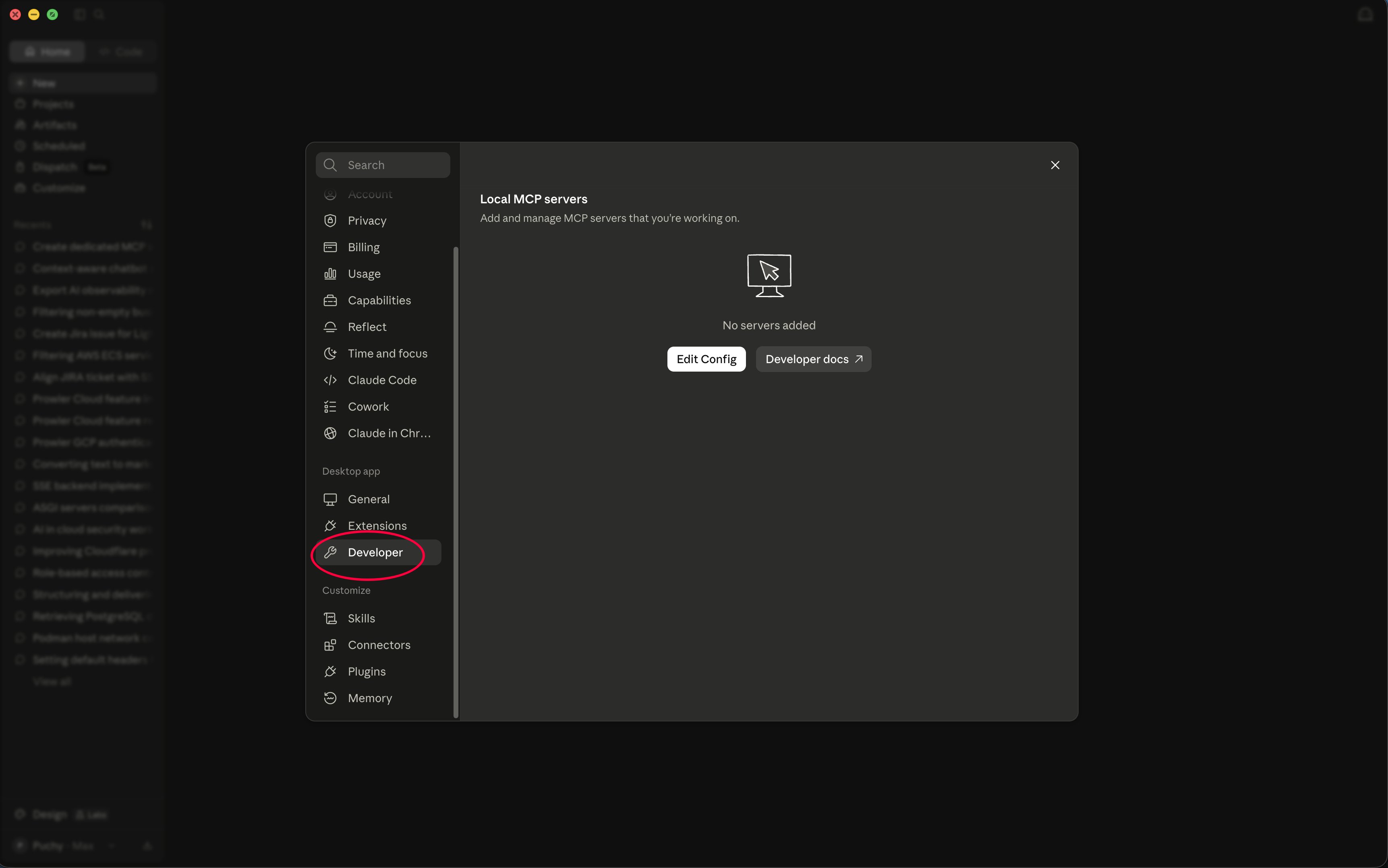
In the Claude app, go to Settings → Developer and click Edit Config. This revealsclaude_desktop_config.json:
- macOS:
~/Library/Application Support/Claude/claude_desktop_config.json - Windows:
%APPDATA%\Claude\claude_desktop_config.json
command path with the absolute path to the installed binary and the placeholder with your API key:
Local server: Replace the URL with your own HTTP endpoint. Everything else stays the same.
Step 4: Restart the App
Quit the Claude app completely and reopen it. Configuration is read at startup.Step 5: Start Using Prowler MCP
Open a Chat conversation and ask questions that use the Prowler tools:- “Show me all critical findings from my AWS accounts”
- “What does the S3 bucket public access check do?”
- “Summarize my CIS compliance status by provider”
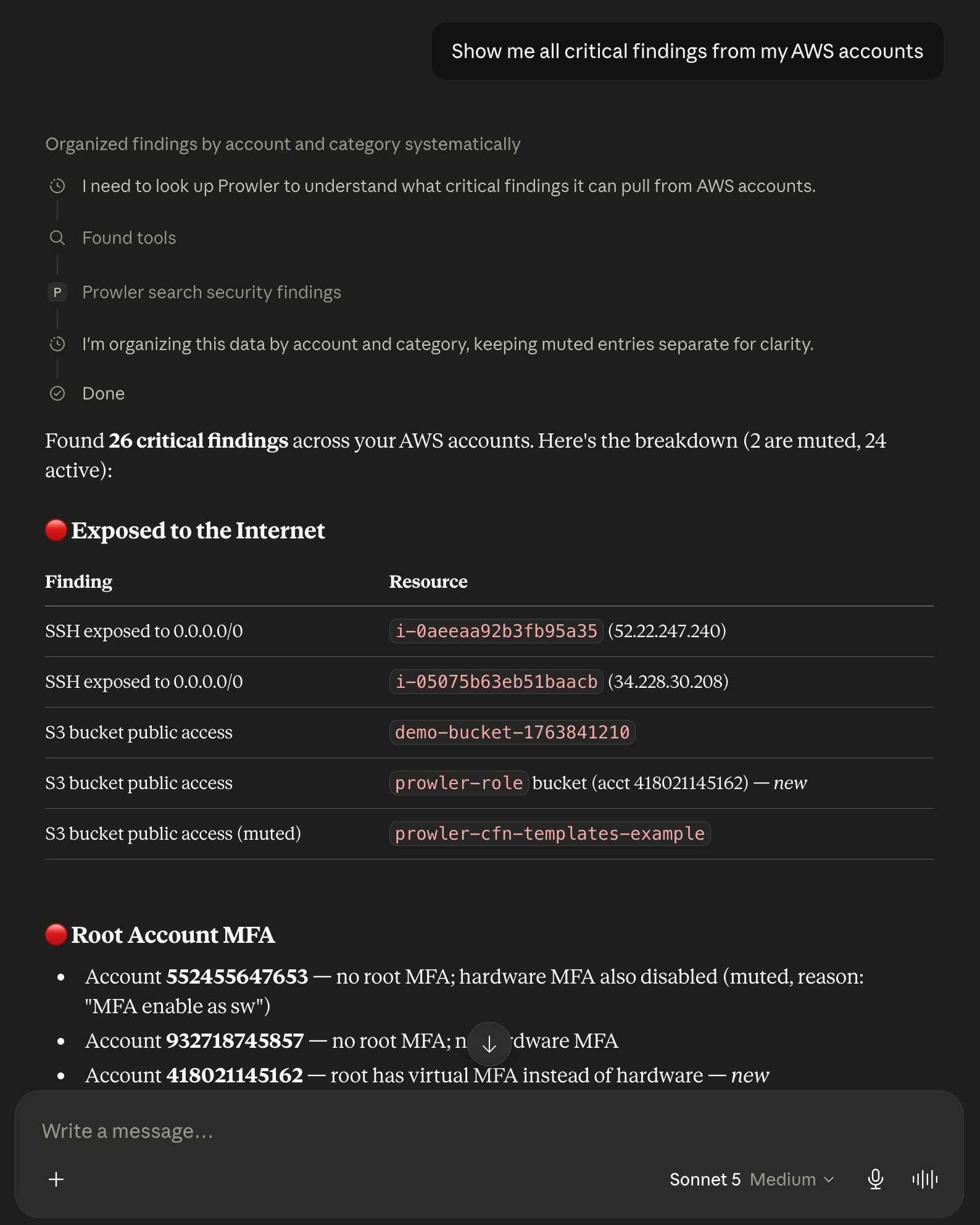
Troubleshooting
Server Does Not Appear After Editing the Config
- Quit and reopen the app entirely — closing the window is not enough on macOS.
- Confirm
claude_desktop_config.jsonis valid JSON. - Confirm the
commandpath points at a real executable. A wrong path surfaces as the server failing to start rather than as an auth error.
Tools Appear in Claude Code but Not in Chat
Expected. The Chat tab does not read~/.claude.json, so servers added with claude mcp add never appear here. The Chat tab needs an entry in claude_desktop_config.json, which is what this guide sets up.
Authentication Fails With 401
- Confirm the header value includes the
Bearerprefix. - Confirm the key has not been revoked in Prowler Cloud.
Checking the Logs
- macOS:
~/Library/Logs/Claude/mcp*.log - Windows:
%APPDATA%\Claude\logs\mcp*.log
Next Steps
Tools Reference
Explore all available tools and capabilities
All MCP Clients
Configuration reference for every supported client
Getting Help
- Search for existing GitHub issues
- Ask for help in our Slack community
- Report a new issue on GitHub