

 About Us
https://mcp.prowler.com/mcp so Codex can query findings, inspect checks, and manage your Prowler providers.
Which Codex Surfaces Work
Codex keeps MCP servers in one file,~/.codex/config.toml. You can set it up from either the Codex / ChatGPT desktop app or the Codex CLI — both write to that same file, so pick whichever you already use.
Codex and ChatGPT share one desktop app. Since July 2026 the standalone Codex app and the ChatGPT desktop app are the same application: Codex is a dedicated coding surface inside it, alongside Chat and Work. If you already had the Codex app, updating turns it into the new ChatGPT desktop app and it still opens in Codex. Either way, this guide applies.Not to be confused with ChatGPT Classic, the name given to the previous-generation ChatGPT desktop app.
Configure once, use everywhere. The Codex documentation states that the ChatGPT desktop app, Codex CLI, and IDE extension “share this configuration. Once you configure your MCP servers, you can switch among those clients without redoing setup.” Set the server up in the app or the CLI and the IDE extension picks it up with no extra work.
Prerequisites
- The Codex / ChatGPT desktop app, or Codex CLI 0.46.0 or later. Remote MCP servers over streamable HTTP were added to the CLI in 0.46.0 — check with
codex --versionand upgrade if needed. - A Prowler Cloud account. The free tier is enough to start. Sign up at cloud.prowler.com.
Step 1: Get Your Prowler API Key
Create an API key in Prowler Cloud and copy it. The key begins withpk_ and is shown only once. Check the API Keys guide for details.
Step 2: Add the Prowler MCP Server
The Prowler MCP Server needs two request headers:Authorization to authenticate you, and User-Agent because Codex does not send one by default.
Each tab below is a complete setup — follow the one that matches the surface you use.
- Codex / ChatGPT desktop app
- Codex CLI
- Open Settings and select Plugins → MCPs
- Click Add server
-
Enter
prowleras the name and choose type Streamable HTTP -
Enter the URL
https://mcp.prowler.com/mcp -
Add two headers:
- Save the server
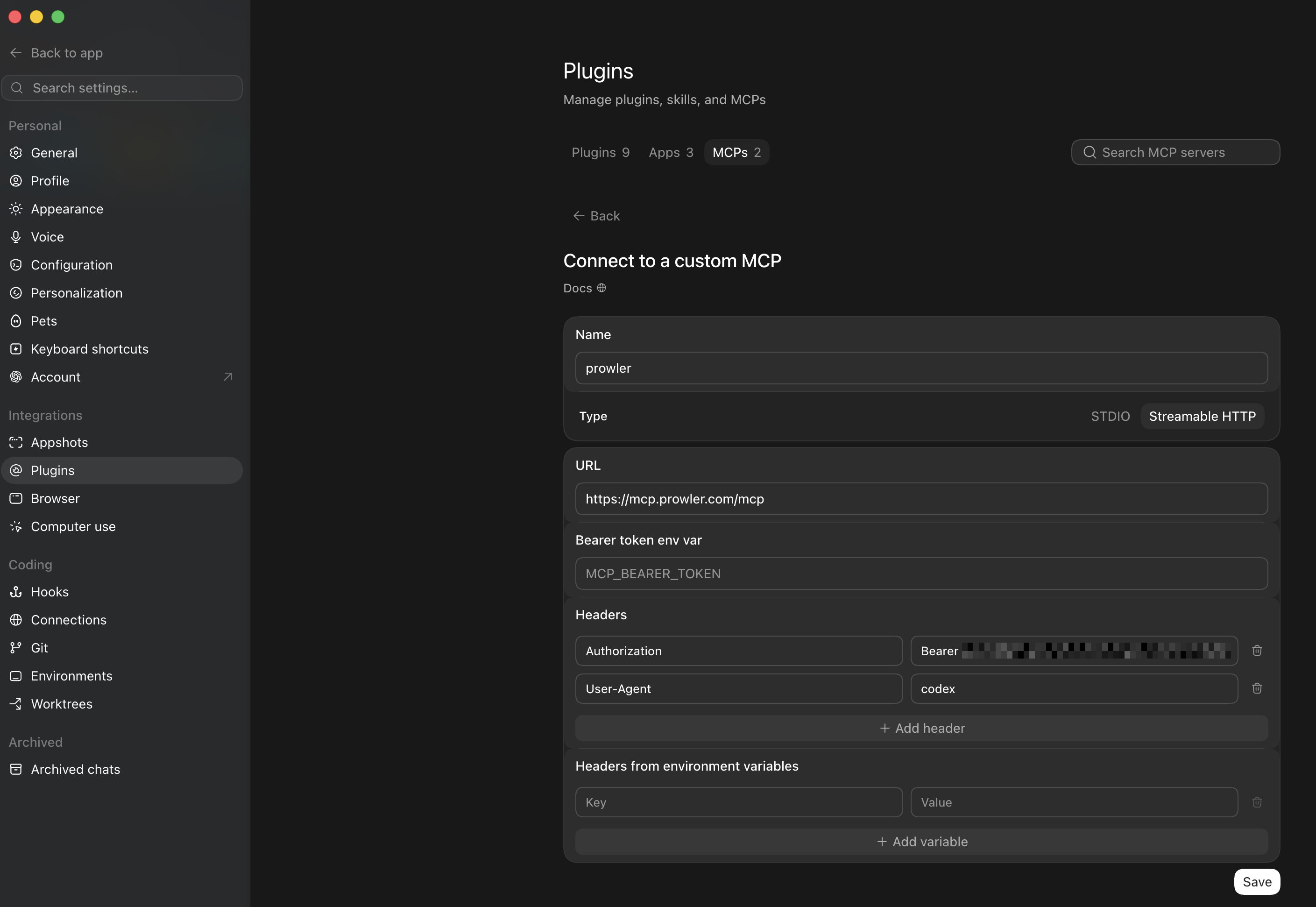
Enter the key directly here rather than using an environment variable. Codex can read credentials from an environment variable, but desktop applications do not reliably inherit variables exported in a shell profile — on macOS an app launched from Finder or the Dock typically sees none of them. Pasting the key into the dialog is the approach that works consistently in the app.
Local server: Replace the URL with your own HTTP endpoint. Everything else stays the same.
Step 3: Verify the Connection
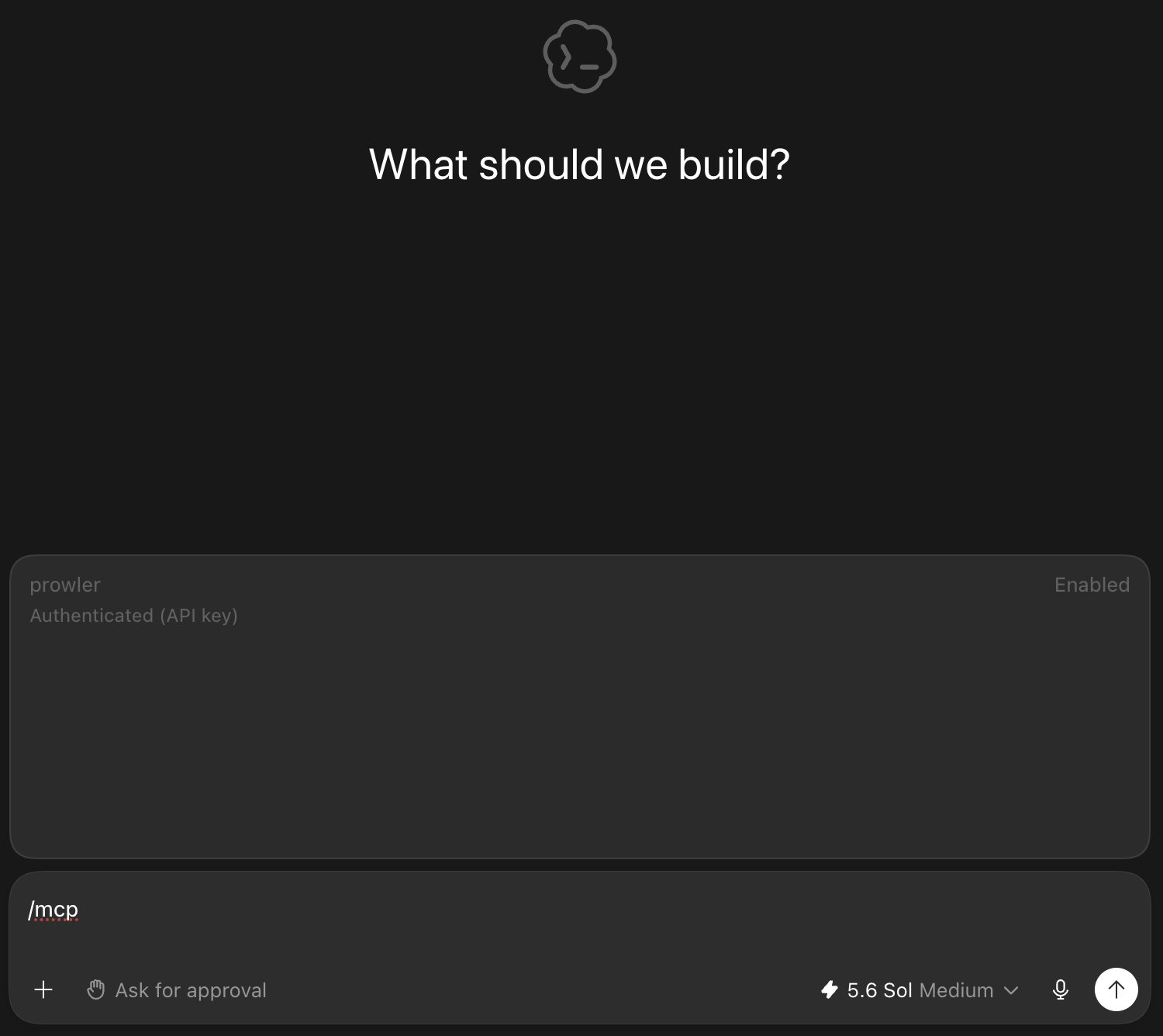
Run/mcp in the app or in a CLI session to list connected servers and their tools.
Step 4: Start Using Prowler MCP
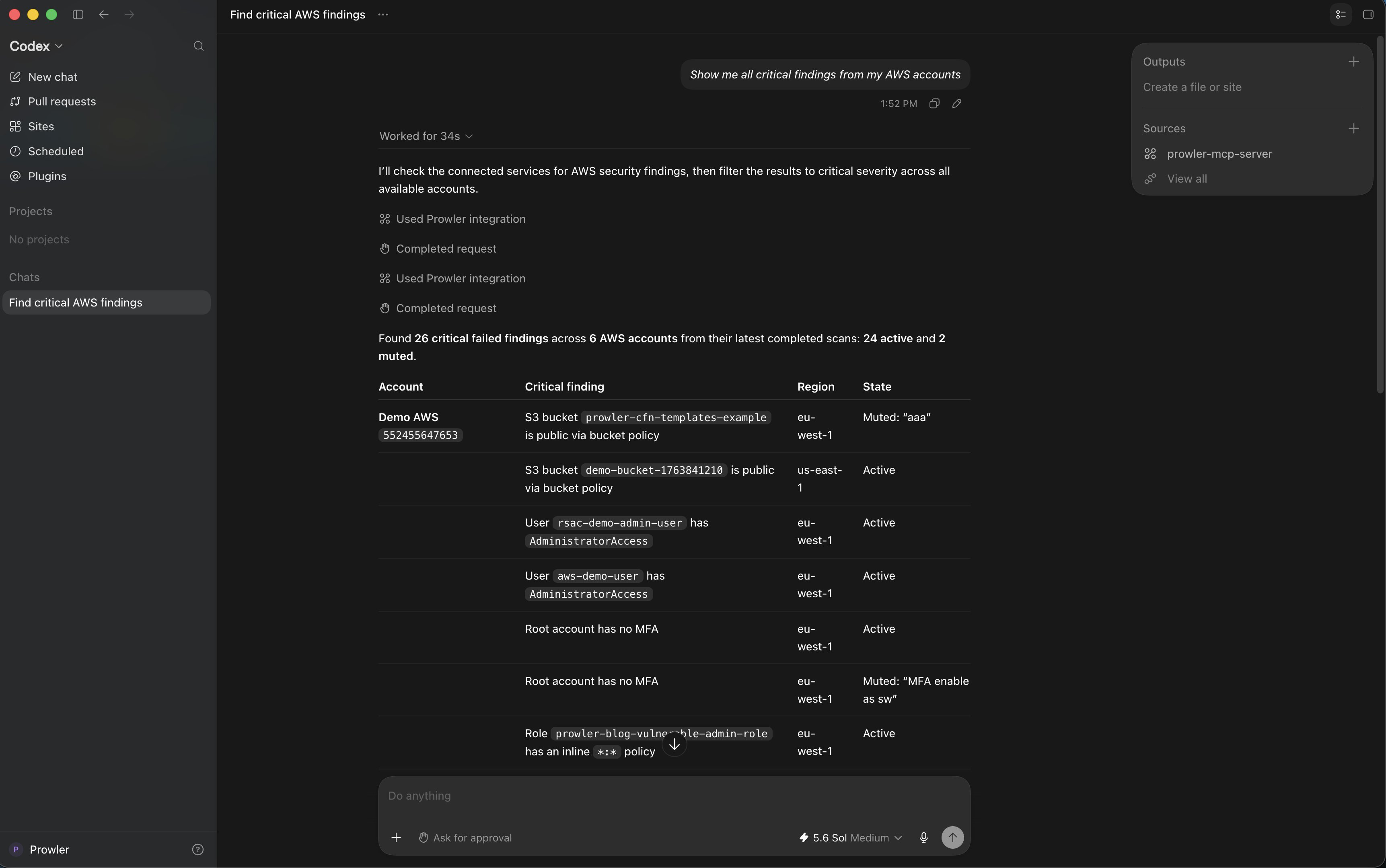
Ask Codex questions that use the Prowler tools:- “Show me all critical findings from my AWS accounts”
- “What does the S3 bucket public access check do?”
- “List my connected Prowler providers and their last scan date”
Troubleshooting
Startup Fails With HTTP 403 Forbidden
Codex reports a handshake failure on startup, with an HTML error page rather than a JSON response:User-Agent header is missing. Codex’s HTTP client does not send one, and requests without it are rejected before reaching the MCP server. Note this is a 403, not a 401 — so it is not an API key problem. Add the header as shown in Step 2; the value itself does not matter, only that the header is present.
Authentication Fails With 401
- Run
codex mcp get prowlerand confirm the entry has the headers you expect. Values are masked, but a missing header shows as-. - If you used a literal header, confirm the value starts with
Bearerand contains the full key. - If it works in the CLI but fails in the desktop app or the VS Code extension, you are almost certainly using an environment variable. Those surfaces do not inherit your shell profile. Switch that entry to a literal
Authorizationheader as shown in Step 2. - If you use an environment variable, verify it is set in the environment Codex was launched from:
echo $PROWLER_API_KEY. - With
env_http_headersthe variable must include theBearerprefix. Withbearer_token_env_varit must not — Codex adds the prefix itself. - Confirm the key has not been revoked in Prowler Cloud.
Server Not Listed
- Confirm your Codex CLI version is 0.46.0 or later with
codex --version. - Run
codex mcp get prowler. If it reports the server is not found, the entry was not written or the TOML table name is misspelled. - Check for a typo in the key names. Codex ignores unknown keys without warning.
Project-Scoped Config Is Ignored
A.codex/config.toml inside a project is loaded only when the project is trusted. If your entry lives there and does nothing, trust the project or move the entry to ~/.codex/config.toml.
Tools Do Not Appear After Editing the Config
Restart Codex. Configuration is read at startup. In the app, quit completely and reopen it, sometimes just closing the window is not enough.Next Steps
Tools Reference
Explore all available tools and capabilities
All MCP Clients
Configuration reference for every supported client
Getting Help
- Search for existing GitHub issues
- Ask for help in our Slack community
- Report a new issue on GitHub