

 About Us
Prerequisites
Before you begin, make sure you have:- A MongoDB Atlas organization with API Access enabled.
- An Organization ID (24-character hex string).
- An API Key pair (public and private keys) with appropriate permissions:
- Organization Read Only: Provides read-only access to everything in the organization, including all projects in the organization. This permission is sufficient for most security checks.
- Organization Owner: Required to audit the Auditing configuration for projects. Database auditing tracks database operations and security events, including authentication attempts, data definition language (DDL) changes, user and role modifications, and privilege grants. This configuration is essential for security monitoring, forensics, and compliance. Without Organization Owner permission, the
projects_auditing_enabledcheck cannot retrieve the audit configuration status.
- Access to Prowler Cloud or Prowler Local Server, or Prowler CLI (
pip install prowler).
Prowler Cloud
Onboard MongoDB Atlas using Prowler Cloud
Prowler CLI
Onboard MongoDB Atlas using Prowler CLI
Prowler Cloud
Step 1: Add the Provider
- Navigate to Providers and click Add Provider.
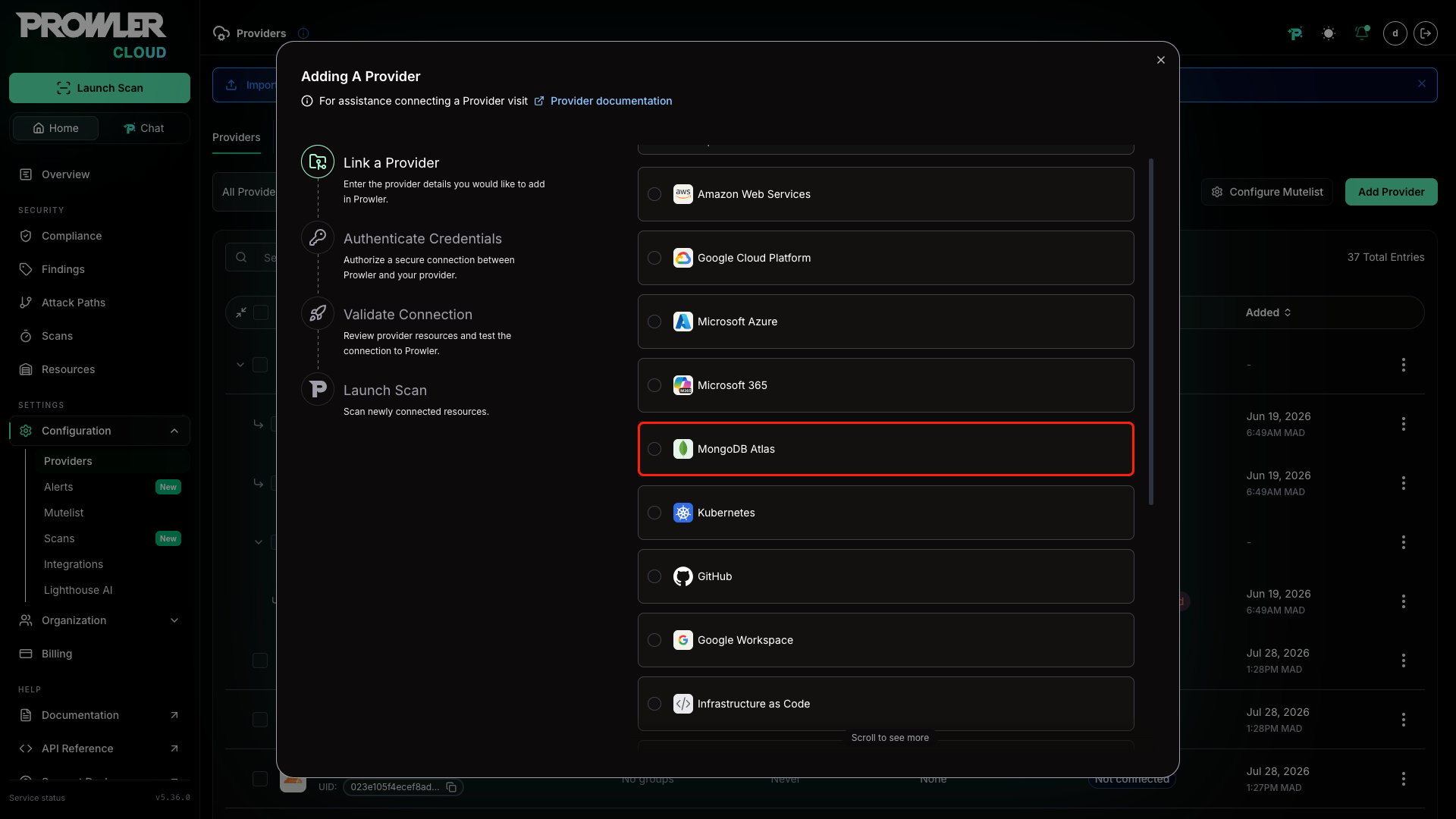
- Select MongoDB Atlas from the provider list.
- Enter your Organization ID (24 hex characters). This value is visible in the Atlas UI under Organization Settings.
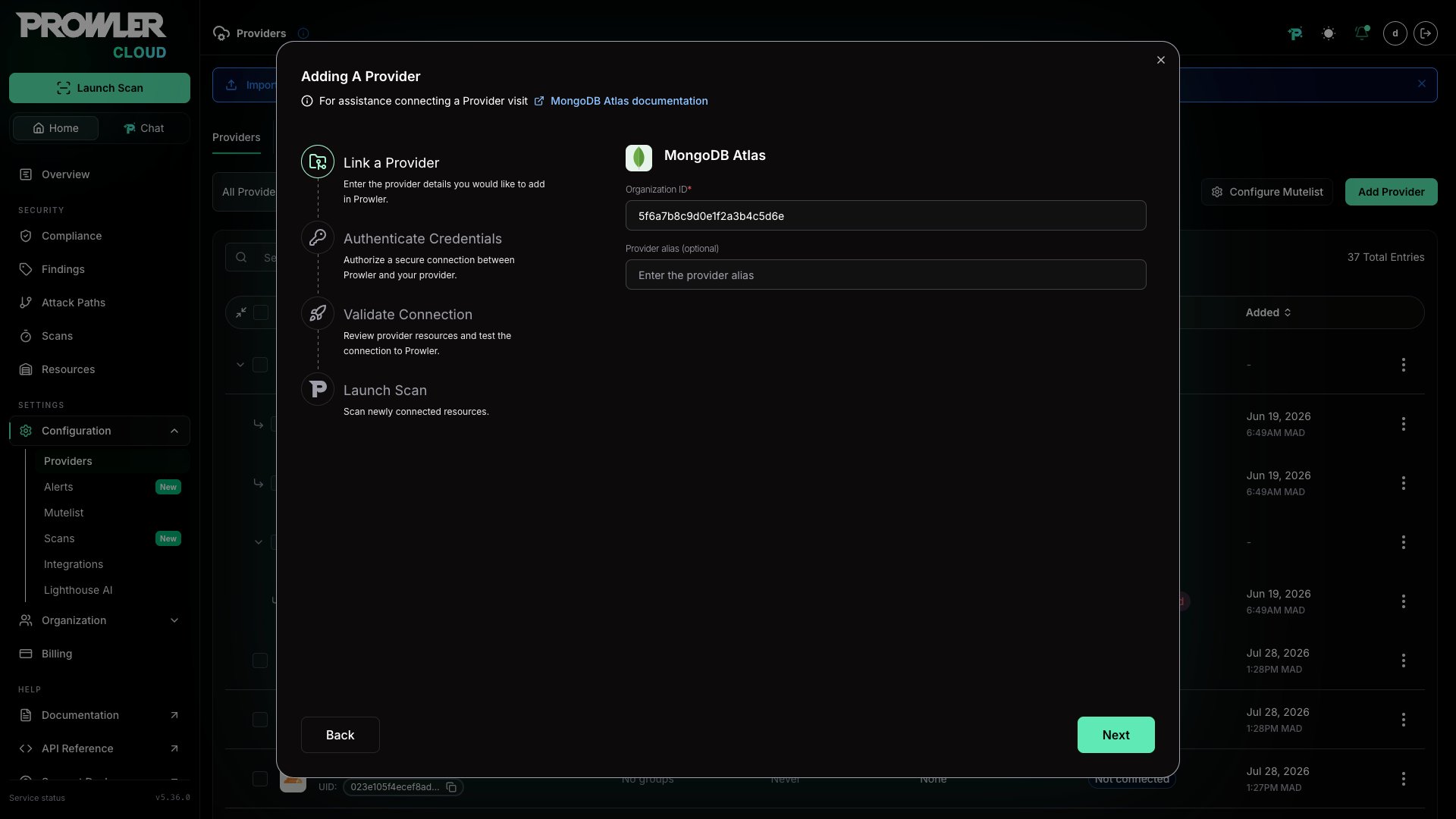
- (Optional) Add a friendly alias to identify this organization in dashboards.
Step 2: Provide API Credentials
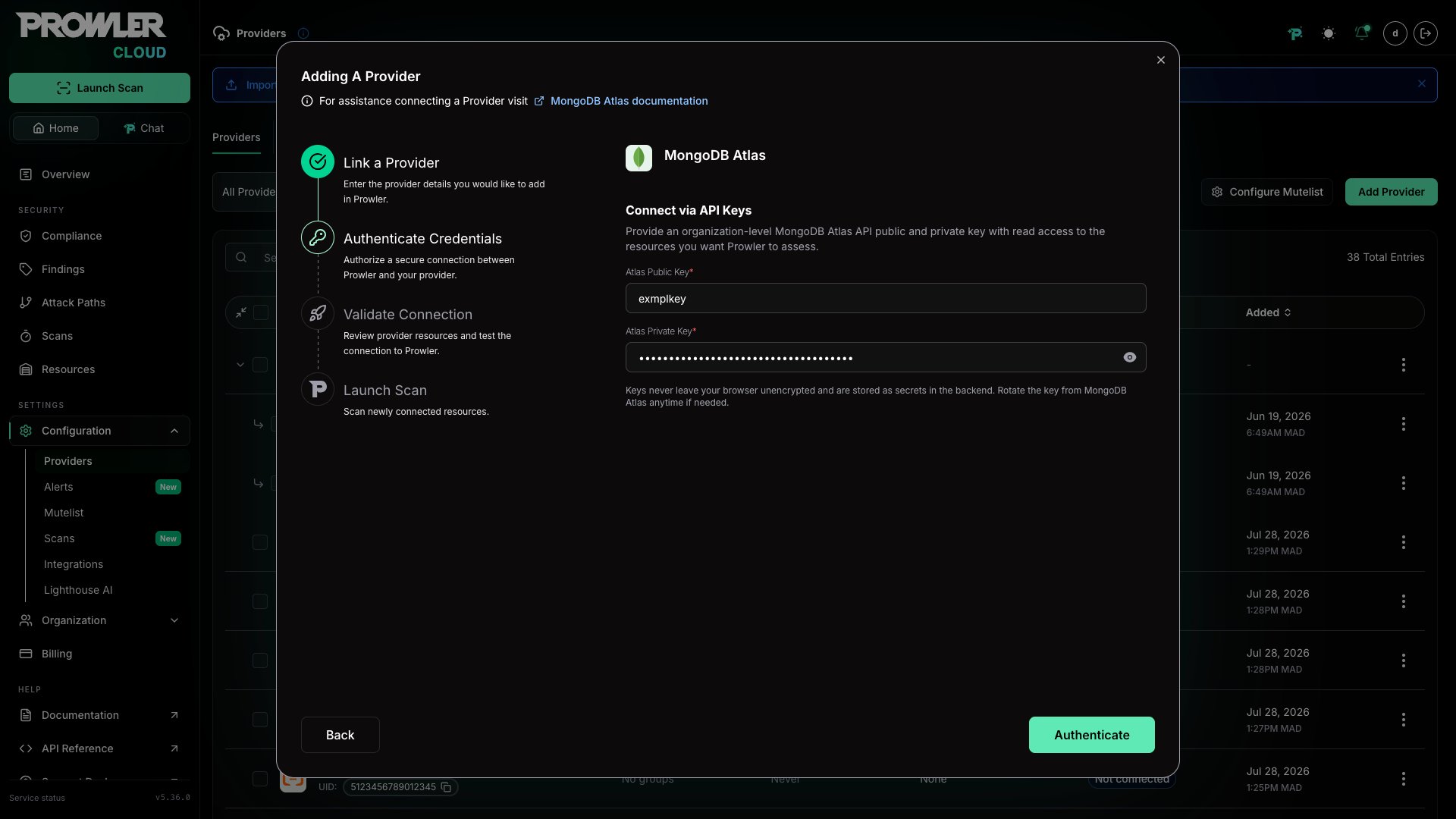
- Click Next to open the credentials form.
- Paste the Atlas Public Key and Atlas Private Key generated in the Atlas console.
Step 3: Test the Connection and Start Scanning
- Click Test connection to ensure Prowler Cloud can reach the Atlas API.
- Save the credentials. The provider will appear in the list with its current connection status.
- Launch a scan from the provider row or from the Scans page.

Prowler CLI
You can also run MongoDB Atlas assessments directly from the CLI. Both command-line flags and environment variables are supported.Step 1: Select an Authentication Method
Choose one of the following authentication methods:Command-Line Arguments
Environment Variables
Step 2: Run the First Scan
Scan All Projects and Clusters
Scan a Specific Project
Add the--atlas-project-id flag when you only want to assess one project:
Additional Tips
- Combine flags (for example,
--checksor--services) just like with other providers. - Use
--output-modesto export findings in JSON, CSV, ASFF, etc. - Rotate API keys regularly and update the stored credentials in Prowler Cloud to maintain connectivity.