

 About Us
Prowler currently supports public cloud OpenStack providers (OVH, Infomaniak, Vexxhost, etc.). Support for self-deployed OpenStack environments is not yet available, if you are interested in this feature, please open an issue or contact us.
Prerequisites
Before running Prowler with the OpenStack provider, ensure you have:- An OpenStack public cloud account with at least one project
- Access to the Horizon dashboard or provider control panel
- An OpenStack user with the Reader role assigned to your project (see detailed instructions in the Authentication guide)
- Access to Prowler CLI (see Installation) or an account created in Prowler Cloud
Prowler Cloud
Onboard OpenStack using Prowler Cloud
Prowler CLI
Onboard OpenStack using Prowler CLI
Prowler Cloud
Added in: 5.19.0Step 1: Add the Provider
- Navigate to “Providers” and click “Add Provider”.
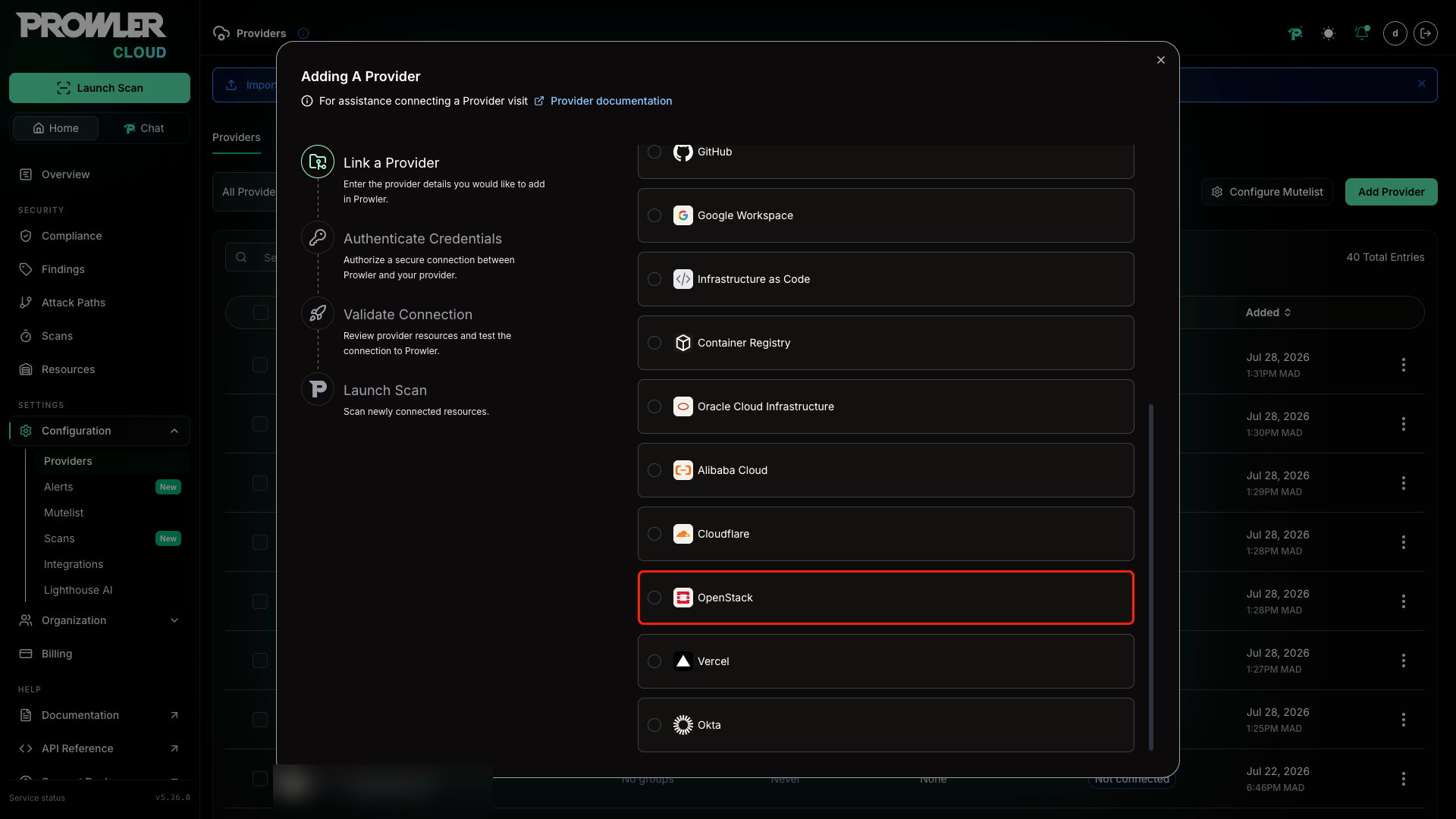
- Select “OpenStack” from the provider list.
- Enter the “Project ID” from the OpenStack provider.
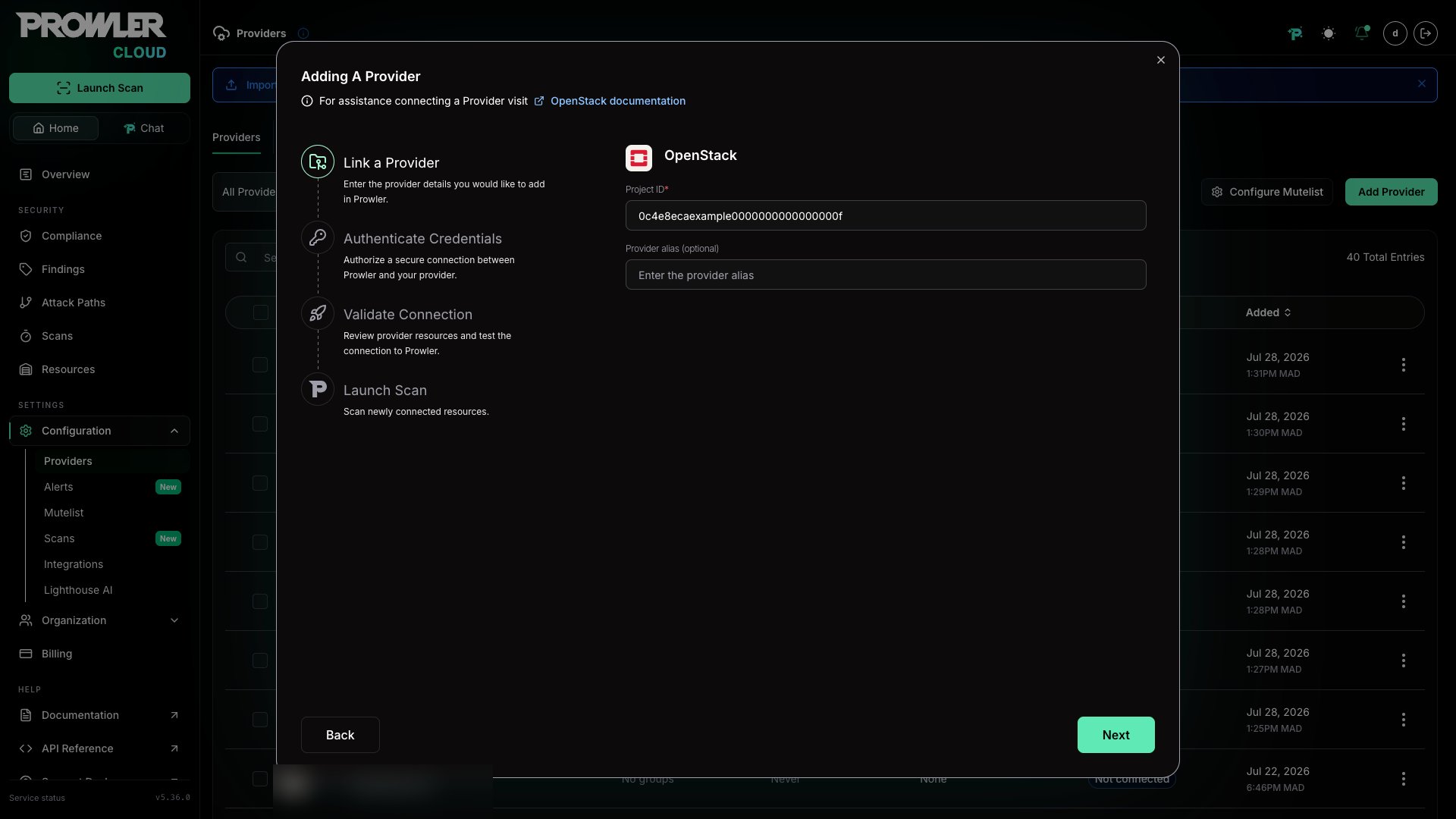
- (Optional) Add a friendly alias to identify this project in dashboards.
Step 2: Provide Credentials
- Click “Next” to open the credentials form.
- Paste the full content of the
clouds.yamlfile into the “Clouds YAML Content” field. This file is available in the OpenStack provider’s Horizon dashboard (see the Authentication guide for detailed instructions). - Enter the “Cloud Name” — this is the key that identifies the cloud entry inside the
clouds.yamlfile (e.g.,mycloud).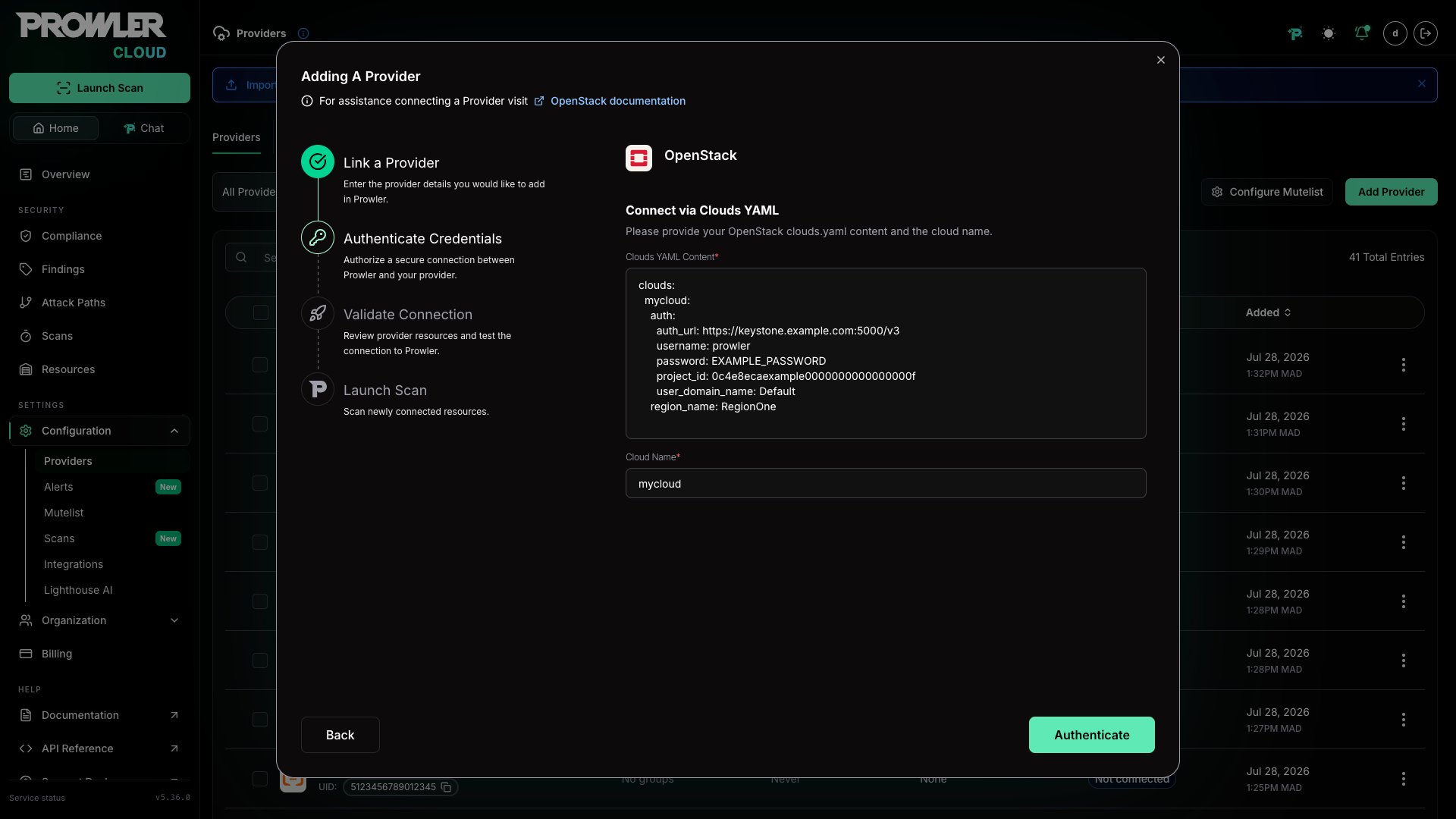
Step 3: Test the Connection and Start Scanning
- Click “Test connection” to ensure Prowler Cloud can reach the OpenStack API.
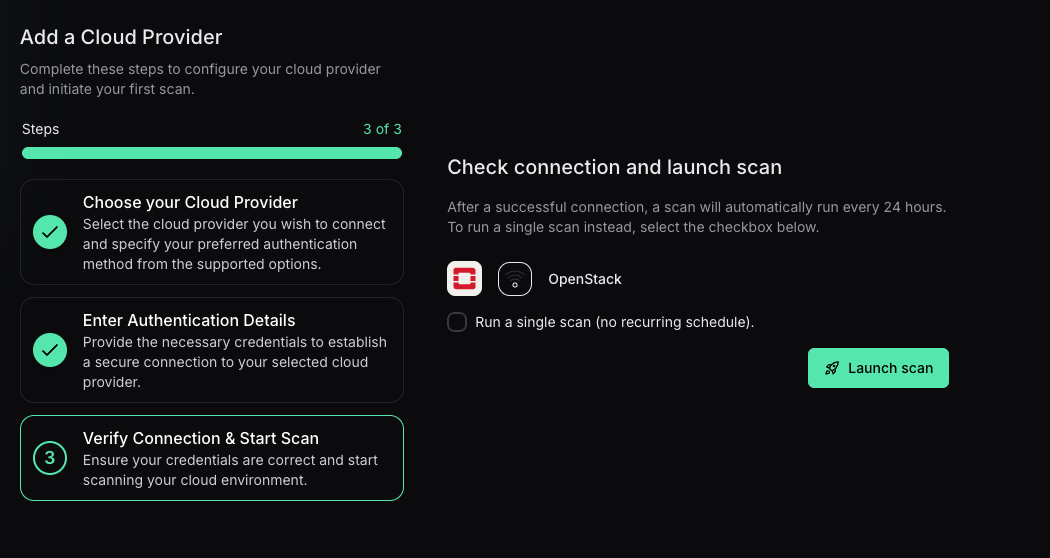
- The provider will appear in the list with its current connection status.
- Launch a scan from the provider row or from the “Scans” page.
Prowler CLI
Added in: 5.18.0Step 1: Set Up Authentication
Download theclouds.yaml file from your OpenStack provider (see Authentication guide for detailed instructions) and save it to ~/.config/openstack/clouds.yaml:
For detailed step-by-step instructions with screenshots, see the OpenStack Authentication guide.
Step 2: Run Your First Scan
Run a baseline scan of your OpenStack cloud:openstack with the custom cloud name defined in the clouds.yaml file (e.g., ovh-production).
Prowler will automatically discover and audit all supported OpenStack services in your project.
Scan a specific OpenStack service:
clouds.yaml with multiple cloud configurations:
region_name with a regions list in your clouds.yaml:
You must use either
region_name (single region) or regions (multi-region list), not both.Step 3: Review the Results
Prowler outputs findings to the console and generates reports in multiple formats. By default, Prowler generates reports in theoutput/ directory:
- CSV format:
output/prowler-output-{timestamp}.csv - JSON format:
output/prowler-output-{timestamp}.json - HTML dashboard:
output/prowler-output-{timestamp}.html
Supported OpenStack Services
Prowler currently supports security checks for the following OpenStack services:Support for additional OpenStack services will be added in future releases. Check the release notes for updates.
Troubleshooting
Authentication Errors
If encountering authentication errors:-
Verify credentials are correct:
-
Check network connectivity to the authentication endpoint:
-
Verify the Identity API version is v3:
Permission Errors
If checks are failing due to insufficient permissions:- Ensure your OpenStack user has the Reader role assigned to the project
- Check role assignments in your provider’s control panel or Horizon dashboard
- Verify that your user has access to all required services (Compute, Networking, Identity, etc.)
- Contact your OpenStack provider support if you need additional permissions
Keystone/Identity Service Limitations
If you see errors related to the Identity service:- This is expected behavior for public cloud providers
- Identity-related checks will be added for self-deployed OpenStack environments in future releases
- Focus on other available services (Compute, Networking, Storage, etc.)
OpenStack Additional Resources
- Supported OpenStack versions: Stein (2019.1) and later
- Minimum Identity API version: v3
- Tested providers: OVH Public Cloud, OpenStack-Ansible, DevStack
- Cloud compatibility: Fully compatible with standard OpenStack APIs