

 About Us
What the Report Includes
- Executive summary: A headline sentence, key indicators (critical, high and total failed findings, resources analyzed, Prowler ThreatScore and frameworks that improved), key messages and the main open item.
- Findings evolution: Failed findings by severity, one point per day, with a chart, a table and a reading of peaks and jumps. Muted findings are excluded.
- Inventory and scan coverage: Resources analyzed per day, scheduled and manual scans, scan duration and days without a complete scan.
- Compliance and Prowler ThreatScore: The ThreatScore pillars and every framework evaluated by the scans, comparing the first and the last complete scan of the period. The latest CIS benchmark of the provider type appears first, in its own block.
- Exploitability issues: The attack paths of the final scan, for provider types that support them.
- Next steps and methodology: Prioritized actions and the scope, scans and rules behind the figures.
Generating a Report
1
Open the Providers page
Sign in to Prowler Cloud at cloud.prowler.com, open Configuration in the left navigation and select Providers.
2
Open the report dialog
Click “Custom Scans and Reports”, next to “Configure Mutelist” and “Add Provider”.
3
Choose the provider, period and language
Search for the provider by alias or unique identifier (UID), select the first and last day of the period in the calendar, and choose “English” or “Español”. The report name is optional; without one, a timestamped name is used.
4
Generate and download
Click “Generate”. The report is built in the background, so other pages remain usable meanwhile. When it is ready, a notification offers a “Download” button.
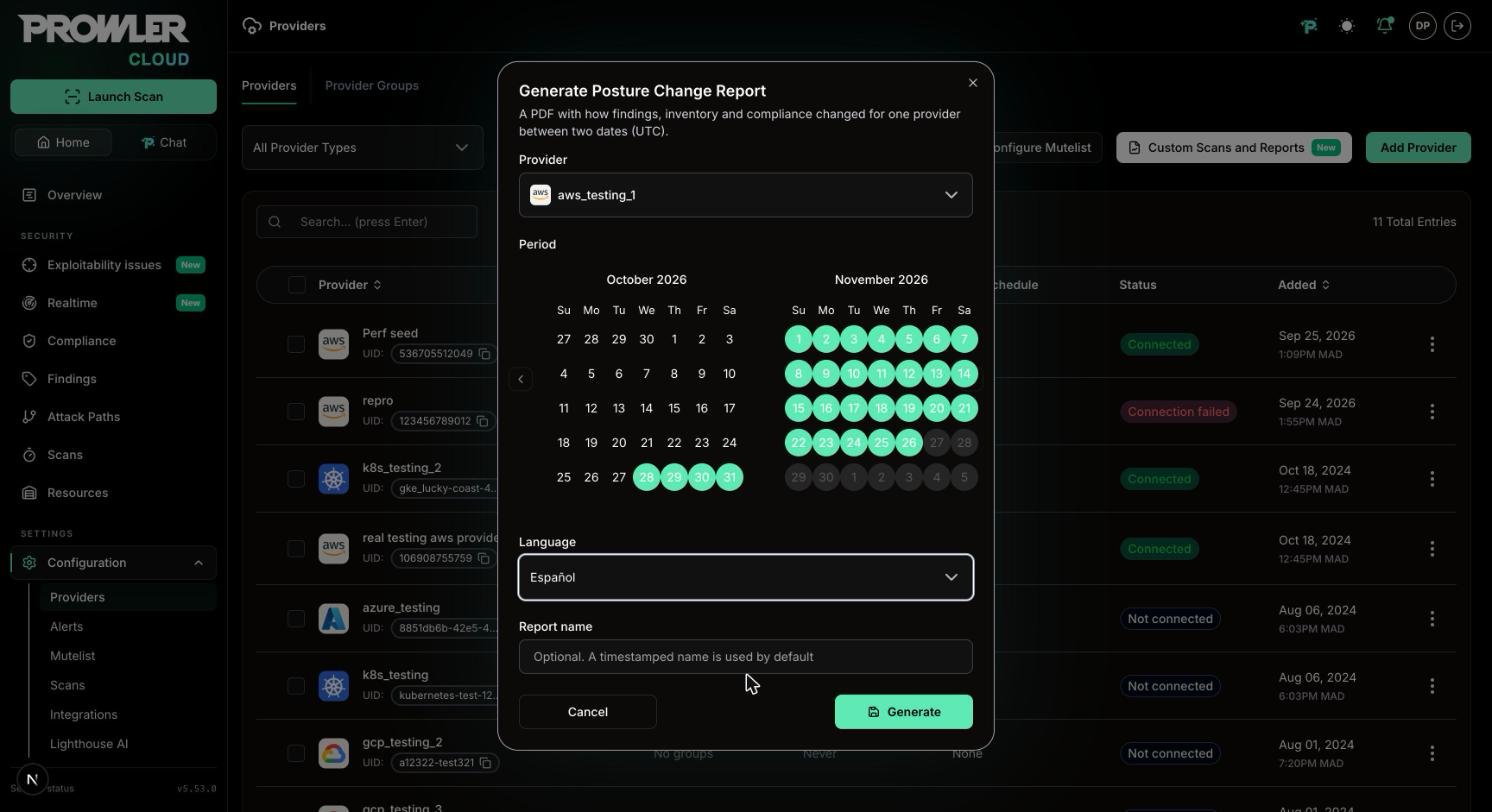
Generating a report requires the “Manage Scans” permission. Only providers visible to the role can be selected.
Choosing the Period
The period is read in Coordinated Universal Time (UTC) and includes both selected days. It cannot end in the future or exceed 366 days, and it defaults to the last 30 days. The report needs at least one complete scan of the provider in the period:- One point per day: Each day is represented by the last complete scan that finished that day.
- Partial scans: Scans that re-check specific resources count as coverage, but they are never used as data points, because they do not see the whole account.
- A single complete scan: The report shows the account at that point instead of a comparison, without deltas or charts.
Report Language
Reports can be generated in English or Spanish. The language changes the text and the number, percentage and date formats. Framework names, ThreatScore pillar names and issue titles keep the names stored in Prowler Cloud.Sections That Depend on the Provider Type
- CIS benchmark: The highest CIS version evaluated by the final scan appears first, with its score, its change over the period and the requirements still failing. Provider types without a CIS framework skip this block.
- Frameworks without a comparable score: A framework whose requirement count changed between the two scans, or that is missing from one of them, is shown without a change value.
- No compliance results: When the scans stored no compliance results and no ThreatScore, the compliance page is left out and the methodology explains why.
- Prowler ThreatScore: The pillars appear when the scans have a ThreatScore. Otherwise, the indicator reads “Not available for these scans”.
- Exploitability issues: The page appears for provider types with exploitability patterns, currently AWS, Azure, Google Cloud and Microsoft 365, when the final scan has been evaluated. Prowler Cloud keeps issues only for the latest scan of each provider, so the page shows the state at the end of the period and is left out when the period ends before the latest scan. See Exploitability Issues.
Generating a Report Through the API
The same report is available through the Prowler Cloud API:POST /api/v1/posture-change-reportswith theprovider_id,date_fromanddate_toquery parameters, and the optionallanguage(enores) andreport_name, starts the report and returns the task.GET /api/v1/posture-change-reports/{task_id}returns the PDF once the task has completed, and the task while it is still running.