

 About Us
What Is a Universal Compliance Framework
Most Prowler compliance frameworks target a single provider (for example, CIS AWS or CIS Azure). A universal framework declares its requirements once in a single JSON and maps each requirement to checks for many providers at the same time, so the same CSA CCM control maps to both AWS and Azure checks. Universal frameworks live at the top of the compliance catalog (prowler/compliance/<framework>.json), as opposed to the legacy per-provider frameworks under prowler/compliance/<provider>/. For real definitions, see csa_ccm_4.0.json, cis_controls_8.1.json, and dora_2022_2554.json in the Prowler repository.
Prowler currently ships three universal frameworks: CSA CCM, CIS Controls, and DORA. Each framework page on Prowler Hub lists the full requirement-to-check mapping per provider.
How Cross-Provider Type Compliance Works
Cross-Provider Type Compliance uses this structure to answer a single question: “How compliant is my whole estate against this framework, regardless of provider?” For a chosen universal framework, Prowler Cloud:- Selects one scan per compatible provider: by default, the latest completed scan of each provider the framework supports and that you are allowed to see.
- Aggregates the requirement results across those scans, folding multiple providers of the same type together.
- Computes a roll-up status for each requirement and an overall pass / fail / manual summary for the framework.
- Exposes a per-provider breakdown so you can see exactly which provider is failing a given control.
Cross-Provider Type Compliance never mixes different frameworks. It aggregates one universal framework at a time across providers. To review a single provider in isolation, use the standard per-scan Compliance view.
Supported Universal Frameworks
The Cross-Provider Type Compliance view currently supports the following universal frameworks. The compatible providers are the ones each framework declares checks for; a provider only contributes to the roll-up when it has a completed scan.
The catalog grows as new universal frameworks ship in Prowler. Browse the full compliance catalog at Prowler Hub.
Accessing the Cross-Provider Type View
1
Open the Compliance section
Sign in to Prowler Cloud at cloud.prowler.com and select Compliance from the left navigation.
2
Open the Multiple Scans tab
In Prowler Cloud, Multiple Scans is the landing tab of the Compliance page, so it opens already selected. Select Single Scan at the top of the page to return to the per-scan compliance experience, which remains unchanged.
The Across provider types section requires at least one completed scan for a provider compatible with a universal framework. If none is available, that section shows a notice prompting you to launch or wait for a scan to complete. The Across providers section below it has its own requirements — see Cross-Provider Compliance.
Exploring the Overview
The Multiple Scans tab is organized into two sections, each labeled with the axis it aggregates across:- Across provider types: One card per supported universal framework, aggregating every compatible provider type. This is the Cross-Provider Type Compliance experience described in the rest of this guide.
- Across providers: One card per single-provider framework (for example, CIS AWS) that can be aggregated across every provider of the same type. See Cross-Provider Compliance.
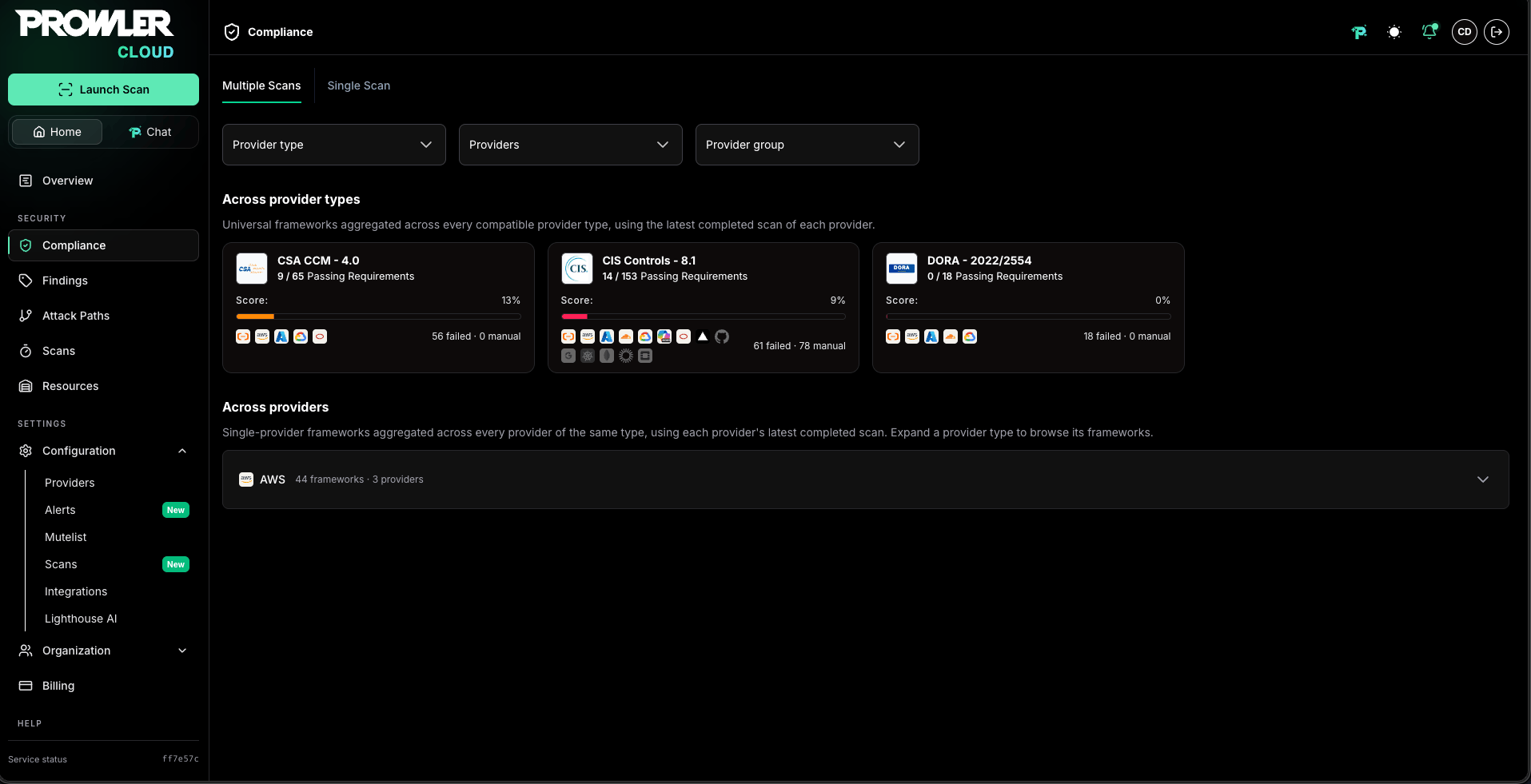
- Framework logo, name, and version: Identifies the universal standard (CSA CCM, CIS Controls, DORA).
- Score: The percentage of passing requirements over the total evaluated, aggregated across every contributing provider. Color coding follows three thresholds: red for severely low compliance, amber for partial compliance, and green for healthy posture.
- Passing Requirements: A
passed / totalcounter with the aggregated roll-up. - Provider chips: One icon per compatible provider. Providers with a completed scan appear active with their passing percentage; providers without a scan appear dimmed with a “no completed scan yet” tooltip so coverage gaps are obvious at a glance.
- Failed and manual counts: The number of failing and manual requirements in the roll-up.
Pinning Universal Frameworks to the Watchlist
Each universal framework card carries a pin button that adds the framework to the organization’s Compliance Watchlist. A universal framework is a single watchlist entry, so pinning it here also shows it as pinned on the Single Scan grid of every compatible provider. The Show only watchlist toggle above the tabs narrows both sections of the Multiple Scans tab to the pinned frameworks.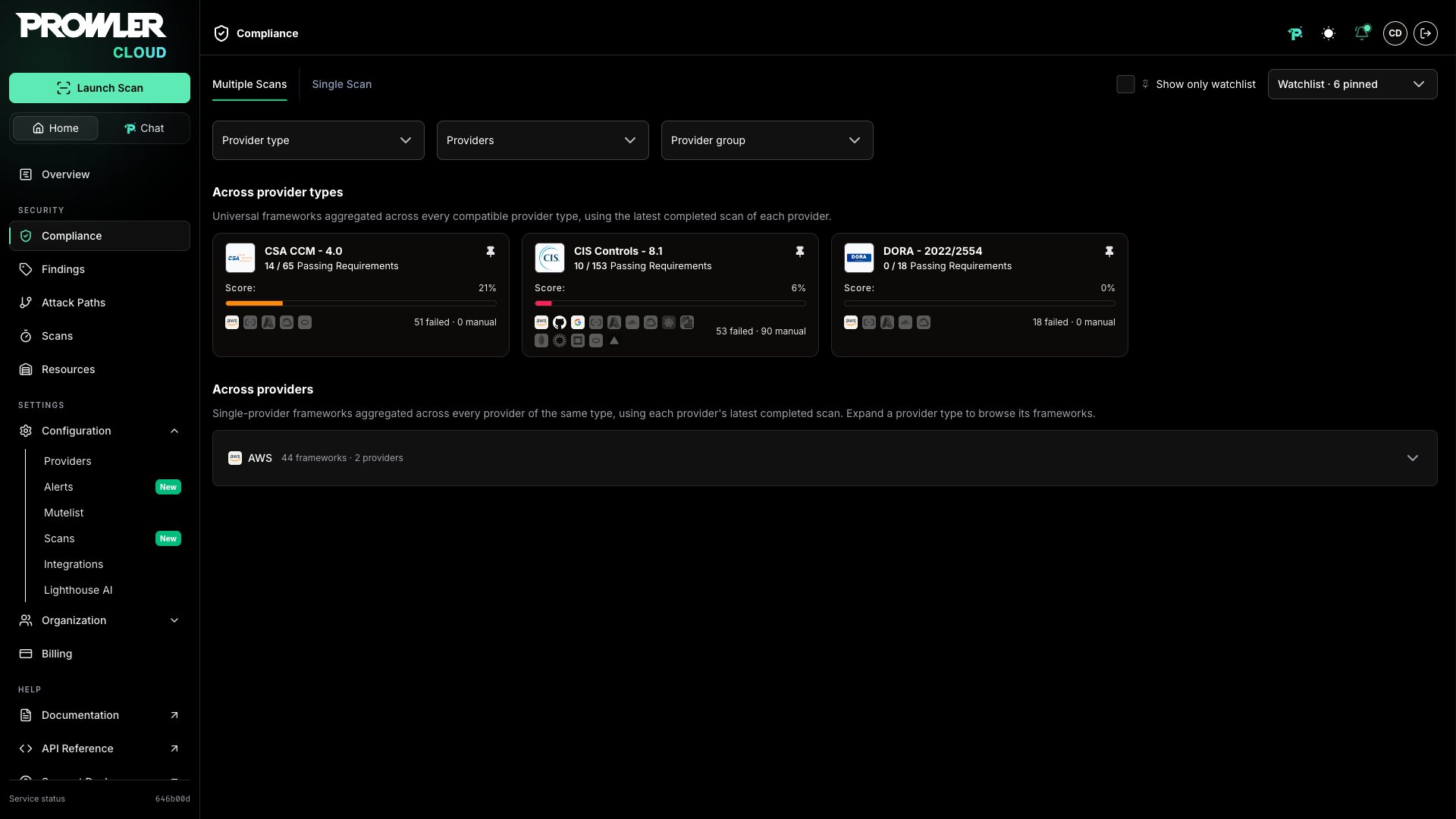
Filtering the Roll-Up
The filters bar controls which providers feed every card and detail view. Cross-Provider Type Compliance supports three filters:- Provider type: Narrow the roll-up to specific provider types (for example, only AWS and Azure).
- Providers: Narrow to specific providers, listed by alias and unique identifier (UID).
- Provider group: Narrow to the providers belonging to one or more provider groups.
Filters narrow which providers contribute to the aggregation. They do not change how a requirement rolls up (see Understanding the Roll-Up Status).
Working With the Framework Detail Page
The detail page provides the full breakdown for a single universal framework: aggregate metrics, provider coverage, top failing sections, and a requirement-by-requirement view with per-provider status.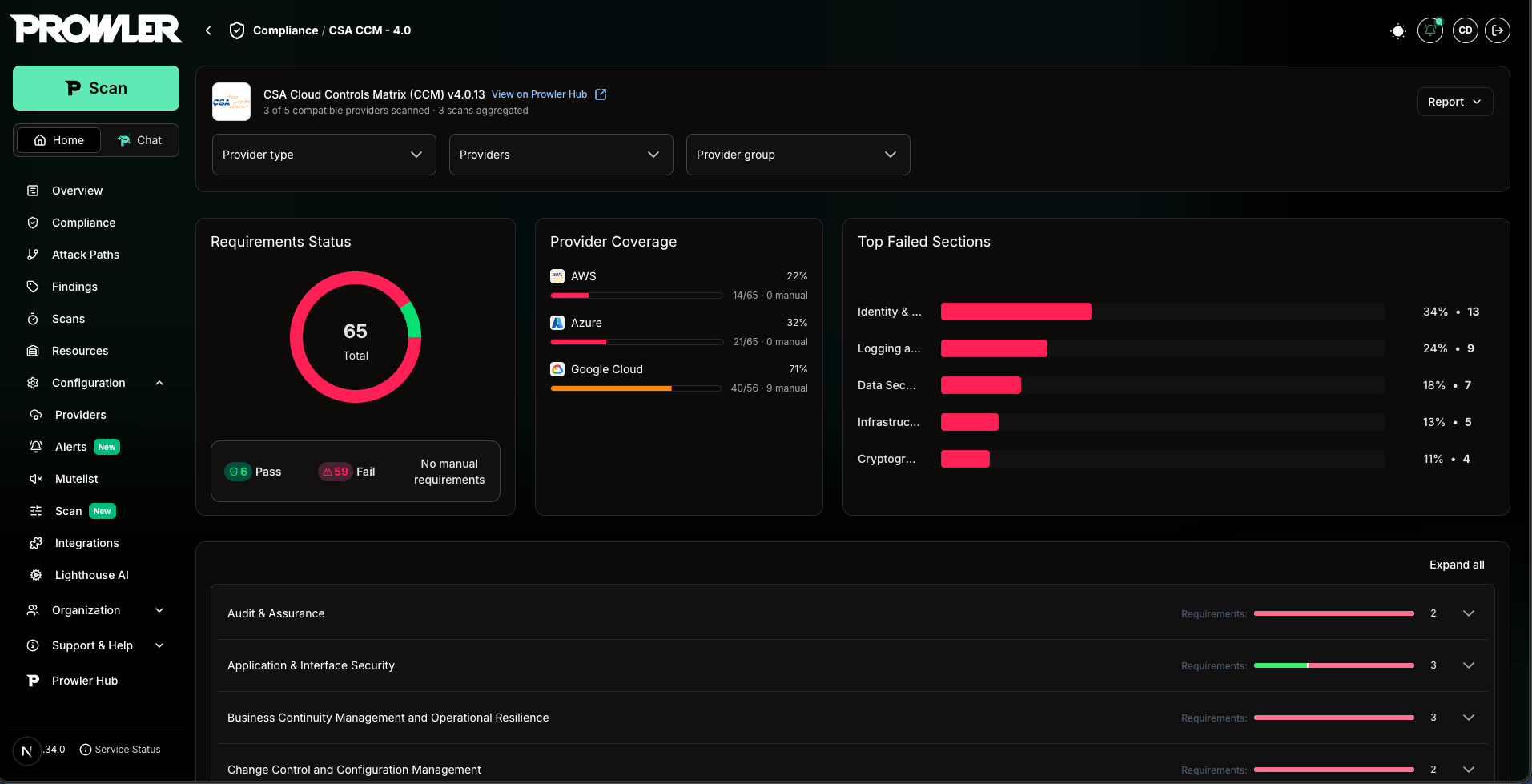
Header
The header shows the framework name and version, a link to the framework page on Prowler Hub, and a summary such as “X of Y compatible providers scanned · N scans aggregated” so you always know the coverage behind the numbers. The Report button in the top-right generates and downloads the combined PDF (see Downloading the Combined PDF Report).Summary Cards
Below the header, three summary cards condense the framework state:- Requirements Status: Donut chart with
Pass,Fail, andManualcounts plus the total number of requirements, reflecting the consolidated roll-up. - Provider Coverage: Shows which compatible providers contributed a scan and their individual posture, so coverage gaps and per-provider weak spots are visible at a glance.
- Top Failed Sections: Ranks the framework sections with the highest number of failing requirements, with deep links into the requirements accordion.
Requirements Accordion
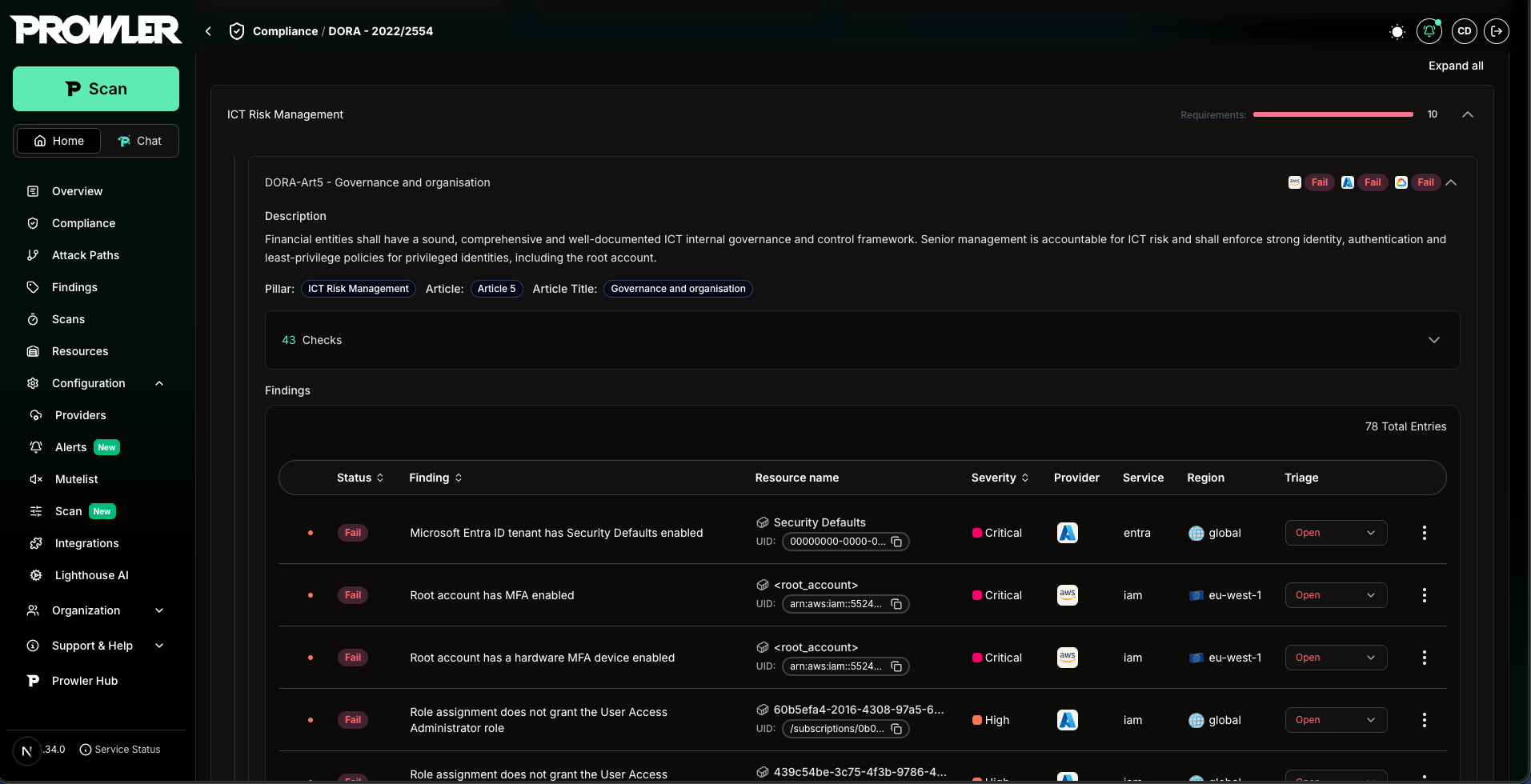
The accordion organizes every requirement of the framework. For each requirement you see:- Requirement ID and title: The official identifier from the framework.
- Roll-up status badge: A single
Pass,Fail, orManualbadge representing the consolidated status across all contributing providers. - Per-provider status: The status each contributing provider returned for that requirement, so a single failing provider is immediately attributable. Up to five providers are shown as inline chips; beyond that the row condenses into per-status counts (for example,
Fail ×3 Pass ×6), and selecting the counts opens the full provider-by-provider breakdown. - Provider-labeled checks: When you expand a requirement, the underlying checks are labeled with the provider they belong to (each universal requirement maps to different check IDs per provider).
Understanding the Roll-Up Status
Cross-Provider Type Compliance rolls up results in two stages, with a strict FAIL > PASS > MANUAL precedence. Per provider, per requirement:- If any check fails → the provider contributes FAIL for that requirement.
- Else if every check passes → PASS.
- Otherwise (no pass/fail evidence) → MANUAL.
- If at least one contributing provider is FAIL → the requirement is FAIL.
- Else if at least one contributing provider is PASS → PASS.
- Otherwise → MANUAL.
Only providers that actually contributed a result for a requirement are counted. A provider that has a scan in the aggregation but produced no result for a specific requirement (for example, because the framework maps no checks to that provider for that control) does not degrade the requirement to Manual. This keeps the roll-up focused on real evidence.
How Scans Are Selected
By default, Cross-Provider Type Compliance auto-selects the latest completed scan of each compatible provider you are allowed to see. This means:- The view always reflects your most recent posture per provider, without any manual scan selection.
- Adding a new compatible provider and running a scan automatically brings it into the roll-up.
- Provider visibility follows your role: only the providers your permissions allow are ever shown, and the roll-up is scoped accordingly. See Role-Based Access Control (RBAC).
- Only scans in the completed state are eligible. Failed, cancelled, and in-progress scans are ignored, so a provider whose latest scan is still running keeps contributing its previous completed one.
- A provider whose credentials stopped working still contributes its last completed scan. The posture it shows is as old as that scan.
- A provider connected but never scanned contributes nothing until its first scan completes. On the framework cards it appears dimmed instead of disappearing, so the coverage gap stays visible.
Downloading the Combined PDF Report
The Report button on the detail page generates a single PDF that combines every contributing provider’s latest scan for the framework into one executive document: a cover page listing every contributing provider, an executive summary with the consolidated roll-up, charts, a requirements index, and detailed findings grouped by requirement and provider.The Report Follows Your Filters
A report covers the exact set of scans your current filters resolve to. The provider type, providers, and provider group filters applied on the detail page determine which providers contribute, and the auto-select rule pins each contributing provider’s latest completed scan. The PDF is built from that resolved scan set together with the framework. As a result, each filter combination produces its own report. For example:- No filters → a report covering every compatible provider that has a completed scan.
Provider type = AWS, Azure→ a report covering only your AWS and Azure scans.Provider group = Production→ a report covering only the providers in that group.
Region filtering is not supported for the combined PDF report. The report recomputes status live across every region of the contributing scans, so a region-scoped request is rejected rather than producing a report that contradicts a region-filtered view.
Generating and Reusing a Report
Because the report aggregates many scans, it is generated asynchronously:1
Start the report
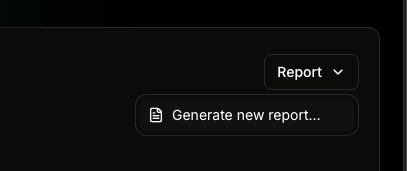
Select Report → Generate new report…, optionally give it a name, and confirm. Prowler starts a background job and shows a “Report generation started” confirmation.
2
Wait for completion
The button shows a “Generating report…” state while the job runs. Generation continues in the background: you can navigate away, and a toast notification appears when the report is ready, even after a page reload.
3
Download
When the report is ready, select Download from the notification, or use Report → Download latest at any time to fetch the most recent report for the current filters.
- You apply a filter combination that has never been reported before, or
- A contributing provider has completed a new scan since the report was generated. The report is tied to the specific scans it was built from, so a newer completed scan makes the previous report stale; Prowler recognizes it no longer matches the current selection and offers to generate an up-to-date one.
The PDF detail section renders only failed requirements by default so the report stays focused as an executive/auditor document. As with every Prowler PDF, the detail section is capped at the first 100 failed findings per check; use the per-scan CSV or JSON-OCSF exports for the complete, untruncated list. See Downloading Compliance Reports for the full PDF behavior and the
DJANGO_PDF_MAX_FINDINGS_PER_CHECK setting.