

 About Us
How Cross-Provider Compliance Works
For a chosen framework and provider type, Prowler Cloud:- Selects one scan per provider: the latest completed scan of every provider of that type you are allowed to see.
- Aggregates the requirement results across those scans.
- Computes a roll-up status for each requirement and an overall pass / fail / manual summary.
- Exposes a per-provider breakdown so a failing provider is immediately attributable.
Accessing the Cross-Provider View
1
Open the Compliance section
Sign in to Prowler Cloud at cloud.prowler.com and select Compliance from the left navigation.
2
Open the Multiple Scans tab
Multiple Scans is the landing tab of the Compliance page in Prowler Cloud. Scroll to the Across providers section, below the Across provider types cards.
3
Expand a provider type
Each provider type is a collapsible group headed by its counts (frameworks available and providers registered). Expanding it reveals one card per single-provider framework available for that type.
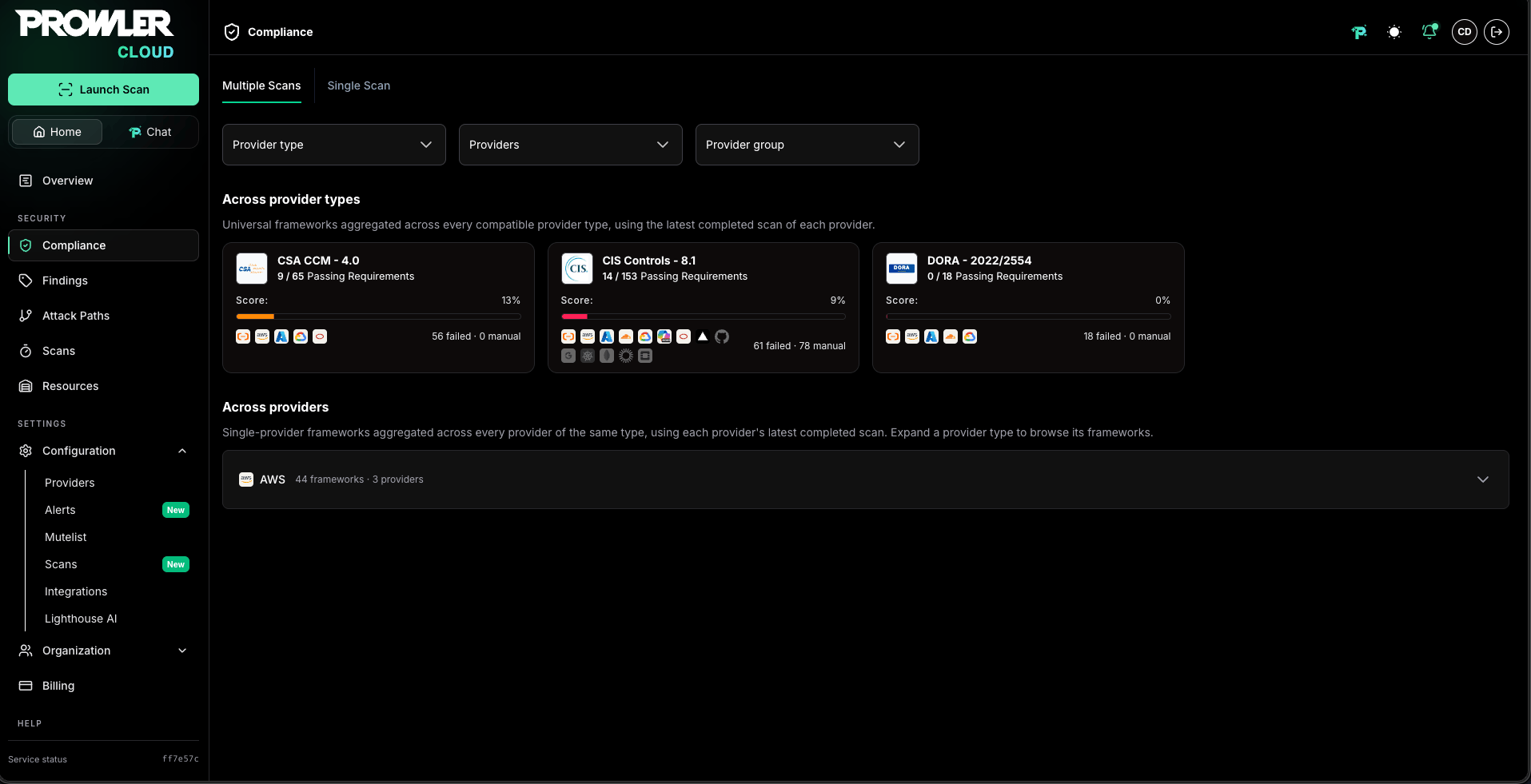
A provider type appears only when it has two or more providers registered and at least one of them has a completed scan: that scan is where the framework catalog of the provider type is read from. With a single provider the aggregation is identical to the standard per-scan Compliance view.
- Universal frameworks: Aggregated in the Across provider types section above. See Cross-Provider Type Compliance.
- Prowler ThreatScore: Reviewed per scan in the Single Scan tab. See Prowler ThreatScore.
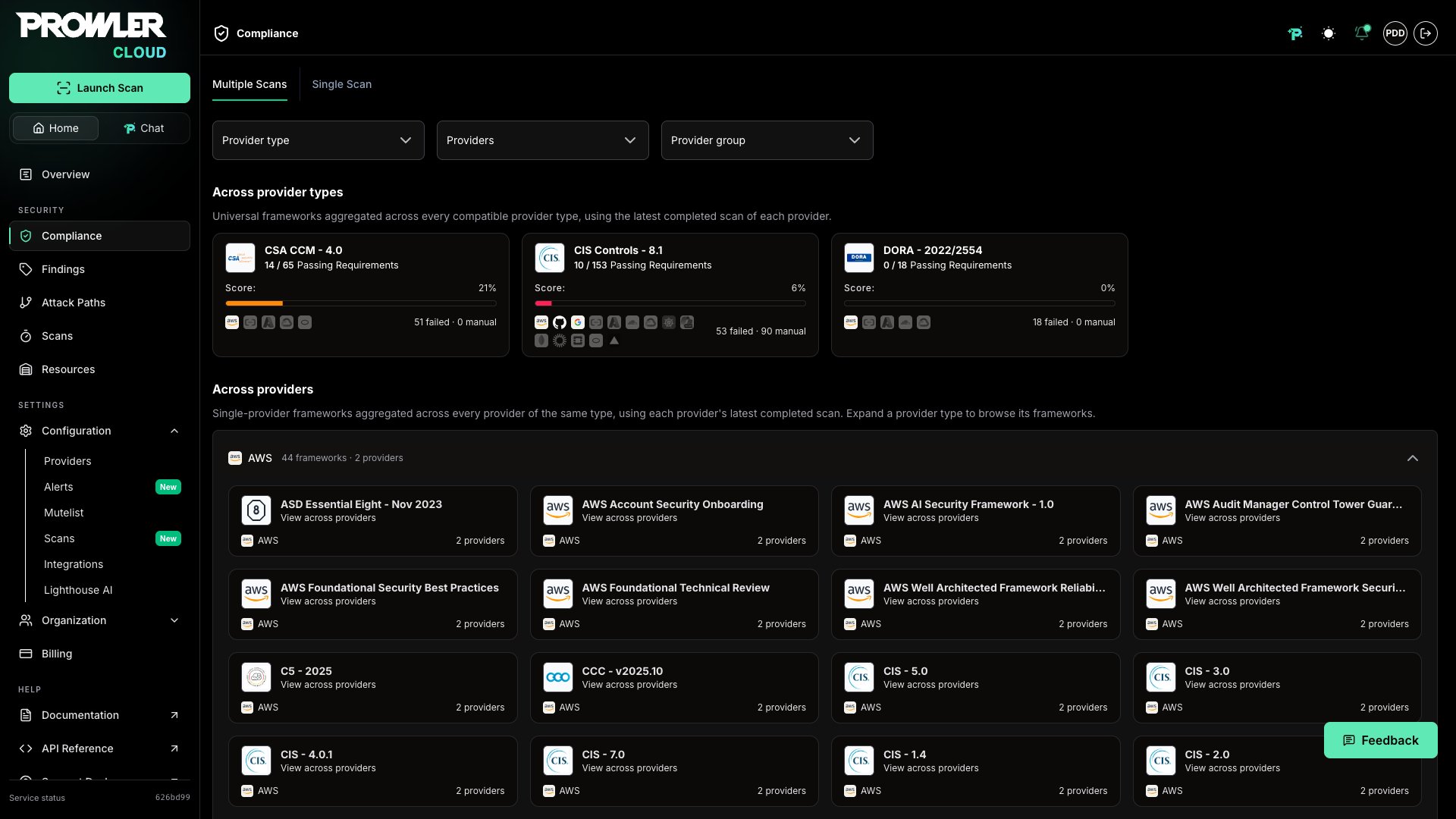
Pinning Frameworks to the Watchlist
Framework cards inside each provider type group carry a pin button that adds the framework to the organization’s Compliance Watchlist. With the Show only watchlist toggle enabled, each group lists only its pinned frameworks, and a group whose frameworks are all filtered out explains that no pinned framework matches instead of expanding into an empty accordion.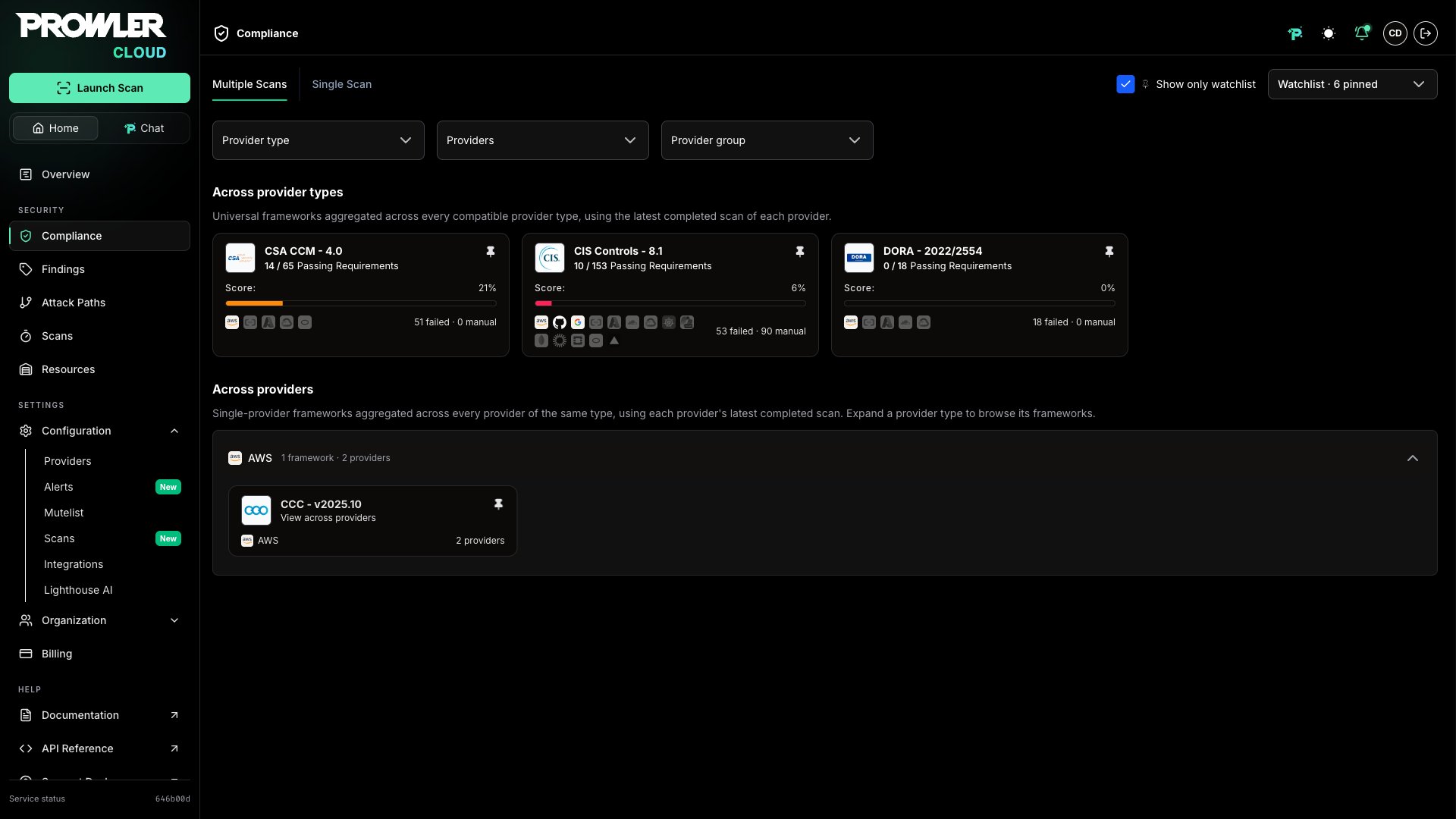
Which Providers Are Listed and Which Contribute
The Across providers section and the detail page count different things, so their numbers often differ:- The section describes your catalog: the group header and each framework card report how many providers of that type exist in Prowler Cloud, after the filters you applied.
- The detail page describes your evidence: only providers with a completed scan become a column in the aggregation, because every number on that page is computed from scan results.
17 providers while its detail page reports two providers aggregated from two scans. The other 15 providers exist in Prowler Cloud but have no completed scan, so there is nothing of theirs to aggregate. This is the expected state right after onboarding an AWS Organization: the discovery wizard registers every member it finds in the organization as a provider, and providers not scanned yet count toward the catalog while contributing nothing to the roll-up. See AWS Organizations for that onboarding flow.
What decides whether a provider contributes is having a completed scan, not its connection status:
- Completed scans only: Failed, cancelled, and in-progress scans are ignored, so a provider whose latest scan is still running keeps contributing its previous completed one.
- Disconnected providers still count: A provider whose credentials stopped working contributes its last completed scan. The posture it shows is as old as that scan.
- Newly connected providers do not: A provider contributes nothing until its first scan completes.
Working With the Framework Detail Page
Selecting a card opens a detail page with the same layout as the cross-provider-type detail, with the column axis swapped from provider type to provider:- Header: States the framework, the provider type, and the real coverage behind the numbers, as a count of aggregated providers and scans. The Report button generates the combined PDF.
- Requirements Status: Donut chart with the consolidated
Pass,Fail, andManualcounts. - Coverage card: Ranks each contributing provider’s individual posture, so the weakest one is visible at a glance. Every row is one provider of the type, labeled with its alias and unique identifier (UID).
- Top Failed Sections: Ranks the framework sections with the most failing requirements, with deep links into the requirements accordion.
- Requirements accordion: Each requirement shows its roll-up badge plus the status of every contributing provider, labeled with the provider alias and unique identifier (UID). With one or two providers the statuses appear as inline chips; from three onwards the row condenses into per-status counts (for example,
Fail ×3 Pass ×6), and selecting the counts opens the full provider-by-provider breakdown. Expanding a requirement queries the findings of every contributing scan and merges them into a single table.
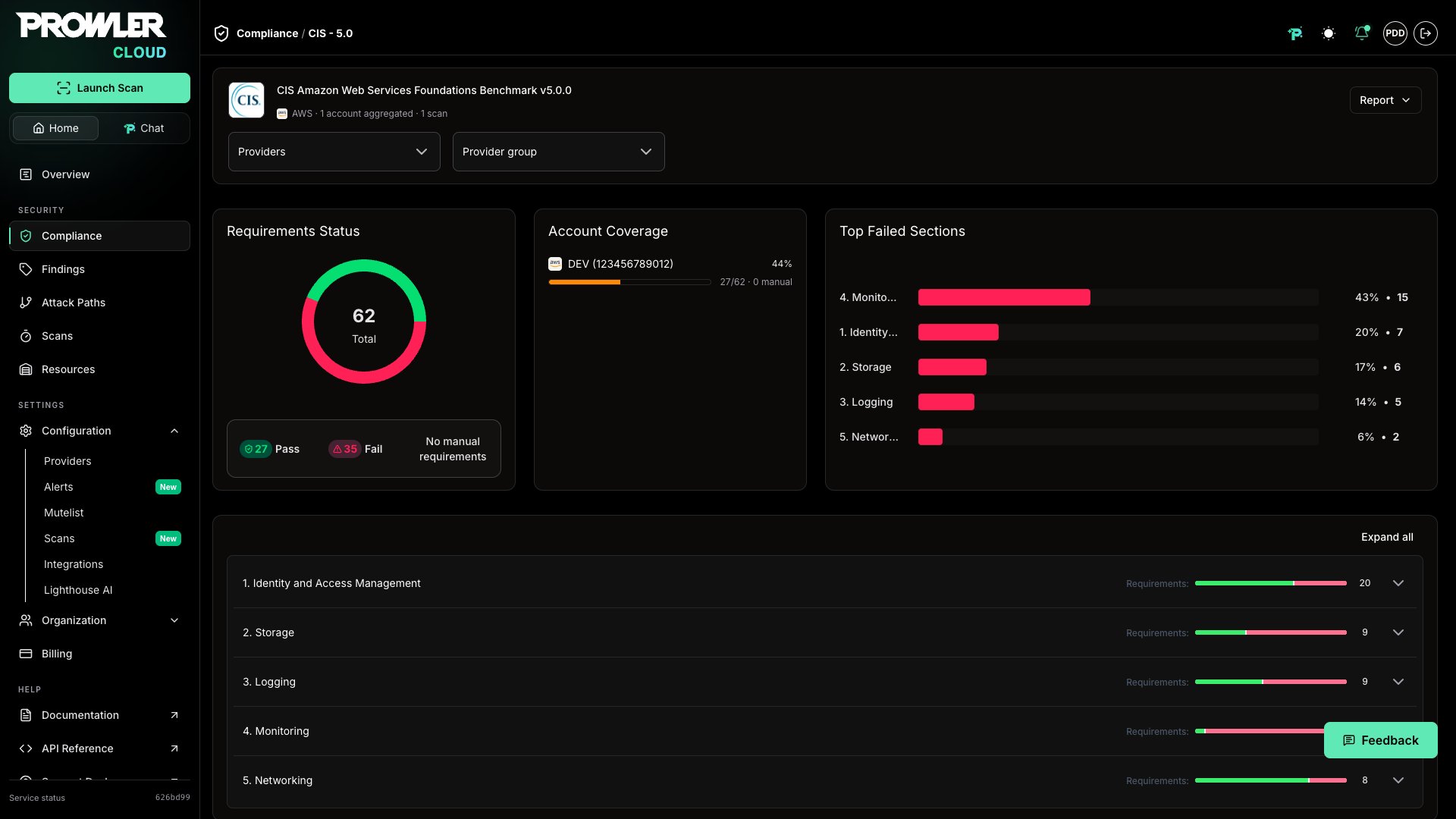
Checks are not labeled per provider type as in the cross-provider-type view. Every provider of the same type shares one check set, so a single list of checks covers the whole aggregation.
Filtering the Roll-Up
Two filters control which providers feed the aggregation:- Providers: Narrow to specific providers of the type, listed by alias and UID.
- Provider group: Narrow to the providers belonging to one or more provider groups.
Understanding the Roll-Up Status
Results roll up in two stages, with a strict FAIL > PASS > MANUAL precedence. Per provider, per requirement:- If any check fails → the provider contributes FAIL for that requirement.
- Else if every check passes → PASS.
- Otherwise (no pass/fail evidence) → MANUAL.
- If at least one contributing provider is FAIL → the requirement is FAIL.
- Else if at least one contributing provider is PASS → PASS.
- Otherwise → MANUAL.
Only providers that actually contributed a result for a requirement are counted. A provider whose scan produced no result for a specific requirement does not degrade that requirement to Manual, which keeps the roll-up focused on real evidence.
Downloading the Combined PDF Report
The Report button produces a single PDF across every contributing provider of the type: a cover page listing the providers, an executive summary with the consolidated roll-up, charts, a requirements index, and detailed findings grouped by requirement and provider.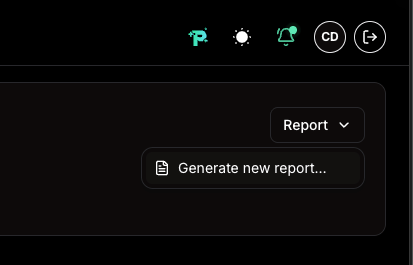
A report is tied to the exact set of scans it was built from. When any contributing provider completes a new scan, the previous report no longer matches the current selection and Prowler Cloud offers to generate an up-to-date one.